You can change Jira work from the board itself, one card at a time. Move a card with a preview, edit its fields, change its sprint, or create a work item or a subtask without leaving Work.
Move a card #
- Drag the card to another column. Or focus it, press M and choose a column. Or open the card’s … menu (its name is “Actions for” and the key) and choose Move to and the column.
- Read the Policy block of the dialog Move … to ….
- Choose a transition under Available transitions. The list holds only the transitions that land the work item in your column, each by its name. Fill any field it requires.
- If the move goes over a limit, or the work item is past its agreed expectation, tick the box the warning asks for: I reviewed the WIP warning above (“warnings” for more than one limit), I reviewed the aging warning above or I reviewed the WIP and aging warnings above. Then enter a Reason (kept in the audit trail) of up to 255 characters.
- Select Confirm transition.
The Policy block holds these lines:
- The column’s count: “Before this move, … holds …”, with the column’s count and its limit.
- The limits the move changes: “After this move:”, then one line for each limit the card enters or leaves, with its count after the move. A limit on the sum of a field reads “This work item has no value in the field this limit sums.” when the work item has none, so the move changes no figure.
- The aging line: “This work item is already past the agreed expectation of …”.
- The time of the count: “Counted as of …, over the work items you can read.”
- Stale: a yellow lozenge beside an old count. Its (i) says why, and a stale count asks for no acknowledgment of a WIP limit.
The (i) “About these checks” beside Policy says the checks are advisory. They never enforce a WIP limit inside Jira.
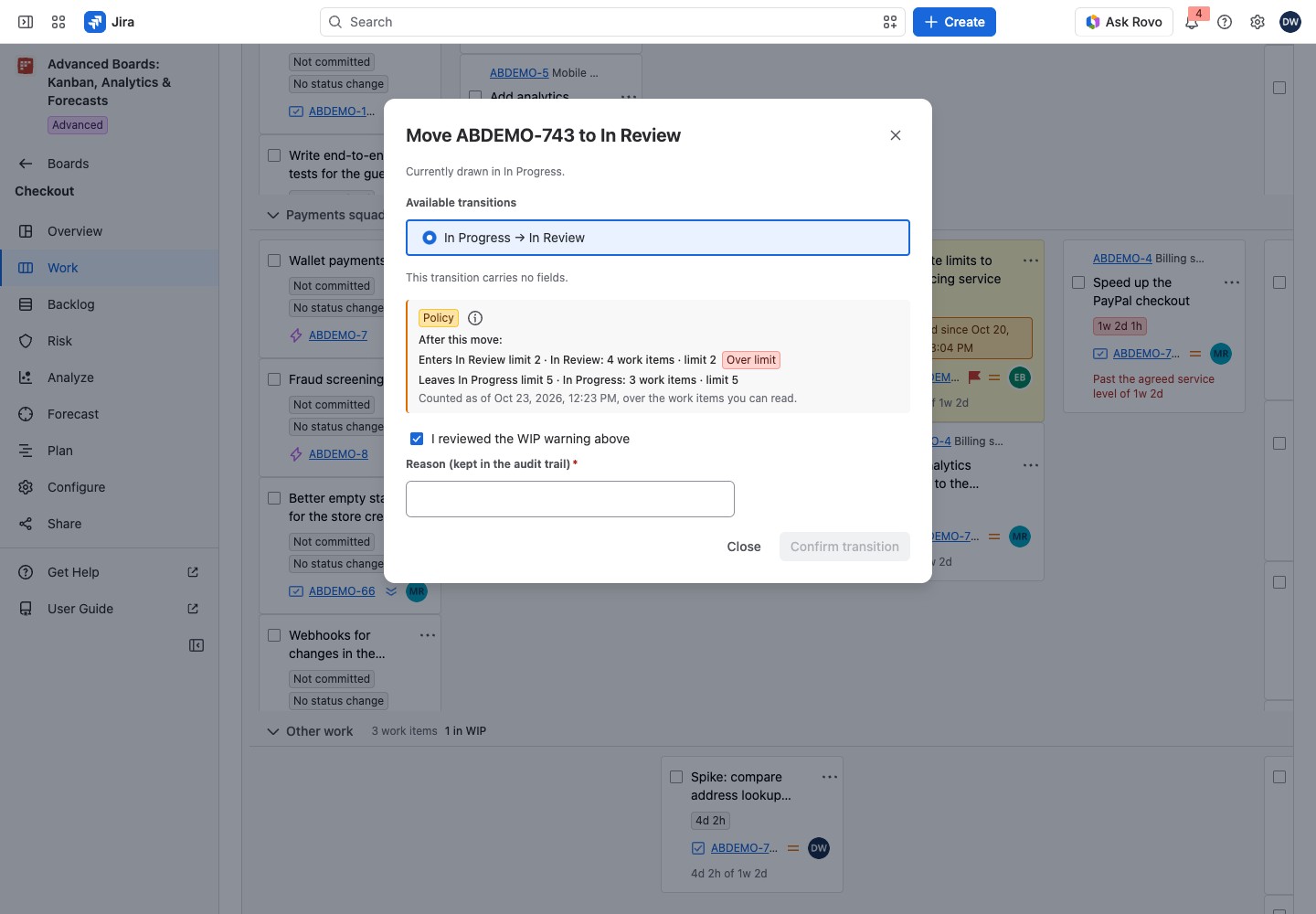
The dialog can warn first. If a column “maps to more than one Jira status”, choose the target before you confirm. If it has “no equivalent Jira status available to you”, the move is rejected before anything is written to Jira. When no transition lands in the column, the dialog shows no list, Confirm transition is held with “Jira offers you no transition to this column for this work item.”, and Open in Jira lets you move it there.
Read the outcome #
Every change ends in one of seven states:
- Change saved: Jira accepted the move. Where a column draws the new status, the card stands there at once, marked Moved here. Otherwise it keeps its column. Its age and the board’s counts update with the next calculation.
- Jira holds the requested status: a reread found the status. That proves the status, not who set it.
- The change is on its way: the change left for Jira and no answer has come yet. Select Check what happened in a moment.
- Nothing was sent: the change was recorded but never left for Jira. Select Take a new preview and confirm again.
- Jira refused the change: nothing was written. Select Take a new preview.
- The outcome is unknown: no answer came back, so the change may or may not have happened. Nothing is sent twice by itself, so select Check what happened.
- This needs a look in Jira: a reread did not find the status. Select Open in Jira.
Edit fields, sprint and backlog changes and Create end in the same seven states. Where a move says Take a new preview, Edit fields offers Read the fields again, a sprint or backlog change Start over, and Create Read what Jira allows again. Their confirmed words are Change saved, Membership changed and Work item created. A reread that found the result reads Jira holds the requested values, Jira holds the requested membership or A matching work item exists in Jira. For Create, the state on the way reads The work item is on its way, and a refusal reads Jira refused to create the work item.
After an edit, the board keeps its current figures until the next calculation.
Edit fields #
Choose Edit fields… in the card’s menu. The dialog lists the Editable fields Jira lets you change. A field left as it is stays as it is. A field you empty is cleared unless Jira requires it.
| Field | How you enter it |
|---|---|
| Text | One line, up to 255 characters |
| Long text | Plain text, up to 32,767 characters; line breaks are kept. A field that already holds formatting is left to Jira |
| Labels | Separated by commas, with no space inside a label; at most 50 in one change |
| A number | A number |
| A date | A calendar day, written exactly as you type it |
| A date and time | Read in your browser’s time zone and sent as an exact instant |
| A choice | One of the options listed. Where the list is short of Jira’s, a line says so: set that field in Jira |
| Multiple choice | One or more of the options listed |
| Assignee | The people Jira lets you assign this work item to; Unassigned clears it |
| Parent | Its current parent first, then unfinished work items, then finished ones marked Done; type a key or words of a summary to search |
An option you picked that Jira no longer offers reads “Option … (no longer offered)” and is not sent: pick one of the options listed now. A required field you empty reads “… is required on this work item, so it cannot be left empty.”
Changes that happen in Jira lists what the dialog leaves to Jira: always comments, attachments, formatted text, workflow actions and every field not listed, and for some work items moving it under another parent or changing its type. Select Open in Jira for those.
“Updated in Jira …” is the moment your edit is checked against. Save changes stays held with its reason, such as “Change a field to enable this.” At most 20 fields travel in one change. Select Save changes. If the work item changed since, “The work item changed in Jira since these fields were read, so nothing was written.” Your entries stay. Select Read the fields again, then save over what is there now.
Move to sprint and Send to backlog #
Both choices change planning membership only: status, column and counts stay.
- Open the card’s menu and choose Move to sprint… or Send to backlog….
- For a sprint, walk the steps: space, Jira board, then sprint. Select Change to go back, or Start over.
- Select Move to sprint or Send to backlog.
The dialog holds these blocks:
- Planning: a lozenge and its note. The work item keeps its Jira status and its column, the board’s commitment, cycles and WIP counts are unaffected, and no workflow transition runs.
- The step line: for a sprint, “Step 1 of 3: space”, then the Jira board and the sprint. A chosen step stays as a line, “space:” and its name, with Change beside it.
- Filter the sprints loaded here: on the sprint step, it narrows the sprints already loaded by their name. It does not search Jira.
- The count line: “12 loaded.” (or “3 matching.” while the filter is on), with Show more while Jira holds more. Where the list of spaces is cut, a line reads “The first 20 spaces of this board are proposed.”
- The read time: “Read from Jira at …”, the moment the list was read.
- Empty steps: “No readable spaces”, “No Jira boards” or “No sprints”, each with its reason. For a sprint, create one in Jira, then start over.
- The confirmation: what changes in Jira and who sees it. Everyone who reads that Jira board and backlog sees the change at once.
It cannot be undone from here. Sending to the backlog also removes the work item from its sprint. Reverse either with the other choice.
Create a work item #
Select Create work item in the header of Work or Backlog. For a subtask, choose Create subtask… on the parent’s menu. The new work item appears on the board after its next calculation, so the board’s figures do not change yet.
- Space: where Jira lets you create.
- Work item type: offered after you choose a space.
- Parent: for a subtask, the card whose menu you opened.
- Summary: one line, up to 255 characters.
- Assignee: Automatic gives the space’s default assignee.
Show advanced settings reveals the optional fields, entered as in the table under Edit fields. When the list of spaces is cut, a line says “The first 20 spaces of this board are proposed.”
Select Create work item to check the entries and create it in Jira as you. The button is held with its reason until the space, type and summary are set and every required field is filled, such as “Fill in Priority to enable this.” The result reads “Work item … was created.” with the new key, and Open it in Jira.
If Jira requires a field this dialog cannot set, the form is replaced by “Jira requires a field this dialog cannot set” and a link to the space in Jira.
If something looks off #
- “The choice you were walking through has expired.”: select Start over.
- “No editable fields”: check your Jira permissions on the work item, then read the fields again.
- “No fields this dialog can change”: each field Jira offers is one the dialog leaves to Jira, such as an attachment. Change those fields in Jira.
- “No spaces to create in”: ask a Jira administrator for the Create work items permission, or create it in Jira.
- “You can’t create in this space”: select Choose another space.


