See how much of each epic is done, decide what comes first, and set how the plan works. Hierarchy rolls progress up to parents. Priorities ranks work items with a scoring model. Settings holds the rules for both.
Read the hierarchy #
Timeline, milestones and dependencies covers the Timeline and Items tabs, and Data as of, permissions and coverage explains the strip above the tabs.
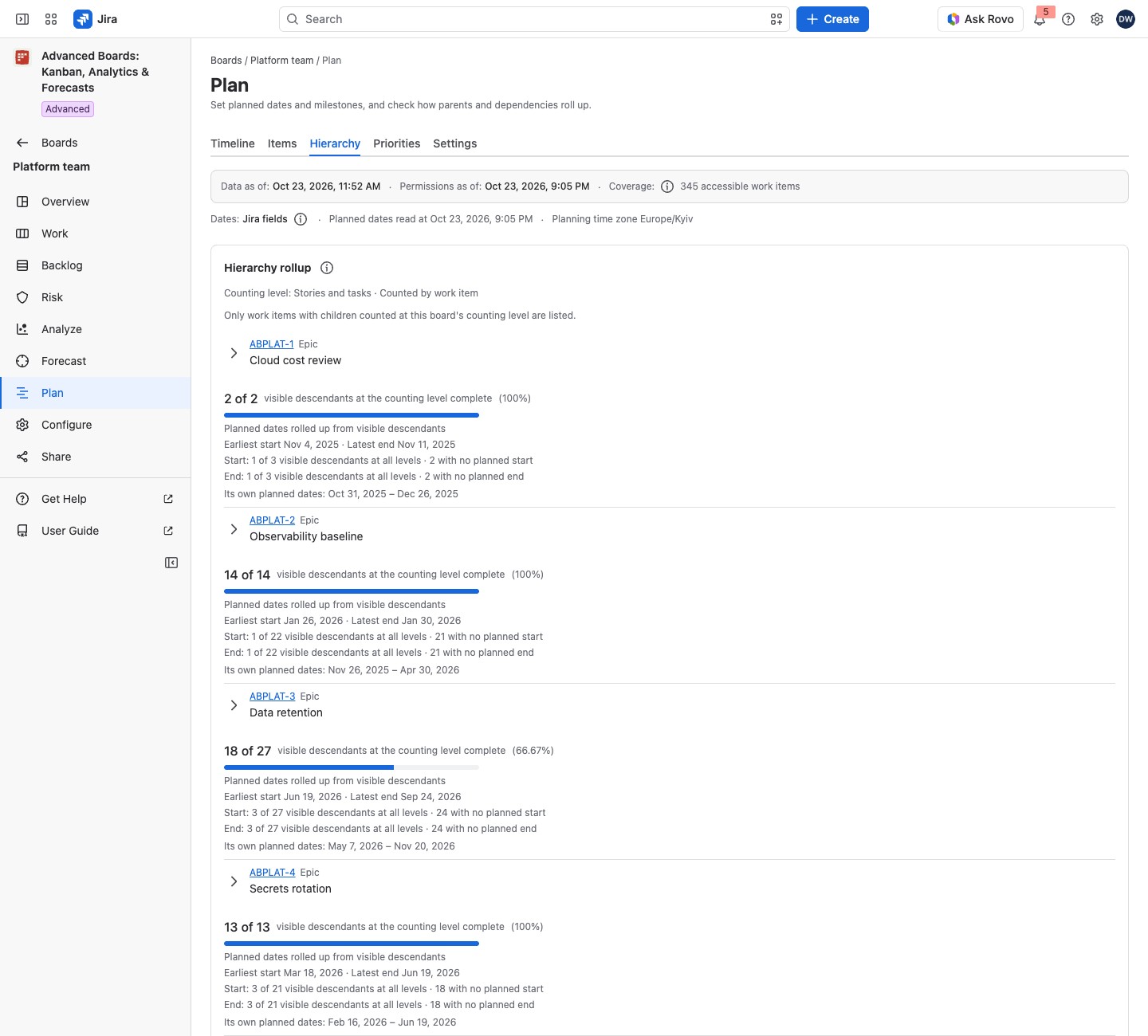
Select Hierarchy in Plan. The tree lists the work items that have children at the board’s counting level, such as epics. Select a row’s chevron (Show the children of and the work item) to show its children, and again to hide them. The tree counts only work items in this board’s source: children outside it are not part of the tree.
The (i) How the rollup is counted beside the card’s title says how completion is counted. It is based on the descendants you can see at the board’s counting level, and the total stays what you can see. The same (i) says that children outside the board’s source are not part of the tree. Two notices can stand above the list:
- “No work item here has children at this board’s counting level.”: nothing rolls up yet, so the tree lists no parent.
- “Only work items with children counted at this board’s counting level are listed.”: some rows are left out because nothing rolls up to them.
Each parent shows:
- A headline: the number completed of the total you can see, then “visible descendants at the counting level complete”, a percent and a meter. Only descendants in the board’s source that you can see are counted, so Jira may show more children.
- The counting rule: “Counting level” names the levels counted, then “Counted by work item” or “Weighted by estimate”. A weighted parent also shows its “Rolled-up estimate”.
- Planned dates rolled up from visible descendants: “Earliest start” and “Latest end” from the descendants you can see. Two lines count where they come from, such as “Start: 6 of 9 work items at all levels · 3 with no planned start” and the same for the end. Dates count every level, while completion counts the counting level alone. When no descendant has a date, the block reads “No visible descendant of this work item has a planned date.”
- Its own planned dates: the parent’s own pair, or “Not planned”. Neither pair is computed from the other.
- Left-out counts: lines such as “2 of 9: No estimate on this work item”. The reasons are “Of a type Jira places at no level”, “No estimate on this work item” and “No children counted at this board’s counting level”.
A long tree reads “Showing N of M” and “Expand a narrower branch.” A work item with two sets of planned dates from an earlier version is read as having none, and a line says so: clear them on the Items tab.
Rank work items on Priorities #
Select Priorities. Choose a Scoring model and an Order: “Highest score first” or “Population order”. The Ranked table gives each work item’s score and the values behind it, such as “Reach: 400 → 0.8” (the Jira value, then the value the model uses). The Not scored table says why a work item has no score, such as “The numerator is empty, or has more than 20 digits before the decimal point or 10 after it”. A value the app could not read shows as “Not read”, such as “Cost of delay: Not read”. A work item that can’t be scored is never ranked and never sorted last, and it never stands in both tables.
Ranked has the columns Work item, Score, Components and Matrix point, and a lozenge with the model’s kind, such as “WSJF”, beside its title. Its (i) How these scores are read says how a score is computed and ends “Ranked over the work items you can see.” Not scored has the columns Work item, Why it is not scored and Components.
Where a priority matrix is set up, a switch of Equivalent table and Matrix appears in the head of the Ranked card. Select Matrix to plot each scored work item as a point of one value against another. A point inside the bounds is blue. A point outside them is yellow and drawn on the edge of the plot, and a line under it reads “Outside the declared bounds”. Each axis’s lowest and highest value print under the plot. A point read aloud by a screen reader names its work item and both values. A Board owner sets it up (see Set up the priority matrix below). The quick filter chips of the Timeline narrow this tab too.
Above 500 work items, the tab reads “This board is too large to rank in one request”. Select Rank the whole board in the background. The table fills in when the run finishes, headed “Background ranking of …” with the time it was computed from. If the board changed meanwhile, Run the ranking again draws it anew. A background ranking is kept 7 days.
Select Export for the ranking as Spreadsheet (XLSX) or CSV (zip with data and metadata): up to 500 work items, or up to 2,000 rows once the board is ranked in the background.
Change the planning settings #
A Board owner opens Settings, edits the cards, then selects Save planning settings (or Discard changes). While the settings are a draft, a “Draft” lozenge stands beside the card’s title. The card also names the Mapped Jira date fields. Until the first save, an (i) says the values shown are the applied default, and saving writes them as the first version.
- Where planned dates live: App-owned or Jira fields, as Timeline, milestones and dependencies shows.
- Planning time zone: the zone a planned day is read in.
- Decimal places: digits a figure is rounded to (4 to start, 10 at most).
- Rollup and Estimate field: count work items or weight them by a Jira number field.
- Link types that mean “waits for”: only these links order the plan and raise conflicts, up to 10 types. Changing them asks you to confirm, because everyone sees the new order, the Risk queue and new scenario runs included. Use the default returns to the flow’s blocking links, or Jira’s where the flow names none.
- Containers: timeline lanes, up to 50. Use Create container, Rename container, Move up, Move down or Remove container. A removed container’s band reads “Container no longer declared”.
Create a scoring model #
The Scoring models card lists each model’s Name, Kind and Fields and factors. A row’s menu holds Edit scoring model and Remove scoring model. A board declares at most 10 scoring models.
- Under Scoring models, select Create scoring model.
- Enter a Name (up to 120 characters) and choose a Kind. Optionally set a Unit (up to 40 characters), printed after every score on Priorities; left empty, a score is its number alone. Decimal places sets the digits a score is rounded to, half-up, once at the end.
- Choose the Jira number field for each value.
- For a weighted model, select Add factor and set its Key, Jira field, Weight, Lowest value, Highest value and Better when. A model takes at most 10 factors.
- Select Create scoring model (Update model when you edit one), then Save planning settings. Removing a model and saving opens “Save without these scoring models?”. Everyone loses that model’s scores and ranking, and this cannot be undone.
The kinds are:
- WSJF: cost of delay divided by job size. Under Cost of delay, choose Sum three components to pick User-business value, Time criticality and Risk reduction / opportunity enablement, then Job size. Choose Read one Jira field to pick Cost of delay and Job size.
- RICE: reach times impact times confidence, divided by effort. Pick Reach, Impact, Confidence and Effort. Under Confidence is read as, choose A fraction from 0 to 1 or A percentage from 0 to 100.
- Value and effort: the value divided by the effort. Pick Value and Effort.
- Weighted factors: your own factors, each with a weight and a range.
A weighted model adds up its factors. Each factor reads its Jira field and places the value between its Lowest value (0) and its Highest value (1). With Better when set to Lower, the scale is reversed, so the lowest value scores 1. The placed value is multiplied by the factor’s Weight, and the products are summed. The Key names the factor on the Priorities tab and as an axis of the matrix. A value outside a factor’s bounds gives no score, with the reason “An input is outside the range the model declares”.
For example, a model has two factors. Value has weight 2, bounds 0 and 10, and Higher. Effort has weight 1, bounds 1 and 5, and Lower. A work item with value 8 and effort 2 scores 2 × 0.8 + 1 × 0.75 = 2.35. Each factor’s part is rounded on its own, so the parts shown need not add up to the score.
A zero effort or job size is refused, never ranked as most urgent.
Set up the priority matrix #
The priority matrix plots each scored work item by two values of one scoring model: one on the horizontal axis, one on the vertical. It shows at a glance which work gives the most for the least, such as high value and low effort.
- Select Create priority matrix.
- Choose the model, the Horizontal axis and the Vertical axis.
- Enter each axis’s lowest and highest value. A point outside these bounds is drawn on the edge and flagged.
- Select Save planning settings.
If the model scores no component yet, the axis reads “This model scores no component yet.” An axis the model no longer scores keeps its place and reads, for example, “Reach: not scored by this model”.
To take the matrix away, select Remove the matrix, then Save planning settings. Readers select Matrix on Priorities. A page with no point reads “No scored work item on this page carries a matrix point.”
If something looks off #
- “No hierarchy on this board yet”: no work item of the board has a parent or child you can read.
- “No scoring model yet”: a Board owner selects Open Plan settings and adds one.
- “You already keep … priority rankings, the most one person can.”: run this one after one of yours expires. A background ranking is kept 7 days.
- “The ranking stopped before it finished, so there is nothing to show.”: select Run the ranking again.


