The Throughput gadget shows how many work items a board delivered over a window you choose. Each bar is one day or one week, and each person who opens the dashboard sees the work items they can read.
Add it to a dashboard #
- Open the Jira dashboard and select Edit.
- Select Add gadget and search for “Advanced Boards”.
- Add Advanced Boards: Throughput.
- In the gadget’s form, choose the Board and the Window.
- Select Save.
Until a board is chosen, the gadget reads “Not configured yet. Open this gadget’s configuration and choose a board.”
What you can set #
| Option | What it does |
|---|---|
| Board | The board whose deliveries the gadget counts; the list holds the boards you can open, and Load more boards reads the next page |
| Window | Last 14 days, Last 28 days (the default) or Last 12 weeks |
Save stays held until a board is chosen. The window ends on the last whole day of the board’s data, so a day still running is never half counted. The dashboard stores only which board and which window you chose.
The form also shows the WIP gadget’s messages for no board to show and for a stored configuration that could not be read (Advanced Boards: WIP).
What viewers see #
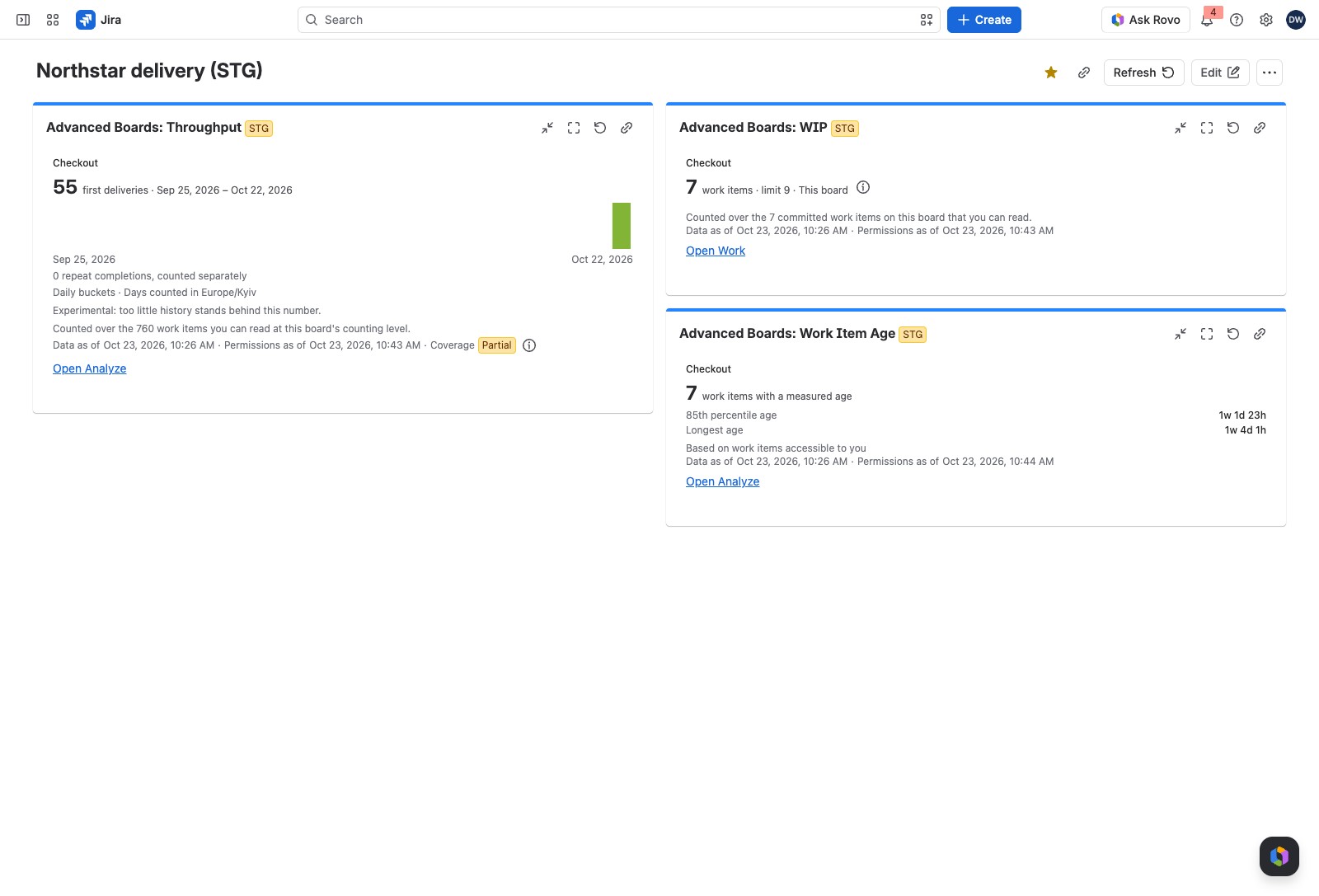
The tile shows the total over the window and its bars. The line beside the total names the window, such as “first deliveries · Sep 23, 2026 – Oct 20, 2026”. Only a first delivery counts in the total. A work item delivered again after a reopen counts on the day it was first delivered. Its later deliveries show on a line of their own, such as “2 repeat completions, counted separately”.
Under the bars, the gadget says whether they are “Daily buckets” or “Weekly buckets, starting Monday”, and the time zone of the board’s calendar, such as “Days counted in Europe/Kyiv”. The axis names the first and last bar. Finished buckets are green; a bucket still running is gray. A bar is as tall as its count against the tallest bar of the window. The tile prints no number on a bar and has no vertical scale, though a screen reader reads each bucket and its count. To read one bar’s count, select Open Analyze.
When the last bucket is still running, the (i) “About this total” says: “The last bucket is still running and is not counted in the total.” The population line reads, for example, “Counted over the 64 work items you can read at this board’s counting level.” The footer states “Data as of” and “Permissions as of”, and marks the coverage when it is “Partial”: part of the history the window asks for is not kept, or the board holds work items that Jira no longer confirms. The mark’s (i) says which (Data as of, permissions and coverage). The marks and refresh lines are the same on every gadget (Advanced Boards: WIP, “What every gadget’s tile can show”).
How it relates to the board #
The gadget counts what the board’s flow calls a delivery: the end of a cycle set under Configure → “Flow & time” (Flow, boundaries and blockers). It reads the same data as the board’s Analyze section. To see the chart in full, with its three series and the work items behind each bar, select Open Analyze (Flow metrics in Analyze). A gadget has no export; Analyze exports the figures.
If something looks off #
- “Experimental: too little history stands behind this number.”: fewer than 30 observed complete days or fewer than 20 proven first deliveries stand behind it, so read the total as a first sign.
- “Counted only while each work item was on the board.”: a work item counts only for the spans it was on this board.
- “Not confirmed / Access lost: the board holds work items that Jira no longer confirms, and this number may count them.”: the app could not confirm some work items at the last refresh, or lost access to them, so read the total with that in mind.
- “The license is inactive”: the gadget needs an active license, so ask a Jira administrator.
- “You can’t see this board”: the board is gone, or your access does not cover it. Ask a Board owner for access.
- “This gadget’s configuration could not be read. Choose a board again.”: edit the gadget, choose the board and save.
- “This gadget could not read its place on the dashboard. Remove it and add it again.”: remove the gadget and add it again.
- A bar you expected is missing: no work item you can read was first delivered in that bucket, or the bucket cannot be measured. Two people can see different heights, because each counts only the work items they can read in Jira.
Next: Advanced Boards: Work Item Age shows how old the unfinished work is.


