Templates let one well-configured board set the standard for others. You copy its settings into a template, an approver reviews it, and you publish it.
Find a template #
Open Templates in the app’s navigation. Use Search templates and the lifecycle filter: “All templates”, “Draft”, “Pending approval”, “Approved”, “Published” and “Retired”. Each row shows the Template with your role on it, its State, the Published version and when it was Created.
| State | Color | Meaning |
|---|---|---|
| Draft | Gray | The author is still changing it |
| Pending approval | Yellow | It waits for an approver’s review |
| Approved | Blue | An approver approved it; it is not published yet |
| Published | Plain text, no lozenge | It can be rolled out to boards |
| Retired | Red | A newer published version replaced it |
Only Published is plain text, because nothing is wrong. Every other state is a lozenge, in the list, on the template’s page and in its versions list.
“Current version 2” beside the state means a newer draft stands beside the published one. Select a name to open it. The row menu offers Edit template, Roll out template and Delete template.
You see the templates you hold a role on, the ones waiting for your review if you’re an approver, and every published one. A site holds up to 200. Past the first page, select Show more templates.
Create a template from a board #
Select Create template.
- Enter the Name and a Description.
- Select Copy settings from a board and choose the board under Copy the settings from, or choose Start empty.
- Under What this template carries, select the kinds to copy.
- Under Independent approval, keep Inherit the site rule or choose Always require an approver other than the author.
- Add a Reason if you want one. It is kept with the new version in the audit trail, which Jira administrators read.
- Select Save draft. It stays held with its reason while nothing has changed. On a version under review it reads “Withdraw the request for approval before changing this version.”
| Kind | What it copies |
|---|---|
| Flow definition: statuses, state classes and boundaries | How statuses map to state classes, where a cycle starts and ends, and the service levels |
| Calendar: time zone, working days and the working window | The board’s working time |
| Layout: columns, groups and card fields | The columns and what a card shows |
| WIP policies: limits, service classes and agreements | The board’s limits and agreements |
| Saved views: the views everyone on the board sees | The board’s shared work views |
A kind you leave out is never touched on a board. A kind the board holds none of is left out, and the flag “Saved without …” says so. For example, Northstar team flow carries Checkout’s flow definition and calendar only.
With Start empty, no kind can be chosen: an empty template carries no settings to apply until you copy from a board.
Under Rules this template adds, each kind gets a level, shown beside the site’s own. The site’s level also says which boards it binds, such as “Site: Locked on every board”, “Site: Locked on some boards” or “Site: Locked (no board is governed)”:
| Level | On a board this template governs |
|---|---|
| Allowed | A Board owner changes it freely |
| Allowed with a reason | A Board owner changes it and records why, in the audit trail |
| Locked | Nobody changes it on the board; only this template’s rollout or an administrator’s writes it |
A template can strengthen a site rule and never weaken one. A new template inherits every site rule until its draft is saved; then Edit shows the site’s level beside each kind and offers the stronger ones. Independent approval sits in the same group. “A template never switches independent approval off.” A board is governed by the template once a rollout applies it (Roll out a template). A change to a published version saves a new draft.
Read a template’s page #
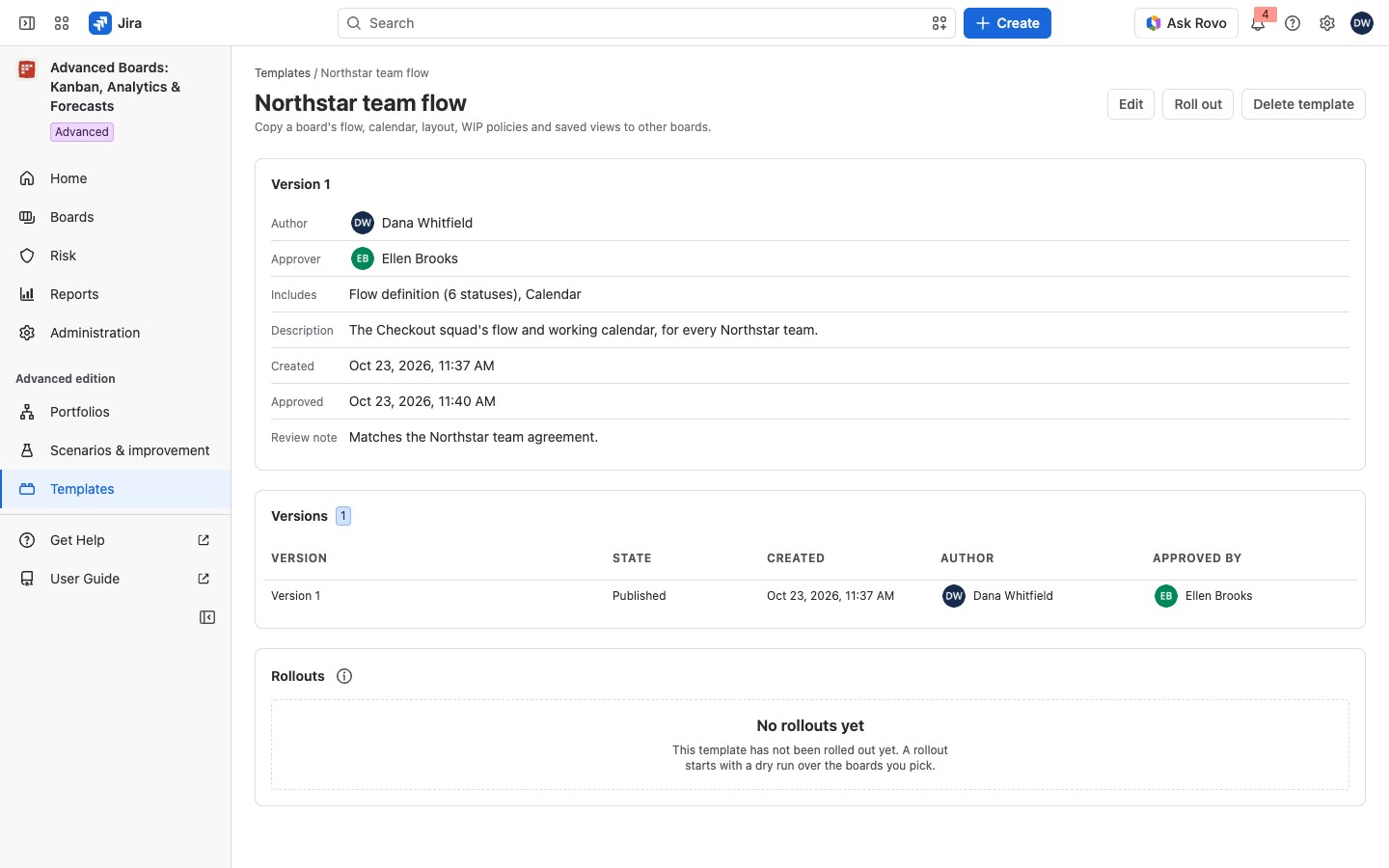
The Version 1 card shows the Author, the Approver, what it Includes, the Description, Created, Approved and the Review note.
- Approver: while the current version is pending, “Assigned when a site approver opens the review”. With no review pending and none done, “Not reviewed yet”. After a review, the approver’s name. “(the author)” after a name means the author approved it. “(distinct from the author, as this version’s own rule requires)” after a name means the version demanded another person.
- Includes: each kind the version carries, with a count where it has one, such as “Flow definition (7 statuses), Calendar, Layout (6 columns)”. A version with none reads “This version carries no settings yet”.
A line such as “2 statuses in this template could not be named by Jira.” means those statuses are gone or hidden from you in Jira.
Versions lists every version; Show version 2 displays an earlier one. A person Jira does not show you, or whose account is gone, reads “Unknown person”. Rollouts lists each rollout with its Started, State and Boards; select its time to open it (Roll out a template). “2 of yours” counts only your boards, and “This batch reached boards outside your access; only your own are counted.” says so. The (i) About rollouts says that nothing reverses itself and that each board keeps its own space, status and field mapping.
A rollout’s State is one of these:
| State | Color | Meaning |
|---|---|---|
| Queued | Gray | It waits to start; nothing has been written yet |
| Applying | Blue | Boards are being written one at a time, each checked again first |
| Applied | Plain text, no lozenge | Every board of the rollout was written |
| Partly applied | Yellow | Some boards were applied and some were not |
| Failed | Red | No board of the rollout was applied |
| Rolling back | Blue | The boards you asked to roll back are being restored |
| Rolled back | Gray | Every board you asked to roll back was restored or detached |
| Detached | Gray | The rollout no longer governs its boards; their settings were left as they are |
| Paused | Yellow | No board is written, or restored, while it is paused |
Approve, publish and delete #
A template is rolled out only once an approver has reviewed a version and it is published. How a version is approved and published, and how a template is deleted, is explained in Approve, publish and delete a template.
If something looks off #
- “You own no board this template could be applied to, and only a board’s owner changes its settings.”: ask for the Board owner role on the boards to roll out to.
- “No templates yet”: select Create template to copy one from a board you have configured.
- “No template is in this state”: select Show all templates.
- “No template matches your search”: select Clear the search.
- “This installation holds the maximum of 200 templates. Delete one before creating another.”: delete a template you no longer need.
- “One rule is weaker than the site’s own. …” or “The site strengthened this rule after the template was saved, …”: choose a level the site allows.
- “This template moved while you were editing, so this save was refused.”: select Keep what I entered and save again, or Discard mine and use the reloaded template.


