A work view saves how Work looks for you: card density, order, filters and collapsed groups. People pick a view from Work’s Saved views menu. A view never changes a count.
Find the list #
- Open the board and select Configure.
- Choose Layout & cards.
- Find the Work views card.
The list shows each View name, Who sees this view and an Actions menu. The first row, “Default view · built-in”, exists on every board. Its menu offers View settings, which opens the settings read-only, Duplicate view and Set as default view. A “Default” lozenge marks a saved view that Work opens with; without one, Work opens with the built-in view.
If the board holds more views than the list shows, a line under it reads “This board has more work views than are listed here.”.
A view’s row menu holds Edit view, Duplicate view, Set as default view and Delete view. Anyone may duplicate: the copy is named like “Payments squad only (copy)”, and it is private unless you are a Board owner. You edit and delete your own private views; a Board owner edits and deletes every view on the list. Select a view’s name to open it.
Create or edit a view #
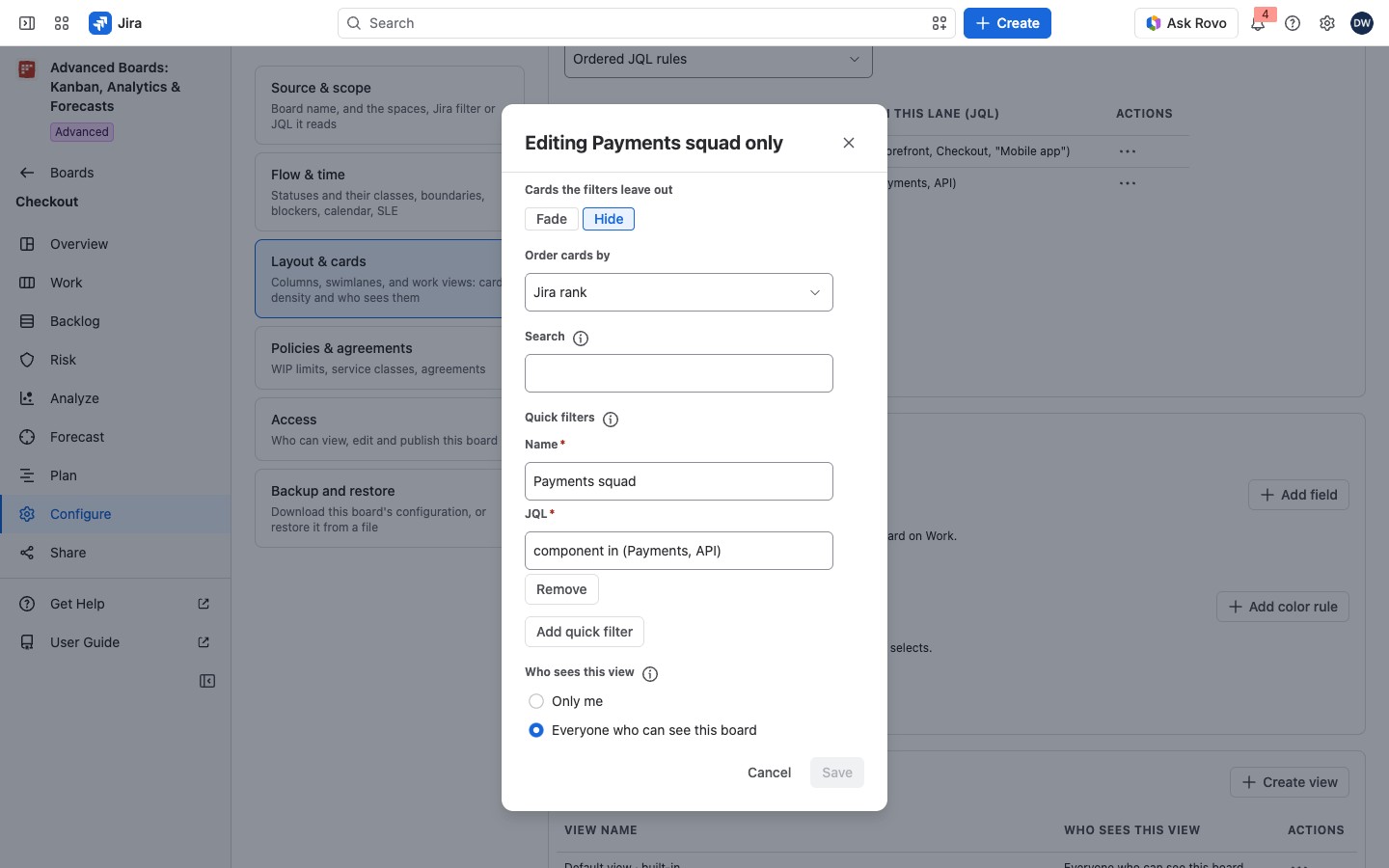
Select Create view, or Edit view on a row.
| Field | What it sets |
|---|---|
| View name | The name in Work’s Saved views menu |
| Card density | Comfortable (several lines), Compact (one line) or Dense (one smaller line) |
| Show lanes | Whether Work draws swimlanes; only on a board with lanes |
| Collapsed groups | Column groups that Work draws as one track when the view opens; only on a board with column groups |
| Search | Words that Work and Backlog search with while the view is chosen, up to 200 characters |
| Built-in filters this view starts with | Blocked, Past SLE, Unmapped status, Committed or Not committed (one of the last two) |
| Cards the filters leave out | Fade or Hide; it applies once a filter, a search or a quick filter narrows the board |
| Order cards by | “Jira rank”, “Age, oldest first”, “Last updated, newest first” or “Key” |
| Quick filters | Up to 20 named JQL filters |
| Who sees this view | Only me, or Everyone who can see this board |
Select Add quick filter and enter a Name and the JQL. Each filter becomes a chip on Work and Backlog while the view is chosen, and starts pressed. If the save refuses a filter’s JQL, the reason stands under that JQL field, and Save waits until you change it.
Share a view or make it private #
Everyone who can see this board puts the view in every reader’s Saved views menu. On the Advanced edition, where a site rule is in force, a save also asks for a Reason for the change: enter it first (Source and scope).
Saving a shared view as Only me opens “Make Payments squad only private?” for that view. The dialog lists Who loses this view. Anyone who has it open on Work moves to the default view the next time Work reads the board. If a Board owner makes another person’s view private, the view stays its creator’s and the owner loses it too. Select Make private to confirm.
Choose the view a board opens with #
- Open the row’s menu and choose Set as default view.
- In “Open this board with” the view name, select Set as default.
Everyone who can see the board opens Work with that view from their next visit. A view someone has chosen on Work stays until they leave Work. Only a Board owner can do this, and only with a view that everyone sees. The built-in view qualifies.
Delete a view #
- Choose Delete view in the row’s menu.
- Read “Delete Payments squad only?”. It says the view’s filters and display settings go, and anyone who has it open on Work moves to the default view. No work item is touched.
- For a shared view, read What this stops: “Everyone who can see this board loses this view”. On the Advanced edition, a site rule may also ask for a Reason for the change.
- Select Delete.
The dialog warns: “There is no trash and no archive: this cannot be undone.”
When a view changed while you edited it #
If someone else saves the view first, you see “This view moved while you were editing it”. Select Save, or select Discard mine and use the stored view.
If something looks off #
- “Only a board owner can share a view with everyone who can see this board.”: save the view as Only me, or ask a Board owner.
- “Only a view everyone who can see this board sees can be its default.”: share the view first.
- “This board already opens Work with this view.”: choose another view.
- “The built-in view cannot be changed, only duplicated.”: select Duplicate view and edit the copy.
- “The stored settings of Payments squad only could not be read, so it cannot be edited here. It can still be deleted.”: delete the view and create it again.
- “JQL: Jira does not accept this query as you. Its syntax is wrong, or a field or value in it does not exist or is not visible to you.”: correct the query, or test it in Jira’s issue navigator first.
- “JQL: this query names a saved filter you cannot use.”: name a saved filter that is shared with you.
- “JQL: a shared view cannot use currentUser() or other functions of the person who reads it.”: remove the function, or save the view as Only me.
- “JQL: this query uses a function this app has not confirmed answers the same for every person.”: remove the function from the query.
- “JQL: this query names a saved filter that refers back to itself.”: name another filter, or fix the saved filter in Jira.
- “JQL: this query’s saved filters refer to further saved filters too deeply or too often.”: write the conditions into the query instead of nesting saved filters.
- “JQL: this query refers to a saved filter in a way Jira cannot check.”: name the saved filter by its ID, as
filter = 10001.


