Error reports let the vendor see when the app fails on your site, so a defect can be fixed sooner. They are off until a Jira administrator turns them on here. You decide, and they hold no text from Jira.
Open the section #
Open Administration, then select Error reports in the section list (Administration overview and license). The card states the setting. While reports are off, it reads “Error reports are off. Advanced Boards sends no error reports from this site.” While they are on, it reads “Error reports are on.”
What a report holds #
The card states it in full. Each error sends only:
- a random report id, the error’s type and code, and the place in the app’s own code where it happened;
- the time and the app version;
- the browser’s name and major version, or the server runtime’s name and version;
- fixed labels for the kind of report and whether it came from the server or a browser;
- the name, version and settings of the reporting library, and this site’s tag.
Text from Jira, names and messages are removed before sending. No work item content, account id, JQL or token leaves the site. The card names where reports go and how long they are kept: “Reports go to Sentry in the United States, to Mria Labs’ organization, and are kept for up to 90 days.” Sentry is the error-tracking service the vendor uses.
Turn reports on or off #
- Select Turn on.
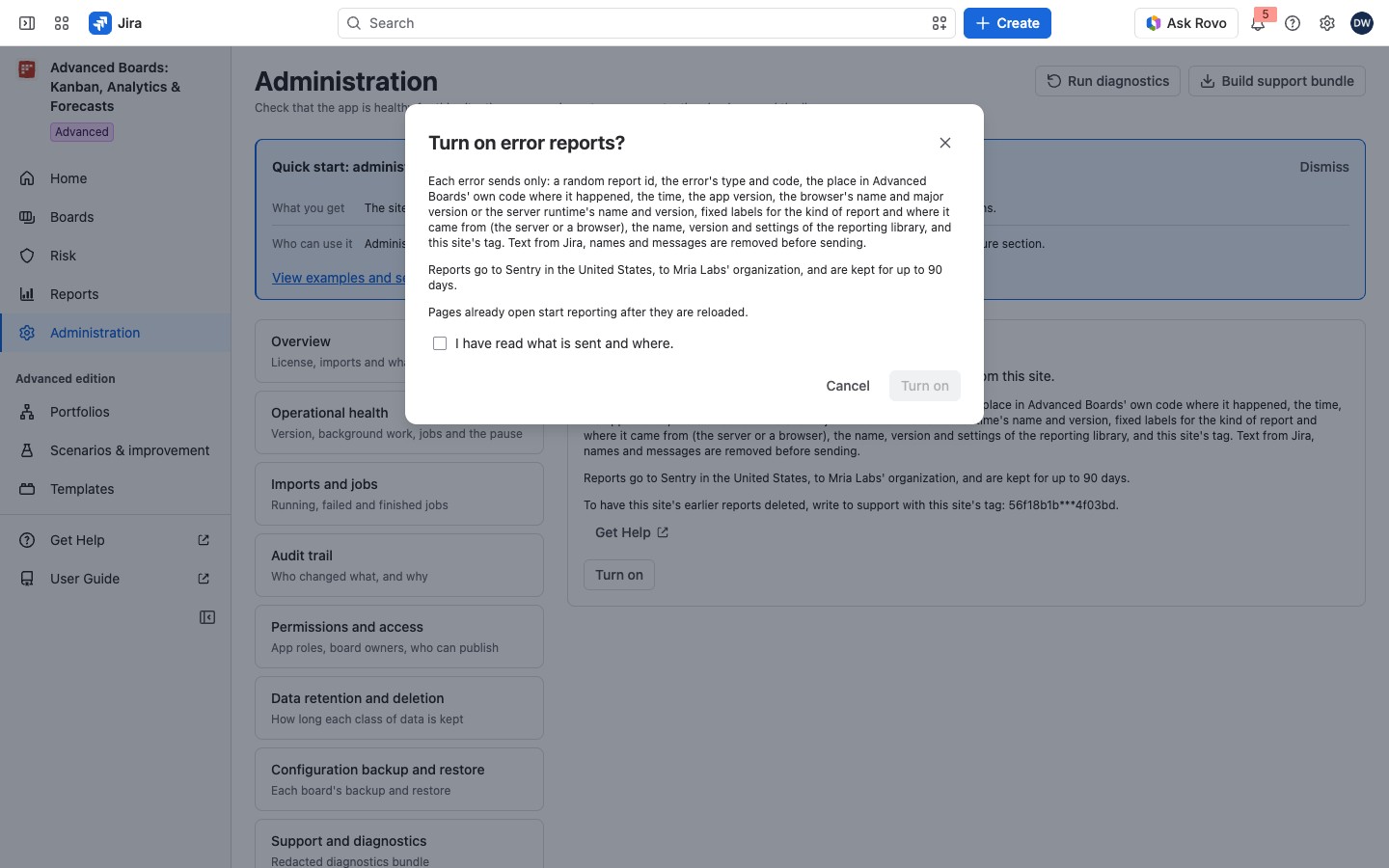
- Read the dialog “Turn on error reports?”. It repeats what is sent and where, and says that pages already open start reporting after they are reloaded.
- Tick I have read what is sent and where. Until you do, Turn on is held with the reason “Check that you have read what is sent and where first.”
- Select Turn on in the dialog. The flag says “Error reports are turned on.”
Select Cancel to leave without a change.
To stop, select Turn off. It needs no confirmation and works on every license, also while changes are paused. New reports stop from the server and from open pages at their next error. Reports sent earlier are not deleted. To have them deleted, select Get Help beside the site’s tag on the card and write to support with that tag. Each change is recorded in the audit trail.
Where reports can leave from #
Reports leave only a production installation of the app. Staging and test installations send nothing, whatever the setting. The only network addresses the app declares are the two Sentry ingest hosts for these reports (Data and Security).
If something looks off #
- “Error reports need a permission this site’s administrator has not approved yet.”: approve the app’s pending update in Connected apps, then turn reports on.
- “Not available while the license is inactive.”: renew the license; turning reports off still works.
- “Not available until Atlassian confirms this site’s license.”: try again later.
- “The error report setting may not have been saved.”: reload the page and read the state.
- “Changes are paused” after Turn on: an administrator paused changes on Operational health. Turn reports on after the pause is lifted (Operational health and pausing changes).
Who can open it #
Only a Jira administrator can open Administration and turn error reports on or off.


