Advanced Boards turns the Jira work you can already see into kanban boards with WIP (work in progress) limits, flow metrics and forecasts. Your work stays in Jira: a board reads it, measures how it flows, and shows the result.
What a board does for you #
A board is a view over Jira work items. You choose its source when you create it: a space, a saved filter, JQL or a Jira board.
Each board has a flow. The flow says what each Jira status means: not started, active, waiting or done. From that, the board can tell when work was committed and when it was delivered. That’s what its numbers are built on:
- Work in progress: what is under way now, against the limits your team agreed.
- Flow metrics: cycle time, throughput, work item age and more, each with the work items behind the number.
- Forecasts: when a scope will finish, or how much can finish by a date, with a probability for each answer.
- Risk signals: work that is aging, blocked or over a limit, on up to 25 of your boards at a time.
A board never shows you more than Jira does. Every count covers only the work items you can see in Jira. Two people can read different numbers on the same board, and both are right for them (What each person sees).
Where you’ll find it in Jira #
| Where | What it is for |
|---|---|
| Apps → Advanced Boards | The app: boards, risk, reports and, for administrators, Administration |
| A space’s sidebar | The boards that read that space (Boards in this space) |
| A work item | A panel with the boards that count it |
| A dashboard → Add gadget | Four gadgets, each starting with “Advanced Boards:”: Advanced Boards: WIP, Advanced Boards: Throughput, Advanced Boards: Work Item Age and Advanced Boards: Forecast |
Installation lists every place in full.
Find your way around #
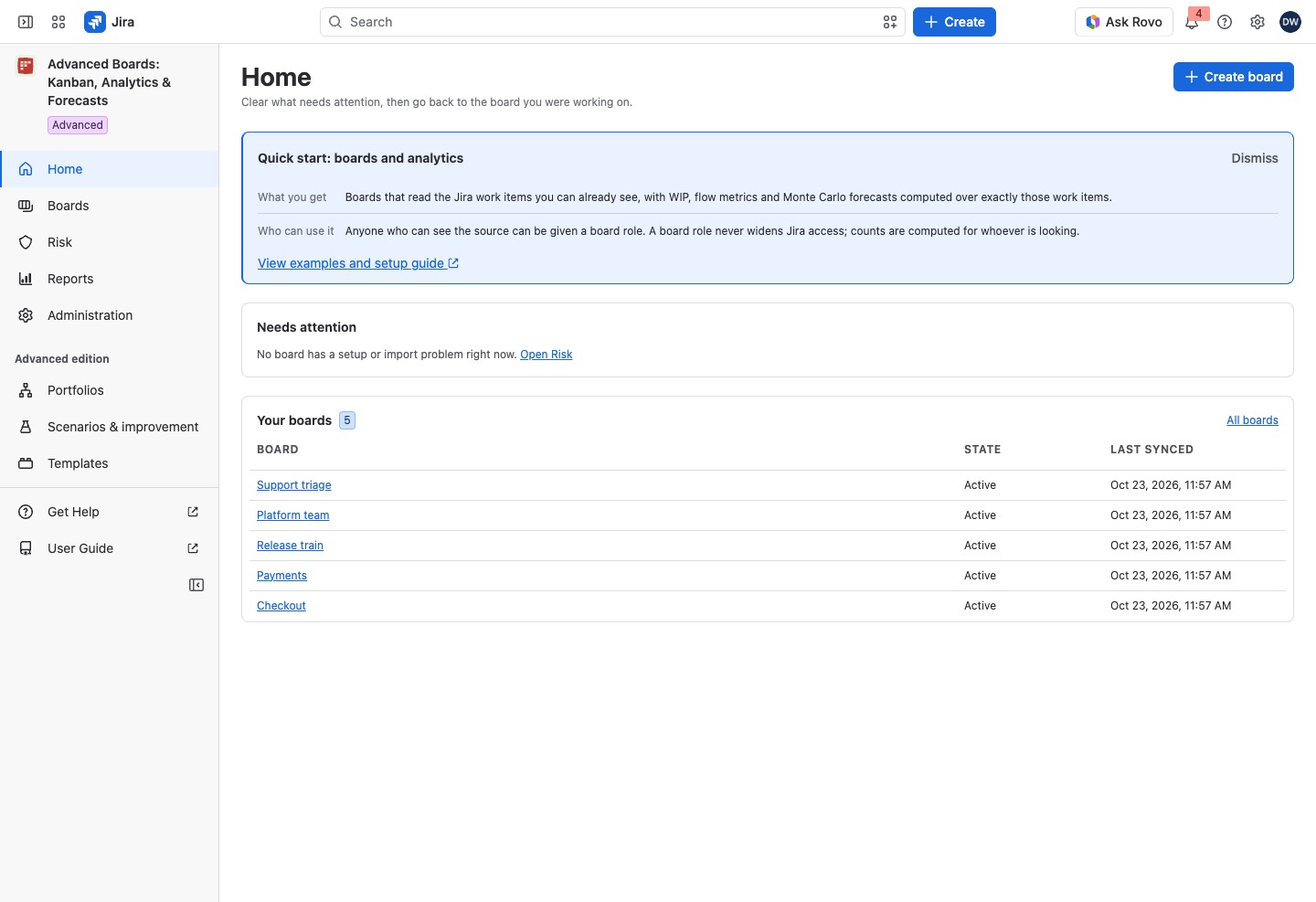
Open the app from Jira’s Apps menu. The rail on the left holds the destinations:
- Home: what needs attention, and your boards.
- Boards: every board you can open, and Create board.
- Risk: current signals across your boards and, on Advanced, the alerts that rules raised.
- Reports: your forecast runs and exports, the stakeholder views you can open and, on Advanced, scheduled runs, backtests and stakeholder packs.
- Administration: the site’s license, imports, access and retention, for Jira administrators.
- Portfolios, Scenarios & improvement and Templates: the “Advanced edition” group. On Standard, it holds one About the Advanced edition entry instead.
- Get Help and User Guide: the vendor’s support portal and this guide, each in a new tab.
Inside a board #
When you open a board, the rail turns into the board’s own sections. A board opens on its Overview the first time. When you open it again from Home or Boards, it returns to the section you used last in this browser.
- Overview: check what the board reads, how it is set up and what needs attention (A board’s Overview).
- Work: move cards and watch work in progress against the limits (The Work board).
- Backlog: rank and create work items before they are committed (Backlog).
- Risk: see which work on this board is at risk, and why (Current risk signals).
- Analyze: read flow metrics and the evidence behind each number (Flow metrics in Analyze).
- Forecast: ask when work will finish, or how much can finish by a date (Run a forecast).
- Plan: set planned dates and milestones, and check dependencies (Timeline, milestones and dependencies).
- Configure: change what the board counts and how it looks (its first group: Source and scope).
- Share: publish a view of the board for the people who follow its work (Stakeholder views).
Risk and Forecast also hold Advanced tabs: Alerts on the Risk destination, Schedules and Calibration in a board’s Forecast. On Standard they still open. One that holds earlier results shows them and starts nothing new. A Forecast tab that holds none shows “This is part of the Advanced edition”, and Alerts says that rules are paused (Standard and Advanced editions).
Every screen with figures carries a context strip. It shows Data as of (when the data was taken) and Permissions as of (when your access was checked), with the coverage (Data as of, permissions and coverage).
What the app keeps #
The app stores identifiers, dates, status changes, the results it computes, your board settings and an audit trail. It never stores the text of your work items: it reads them from Jira, as you, when a screen shows them. See Data and Security.
Where to go next #
- Create your first board: build a board in five steps.
- Standard and Advanced editions: what Standard and Advanced each include.
- Glossary: the words this app uses, in one place.
- Release Notes 2026: what changed in each release.


