Support and diagnostics helps you and the vendor’s support find what is wrong, often before you open a ticket. Diagnostics checks the installation’s own state and changes nothing. The support bundle is a redacted text file you attach to a support ticket.
Open the section #
Open Administration, then select Support and diagnostics in the section list (Administration overview and license). The page header of the other sections also offers Run diagnostics and Build support bundle (on Operational health, under Details for support); each opens this section and runs there.
Run diagnostics #
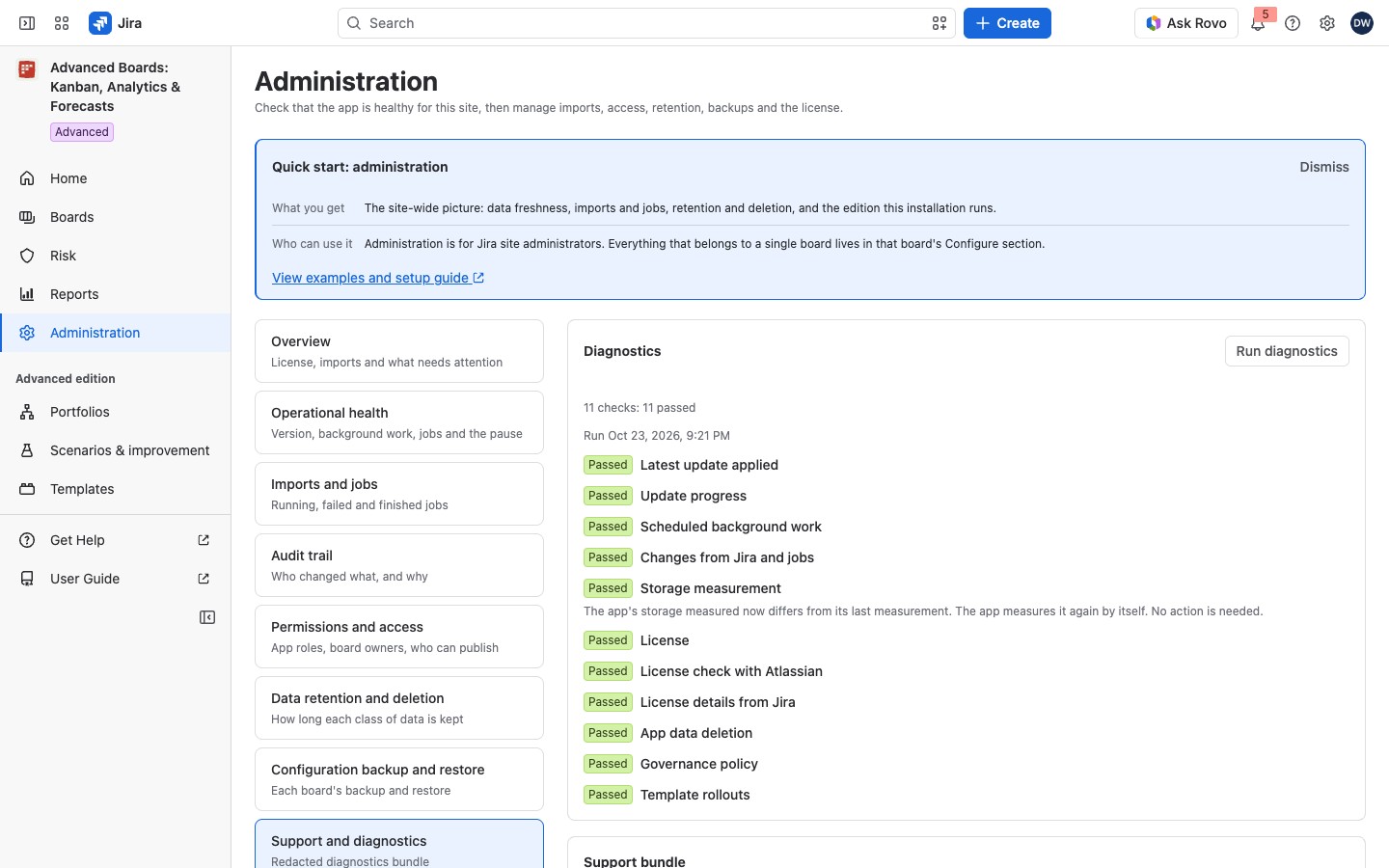
Before the first run, the card reads “No diagnostics run yet”: none has run in this session. Select Run diagnostics. The result opens with a count line such as “11 checks: 10 passed, 1 warning”, then a line “Run” and the time, then each check with its outcome. Each check shows its outcome as “Passed”, “Warning”, “Failed”, “Unknown” or “Skipped”. Passed is green, Warning amber, Failed red, and Unknown or Skipped gray. A check this version of the app has no name for reads “A check this version cannot name”.
| Check | What it looks at |
|---|---|
| Latest update applied, Update progress | Whether the newest version of the app finished its update |
| Scheduled background work | Whether the background passes run on time |
| Changes from Jira and jobs | Whether changes reach the boards |
| Storage measurement | The app’s storage on the site |
| License, License check with Atlassian, License details from Jira | The license as Jira and Atlassian report it |
| App data deletion | Whether Delete all app data is running |
| Governance policy, Template rollouts | Site rules and rollouts, in the Advanced edition; on Standard both read Skipped, with “Not included: this installation’s edition does not include templates and rollout.” |
While the license is inactive or Atlassian has not confirmed it, the three checks Scheduled background work, Changes from Jira and jobs and Storage measurement read Skipped with “Not included: this installation’s edition does not include operational health.”, and Governance policy and Template rollouts read Skipped with the templates sentence.
A warning or a failure carries a sentence that says what it means and what to do. Each is listed under “If something looks off” below.
Build a support bundle #
Before you build one, the card reads “No bundle built yet”.
- Choose the Audit window: 7 days (the default), 14 days or 30 days. It sets how many days of the audit trail the file carries, so a longer window gives support more of the changes made on the site.
- Select Build support bundle. The card reads “Building the bundle on the server…”.
- Read the result. The file line gives its name and size. A list names each part of the file (File details, Edition and support tier, Diagnostics checks, Permissions, Operational health, Data retention, Audit trail, Governance, Not measured); the Audit trail row counts its rows. Select Show contents to read the whole file.
- Select Save file.
- Attach the file to your ticket.
The app does not keep this file. Leaving or reloading the page discards it, so save it at once. If the build is refused, select Use a shorter window: it sets the window back to 7 days and returns the card to “No bundle built yet”. Then select Build support bundle again.
To open a ticket, select Get Help in the app’s navigation. It leads to the vendor’s support portal.
Read the bundle before you save it #
The file line names the file and its size, with Save file beside it. Under it, the card says the app does not keep the file. One sentence says what the file never holds: no work item data, no account ids and no Jira identifier but the site’s. Each person in it is a short token that means something only inside this installation, and the site’s id lets support find your installation.
Then the list names each part of the file:
| Part | What it holds |
|---|---|
| File details | When the file was built, the app version and the site it comes from |
| Edition and support tier | The edition and its support tier, where the app read the edition and when |
| Diagnostics checks | The number of checks, each with its result and the facts it read |
| Permissions | Each permission and address the app declares, with this site’s answer |
| Operational health | Background passes, jobs and the newest failed one, the storage estimate, the edition and any trial, the audit trail’s counts and usage meters |
| Data retention | The plan the app follows to delete old data, and the record of its last nightly sweep once one ran |
| Audit trail | The number of audit rows over the audit window, each with its time, action, outcome, the kind and app id of what it changed, and who acted as a token |
| Governance | The governance policy’s version and mode, and counts of approvers, templates and rollouts |
| Not measured | The figures the app does not measure, by name |
A part your edition leaves out says why. Operational health reads “Not included: this installation’s edition does not include operational health.” and Governance reads “Not included: this installation’s edition does not include templates and rollout.” If the card cannot read the file’s parts, it says “The sections of this file cannot be listed here.”; Show contents and Save file still work.
If the audit part was cut to fit, the Audit trail row says “The file stops at this row count:” and from when rows are missing; the oldest rows are the ones left out. Where the list cannot be read, the card says “The audit section was cut at” and the number of rows instead.
Show contents opens the file’s text, read-only, in a box that scrolls. Select Hide contents to close it.
Priority support (Advanced edition) #
On the Advanced edition, the vendor handles your support requests with priority; on Standard, in the standard way. To get it, open your ticket through Get Help and attach a support bundle. The bundle names the tier, so the vendor’s portal can see that your site runs Advanced and route your request: “PRIORITY” on Advanced, “STANDARD” on Standard, and “NONE” while the license is inactive or not yet confirmed. Response targets and support hours come from the vendor’s support policy, not from the app. Nothing else in the app changes with the tier.
For example, Dana Whitfield builds a bundle on the Advanced edition and selects Show contents. Under “Edition and support tier” she finds the line supportTier = PRIORITY. On a Standard site, the same line reads supportTier = STANDARD.
Pending approvals #
After you run diagnostics, a Permissions card shows only when an update of the app needs a new permission. It reads “An update needs your approval in Connected apps.” Its (i) About the pending approval says that until a Jira administrator approves it, the app runs without the features that need it.
If something looks off #
- “Not measured: the app has not measured its storage yet.”: run diagnostics again tomorrow.
- “Not measured: the app’s last measurement of its storage failed.”: run diagnostics again tomorrow; if it stays, build a bundle and contact support.
- “Changes from Jira are waiting longer than usual to reach the boards.”: no action is needed; they arrive on their own.
- “Changes from Jira have not reached the boards for a long time.”: contact support through Get Help.
- “A background pass is running late or its last run failed, so boards may be older than usual.”: the app retries on its own; if this stays after an hour, contact support through Get Help.
- “A background pass has not run for a long time or failed several times in a row, so boards are not being refreshed.”: contact support through Get Help.
- “The latest update has not finished applying, so some screens refuse to open.”: open the app again; if this stays after an hour, contact support through Get Help.
- “An update was queued and has not reported back.”: wait for the next background pass; if this stays after an hour, contact support through Get Help.
- “Jira has not reported this installation’s license yet, so paid features wait.”: wait for the next read; if this stays, check the app’s license in Manage apps.
- “This installation’s license is inactive.”: renew it in Manage apps; your data stays readable and exportable meanwhile.
- “Atlassian’s license service did not confirm the license.”: no action is needed unless paid features stop.
- “This installation runs under a license the vendor set for it, so Atlassian’s license service is not asked.”: no action is needed.
- “The governance policy could not be read, so it is applied at its most restrictive.”: open Governance and save the policy.
- “A template rollout has stopped making progress.”: open Templates to see where it stands; if it stays, contact support through Get Help.
- “Delete all app data is running, and most of the app waits.”: wait for the deletion to finish; the app opens again on its own.
- “The operational facts could not be read.” or “The governance facts could not be read.”: run diagnostics again; if it stays, build a bundle and contact support through Get Help.
- “The app’s storage measured now differs from its last measurement. The app measures it again by itself. No action is needed.”: no action is needed.
- “The check failed inside the app.”: run diagnostics again; if it stays, build a bundle and contact support through Get Help.
- “The app’s stored license record could not be read, so Atlassian’s license service was not asked. …”: the app keeps the license Jira reports and asks again once it can read the record; no action is needed unless paid features stop.
- “This check could not answer.”: run diagnostics again; if it stays, build a bundle and contact support.
- “Not available while this installation deletes its app data.”: wait for the deletion to finish.
Who can open it #
Only a Jira administrator can open Administration, run diagnostics and build a support bundle.


