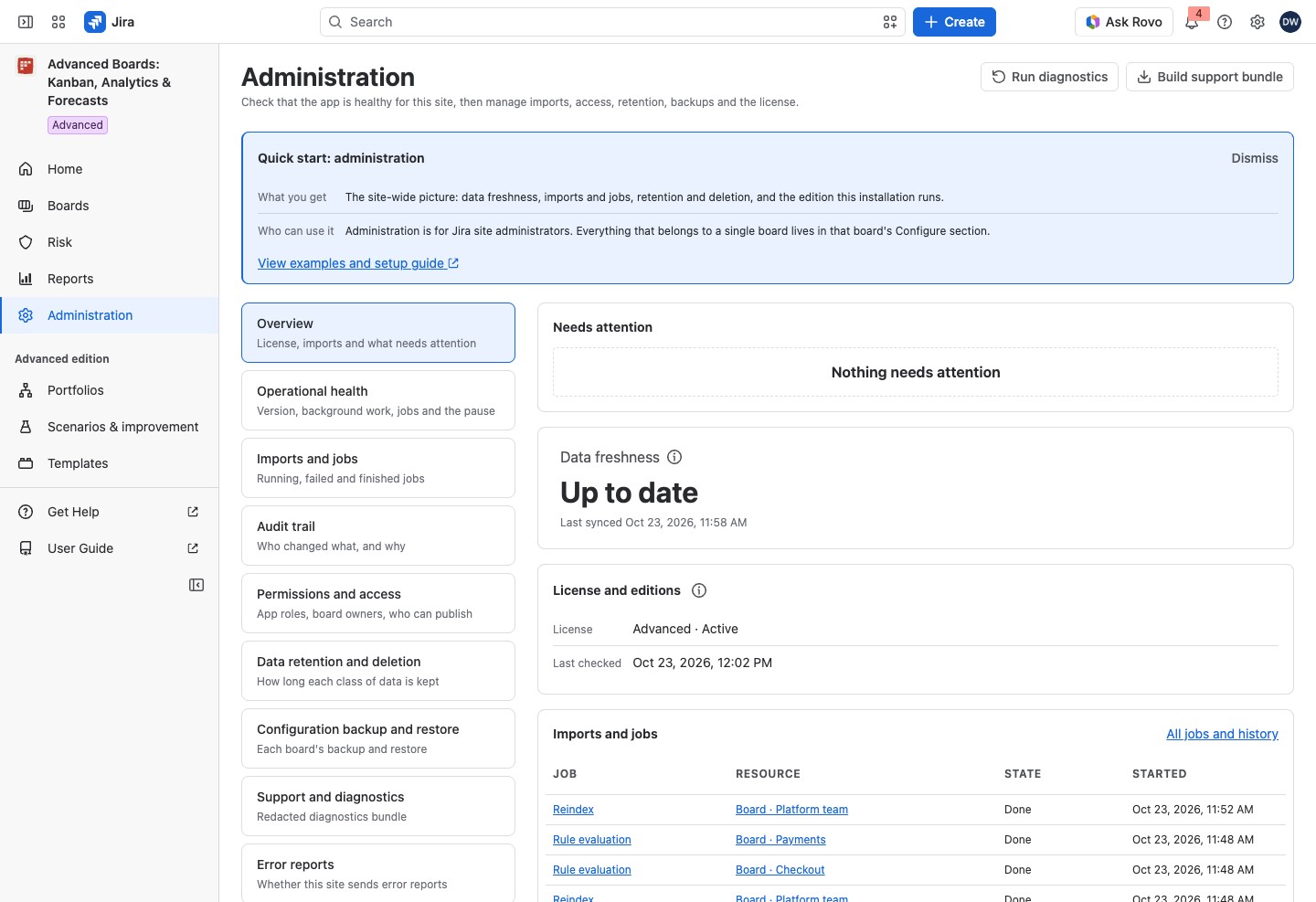
Administration manages the app for the whole Jira site. Its Overview shows what needs attention now, the license and edition, how fresh the boards’ data is, and the background jobs.
Open Administration #
- In Jira, open Apps, then Manage apps.
- Find Advanced Boards: Kanban, Analytics & Forecasts and select Get started, or select Administration in the app’s navigation.
Administration opens on Overview. A section that needs a look carries a lozenge: Overview the number of rows that need attention, Imports and jobs the number of failed jobs, such as “2 failed”, and Operational health “Review” when a scheduled pass failed on its last run, or Data retention and deletion “Review” while older copies of board data are still being cleared.
The header of each section, Support and diagnostics and Operational health excepted, carries Run diagnostics and Build support bundle. Each opens Support and diagnostics and runs there (Support and diagnostics). Both are held while the app data is being deleted.
Under the page title stands the block Quick start: administration. What you get says what the page covers, and Who can use it says it is for Jira site administrators. View examples and setup guide opens this user guide. Select Dismiss to hide the block for you.
The sections #
The section list stands on the left. Each entry shows the section’s name and a one-line hint, and a lozenge only when the section needs a look. The open section is outlined. A hint that is cut shows whole when you point at it. On a narrow window, the list sits above the section.
| Section | What it is for | Article |
|---|---|---|
| Overview | License, imports and what needs attention | This page |
| Operational health | Version, background work, jobs and the pause | Operational health and pausing changes |
| Imports and jobs | Running, failed and finished jobs | Imports and jobs |
| Audit trail | Who changed what, and why | Audit trail |
| Permissions and access | App roles, board owners, who can publish | Permissions and access |
| Data retention and deletion | How long each class of data is kept | Data retention and deletion |
| Configuration backup and restore | Each board’s backup and restore | Configuration backup and restore |
| Support and diagnostics | Redacted diagnostics bundle | Support and diagnostics |
| Error reports | Whether this site sends error reports | Error reports |
| Governance | Governed boards, approval and override levels; on Standard, only lifting a rule | Governance |
| AI investigation (Advanced) | Opt-in, spending and caps | AI investigation settings |
| Risk automation (Advanced) | Percentile of past finishes and usual waits | Risk automation |
Only an Advanced site lists AI investigation and Risk automation; a Standard site, or one whose license is inactive or not confirmed, does not. If you open AI investigation or Risk automation there from a saved link, the page shows About the Advanced edition in place of the section. Governance stays listed on every edition, because its site rules still apply.
Needs attention #
Needs attention lists only real conditions. Most rows carry a link to the place that fixes them. When all is well, it reads “Nothing needs attention”; otherwise the card’s title shows how many rows it holds. Each row’s lozenge and edge say how urgent it is. Red rows are the inactive license (“License inactive”), a failed or paused job (its state, such as “Failed”) and full storage (“Full”). The only blue row is the app setting itself up (“Setting up”). Every other row is amber: “Edition unknown”, “Deleting data”, “Changes are paused”, “Nearly full”, “Last pass failed”, “Incomplete” or “Catching up”. The rows are:
- The license is inactive, or Waiting for Atlassian to confirm this site’s license: no link, as the license card is on this page.
- This installation is deleting its app data: Open Data retention and deletion. While the deletion runs, every section but Data retention and deletion shows only this row in place of its content. Nothing else in Administration can be read or changed until the deletion ends.
- Changes are paused by an administrator: Open Operational health.
- The app is setting itself up: a new version is updating, so select Check again.
- Import failed on a board, or another job failed on a resource: Open Imports and jobs.
- A job paused on a resource: the app starts it again by itself after the wait the row names. Open Imports and jobs.
- Automatic board updates are waiting (“Catching up”): the app is clearing older board data, then updates run on their own. A new board’s first import, and a change you save to a board, never wait. Open Imports and jobs.
- A pass such as Work item sync (5 minutes) failed on its last run, or 2 scheduled passes failed on their last run: it runs again by itself. Open Operational health.
- Storage is nearly full: new exports are refused, and as storage fills, saved results and then new boards are refused too. Open Data retention and deletion.
- Storage is full: boards stop refreshing, and new exports, saved results and boards are refused. Open Data retention and deletion.
- Changes missing from the audit trail: Open Operational health.
To free storage, choose a shorter history window, delete saved results you no longer need, or delete a board. While changes are paused, changes and new forecast and analysis runs are refused for everyone on the site; reading and exporting keep working. While the license is inactive or not confirmed, paid actions are refused or held, and reading, exporting and deleting your data stay available. While the app deletes its data, your Jira work items are untouched.
Data freshness #
Under Needs attention stands a row of tiles. Data freshness says “Up to date”, or how far behind the newest changes are, such as “25m behind”. Its (i) says changes in Jira appear within about 20 minutes; “behind” shows only after that.
Its caption reads “Last synced” with the time, “Last sync failed” with the time, or “Not synced yet”. On a site with no board yet, it reads “Nothing imported yet”.
License and editions #
The (i) beside the License and editions title, About the edition, reads “The edition is read from your Atlassian license and refreshed within an hour.” The card holds three rows:
- License reads “Standard · Active”, “Advanced · Active”, a trial (“Standard · Trial” or “Advanced · Trial”), “Inactive”, or the waiting message.
- Last checked gives the time of the last read.
- Recovery actions shows only while paid actions stop. It lists, as text, what still works: “Read retained results”, “Export your data” and “Delete app data”, or “Try again” while Atlassian has not confirmed the license.
The recovery row holds no buttons. Retained results open on their boards, and exports are made from Reports. Delete all app data is under Data retention and deletion (Data retention and deletion). Try again is the button of the notice “Waiting for Atlassian to confirm this site’s license”, where a screen holds back paid work.
While paid actions stop, a line under the card says so: “Paid actions are stopped while the license is inactive.” or “Paid work is held while the answer is missing.” On Standard, the card carries About the Advanced edition.
License terms: Pricing and Licensing.
Recent jobs #
The Imports and jobs card, last on the page, lists the five newest jobs in the columns Job, Resource, State and Started. A job’s kind opens the job’s page, and a board’s name opens the board. A paused state that no Resume lifts carries an (i) that says what ends the pause. All jobs and history opens the full list. With none, the card reads “No recent jobs”.
If something looks off #
- “Waiting for Atlassian to confirm this site’s license”: paid work is held until Atlassian answers. The app reads the license again within an hour.
- “Data freshness is not shown while the license is inactive.”: renew the license in Manage apps.
Who can open it #
Only a Jira administrator can open Administration. Anyone else sees “This page is for Jira administrators” and Ask a Jira administrator.


