Data retention and deletion sets how long Advanced Boards: Kanban, Analytics & Forecasts keeps imported status history on this site. It shows what the nightly sweep removed, and holds the one way to delete the app’s data for the site.
Open the section #
Open Administration, then select Data retention and deletion.
Choose the history window #
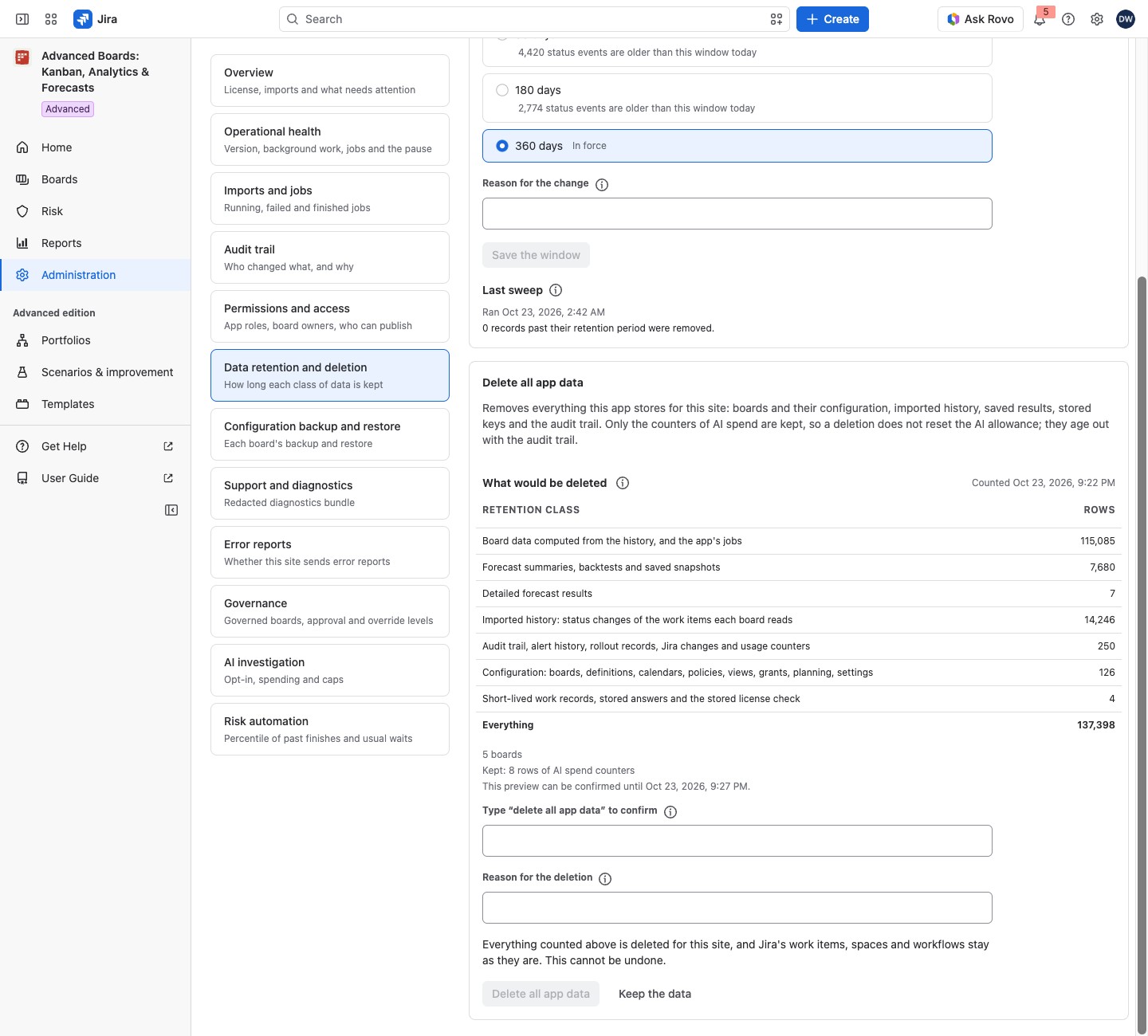
Under History window, choose Keep imported status history for up to 90, 180 or 360 days (the default). Each shorter window shows how many status events are older than it. When none would remove anything, one line says so instead: “No status event is older than a shorter window today, so choosing one removes nothing yet.” The window in force is marked “In force”.
- Choose a window.
- For a shorter window, tick “I understand that the history outside the shorter window is deleted”.
- Optionally enter a Reason for the change. It is kept in the audit trail.
- Select Save the window.
When you choose a shorter window, a red note appears above the checkbox: the history outside it is deleted, starting with the next nightly sweep. This cannot be undone, and the numbers computed from that history change with it. Widening the window restores nothing: only what is imported from then on fills it.
The (i) About the history window says what the window covers. Boards, configuration and saved results are kept under their own retention classes, not by the window. The sweep runs nightly, so a status event can stay up to a day past the window.
What each kind of data is kept for #
| Retention class | In plain words | Kept for up to |
|---|---|---|
| “Imported history: status changes of the work items each board reads” | Status changes imported from Jira, and the list that links them to work items | Status events: the history window. The list: while a board holds the work item, and up to 361 days after Jira deletes it |
| “Detailed forecast results” | The full results of forecasts, scenario runs, AI investigations, exports, priority rankings and Cumulative flow charts | 30 days for forecasts, scenario runs and AI threads; 7 days for exports and priority rankings; 1 day for Cumulative flow results |
| “Forecast summaries, backtests and saved snapshots” | Short records of past forecasts and backtests, kept so the app can check later how they came true, and saved snapshots | 360 days (760 for a schedule summary still waiting for its outcome) |
| “Audit trail, alert history, rollout records, Jira changes and usage counters” | The record of who changed what, the history of alerts, finished rollout records, the record of Jira changes made through the app, and the counters of Jira and AI use | 90 days |
| “Board data computed from the history, and the app’s jobs” | Working copies of board data the app computes from the history, and finished jobs | 1 day |
| “Short-lived work records, stored answers and the stored license check” | Short-lived records the app uses while it works, stored answers that make screens fast, and the saved license check | About an hour, or until replaced |
Boards and their settings have no period. A row can stay up to a day past its period.
Last sweep reads “Ran” with the time, then a total such as “15 records past their retention period were removed.” Its (i) About the last sweep says each kind of data is kept for up to its own period, and the nightly sweep removes what is past it. Before the first sweep, it reads “The nightly sweep has not reported for this installation yet.”
Delete all app data #
- Select Preview what would be deleted.
- Read the table What would be deleted (described below).
- Type “delete all app data” to confirm. Capitalization does not matter.
- Optionally enter a Reason for the deletion, then select Delete all app data. Select Keep the data to leave instead.
The table has two columns, Retention class and Rows, one row per class, and a bold Everything row with the total. Its caption reads “Counted” with the time. Under the table, a line counts the boards, such as “5 boards”. While jobs run, a line says how many “running jobs are canceled before the first table is emptied”. A “Kept:” line counts the rows of AI spend counters the deletion keeps. The last line reads “This preview can be confirmed until” and a time; after it, count again.
The (i) About these counts says the counts are evidence, not a condition: on a live site they move every second. Counts that move on a live site do not refuse the deletion. If another deletion started, or what it would delete changed since the preview, nothing is started: reload to count again. The phrase clears, so type it again; your reason stays. If a deletion already runs, the preview reads “A deletion is already running” with Try the preview again.
Follow the deletion #
The Deletion state shows only once a deletion has started. Nothing else can be read or changed meanwhile.
- Deleting app data: it shows the phase and the rows and keys removed so far. The phases run in order: “Canceling the other jobs”, “Emptying the tables”, “Removing the stored keys”, “Counting what is left”, “Writing the closing record”. Until the last count, it also says “Not verified yet: the count that proves the installation is empty runs at the end.”
- The deletion is waiting: the card says what for and since when. It continues by itself while the app’s storage asks it to slow down, while an update of the app finishes applying, and while it waits for the app’s scheduled work. Two cases end instead. When the card says “The deletion is stopping, since …”, it stops; then you count what is left and confirm again. When it says no step has run since a time and “it has been interrupted as often as the app allows”, the app’s scheduled work stops it next; then you count and confirm again. The card reads the state again on its own every 30 seconds for 10 minutes. When it stops, Check again appears; a press that finds the deletion still waiting adds “Checked again at” and the time.
- The deletion stopped: it did not finish. Preview and confirm again to finish it as a new deletion.
- The app data was deleted: the card says “Verified” when every table was counted empty. Some temporary entries may remain; the app stops using them within an hour.
- The deletion was not verified: some app data may be left, so count again and confirm again.
The state is a lozenge at the top of the tile: red for The deletion stopped, yellow for Deleting app data, The deletion is waiting and The deletion was not verified, and blue for The app data was deleted. Under it you read how many rows and stored keys were removed (not after The deletion was not verified, whose record proves no count), in the form “… rows and … stored keys removed so far” (“so far” goes once it is done), the Phase, when it started and when it finished. After The deletion stopped or The deletion was not verified, the tile carries Preview what would be deleted: select it to count what is left and confirm again.
Kept: the AI spend counters, and one closing record with who ran it, the reason and the counts. To keep a board’s settings, download its backup first (Configuration backup and restore).
If something looks off #
- “This preview can be confirmed until” a time that has passed: count again.
- “The history sweep did not finish; it continues hourly”: no action needed.
- “The history window was not saved.”: select Save the window again.
- “The history window may not have been saved.”: reload the page and read which window is marked “In force”.
- “Acknowledge above that the shorter window deletes history to enable this.” on Save the window: tick the checkbox above the reason.
- “Nothing to save: this is the window in force.” on Save the window: choose another window.
A save that lands reads “The history window is saved.”
Who can open it #
Only a Jira administrator can open Administration, change the window or delete the app data.


