Forecast answers two questions from a board’s own delivery history: when a scope will finish, and how much can finish by a date. Each answer comes with its probability and the trials behind it.
How a forecast works #
A forecast replays the board’s own delivery history many times to build many possible futures. Each one is a trial. One trial draws past days of the history window at random, such as a day with 2 deliveries or a day with none, until the scope is done or the date is reached. The probability of an answer is the share of trials that reached it. If 8,500 of 10,000 trials finished by a date, that date is the 85% answer.
A forecast says nothing about how your team will work from now on. It assumes the past continues.
Two questions, one dialog #
Open a board and select Forecast in its sections. The section has three tabs: Run a forecast, Schedules and Calibration. Schedules and Calibration are covered in Forecast schedules and Forecast calibration. Both questions are in the Standard edition. Schedules and Calibration are part of the Advanced edition. On Standard, a tab that holds earlier schedules or backtests shows them and starts nothing new; one that holds none shows “This is part of the Advanced edition” with About the Advanced edition.
- “When will this scope finish?”: dates for the remaining scope at four probability levels.
- “How much can finish by a date?”: a lower bound on how many work items finish by the date you choose, never an upper tail.
Set up a run #
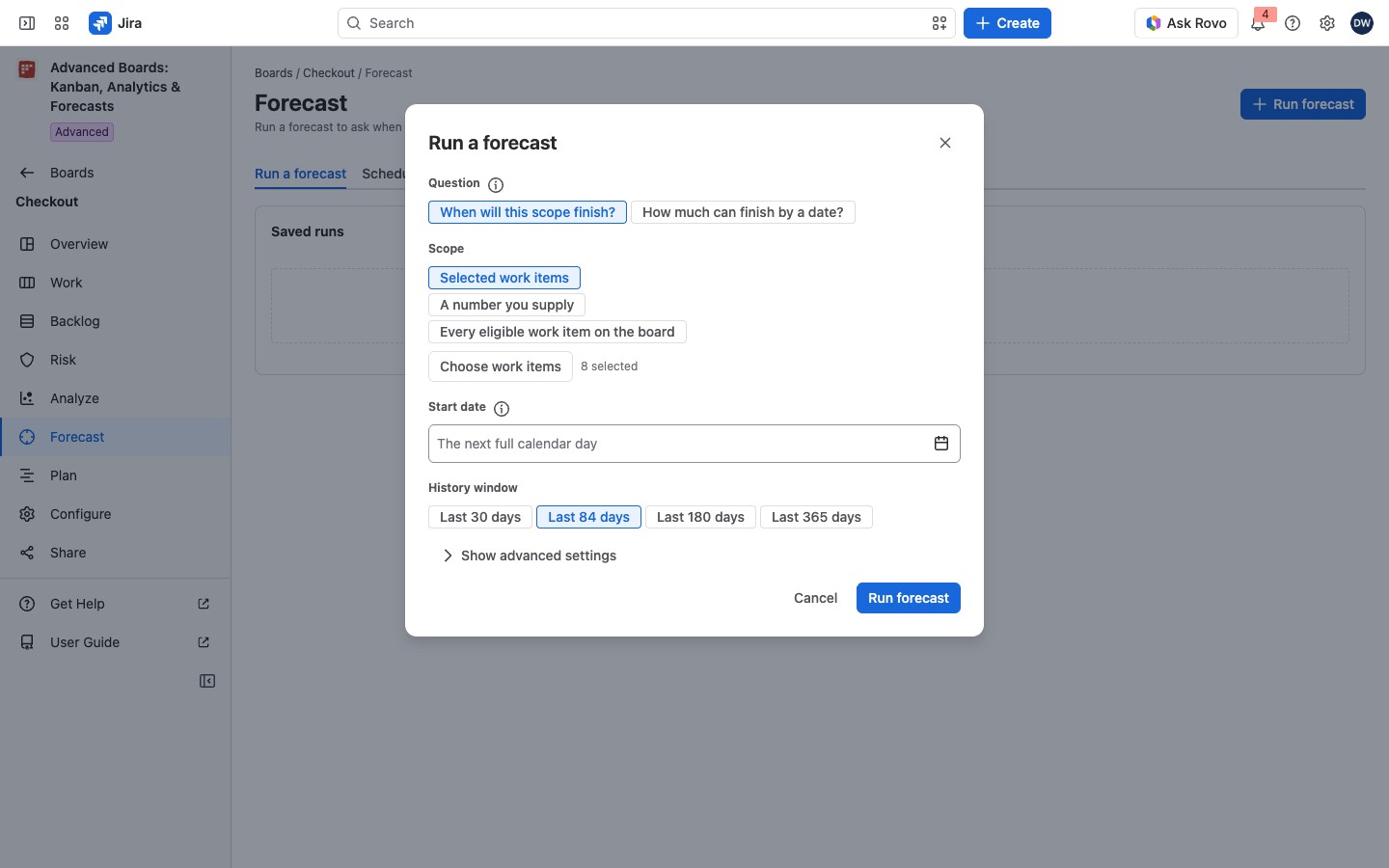
- Select Run forecast in the header.
- Under Question, choose one of the two questions. The (i) “About the two questions” repeats the difference.
- Under Scope, choose what the run covers (see below).
- For a “How much” run, choose a Horizon date, at most 730 days past the start. Its last day counts in full.
- Under History window, choose Last 30 days, Last 84 days (the default), Last 180 days or Last 365 days. These are the days the trials draw from.
- Select Run forecast.
The three scopes are:
- Selected work items: up to 2,000, chosen with Choose work items.
- A number you supply: a whole number from 0 to 100,000 in Work items remaining at the board’s counting level. The run labels it user-supplied and never checks it against the board.
- Every eligible work item on the board.
Left empty, Start date means the next full calendar day in the flow’s time zone.
Show advanced settings adds From and To, a custom window of 7 to 365 days, and Trials: 1,000 to 1,000,000, 10,000 to start. Above 250,000 trials the run is drawn in the background, and the screen follows it.
Choose the work items #
Select Choose work items to open “Choose the work items this run covers”. The table lists the board’s open work items as you can read them, with “In the run”, “Work item” and “Age”.
Tick a row under In the run to include it. Select all shown ticks every row loaded so far, up to the 2,000 cap. Clear the selection removes every tick. Show more loads the next rows. Close the dialog to return to the run with your choice.
Check which work items are in #
Every run carries an “Eligibility review” headed “Read this before the dates”. A forecast models first delivery only, so some work items are out. A line counts the eligible work items against the selected ones. Select its Show … work items button to open the table. “In the forecast” says “Eligible” or “Excluded”, and “Why” gives the reason. “Age” gives the age of the open first cycle, or says why there is none, such as “No proven first cycle” or “Not counted”.
Two reasons keep a work item in: “New work, never committed” and “Unfinished first cycle”. Six keep it out:
- “Already delivered once”
- “Reopened after a delivery (rework)”
- “Prior delivery unknown (history inconclusive)”
- “Not available on this board”
- “Outside this board’s counting level”
- “Of a type Jira places at no level”
On a board-wide run the first page lists the eligible work items and ten excluded ones. Select Show more work items for the rest. Read a forecast result explains the answer, the warnings and the saved runs. The strip above the result states Data as of, Permissions as of and the coverage (Data as of, permissions and coverage).
If something looks off #
- “This board has not finished its first import, so there is no history to forecast from.”: select Open the board overview and wait for the import.
- “No work item on this board is one you can see”: select Forecast a number you supply instead.
- “This installation has no active license, so no forecast can be run.”: Run forecast stays held until the license is active again.
- “The forecast is being run. Wait for its answer.”: Run forecast is held until the run in flight answers.


