Policies & agreements is where a board records the WIP limits its team agreed. Work shows every count against its limit, so the team sees at a glance where work piles up.
Open the policies #
- Open the board and select Configure.
- Choose Policies & agreements.
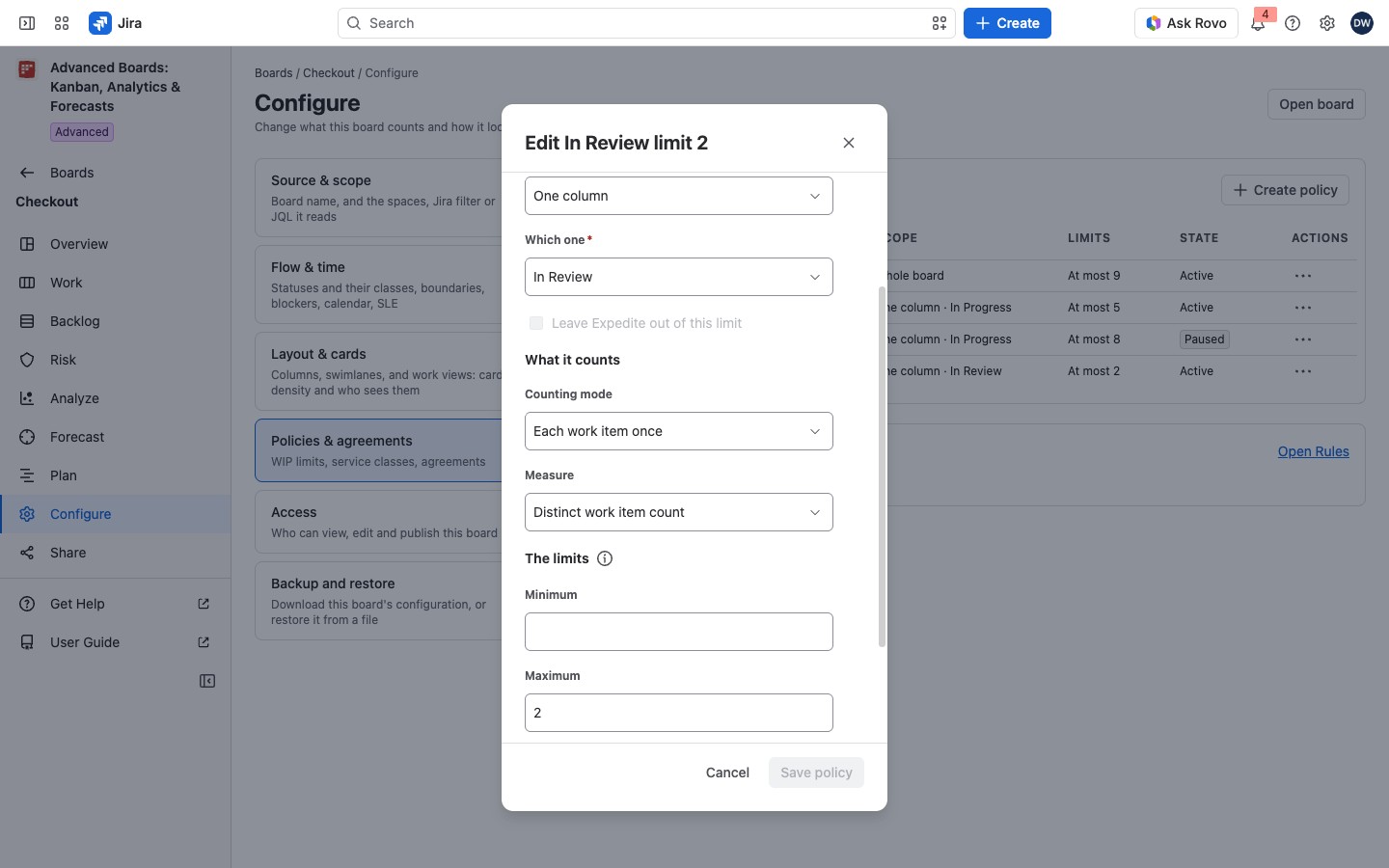
Policies on this board lists each Policy with its Scope, Limits and State. Limits reads like “At most 2” or “No limit agreed”; Scope adds “counted across boards” or “Expedite left out” where they apply. A policy is Active while it checks work in progress, and Paused when it does not. A board with none shows No policies yet and “No agreement is recorded on this board yet.” A Board owner is then asked to create a policy. Anyone else reads that a Board owner records the limits.
The row’s menu holds Edit policy and Delete policy. A row whose scope no longer fits the board says why.
Create or edit a policy #
- Select Create policy, or Edit policy on a row.
- Under The agreement, enter the Policy name.
- Under Where it applies, choose the Policy scope, and in Which one the column, group, lane, person, team or class (a team is a Jira group; a cell takes a Column and a Lane).
- Under What it counts, choose the Counting mode and the Measure.
- Under The limits, enter a Minimum, a Maximum or both.
- Leave Check work in progress against these limits on.
- Under What members read, write the Agreement text; members read it from the count or the column it applies to.
- On the Advanced edition, where a site rule is in force, enter the Reason for the change (Source and scope); Work shows it with the policy.
- Select Save policy.
Both limits start unset. An empty limit means nobody agreed one; it never means zero.
| Option | Choices |
|---|---|
| Policy scope | Whole board, One column, One column group, One swimlane, One cell (the crossing of one column and one swimlane), One assignee, One team, One class of service |
| Counting mode | Each cycle separately, or Each work item once. Work in progress reads the same under both: a work item has one open cycle at a time |
| Measure | Distinct work item count, or Numeric field sum of a Jira field, with its Unit |
| Count across boards | Whole board only: up to 20 other boards you own, each work item counted once |
| Leave Expedite out of this limit | A board or column limit, where a class of service is marked expedite; those work items do not count toward the limit, and their age is still measured |
A swimlane or cell limit needs swimlanes, which you set in Columns, lanes and cards. A class limit needs a class that the flow maps (Calendar, service levels and classes of service), and covers one board. Boards that share a limit must agree on where work starts and finishes, how statuses are classed and which levels count. Otherwise the save is refused, and a stored limit reads “This limit is not measured”. If a counted board is deleted, the limit counts this board alone and stays Paused until you turn it on.
Save a limit that counts other boards #
A limit that counts across boards changes the figure other boards see. Before it saves, a dialog lists Boards this limit counts, now and after the save. Select Save to confirm. You must be a Board owner of every board the limit counts, or the change is refused.
What people see on Work #
Work shows “Board WIP” and each column’s count beside its limit, with At limit, Over limit or Below the minimum where it applies. When a move would break a limit, the move dialog says so and asks for an acknowledgment. These checks never block a move in Jira (The Work board).
Limits and rules from elsewhere #
- Shared limits that count this board: other boards’ limits that count this board’s work, read-only. Owned by links the board where each is changed.
- Rules on this board (Advanced edition): the risk rules that watch this board, with each Rule, What it watches, its Severity, Cooldown, State and Open alerts. Open alerts counts only alerts on work items you can access. It is read-only here because one rule can watch several boards. Select Open Rules to change one (Risk rules). With none, it reads “No rule watches this board.” On Standard, the card shows “This is part of the Advanced edition” with About the Advanced edition.
Delete a policy #
Select Delete policy in the row’s menu. The dialog lists what still uses it under What this stops. If an item “has to be changed or removed first”, change it before you delete. Its agreement and limits go; the work items it counted are never touched. This cannot be undone.
If something looks off #
- “The minimum has to be zero or more and no greater than the maximum.”: correct the two numbers, then save.
- “This board draws no lanes, so a swimlane policy limits nothing. Choose another scope, or set up swimlanes in Layout & cards.”: set up swimlanes first, or choose another scope.
- “Only a Board owner of every board this limit counts can change it.”: ask a person who owns all those boards to make the change.
- “Payments cannot share this limit with this board: it differs in where work finishes.”: make the boards agree in the parts it names, or take that board out of the limit.
- “Enter a whole number, or leave it empty to agree no limit at all.”: correct the limit.


