Reports is your library of saved results. It lists the forecast runs and exports you made, and the stakeholder views and packs you can open.
Open your library #
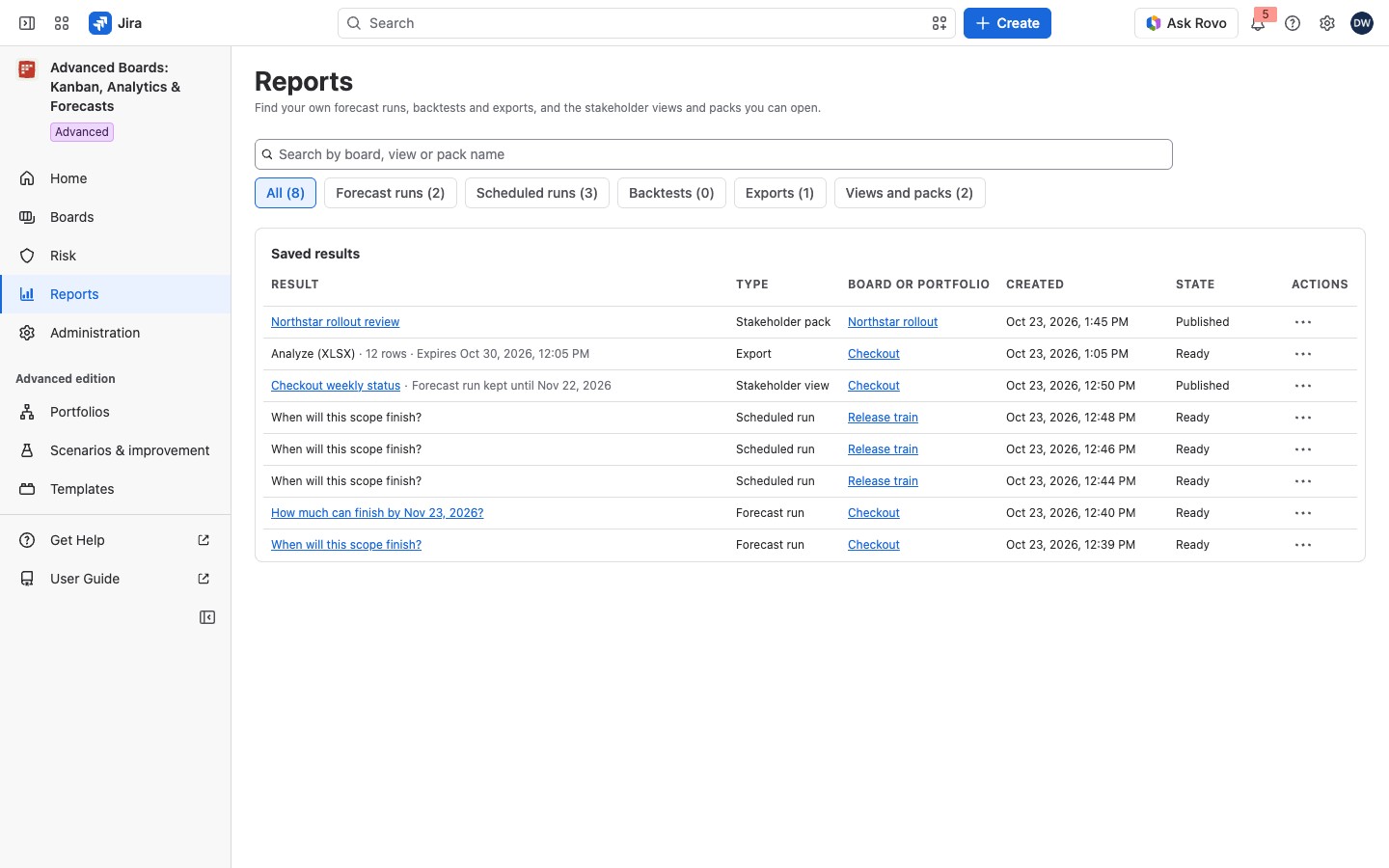
Select Reports in the app’s navigation. The page lists everything in one table, Saved results, newest first. A row appears when you run a forecast or a backtest, or take an export, on a board.
The list also holds the stakeholder views and packs you can open. A stakeholder view is a page a Board owner publishes from a board’s Share section for the people who follow its work (Stakeholder views). A stakeholder pack is a page for a portfolio’s readers that gathers its flows, roadmap and saved forecasts (Portfolio roadmap and stakeholder packs). Neither expires, so their state is “Published”.
Each row shows:
| Column | What it holds |
|---|---|
| Result | The result’s name. A forecast run is named by its question, “When will this scope finish?” or “How much can finish by …?” with its date, a scheduled run included. A scheduled run that names no question reads “Scheduled run”, and a backtest “Backtest of past forecasts”. An export is named by the screen it came from and its format: Work, Analyze, Forecast, Risk, Scenario, Plan timeline, Plan priorities or Portfolio benchmark, such as “Work (XLSX)”. A pack’s export names its pack: “Stakeholder pack:”, the pack’s name and the format |
| Type | “Forecast run”, “Scheduled run”, “Backtest”, “Export”, “Stakeholder view” or “Stakeholder pack” |
| Board or portfolio | Where the result belongs, as a link |
| Created | When the result was made |
| State | “Ready”, “Running”, “Failed”, “No access” or, for a view or pack, “Published” |
Ready and Published are plain text, since nothing is wrong. Running is a blue lozenge and Failed a red one. A gray No access lozenge marks your export whose board was deleted or that you can no longer read; its (i) says the file cannot be downloaded. An export’s name line also says when its file expires.
Narrow the list #
Use the chips above the table to show one kind of result: All, Forecast runs, Scheduled runs, Backtests, Exports and Views and packs. Each chip counts its rows, as in “Forecast runs (4)”. A count with “+”, such as “4+”, means there are at least that many: more pages are still to load.
To find one result, type in the search box, “Search by board, view or pack name”. The search runs over your whole library, not only the rows on screen. Select Load more saved results or Load more exports to read further pages.
Open, download or delete a result #
Most rows have a menu under Actions, which starts with the place the result lives. A row with nothing you may do, such as an export somebody else made, has no menu. Where two rows would read alike, the menu of the second and later ones adds a number, such as “(2)”.
- Forecast run: Open the run opens the run’s own page under its board’s Forecast section.
- Scheduled run or Backtest: Open the board’s Forecast section takes you to the board; you can delete one you own with Delete scheduled run or Delete backtest. “Delete this saved result?” has Delete result, and “Delete this backtest?” has Delete backtest.
- Export: Download saves the file again. It is offered for your own export when its state is Ready. Delete export removes it, and is offered for your own export once it is no longer Running. “Delete this export?” says its file is deleted and this cannot be undone. Select Delete export, or Keep it.
- Stakeholder view or pack: Open the stakeholder view or Open the stakeholder pack opens it.
Each delete says what it removes:
- A scheduled run: only its summary leaves this list and the schedule’s history. Its full run stays in the board’s Saved runs until it expires, and the schedule keeps running.
- A backtest: it leaves this list and the board’s Calibration tab. The schedules and runs it judged are untouched.
- A saved result: it leaves this list and the board’s Forecast section, and the schedule that produced it keeps running.
- An export: its file is deleted. The board keeps its own data.
None of them changes your Jira work items, and none can be undone. A forecast run is never deleted here. It’s kept for up to 30 days and then removed by itself. Runs other people saved are not in your library; you find them on each board’s Forecast section.
Five kinds of row come from features of the Advanced edition:
- Scheduled run: a forecast that a schedule runs again by itself, so you can follow how its date moves (Forecast schedules).
- Backtest: a check of how often past forecasts of the board came true (Forecast calibration).
- Stakeholder pack: a portfolio’s page for its readers, described above (Portfolio roadmap and stakeholder packs).
- Scenario export: the file of one scenario run (Scenario results and the apply plan).
- Portfolio benchmark export: the file of the benchmark that compares a portfolio’s boards (Portfolios).
Take an export #
You take an export on the screen whose data you want. Select Export in the header of Work, Analyze, Forecast or Risk, on Plan’s Timeline or Priorities tab (Timeline, milestones and dependencies), or on a scenario or portfolio, then choose a format:
- Open the board’s section, for example Checkout → Analyze.
- Select Export.
- Choose Spreadsheet (XLSX) or CSV (zip with data and metadata).
- Wait while the status reads “Preparing the export…” and then “Export running: …”. It reads “Saved …” when the file has downloaded.
Chart as image (PNG) on a chart, and Timeline as image (PNG) on Plan, save a picture straight to your computer. Only the spreadsheet and CSV files are kept in Reports.
A spreadsheet or CSV file opens with a header that says what it holds. Its times are printed in the time zone the header names, with that zone’s offset. A Plan timeline file states Work items written, such as “40 of 42 readable”. A file that recorded no coverage says “not recorded in this file” under Coverage. A note also says when the board held work items that Jira no longer confirmed, or when a scenario run withheld dates because its work waits on work outside it.
An export is kept for up to 7 days, and you can keep 10 exports at a time. Delete an old one to make room.
If something looks off #
- “Your saved exports are at their limit”: delete one of your exports on Reports, then export again.
- “An export of yours is still being built”: the app writes only a few of your exports at a time. Wait until one of them finishes, then select Export again in a moment (Export again where the button states the wait). Nothing you asked for was lost.
- “This installation is at its export limit”: wait until older exports expire, then try the export again.
- “The export did not finish”: select Export again to start a new file.
- “This export is larger than one file carries”: narrow the screen’s filters or period, then export again.
- “The board was updated”: select Reload, then export again.
- “Waiting for Atlassian to confirm this site’s license”: a file computed now needs that answer first. Select Try again in a while.
- “This file can’t be made again from what was kept of it. Export it again from its screen.”: open the screen the file came from and take a new export there.
- “No access” in the State column: the export’s board was deleted or you can no longer read it. Select the (i) beside it, “Why … cannot be downloaded”, which names the file. Delete the row or let it expire.
- “No saved results yet”: select Open Boards, run a forecast or take an export on a board, and it appears here.
- “No matching results”: clear the search term and try again.
- “More stakeholder views or packs exist than this list holds. Search by name to find the rest.”: type the view or pack name in the search box.


