AI investigation answers a question about one board. Every number in the answer comes from the same data as Analyze, and each fact cites the evidence it rests on.
Ask a question #
- Open a board’s Analyze section (Flow metrics in Analyze).
- Select Investigate with AI in the page header.
- Type your question in Your question, up to 500 characters. Or select one of the Examples to fill the field, such as “Why did the forecast date move between the last two runs?”
- Select Investigate, or press Ctrl+Enter (Cmd+Enter on a Mac).
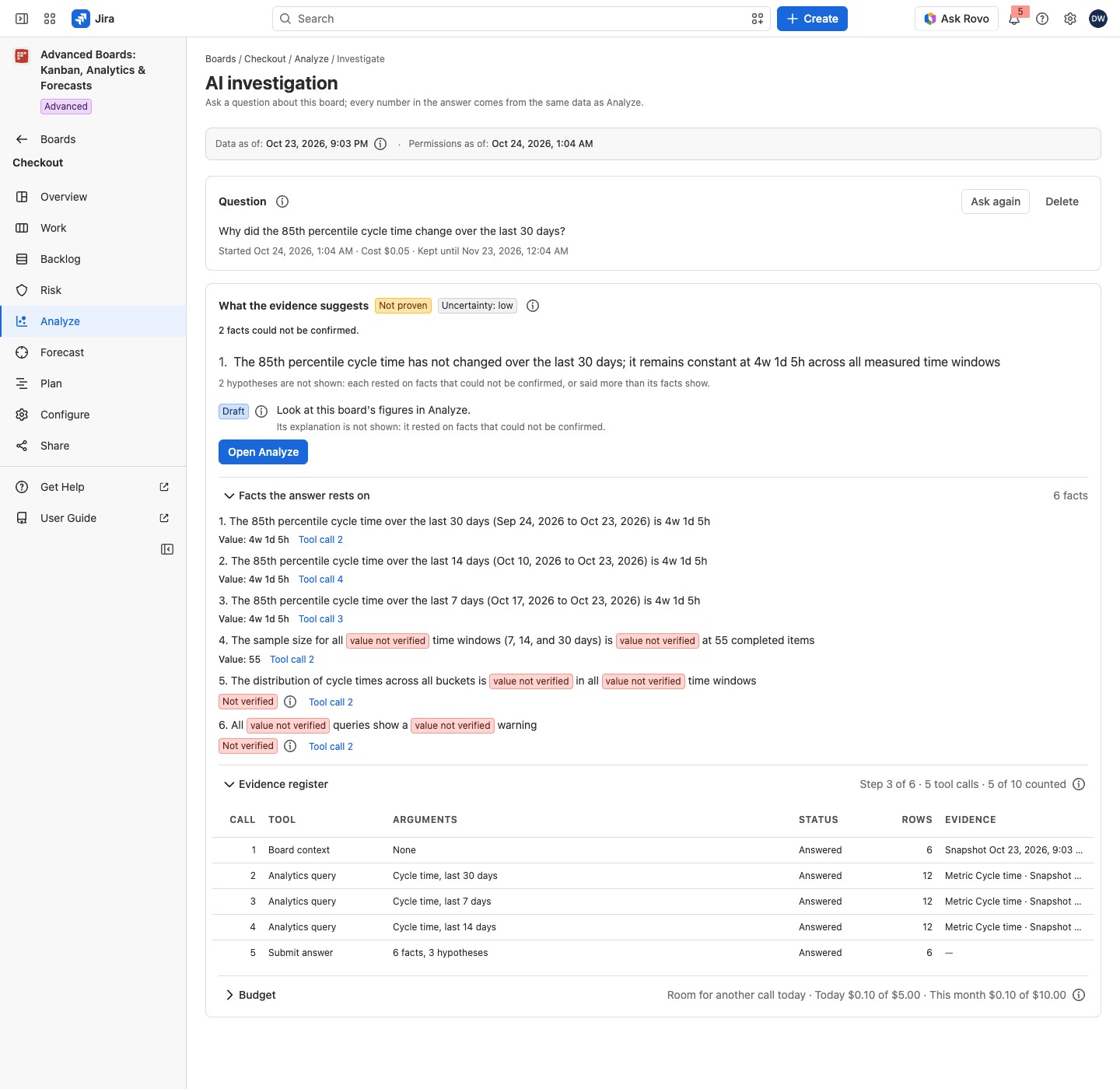
A question works through up to six steps and ten tool calls. While it works, the Evidence register line reads like “Step 2 of 6 · 3 tool calls · 3 of 10 counted”, with “1 refused” added once a call is refused. A refused call does not count toward the ten. The button reads Working… and stays held until the answer lands or you select Cancel investigation. Cancel stops the question and keeps what it gathered. Anyone with a role on the board, a Viewer included, can ask.
An app administrator also sees the budget line under the question, with its (i) About the budget. Everyone else sees no money figure there (see the Budget row below).
What the answer shows #
The strip above the question holds “Data as of” and “Permissions as of” (Data as of, permissions and coverage). The forecast runs the answer used are listed at the top of the Evidence register.
Behind each fact stands a tool call: a fixed check of the board’s data, the same data Analyze reads. The answer lists every check it made, so you can see where each number came from.
| Part | What it holds |
|---|---|
| What the evidence suggests | The numbered hypotheses |
| Facts the answer rests on | Each fact with the tool call it cites; a value no tool returned is marked “Not verified” and withheld |
| Evidence register | One row per tool call: Call, Tool, Arguments, Status, Rows, Evidence |
| Work items cited | The work items the answer used, read live from Jira as you and never stored with it |
| Budget | For an app administrator only: whether another call fits, today’s and this month’s spend against the cap, when each resets, and what one call sets aside. An administrator sets the cap (AI investigation settings). Everyone else sees no figure: only the availability notice when the budget is used up, paused or held, and a line when the spend record cannot be read |
Facts the answer rests on, Evidence register and Budget open and close. A closed one shows its name and a short summary, such as “4 facts”.
The head of the answer card holds a yellow Not proven lozenge over the hypotheses and a gray lozenge that reads Uncertainty: low, Uncertainty: moderate or Uncertainty: high. Its (i) How to read this answer says “The hypotheses rest on the cited facts and are not proven.” A fact whose value could not be checked carries a red Not verified. A word that only such a fact stated reads value not verified in every sentence of the answer, the sentences of confirmed facts included. The next action carries a blue Draft.
Status takes one of four values:
| Status | What it means |
|---|---|
| Answered | Plain text: the check ran and returned its rows |
| Refused | Red: the check was not run; its lozenge’s tooltip reads “This call was refused.” |
| Failed | Red: the check ran and did not finish |
| Deferred | Yellow: the step ran out of time for the call, so it runs first in the next step |
The register keeps what each call asked for and how many rows it returned. Tool names the check, such as “Board context”, “Analytics query”, “WIP evaluation”, “Risk signals”, “Forecast runs” or “Forecast run”. Arguments says what the call asked for in words, such as “last 90 days” or “elapsed time”. Evidence names the run (“Run of” a date), the metric or the snapshot it used.
A hypothesis or a next action that rests on a fact the app could not confirm is not shown. The app checks every figure in a statement against the call it cites. If a statement says more than its facts show, the app does not show it. A line says so in its place, such as “No next action is shown: the one proposed rested on facts that could not be confirmed, so it was removed.” or “1 hypothesis is not shown: it rested on facts that could not be confirmed, or said more than its facts show.”
The answer may also carry a warning line:
- “One or more facts cite a call that returned nothing usable; their values are withheld.”: check that figure in Analyze before you use it.
- “A work item reference the answer names was not returned by any tool, so it is printed as an unverified reference.”: treat that work item as not checked.
- “The proposed action is outside what this app offers, so no control is shown for it.”: there is nothing to select; decide yourself whether to act.
- “An earlier attempt at this answer was cut off at the model’s length limit and discarded. The answer below was submitted whole on a later attempt.”: nothing is needed; the answer is complete.
A stopped question says “Everything this investigation gathered is in the evidence register below.” The register keeps every call it made, even without an answer.
A question that was stopped, reached its ceiling or was cut off shows what it gathered under one sentence at the top. For example: “This investigation was stopped before it finished. What it had already gathered is below, with the part it could not verify marked.” The other versions say the investigation “reached its combined step and tool-call ceiling before it submitted an answer”, or that “The model’s answer was cut off by its length limit twice in a row”. A line beside the hypotheses, such as “1 fact could not be confirmed.”, counts the facts marked “Not verified”.
The answer may end with a next action marked Draft, such as Open the Forecast section, Open Analyze or Open Risk. Any Suggested inputs are only suggestions. “Nothing runs automatically, and no Jira work item is changed by an investigation.”
For example, on Checkout choose the example “How long did work items take to finish over the last 90 days?” and select Investigate. Each figure in the answer cites an Analytics query call in the register. The answer opens with a numbered hypothesis under What the evidence suggests and Not proven. Below it, a fact gives its figure after “Value:” and cites “Tool call 1”, and the head reads Uncertainty: moderate, for example. The answer may end with Open Analyze as a Draft next action, so you can check the figures on the chart yourself.
Your previous investigations #
The card Your previous investigations lists your threads on this board, and reads “No investigations yet” while there is none. Select a question to open its thread. Show more reads the next page. An opened thread shows Started and Kept until under the question, and an app administrator also sees its Cost, and Ask again asks a new question. On a thread stopped by a cap, an administrator also sees Open AI investigation settings.
Answered shows as plain text. Running is blue, Stopped gray, Budget used up and Cap too low red, and the other states yellow. Budget used up, Cap too low, Failed and Blocked show a short explanation when you hover over or focus the lozenge.
- Running: a step may still follow.
- Answered: every fact was checked against its call.
- Stopped: somebody stopped it; evidence kept.
- Budget used up: the budget ran out.
- Cap too low: the cap is below the most one call can cost; only a higher cap lets a question run.
- Paused: a call cost more than it set aside; the site waits for the daily reset.
- Ceiling reached: the step and call limit came first.
- Blocked: the content check rejected it before evidence left your session.
- Failed: the model did not answer.
- Turned off midway: an administrator turned it off.
The other columns are Started and Kept until, and for an app administrator also Cost. You can keep up to 20 threads. Delete, on an opened thread’s card, asks “Delete this investigation?” and then removes the whole thread when you select Delete investigation. The money already spent stays counted against the budget.
What is sent and what is kept #
The (i) beside Your question lists what is sent and what is never sent. Administration → AI investigation lists what is kept.
- Sent to the model: evidence-tool numbers and dates, work item and run identifiers, exclusion codes, your question text and board configuration names.
- Never sent: work item summaries, comments, attachments, account identifiers, secrets and tokens, and anything outside what you can read.
- Kept for up to 30 days: the question, its tool calls, its cost and the structured answer.
On the Standard edition #
Investigate with AI still opens the page. With earlier threads, they stay readable, each marked with the yellow lozenge Retained result: produced under the Advanced edition, and the page says “New investigations pause on this edition.” With none, it shows About the Advanced edition.
If something looks off #
- “AI investigation is off” or “AI is not set up yet”: ask a Jira administrator, or wait for the vendor.
- “The cap is below the most one call can cost”, “The monthly cap is below the most one call can cost” or “The daily cap is below the most one call can cost”: an administrator raises that cap (AI investigation settings).
- “You have reached the number of investigations one person may keep”: open one of your previous investigations and select Delete, or wait until one expires.
- “The model is unavailable”: select Try again; what the investigation already gathered is kept.
- “A call cost more than expected”: questions pause until the daily budget resets. Raising the cap does not change it.
- “AI investigation is not set up for this site yet”: the vendor completes it; there is nothing to do here.
- “The budget for this period is used up”: wait for the reset, or ask an administrator to raise the cap.
- “Other questions are running”: select Try again in a moment.
- “This investigation used a work item you can’t read now, so none of it is shown.”: ask your question again.
- “Nothing to investigate yet”: wait until the board’s first import finishes.
- “Waiting for the model’s minute. The question continues in under a minute.”, “Waiting for a free slot: another question’s call is finishing.”, “Waiting for spend in flight to settle. The question continues once it is counted.”, “Waiting to read this site’s AI spend. The question continues once it is read.” or “Waiting for the model. The question continues shortly.”: wait; the question continues by itself.
- “The question was not sent: AI stayed busy. Nothing was spent.” or “The question was not sent: this site’s AI spend record could not be read or updated. Nothing was spent.”: ask the question again in a moment.
- “Stopped: AI stayed busy. Nothing more was spent.”, “Stopped: this site’s AI spend record could not be read or updated. Nothing more was spent.” or “Stopped: the next step could not run. The evidence gathered up to then is kept.”: ask the question again later; the register keeps what was gathered.
- “This site’s AI spend could not be read, so no spend or remaining figure is shown”: an app administrator sees this in the budget line; a question you ask waits until the spend is read.
- “This site’s AI spend could not be read just now. A question waits until it is read.”: everyone else sees this line; you can still ask, and the question starts once the spend is read.


