The Create board wizard builds a board in five steps. You choose where the work comes from, what counts as one item and what each status means. Then the board imports its history from Jira.
Step 1: name the board and choose its source #
The wizard’s step list tags steps 1 to 3 Required until they are complete, then Done. The final step carries Last step. After you create the board, Importing becomes the last step.
- Open Boards and select Create board.
- Type the Board name. You can change it later.
- Under Where the work comes from, choose a source kind.
- Pick the source from the list Jira shows you, or type JQL.
- Read the Source preview card, then select Next: Counting level.
The source kinds are:
- Space: one or more spaces you can browse, up to 50.
- Saved filter: a saved filter Jira shares with you. One that depends on who reads it, such as one with currentUser(), must be changed in Jira first.
- JQL: a query you type, checked as you go.
- Jira board: its saved filter and columns, copied once. A board with no readable filter reads “This Jira board cannot be used as a source”. Once the board exists, its source shows as Saved filter: the Jira board’s filter.
The preview counts the work items that match and that you can see. Resolved query shows the JQL the board will read, and a Sample line lists a few of the keys. One board reads at most 10,000 work items.
The preview can also warn you:
- “This source resolves to more work items than one board can import. Narrow it first.”
- A status used only in one space may be missing from the statuses offered for mapping, because the source holds more work items or spaces than one preview reads, or Jira did not answer with every workflow. Name that space in the source, or map the status later in Configure.
If no completed work item matches today, the preview warns that throughput, cycle time and forecasts stay empty until one does. If the query leaves out completed work altogether, the board can never measure throughput or forecast. Include completed work in the query, and hide it in a saved view of Work instead.
Step 2: choose the counting level #
Under Which work item types count as one item, tick Epics, Stories and tasks or Subtasks. “Stories and tasks” is ticked to begin with. A parent and its child count as different items. Select Next: Flow mapping.
Step 3: map each status to a state class #
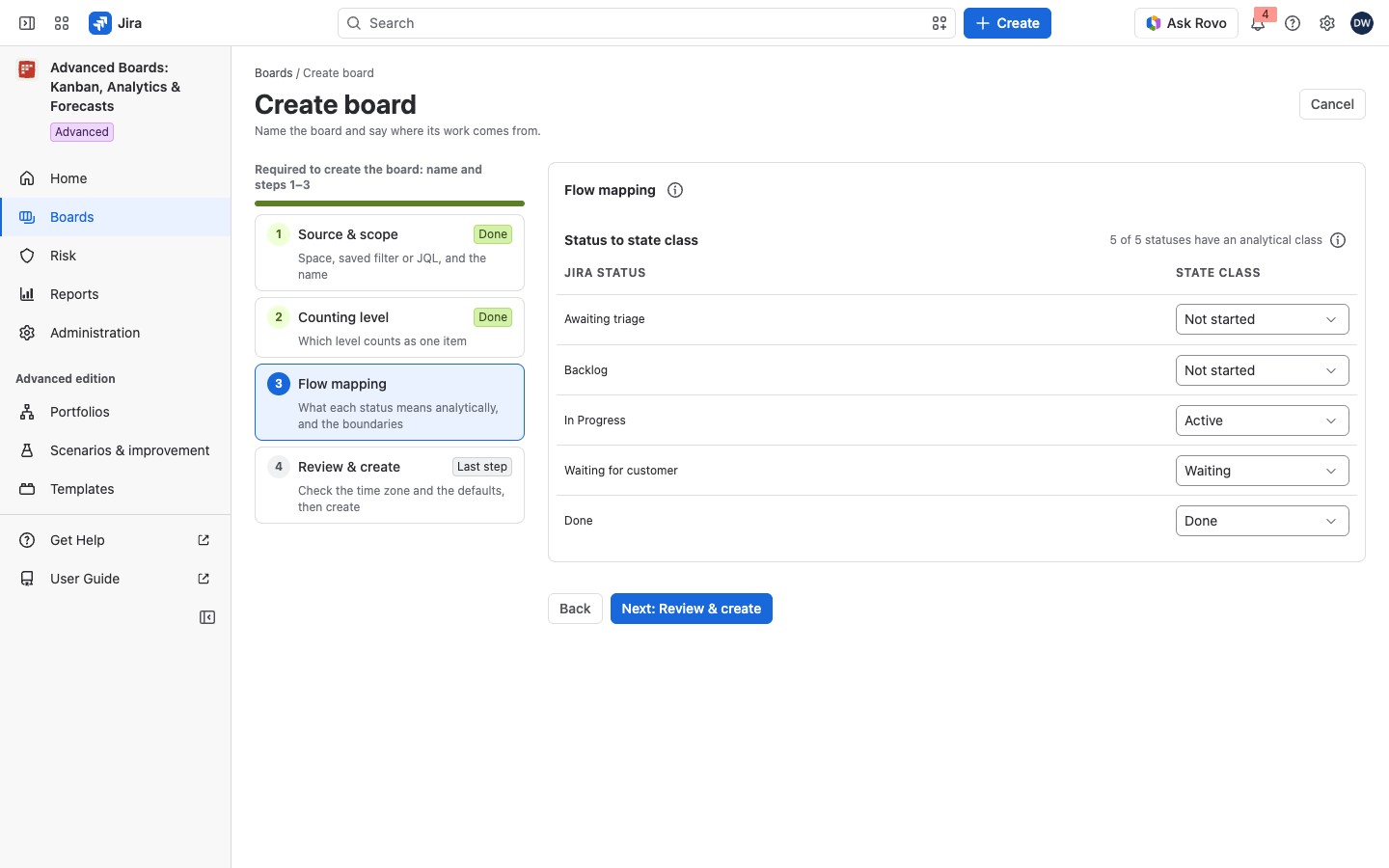
The Status to state class table lists every status the source uses. Choose a State class for each Jira status: Not started, Active, Waiting or Done. Each starts at the class Jira’s status category suggests. A status with no category starts empty, and its row reads “Jira reported no category for this status”. The caption under the table counts the statuses that have a class, such as “4 of 5 statuses have an analytical class”.
For example: “To Do” is Not started, “In Progress” and “In Review” are Active, “Waiting for customer” is Waiting, and “Done” is Done. Choose Waiting for a status where nobody works on the item.
You need at least one status in Active and one in Done. Then select Next: Review & create. A cycle starts at a work item’s first entry into an Active status (the commitment). It ends at its first entry into this flow’s Done class (the delivery), which is not Jira’s Done category.
Step 4: review and create #
Review & create lists your choices from steps 1 to 3, each marked Confirmed, and the defaults the board starts with, each marked Default. Edit returns to a step. If you created a board in the last hour, a line “You created this board at” a time links to it, so you don’t create it twice. One review confirms every default below. Change them in Configure after the board exists.
- Time zone: a picker. It starts at your Jira profile’s zone, or your browser’s, and says which: “From your Jira profile” or “From your browser”.
- Access: you, as its board owner, and Jira administrators.
- Durations: elapsed time.
- Calendar: Mon–Fri 09:00–18:00, no holidays.
- Layout: one column per status. For a Jira board, Columns offers One column per status or The Jira board’s columns.
- WIP limits and Service level expectation: not set.
If a choice would pass 50 columns, the board starts with one column per state class. Tick Start with one column per state class, or Create board stays held. Select Create board when the rows are right.
Step 5: let the history import #
While the import runs, the step shows the job: a state lozenge, the stage it has reached and a progress bar. Cancel the job stops it. A paused import offers Resume the job. The import goes on if you leave the page; the board’s Overview follows it in its Work in progress card.
Select Open the board, or wait for “The board is created and its history is imported: the board is ready.” Until then, every number stays labeled incomplete. If it reads “… its history import stopped before it finished.”, the board’s Overview says why and offers Import again. “… a newer history import took the place of the one started here.” means a new import is running.
If the wizard holds you back #
- “Creating a board needs an active license”: a Jira administrator selects Open Administration to check the license. If the card says “Waiting for Atlassian to confirm this site’s license”, select Try again in a while.
- “Above the supported ceiling of 10,000 work items …”: narrow the source.
- “Map at least one status to active and one to done before publishing.”: give one status each class.
- “Choose a source in step 1 first.” or “The source in step 1 was not previewed, so its statuses are not known yet.”: select Go to Source & scope.
- “No status was seen in this source …”: name a space in the source, or come back once it holds work items.
- “Jira no longer lists this status; its id is shown instead of a name”: give it a class like any other row.
- “Create board has not finished” or “Create board did not answer”: the board may already exist. Select Try Create board again. It asks about the same press and creates no second board.
Where to go next #
- A board’s Overview: what the Overview tells you.
- The Work board: the board you work on every day.
- Flow, boundaries and blockers: change the state classes and the cycle’s boundaries.
- Calendar, service levels and classes of service: set the calendar and the service level expectation.
- Policies and WIP limits: agree the board’s WIP limits.


