A scenario’s page holds one card per kind of assumption. You record what you want to try, save it and run it, then see how the portfolio’s delivery dates move.
Open a scenario #
- Select Scenarios & improvement.
- Select the scenario’s name in the Scenario column.
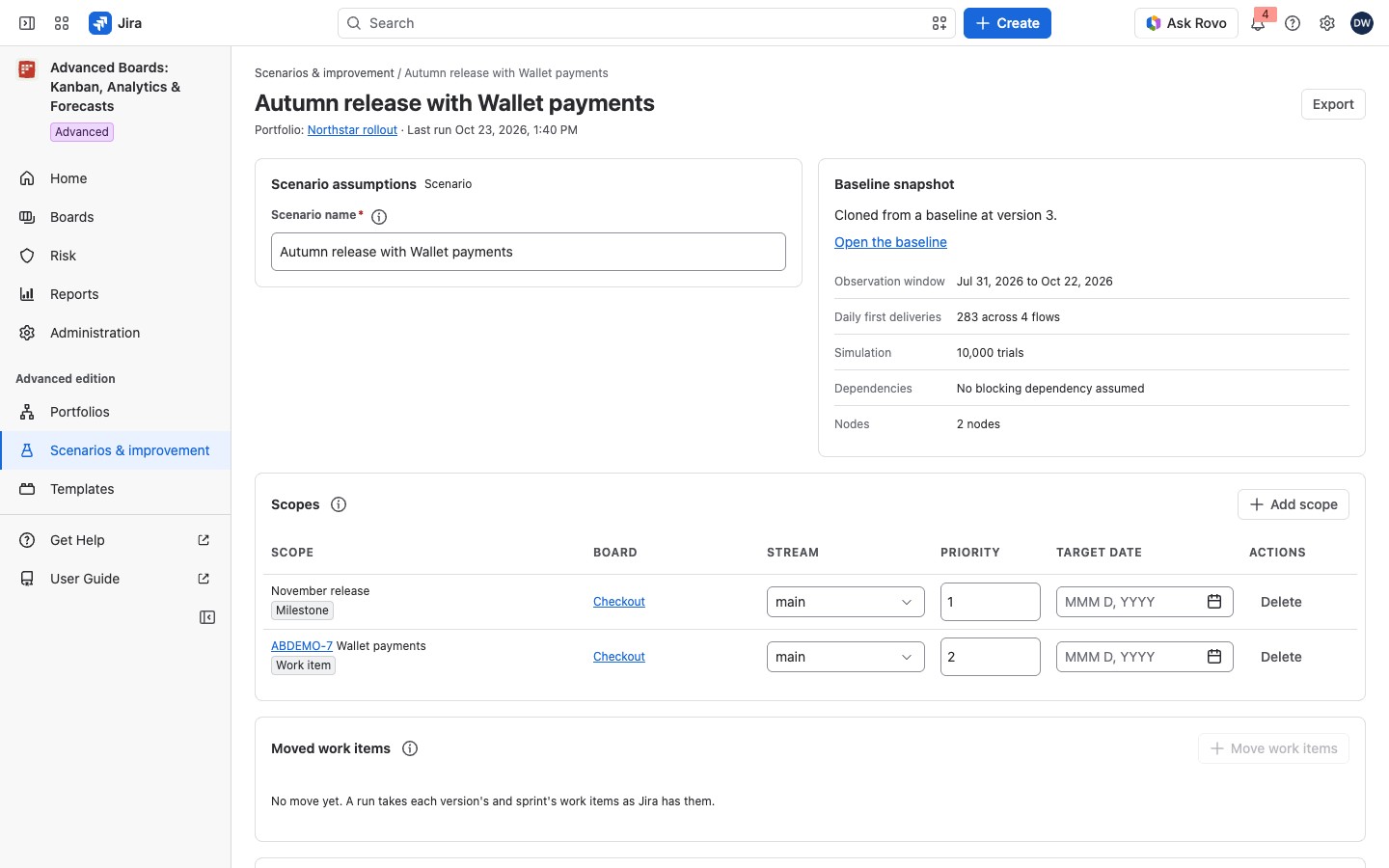
The page header names the scenario, then “Portfolio:” with a link to the portfolio, and “Last run” with its time, or “Never run”. The card Scenario assumptions comes first. Its Scenario name takes up to 200 characters. The cards below it hold the assumptions, one card per kind.
Save, run and manage the scenario #
For example, open the clone Autumn release with Wallet payments, made from the baseline Autumn release. Add the epic Wallet payments as a scope on Checkout, select Save, then Run the scenario. The run shows how the dates of Autumn release move once Wallet payments is part of the plan (Scenario results and the apply plan).
Until the scenario is run, the Scenario assumptions card carries a Draft lozenge beside its kind. Its (i) reads “This body has not been run yet. Saving records it; running records a result against the saved version.” Save waits while nothing changed. Discard changes drops your edits. Run the scenario needs a saved version and a scope.
- Rebase on the current membership: appears when the portfolio’s boards changed since you wrote the scenario. It re-reads the portfolio’s boards and makes today’s boards this scenario’s flows, which the next run then models. If part of the scenario is on a board that left, rebase before you save or run.
- Duplicate scenario: appears when part of the scenario names boards or work items you can’t open. Only someone who can open all of it can change or run it, so Duplicate makes a new scenario of your own from the parts you can open. The original is not changed.
Only the portfolio’s owner can change a scenario; that person also finds Delete scenario at the bottom of the page. Export in the header saves the shown run.
Add scopes #
A scope is what the roadmap answers for. Under Scopes, select Add scope, then choose a Flow board and a Kind of scope:
- Work item: one work item and everything under it.
- Milestone: a milestone’s work items.
- List: work items you pick, under your own Label for this list. All list scopes together hold up to 600 work items, and a line counts them, such as “12 work items across the list scopes here · up to 600”.
Each scope has a Stream, a Priority and a Target date. A lower priority number is served first in its stream. The target date is your own goal. A scenario holds up to 50 scopes on up to 8 flow boards.
Split capacity and add dependencies #
| Card | What you record |
|---|---|
| Allocation | Add stream: choose the Flow board and a Stream name (lower-case letters, digits, hyphens). Shares of one flow add up to at most 1. Up to 4 streams a flow |
| Dependencies | Add dependency: choose a Blocking scope and a Blocked scope. Up to 100. A cycle is refused. The switch Read Jira’s own blocking links at run time adds Jira’s links, read as you each time. Work that waits by such a link on unfinished work outside the scenario has its dates withheld (Scenario results and the apply plan) |
| WIP change | Record a WIP change: choose the Flow board, the policy and the Limit after the change. One a board |
A stream is a named share of one flow board’s capacity, and each scope is served from its stream. For example, a flow board can give the stream wallet a share of 0.6 and the stream core 0.4. Capacity a stream does not use is lost for that day, never lent to another stream.
A WIP change is not part of the forecast: it is recorded and not modeled, so it moves no number. It is recorded so that the apply plan can write the new limit to the board’s policy (Scenario results and the apply plan).
Move work items and settle shared work #
Moved work items (Move work items) takes chosen work items from one version or sprint scope to another on the same board. It needs two such scopes. A scenario holds up to 4 moves and 50 work items. Apply writes each move to Jira.
- Under Moved work items, select Move work items.
- Choose From and To: two versions or two sprints of one board.
- Choose the Work items to move.
- Select Move. It adds the move to the scenario and changes nothing in Jira.
The dialog says when it has nothing to move: “This milestone follows no Jira version or sprint, so it holds no work item to move.”, “This milestone holds no work item you can open.” or “Every work item of this milestone that you can open is in a move already.” Move is held with its reason until both milestones and at least one work item are chosen.
Shared work, found by the first run, lists work items that more than one scope names. Each is simulated once, on one Executing stream. The lower priority number decides, or you name the stream. On a tie the card marks “Needs a choice”, and the scenario won’t run until you choose. The column Named by lists the scopes. Executing stream reads “By the rank rule” until you choose a stream; “Clear my choice: decide by the rank rule” goes back. A lozenge Moved since the run means a rank change moved the work item to another scope since the last run, and its (i) says where. The card reads “From the latest run, over data as of” a time.
Shared deliveries lists flow boards that delivered the same work items. Under Counted on, choose the one board that counts them. The choices must not go round in a circle.
Set the model #
- History window: the complete days of observed deliveries each flow samples. 7 to 365, 84 by default.
- First simulated day: empty means the next full calendar day.
- Trials: 1,000 to 100,000, 10,000 by default.
- Reporting time zone: fixed when the scenario was created, from the portfolio.
A trial that has not finished after 730 days is counted apart, as not finished, and is given no date.
Check the baseline and the flows #
Baseline snapshot says whether this is the baseline or which version it was cloned from. Open the baseline goes there. After a run, it gives the Observation window, the Daily first deliveries, the Simulation settings, the Dependencies from Jira and assumed, and the Nodes and shared work. Before the first run, it says the scenario has not been run yet. Flows gives each board’s Flow version, Calendar version, Observed days and Data as of. Observed days reads 60 of 84 (days with usable history out of days asked for); a board with none reads “No history read”.
On the Standard edition #
The page shows the yellow lozenge Retained result: produced under the Advanced edition and says “New scenarios, edits and runs pause on this edition. The scenarios you have stay readable and can be deleted, and their runs can be exported while they are stored.” A second line reads “This screen is reading a stored result. Nothing is recomputed on this edition.” Save, Run the scenario and every edit control are held with that reason. Export in the header and Show this run in the run history still work, and the portfolio’s owner can still delete the scenario.
If something looks off #
- “Save first: a run records the saved version.”: select Save, then run.
- “… has no observed delivery to sample, so there is not enough observed delivery history to model this scenario. …”: import more of that board’s history, or run the scenario over boards that have completed work.
- “… delivered only work items that this scenario counts on …, so it has no delivery of its own to sample. …”: narrow the source of the board that counts them so that it leaves some out, or run the scenario without one of these boards.
- “The source of … leaves out every completed work item, so that board has no delivery to sample and this scenario cannot be modeled.”: that board’s owner changes its source so it keeps completed work.
- “A work item scope reads at most … work items on one level under it”: set the scope on a work item lower down, or as a list.
- “Work items that need an executing stream: … This scenario does not run until each of them names one.”: under Shared work, choose the Executing stream of each marked work item, or change a priority.
- “Each shared work item must count on one board, but the choices for … go round in a circle.”: under Shared deliveries, choose one of these three boards to count over the other two.
- “The shares of this flow add up to more than 1. Lower one of them.”: lower a share under Allocation.
- “A scope cannot block itself. Choose two different scopes.”: choose two different scopes in the dependency.
- “Add at least one scope, then run.”: add a scope.
- “Two scopes of one stream share a priority, so the run cannot decide which of them a shared work item is served by. Change one of the marked rows.”: change a priority.
- “These dependencies form a cycle, so nothing could ever start. Remove one of the marked rows.”: remove one dependency.
- “Parts of this scenario that name boards or work items you cannot open are not shown”: ask for access, or duplicate it.
- “Part of this scenario names work items that were deleted in Jira.”: save to remove that part.
- “This scenario waits on too much work outside it”: its work waits on more than 1,000 work items outside the scenario, so the run stops. Remove some links, or add that work to the scenario.
- “Jira did not finish answering”: Jira stopped before it said which outside work is not done, and nothing was written. Run the scenario again; this usually passes on its own.


