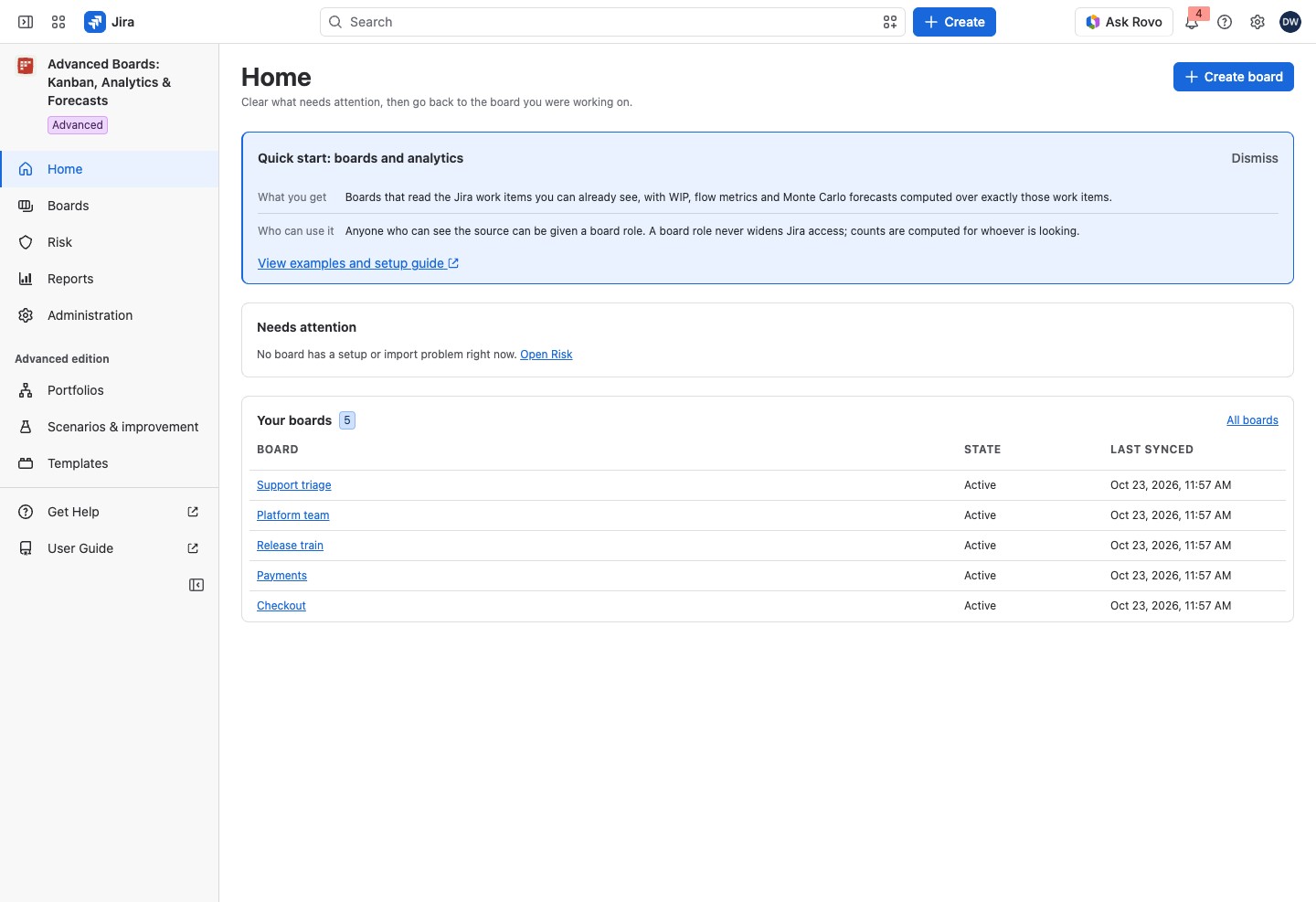
Home is where Advanced Boards opens. It shows what needs attention on the boards you can see, then takes you back to the board you were working on, in one press.
Open Home #
Select Home, the first entry of the app’s navigation.
On your first visit, a Quick start: boards and analytics block stands at the top. What you get says what a board gives you, and Who can use it says that a board role never widens Jira access. View examples and setup guide opens this User Guide in a new tab. Select Dismiss to hide the block.
If you can’t see any board yet, Home shows “Welcome to Advanced Boards: Kanban, Analytics & Forecasts” instead of the two cards below. During a trial, the card names it beside its title, such as “Advanced · Trial”. If the site lets you create boards, select Create board at the top right to make your first one. If it doesn’t, the button is absent, and the page says “Ask a board owner to add you to one.”
What the Needs attention card lists #
Needs attention lists real problems with a board’s setup or its import, one row each. Every row names the board, says what happened and offers the next step. A board that is ready never appears here.
The status’s color says how urgent a row is: red for a failure or a deletion, yellow for something a person has to fix, blue for work the app finishes by itself. The row’s left edge has the same color. An Importing row also shows a meter of how far the import has come, for up to five importing boards at once. Past five, the other rows show their state alone.
- Importing: the board is importing history, and its metrics stay labeled incomplete until it finishes.
- Failed: the import stopped before finishing and published nothing.
- Not imported: the board’s data has not been built yet.
- Not updating: the latest refresh failed, so people read the data of the board’s last update.
- Canceled: someone canceled the latest refresh before it finished.
- Stale: the board’s source, flow, calendar or swimlanes changed after its data was built, or its figures were calculated before a correction of the app’s calculation. A board calculated before a correction recalculates by itself, so its row is blue.
- Paused: the board is not being rebuilt, or its scheduled forecasts stopped for a reason someone has to act on.
- Deleting: the board is being deleted.
Each row but Deleting has a button that opens the place to deal with it, such as Open Configure. On a failed, canceled or never-imported board, a Board owner and a Jira administrator also see Import again, which reads the whole source again.
Setup defaults nobody confirmed get no row. One closing line counts them instead, such as “Setup defaults kept on 2 boards.”, with a link to each board. With no problem, the card reads “No board has a setup or import problem right now.” It checks setup and imports only. Its Open Risk link shows work that is aging, blocked or over a limit (Current risk signals).
Go back to your boards #
Your boards lists the boards you can see in three columns. Board is the name; select it to open the board. State is one word for what the board is, such as Active, Importing or Paused. Last synced is when the board was last confirmed against Jira.
A board being deleted shows its name without a link. Last synced shows a dash until the board’s first sync.
A board’s name opens the section you used last on it, or its Overview on your first visit (A board’s Overview). All boards opens the full directory, with its search and filters (The Boards directory).
Home shows only the boards you hold a role on, yourself or through a group. A Jira administrator sees every board. Two people’s lists can differ, and both are correct (Board access and roles).
If something looks off #
- “Checked over the … boards listed here, not every board you can see.”: Home lists your first 50 boards, so the card judged only those. Select All boards to see the rest.
- “The import for Checkout stopped”: the run does not continue by itself. Select Import again, or ask the board’s owner to.
- “Boards are not refreshed from Jira and paid actions are refused while the license is inactive. …”: a Jira administrator selects Open Administration to check the license; anyone else asks one.
- “Boards are not refreshed from Jira and paid actions are refused while the answer is missing. …”: Atlassian has not confirmed the license yet. The app asks again by itself; nothing needs doing.


