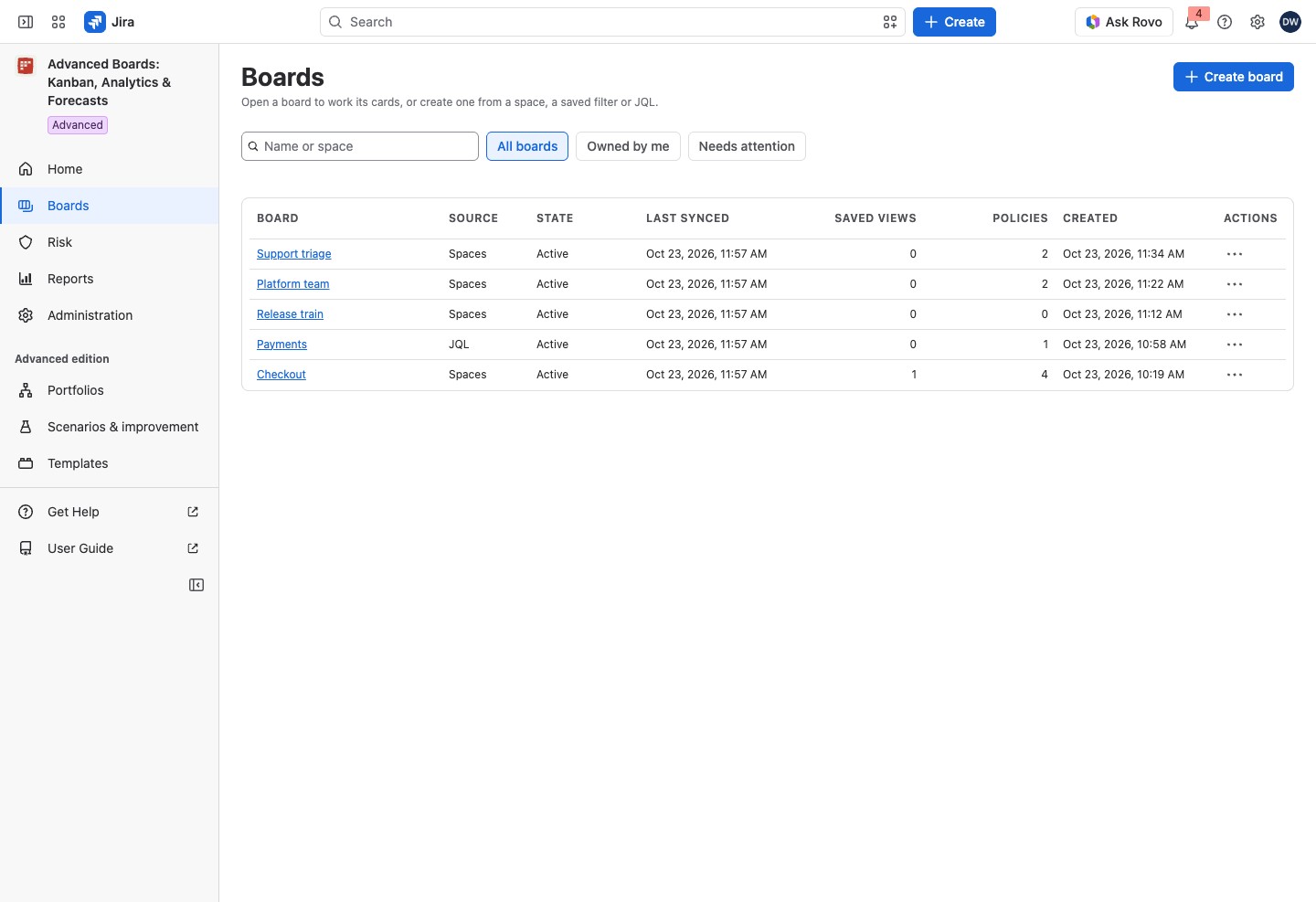
Boards lists every board you can see in Advanced Boards, one row each. Search it, or narrow it to your own boards or to those that need attention. Each row opens, configures, links to or deletes its board.
Open the directory #
Select Boards in the app’s navigation, or All boards under Home’s board list.
If the site lets you create boards, Create board stands at the top right. It opens the wizard in Create your first board. Without that right, the button is absent.
Find a board #
- Search boards: type part of a board’s name or space to narrow the list. The box reads “Name or space”.
- All boards: every board you can see.
- Owned by me: the boards you hold Board owner on. A Jira administrator sees every board here.
- Needs attention: boards that are paused, behind their settings, whose last import failed or that were never imported.
- Boards in a Jira space: the same list, filtered to one space, is on the space’s own page (Boards in this space).
The newest boards come first, and the columns don’t sort. When there are more boards than one page shows, select Show more boards. A search or filter with no match says so, for example “No board you own matches this search. Clear the search or the filter.”
Read a row #
- Board: the name. Select it to open the section you used last, or the Overview on your first visit.
- Source: where the work comes from: Spaces, Saved filter or JQL. A board made from a Jira board shows Saved filter.
- State: one word for what the board is, as below.
- Last synced: when the board was last confirmed against Jira.
- Saved views: how many of the board’s saved views you can see.
- Policies: how many WIP policies the board has.
- Created: when the board was made.
- Actions: the row menu.
The State words, with their lozenge colors:
- Active (green): the board is up to date.
- Importing (blue): the board is importing its history.
- Import stopped (red): an import failed before it finished.
- Not updating (red): the latest refresh failed, so the board shows its last update.
- Never imported (gray): the board’s data has not been built yet.
- Paused (yellow): the board is not being rebuilt.
- Stale (yellow): the data was built before a settings change or a calculation fix.
- Deleting (red): the board is being deleted.
Home’s Needs attention card names the same conditions in its own words (“Failed”, “Not imported”) and says what to do (Home).
You see a board here because you hold a role on it, yourself or through a group. A Jira administrator sees every board (Board access and roles).
Act on a board from its row #
Open a row’s Actions menu:
- Configure board opens the board’s Configure section. A person who can only read it sees View configuration.
- Copy link copies the full link to the board and raises “Link copied.”
- Delete board opens the delete dialog. Only a Board owner can press it.
While a board is being deleted, every action on its row is held by “The board is being deleted.”
Delete a board #
- Select Actions → Delete board.
- Read Delete … ? and What references this board. Each reference says what happens to it: “Removed with the board.”, “Kept, and rewritten so it no longer names this board.” or “Kept: this is reported, not removed.” The list groups the records by kind, such as “Shared policies on other boards” or “Rules on this board, with their alerts and evidence”. A board nothing refers to reads “No record the app keeps refers to this board.”
- For a shared policy, the line gives its limit and the boards it counts “now” and “after” the delete. If the delete leaves it counting one board, it is switched off until a Board owner turns it on.
- Tick Detach … and delete the board under each reference marked Must be detached before deleting.
- Optionally, enter a Reason for the deletion. It’s kept in the audit trail, which Jira administrators read.
- Select Delete board.
Deleting a board removes its configuration and its forecast runs, summaries, backtests, investigations and rankings, yours and those you cannot see. Jira work items are never touched. Your exports of the board stay listed but can no longer be downloaded. The dialog also warns that dashboard gadgets the app has not recorded may show the board as unavailable, and that objects you cannot see may lose their link to it.
If something looks off #
- “No boards match”: no board you can see matches the search. Select Clear the search to list them all.
- “No board needs attention”: no board is paused, behind its settings, failed or never imported. Nothing needs doing.
- “No boards you own”: you hold Board owner on no board. Create one, or ask a board’s owner to add you as one.
- “No boards yet”: you can see no board. Create one, or ask for access to a board somebody else made.
- “Deleting a board needs Board owner on it, which you do not hold.”: ask one of the board’s owners to delete it, or to give you the Board owner role.
- “A reference below can be detached only by an owner of the board that holds it.”: ask that board’s owner to detach it first.
- “This board or what references it changed after the check below was read, so nothing was deleted. …”: the check is read again by itself and your ticks are cleared. Go through it and confirm again.
- “The link was not copied.”: copy it from the field that appears.
- “You do not manage the portfolio of these value streams: …”: ask a manager of each portfolio to take this board out of its value stream first.


