A board’s Overview is its summary page in Advanced Boards. It tells you where the board’s work comes from, how fresh its data is, which limits apply and whether anything needs fixing.
Open a board’s Overview #
A board opens on its Overview the first time you open it. After that, Home and the Boards directory take you back to the section you used last. To reach the Overview at any time:
- Open the board from Home or Boards.
- Select Overview, the first of the board’s sections in the navigation.
A link to a board from elsewhere in the app, such as a rule or a portfolio, always opens its Overview.
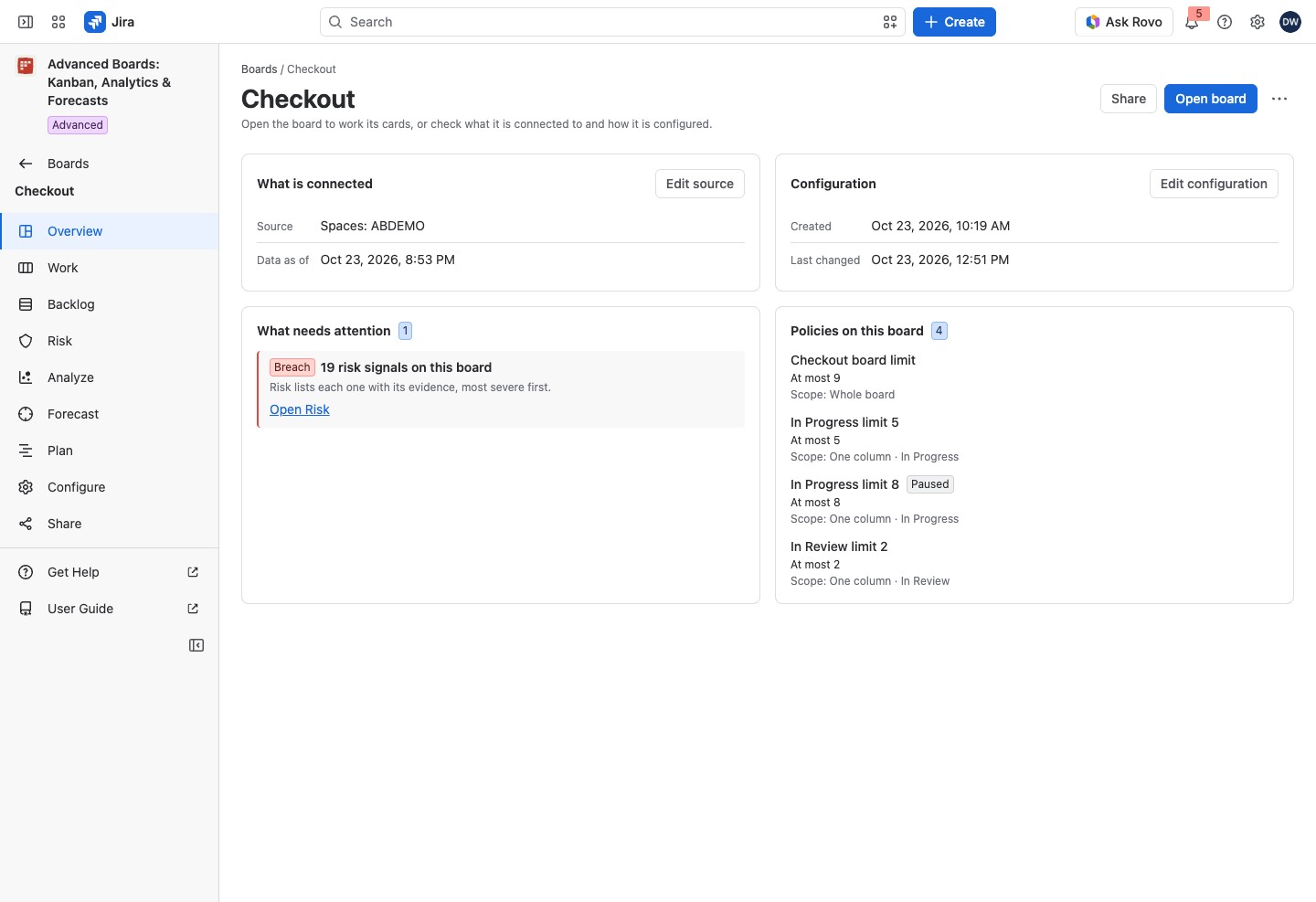
The page header carries the board’s state when it says more than Active, then three controls:
- Share: opens the board’s Share section (Stakeholder views).
- Open board: opens Work, where the cards are (The Work board).
- … (the menu named “Actions for” and the board’s name): holds Delete board, for a Board owner (The Boards directory).
What the four cards tell you #
- What is connected: the Source the board reads, such as “Spaces: ABDEMO” (other roles read only the kind, such as “Spaces”), and Data as of, when the shown data was taken from Jira. It reads “Not read from Jira yet” before the first import. A JQL source shows its query after “JQL:”, clipped, with the whole query in its tooltip. A saved filter shows only its kind, “Saved filter”.
- Configuration: Created and Last changed, when the board’s configuration was made and last changed.
- What needs attention: each problem with the board’s setup, import or license, and the count of its current risk signals.
- Policies on this board: each WIP policy with its limit, such as “At most 9”, “At least 2” or “Between 2 and 5”, or “No limit agreed”, and its scope, such as “Scope: Whole board”.
While an import runs, a Work in progress card above them follows it until it finishes: a state lozenge, the stage, a progress bar, and Cancel the job. A paused import offers Resume the job.
A switched-off policy carries Paused beside its name. A board with no policy reads “No WIP policy yet”. Agree limits in Policies and WIP limits.
The source row can also read “a space you cannot see”, “their names were not read”, or “saved in an earlier form, choose them again to list them”. The last one means the board still reads those spaces, but you must choose them again in Edit source to list them.
Read What needs attention #
This card lists the same conditions as Home’s Needs attention, for this board only (Home). It also lists two that only the Overview checks:
- Not placed: some work items are in statuses the board’s flow does not place, so they commit and deliver nothing until those statuses get a state class.
- Delivery not measured: the board’s source leaves out every completed work item, so throughput and forecasts would count only reopened work.
When the board has current risk signals, the card says so, for example “3 risk signals on this board”. Its lozenge shows the severity of the most severe signal: a red “Breach”, a yellow “Warning” or a blue “Note” (Current risk signals says what each means). The row adds “Risk lists each one with its evidence, most severe first.” Select Open Risk to see them (Current risk signals).
Every row has a colored edge and a lozenge of the same color. Blue is information, such as Importing while an import runs. Yellow is a warning, such as Not placed or Paused. Red is critical, such as Failed for an import that failed or Not updating for a failed refresh. The head of What needs attention counts its rows, and the head of Policies on this board counts the board’s policies. A card with nothing in it shows no count.
A license that is inactive, or not yet confirmed by Atlassian, adds a row saying the board’s data is not refreshed from Jira and paid actions are refused. Reading, exporting and deleting your data stay available. While Atlassian has not confirmed the license, the row offers Try again.
Setup defaults nobody confirmed get one closing line, such as “Setup defaults kept on 2 steps.”, with a link to the Configure group that holds them. When nothing is wrong, the card reads Nothing needs attention.
Change what the Overview shows #
The Overview has no settings of its own. Edit source opens Configure → Source & scope (Source and scope). Edit configuration opens Configure at its first group. Only a Board owner can change the configuration. Anyone else sees View source and View configuration, which open the same groups to read.
If something looks off #
- “The risk signals of this board could not be read”: the card can’t say whether any signal stands. Select Try again.
- “Not every risk signal of this board could be checked”: select Open Risk, which says what was not checked.
- “Checkout stopped updating”: the latest refresh failed, and people read the data of its last update. A Board owner can select Import again.
- “Your role on this board does not allow this”: ask a Board owner to raise your role.


