Batch actions change several work items in one run. You see a verdict for each work item first. Then each change is made in Jira as you, one at a time.
Select work items #
- On Work, tick cards, or tick the box in a column’s head to take every loaded card in it. On Backlog, tick rows under Select, or tick the box in the header to take every row listed.
- Read the bar at the bottom: the count and selected.
- On Work, select Select all with its number to take every work item loaded.
- Select Clear selection to start over.
With the keyboard, focus a card and press Space to select it. Press Shift with the Down or Up arrow to extend the selection along the column. Press Escape to clear it.
A selection holds up to 50 work items. At the limit the bar says “A selection is limited to 50 work items. Clear some before selecting more.”
Choose an action #
- Move to column: on Work only. Choose the column from the menu. Up to 20 work items.
- Edit fields: sets one field on every work item. Up to 20.
- Rank: places the selection before or after another work item in Jira’s rank.
- Move to sprint and Send to backlog: change planning membership only.
Rank, sprint and backlog changes take work items from up to 5 spaces. An option your selection is too large for keeps its label, and its tooltip gives the limit.
Fill in the step #
Move to column and Send to backlog open the preview at once.
For Rank:
- Under Place against, choose a work item that is not selected. If every loaded work item is selected, the step says “Nothing to place against”.
- Under Placement, choose Before it or After it.
- Select Continue.
For Edit fields, choose a Field, enter the value and select Continue. The value box works as in the table under Edit fields in Move, edit and create work items. A field takes only so many entries; past that it reads “This field takes up to 50 entries.” A value the field cannot take reads “Enter a value this field can take.” The list shows the fields Jira lets you change on the first selected work item, and the preview checks the others. If it reads No editable fields, check your Jira permissions on that work item, then try again. Move to sprint walks the same space, Jira board and sprint steps as the single card.
Read the preview #
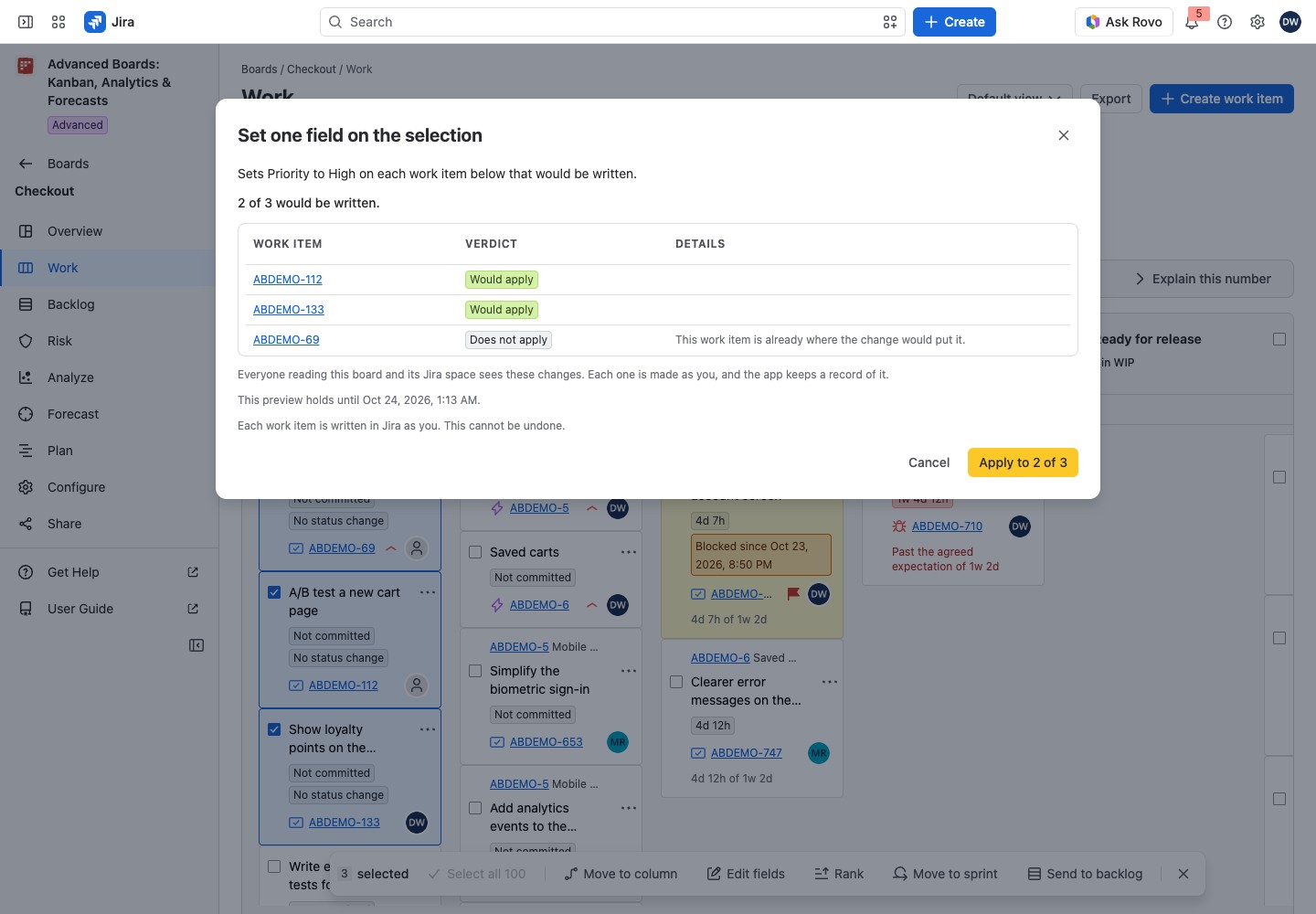
The dialog names the change, such as “Set one field on the selection”. It says how many would be written, then lists every work item.
- Verdict: Would apply, Needs its own confirmation or Does not apply.
- Details: the reason, in the words of the table below.
- Confirm separately opens the single-card dialog for a work item that needs its own confirmation.
| Reason in Details | What to do |
|---|---|
| More than one transition reaches that column | Needs its own confirmation: select Confirm separately and choose the transition for that work item |
| The transition that reaches that column asks for a field a bulk change cannot fill | Needs its own confirmation: select Confirm separately and fill the field there |
| Jira offers you no transition from this work item’s status into that column | Change it in Jira if the workflow allows it |
| This field cannot take that value here | Set it in Jira |
| Jira does not let you edit that field on this work item | Not written; the rest of the selection goes on |
| This work item’s space has no Jira board, so there is no rank order to place it in | Not written; the rest of the selection goes on |
| This work item’s space has no Jira board of the kind this move needs | Not written; the rest of the selection goes on |
| That sprint is closed, and a closed sprint takes no work item | Choose an open sprint |
| This work item is not on this board as of its latest import | Not written; the rest of the selection goes on |
| This work item is already where the change would put it | Nothing to do; it is not written |
If the target column is at its WIP limit, tick I reviewed the WIP warning above and give a Reason (kept in the audit trail). The preview also notes that everyone reading this board and its Jira space sees these changes. A selection from more than 5 spaces shows “Too many spaces”: select work items from fewer spaces.
To start the run, select Apply to with the counts, such as “Apply to 3 of 3”. Nothing is written before you apply, and closing the dialog writes nothing. The preview holds until the time it shows, and Apply reads it again first. When nothing would be written, the dialog says “Nothing in this selection would be written.” and Apply is held.
Watch the run #
Applying the change shows how many are sent: “2 of 3 sent. Leave this dialog open until it finishes.” A row reads Waiting until its turn and Sending while it is in flight. Stop, or closing the dialog, finishes the work item in flight and then stops the run. What was written stays written, and each change is made in Jira as you and cannot be undone.
The headline counts the run, for example “2 applied, 0 refused, 0 unknown, 1 not sent”. Work items the preview left out add “1 skipped by the preview and never sent.” Each row ends as Applied, Refused, Outcome unknown, Skipped or Not sent. An unknown outcome stops the run, and the work items after it are not sent. Select Check what happened on that row before you decide anything.
After the run, Work puts each applied card in the column Jira confirmed and marks it Moved here. A card in a status the board draws in no column keeps its place. Ages and the board’s counts update with the next calculation.
If something looks off #
- “Jira is refusing further requests, so the sequence stopped.”: try the work items that were not sent again later.
- “The app is not accepting changes on this site now, so the sequence stopped.”: an administrator paused changes, or the app’s data is being deleted. Try the rest later.
- “The preview could not be re-read, so nothing was sent.”: take the preview again.
- “The board answered differently than it did when this preview was taken.”: nothing was sent. Read the fresh answer below it.


