Backlog lists the work items on a board in Advanced Boards that are waiting to be committed. Rank, create and edit them without leaving the board.
Open the backlog #
- Open a board from Home or Boards.
- Select Backlog in the board’s sections.
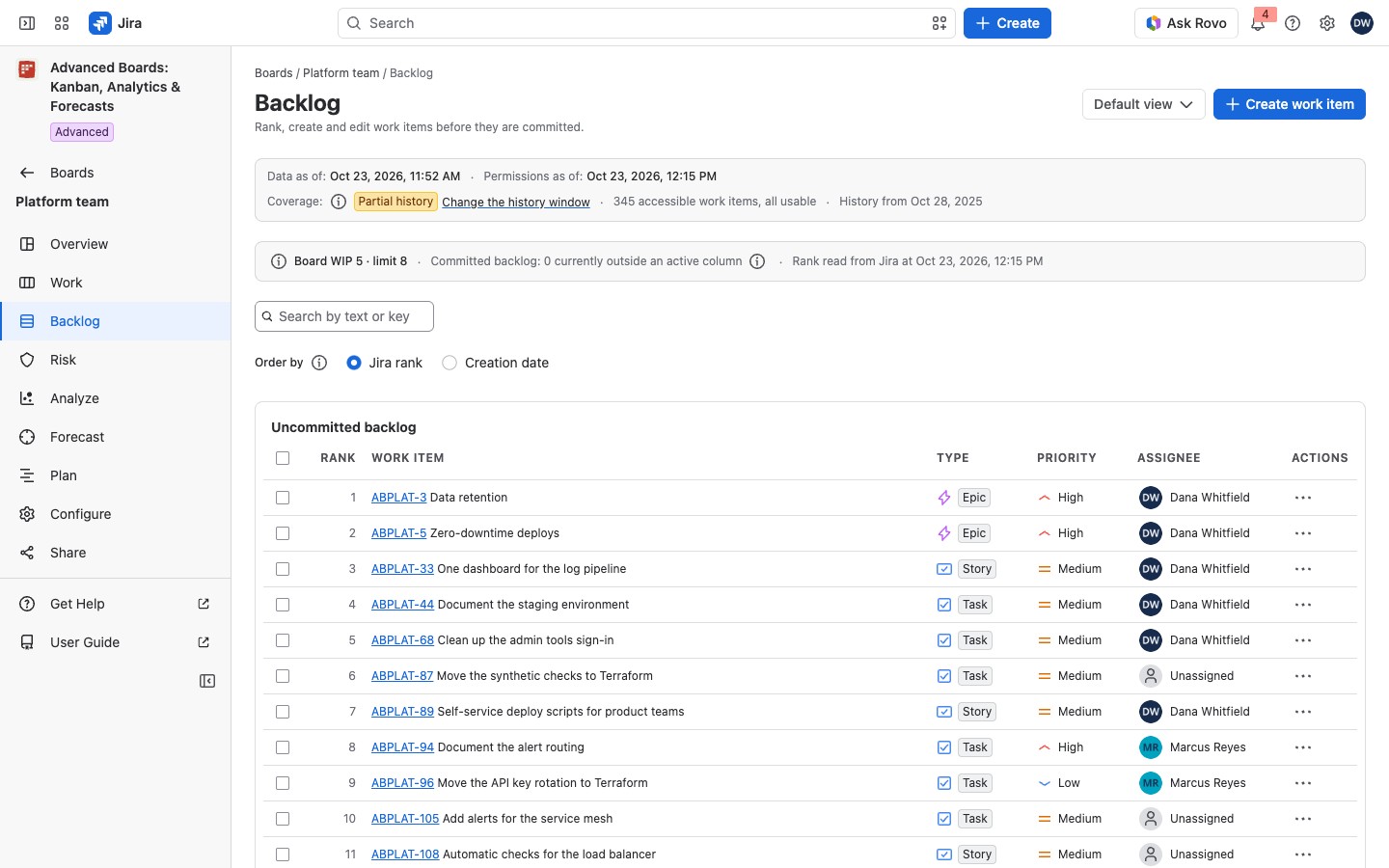
A Member or a Board owner sees Create work item at the top right, beside the saved view picker. Pick a view there to apply its quick filters; Manage views… opens Work views. A Viewer reads the same lists with no write controls. The context strip states Data as of, Permissions as of and the coverage (Data as of, permissions and coverage).
Read the two lists #
- Uncommitted backlog: work that hasn’t started. It is not counted in WIP, because a work item counts from its commitment until it is delivered. The Board WIP chip above the lists counts the board’s WIP; its (i) says the same.
- Committed backlog: committed work that moved back out of an active column, as in “Committed backlog: 2 currently outside an active column”. It keeps its cycle and still counts in WIP.
Each row shows Order or Rank, the Work item key (it opens Jira) and summary, Type, Priority and Assignee. A work item reopened from Done carries Rework. A committed row that no WIP number counts carries Not counted, with the reason in its (i).
A loaded line says how many work items are listed. Jira’s current rank can leave some work items out. Then a line says “… more work items are not in Jira’s current rank order and are not listed; the figures still count them.”
A search that matches nothing shows “No uncommitted work item matches this search”, and quick filters that match nothing show “No uncommitted work item matches the current filters”. With nothing left to commit, the list reads “The backlog is empty” and “Every unfinished work item loaded has been committed.”
Choose the order #
Under Order by, choose Jira rank (Jira’s own rank, read live as you, with “Rank read from Jira at …”) or Creation date (oldest first). The backlog opens in Jira rank where the board allows it. Jira rank covers at most 10,000 work items from one source. Above that, the option is held, and splitting the source across boards brings it back.
Search and the chosen view’s quick filters narrow the list. While they do, you can’t move a work item to the top or the bottom.
Rank a work item #
- Open a row’s Actions menu.
- Choose Move to the top, Move up, Move down or Move to the bottom. Each shows the work item it lands above or below.
- Read Move … in Jira’s rank, then select Move in the rank.
- Read the result:
- Rank changed: Jira accepted the move.
- Jira holds the requested order: a reread found the order. It proves the order of the two work items, not that nothing else sits between them.
- The move is on its way: no answer yet. Select Check what happened in a moment.
- The outcome is unknown: no answer came back. Select Check what happened.
- Nothing was sent or Jira refused the move: nothing was written. Select Start over.
- This needs a look in Jira: the reread did not find the order. Check the work item in Jira.
After a move, the list places the work item where Jira put it. The order line then reads “Rank read from Jira at …, with the moves Jira confirmed since then placed in the list”. The board’s figures update with the next calculation.
A rank move is a change in Jira, not only here. Everyone who reads that Jira board and backlog sees it at once. To reverse it, move the work item again.
The same menu offers Edit fields…, Move to sprint…, Create subtask… and Send to backlog… (Move, edit and create work items). To change several rows at once, tick them and use the bar (Batch actions).
If something looks off #
- “Order by Jira rank to change the rank.”: choose Jira rank under Order by first.
- “Load the rest of the backlog to move a work item to the bottom.”: select Show more until the whole backlog is listed.
- “Clear the search and the quick filters to move a work item to the top or the bottom.”: clear them, then move it.
- “Jira’s rank order could not be read, so nothing below is in rank order. …”: choose Creation date, or open the backlog again later.
- “The order changed, so this list was read again from the top. …”: select Show more to bring back the pages you had open.
- “The saved view you chose is no longer available, so Backlog shows the built-in view.”: choose another view in the view picker.
- “The settings stored for … could not be read, so Backlog keeps the view it was showing.”: choose the view again later, or choose another view.


