Analyze shows how work flows through a board, in eight metric tabs. Every number opens its evidence: the work items and cycles behind it, so you can check a figure before you share it.
Open Analyze and pick a metric #
- Open a board from Boards.
- Select Analyze in the board’s sections in the navigation.
- Select a metric tab.
- Cycle time: commitment to delivery.
- Lead time: creation to delivery, for cycles whose history is known.
- Throughput: first deliveries, repeat completions and first delivery unknown, per period.
- Cumulative flow: cycles in each state class, period by period.
- Work in progress: distinct work items with a committed cycle in progress.
- Work item age: how long each open cycle has run, by column, against the agreed expectation.
- Flow efficiency: the share of a completed cycle’s time spent active and unblocked.
- Blocked time: blocked spans inside the cycle.
Each tab’s (i) “About …” beside its title says what it measures, in words.
Set the range, time and cohort #
Switches above the chart narrow what it counts. A row of filters sits beneath them.
- Range: 30, 90, 180 or 365 days; 90 days to start. A range of up to 31 days is charted day by day, a longer one week by week.
- Time: Elapsed or Business hours (Cycle time, Lead time and Work item age only). Business hours count the board’s working days and hours.
- Cohort: Current (the work items on the board now) or Since observed (deliveries made while on the board).
- Cycles: First cycles (each work item’s first delivery) or Rework (later deliveries, and any whose first delivery cannot be proven). Cycle time and Lead time only.
- Filters: a second row of three pickers. Each takes one or more values, and an empty picker keeps everything.
- Work item type: empty, it reads “Any work item type”. It lists the types of the board’s work items.
- Assignee: empty, it reads “Anyone”. Type a name to search the people Jira shows you. It keeps the work items assigned to these people in Jira now.
- Class of service: only where the board maps classes. Empty, it reads “Any class of service”.
A picker’s list says when it cannot offer a value. It reads “Reading this board’s choices…” while it loads, and “Everything listed here is already chosen.” when nothing is left. “Some values here do not fit in one question with the filters chosen. Remove one to add another.” means the chosen filters are already as long as one question can carry. A type list can also read “Jira did not name the work item types for you, so none can be chosen now.”, “This board’s work items are not read yet, so no work item type can be chosen now.” or “No work item type to choose on this board.” A people list reads “Jira shows you nobody by that name.” when no one matches.
Read the figures #
Five tabs have percentile tiles: Cycle time, Lead time, Work item age, Flow efficiency and Blocked time. Throughput, Cumulative flow and Work in progress count work, so they have none. The tiles show the 50th, 70th, 85th and 95th percentile. The 85th percentile tile means 85% of the values on the tab are at or below it. The percentiles rank every work item on the tab together, not per class of service. A line under them reads “Percentiles over the N of M … with a value”. A tile with no value reads “No value in N records”.
On Cycle time and Work item age, a line under the tiles states the agreed expectation (SLE) of each class of service, such as “Agreed expectation for Standard: 1w 2d”. Beside Business hours it adds “of elapsed time”, because the agreement is in elapsed time and is not compared with business hours. Under Rework the line is the rework agreement, “Agreed expectation for rework: …”. Where none is set it reads “SLE not set; comparison not performed.” or “Rework SLE not set; comparison not performed.”
On a board that maps classes of service, a Classification line follows. It says how many work items on the tab a class rule placed, so you know how far each class’s agreement reaches. It has three parts, such as “Classification: 40 mapped by a rule · 6 took the default class Standard because no rule matched · 0 unresolved”. Without a default class, the middle part reads “… unclassified because no rule matched”. An unresolved count can name its reason: “a class rule could not be evaluated as you” or “no reader’s rights were available to evaluate a class rule”. The Explain this number panel repeats the line as “Classification on this tab”.
Under First cycles each work item counts once. Under Rework each delivery after the first counts once, so a work item delivered three times counts twice. On Flow efficiency and Blocked time, each completed cycle is one record, so a work item delivered twice counts twice. On Throughput, its first delivery and its repeat completion are two series. On Work item age, a record is one open cycle. A tile’s (i) says how the value was ranked. On Flow efficiency, when every tile reads 100%, a line says “At least N% of these cycles spent no time waiting or blocked.” It states only what the ranking proves.
The strip above the chart states Data as of, Permissions as of and the coverage. The coverage reads “Partial” while the board holds work items that Jira no longer confirms, and its (i) says the answer may count them. Data as of, permissions and coverage explains each part.
A “Left out” line counts the work items the figures leave out, such as “Left out: 3 that left the board with no history kept”. It can name these reasons:
- Outside this board’s counting level: the work item sits at a level the board does not count, or is of a type Jira places at no level.
- Closed as not delivered: it was closed with a resolution the flow leaves out of delivered work. The Coverage (i) names those resolutions.
- Left the board with no history kept: it left the board, and the app kept no history of it.
A work item that the app has not read from Jira since it began to record resolutions still counts as delivered.
Read the charts #
The chart card’s head names the range it shows and the time zone its days are counted in: the first day, “to”, the last day, then the zone’s name after a comma. Chart and Equivalent table show the same numbers. The Equivalent table option’s tooltip lists the table’s columns. The table has one row per mark of the chart. A duration tab lists Range and Completed cycles. Throughput, Cumulative flow and Work in progress list Period and one column per series, such as First deliveries, Repeat completions and First delivery unknown. Work item age lists Work item, Board column and Age. A period that has not ended reads with “(still running)” after its date. The last column, Actions, holds a row’s … menu, with one “Explain” item for each figure of the row, such as “Explain the first deliveries value”.
Each chart draws its own marks, such as bars for each range of time or one dot for each work item. Read the charts in Analyze explains every chart and its colors. Select any bar or dot to open its evidence. A long answer shows its first rows with “Showing N of M rows.” Select Show more to read the rest.
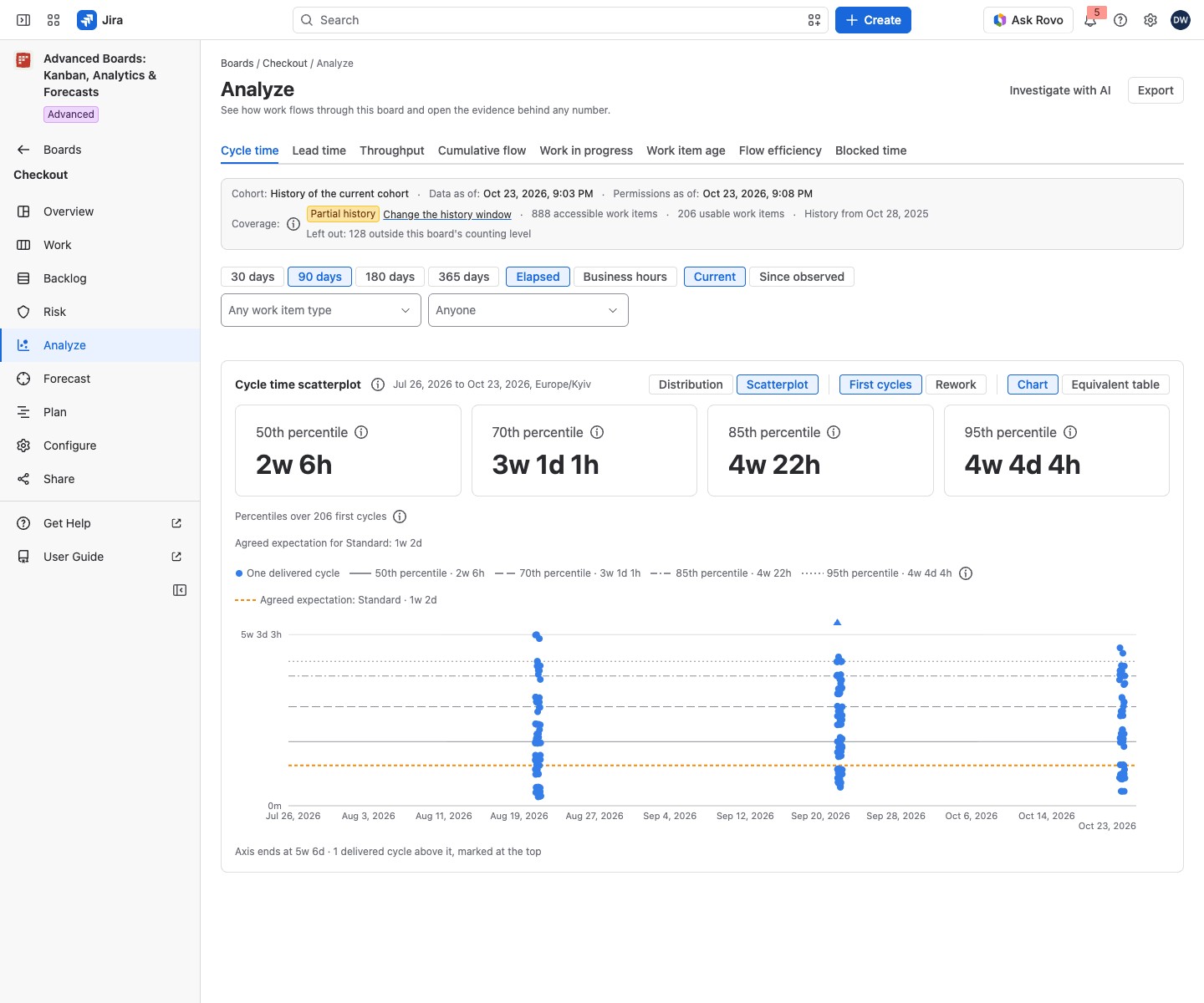
Two tabs have a second picture, chosen by a switch in the chart card’s head. Cycle time switches between Distribution (how many deliveries fell in each range of cycle time) and Scatterplot (one dot for each delivered cycle). Cumulative flow switches between By cycle and By work item. By cycle starts a new cycle at each reopen, so the Done band never shrinks. By work item counts each work item once a period, in the state it was in at the period’s end, so a reopened work item leaves Done and the band can shrink.
Warnings on a figure #
A label beside a figure says what to keep in mind before you use it:
- Experimental: fewer than 30 observed complete days, or fewer than 20 proven first deliveries, stand behind the number. The input is thin, not the method.
- Partial history: at least one work item has history only from a day later than its creation.
- Configuration changed since this was calculated and Calculated before a correction: the figures change after the board’s next recalculation.
- Work item type gone or Class of service gone: a filter value matches nothing now. Remove it.
- Last period still running: the last period is charted and never sampled.
- Business hours: durations are counted in the board’s working days and hours, not elapsed time.
- Since membership was observed: deliveries made before the board saw a work item, or while it was off the board, are left out by choice.
- Observation dates shifted for testing: the first observations on this site were moved back for a test, so a start this answer counts from may not be real.
- Most recent cycles plotted: the scatterplot draws only the most recent cycles. The percentiles and counts are over all of them.
- Not confirmed / Access lost: the board holds work items that Jira no longer confirms, and the figures may count them.
Explain this number #
Select a tile’s value, a bar or a dot, or choose an “Explain” item from a table row’s menu. Throughput has no tiles: select Explain first deliveries over the whole range to open the evidence of its total. The Explain this number panel lists what the number measures, its warnings, every work item and cycle behind it, and what was left out. Explain a number in Analyze walks through the panel.
Large charts, AI and export #
A Cumulative flow too large for one read shows “Calculating in the background”, with the share done and Cancel calculation. The finished chart reads “Calculated in the background” and is kept for one day. If the board published newer data since, a line says so and gives the time the chart shows. Calculate again draws it anew. “Calculation canceled” and “This calculation can no longer be read” mean there is no chart: select Calculate again.
Investigate with AI in the header opens AI investigation, an Advanced edition feature. There you ask a question about the board in your own words, such as why Checkout’s cycle times grew longer this month. The page says: “Ask a question about this board; every number in the answer comes from the same data as Analyze.” The answer lists the facts it found, each with its evidence. On Standard the button stays: your earlier investigations stay readable, and with none it opens a description of the Advanced edition.
Export writes Spreadsheet (XLSX), CSV (zip with data and metadata) or Chart as image (PNG) for the current period and filters, up to 2,000 rows.
If something looks off #
- “Nothing to chart in this range”: widen the range, or check the board’s import on its Overview.
- “SLE not set; comparison not performed.”: if you can change the board’s configuration, select Set it beside the line; otherwise ask a Board owner (Calendar, service levels and classes of service).
- “The class of service filter no longer applies”: select Remove the class of service filter.
- “This chart is no longer kept”: select Calculate again.
- “This board’s columns could not be read, so every work item is grouped as unmapped.”: a Board owner selects Check the layout.


