Each metric tab of Analyze draws its own chart. This page says what each bar, dot, line and color means, so you can read a chart at a glance and know when work is piling up.
Choose the picture #
Open a metric tab (Flow metrics in Analyze). Chart and Equivalent table show the same numbers. Two tabs offer a second picture:
- Cycle time: Distribution or Scatterplot. The scatterplot draws the 1,000 most recent cycles; the percentiles use all of them. When it leaves cycles out, a line under the plot reads “Plotted: the 1,000 most recent of … delivered cycles with a cycle time; the percentiles are over all ….”
- Cumulative flow: By cycle or By work item. By cycle, a reopen starts a new cycle, so the Done band never shrinks. By work item, Done can shrink because a reopened work item leaves it.
What each chart draws #
- Cycle time, Lead time, Blocked time (Distribution): one blue bar for each range of time, showing how many completed cycles fell in it. A tall bar on the left means most work finished fast. A long tail to the right is the work that took much longer.
- Cycle time (Scatterplot): each blue dot is one delivered cycle, placed by its delivery date and its cycle time. The gray lines are p50, p70, p85 and p95, the values in the tiles. The dashed yellow line is the agreed expectation; a dot above it took longer than agreed.
- Flow efficiency: ten bars, one for each tenth of the time, from 0 to 100%. A bar shows how many completed cycles spent that share of their time active and unblocked. A cycle with no measurable active or waiting time has no efficiency, never zero.
- Throughput: three bars for each day or week. Green counts first deliveries, purple repeat completions, and gray first delivery unknown (a completion that may or may not be the first).
- Cumulative flow: one stacked bar for each day or week, split by state class: gray Not started, blue Active, yellow Waiting and green Done. A part that grows taller is work piling up in that class. Parts that keep their height mean steady flow.
- Work in progress: one blue bar for each day or week, counting the distinct work items in progress then.
- Work item age: each blue dot is one unfinished work item, in the column it sits in now. The gray lines are the percentiles of the ages on the tab. The dashed yellow line is the agreed expectation from Calendar, service levels and classes of service, one for each class of service. A dot above it is past the agreement.
On Work item age and the scatterplot, a percentile line is what the values did, not the chance that one work item finishes by it. When some values are far above the rest, the axis ends early, and those dots are marked at the top with their count. Under Business hours, the agreed expectation is not drawn, because it is set in calendar days. On Work item age, a column named Unmapped holds the work items in a status no column of the board draws.
Every chart has a legend above the plot. A bar chart gives one color swatch for each series, such as Completed cycles or First deliveries. On every day or week chart, the period still running is drawn lighter and never sampled; the legend names it Period still running, with an (i) that says so. A dot chart names its dot, One unfinished work item on Work item age or One delivered cycle on the scatterplot. Each reference line is named with its value, such as a percentile line or “Agreed expectation:” with its class of service. The last percentile entry has the (i) About the percentile lines. Under Business hours the legend keeps Agreed expectation not drawn, with an (i) that says why.
A chart with many columns reads “Showing the first … of … categories. The equivalent table lists every row.”
Select any bar or dot to open its evidence.
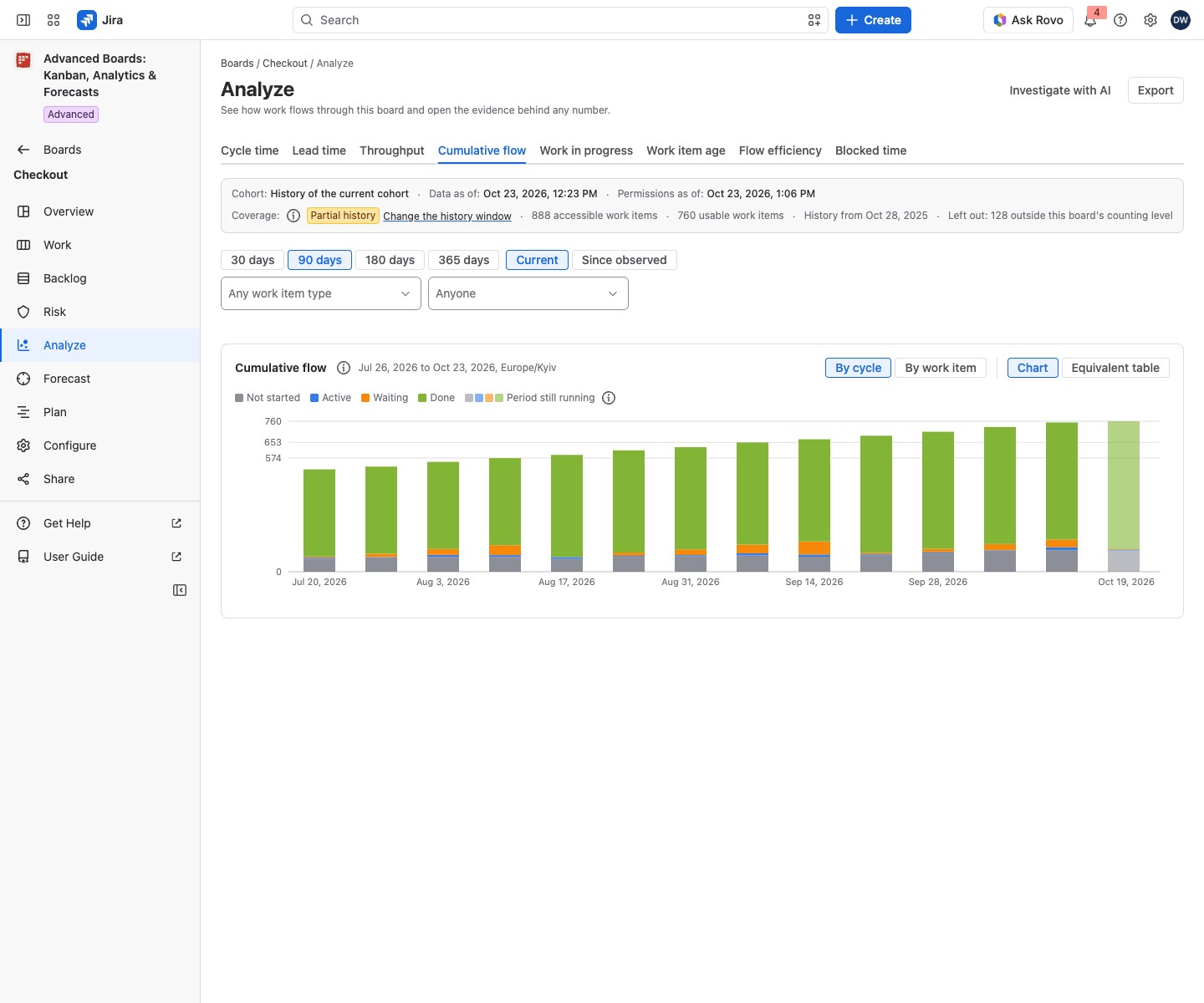
For example #
On Checkout’s Cumulative flow tab, choose By cycle and the 90-day range. If the yellow Waiting part grows taller each week while the green Done part rises slowly, work is piling up in a waiting status. Open Work and look at the cards in that column, or select the bar to see the cycles behind it.


