Plan lays a board’s work out against time. You set planned dates and milestones, see actual dates beside them, and find the links that put work in the wrong order.
Open Plan and its tabs #
Open a board and select Plan in its sections. Its tabs are Timeline, Items, Hierarchy, Priorities and Settings. This page covers the first two. Hierarchy, priorities and planning settings covers the rest. A Viewer reads the first four tabs, a Member sets dates, milestones and links, and only a Board owner sees Settings. The strip above the tabs says when the planned dates were read, where they live (“Dates:”) and the coverage (Data as of, permissions and coverage).
Read the Items tab #
Items lists every work item of the board in the card Planned dates, unless a quick filter narrows it. Each row shows:
| Column | What it holds |
|---|---|
| Work item | The key over the summary |
| Planned start and Planned end | The planned dates, or “Not planned”. Where only one side is set, its tooltip says a bar needs both |
| Actual start and Actual end | The dates from the work item’s history, or “Not started” and “Not finished” |
| State | “Current”, “Migration pending” or “Two sets of planned dates”, with an (i) for the last two |
| Actions | Set dates, Edit dates or Clear dates, for a Member or Board owner |
A finished work item whose history records no start shows a dash under Actual start, with an (i): “Its history records no start before it finished, so no actual start is shown.” “Migration pending” means the dates were written under the previous date mode and have not been carried over yet. “Two sets of planned dates” comes from an earlier version: clear them and set the dates again. Until then, Hierarchy and Check dependencies read that work item as having no planned dates. A Viewer reads “You can read this board’s plan but not change it.” and no buttons. A long list ends on a count of the work items loaded, and Show more.
Set planned dates #
- Select Set dates on the row, or Edit dates if it has dates.
- Choose a Date kind (“Dates” or “Dates and times”), the Planned start date and the Planned finish date.
- Choose a Container if you want one.
- Select Set dates.
Clear dates removes the planned dates only. A bar needs both a start and an end.
Choose where planned dates live #
On Settings, Where planned dates live shows App-owned (the default: the app keeps the dates) or Jira fields (two Jira date fields keep them). On Jira fields, Edit dates opens a dialog with Save in Jira, which writes as you.
To change the mode:
- Select Change where dates live and choose a mode.
- For Jira fields, choose a Jira start field and a Jira finish field of the same kind.
- Select Preview for each work item’s outcome, such as “Needs a decision”.
- Tick Overwrite for each target that holds a different value.
- Select Write … of … work items to Jira. It writes them as you and cannot be undone. Stop ends it after the work item in flight.
- Select Switch to Jira fields.
A board larger than one plan shows Write this board to Jira, all … pages in step 5. Leave the dialog open until every page is carried. To move the dates back into the app, choose App-owned, select Preview, then Apply … of ….
If the board already uses Jira fields, you can name two other fields instead: choose them and select Save fields. No date is copied between fields; the board reads its planned dates from the new pair from now on. The result reads “The Jira date fields are saved.”, “The Jira date fields were not saved.” or “The Jira date fields may not have been saved.”
Step 5 opens the dialog Writing planned dates to Jira. It lists each work item with its outcome: “Applied”, “Refused”, “Outcome unknown”, “Not offered” or “Not sent”, and a headline counts them. An unknown outcome stops the run; select Check what happened on that row before anything else. Nothing is ever sent twice by itself.
Read the timeline #
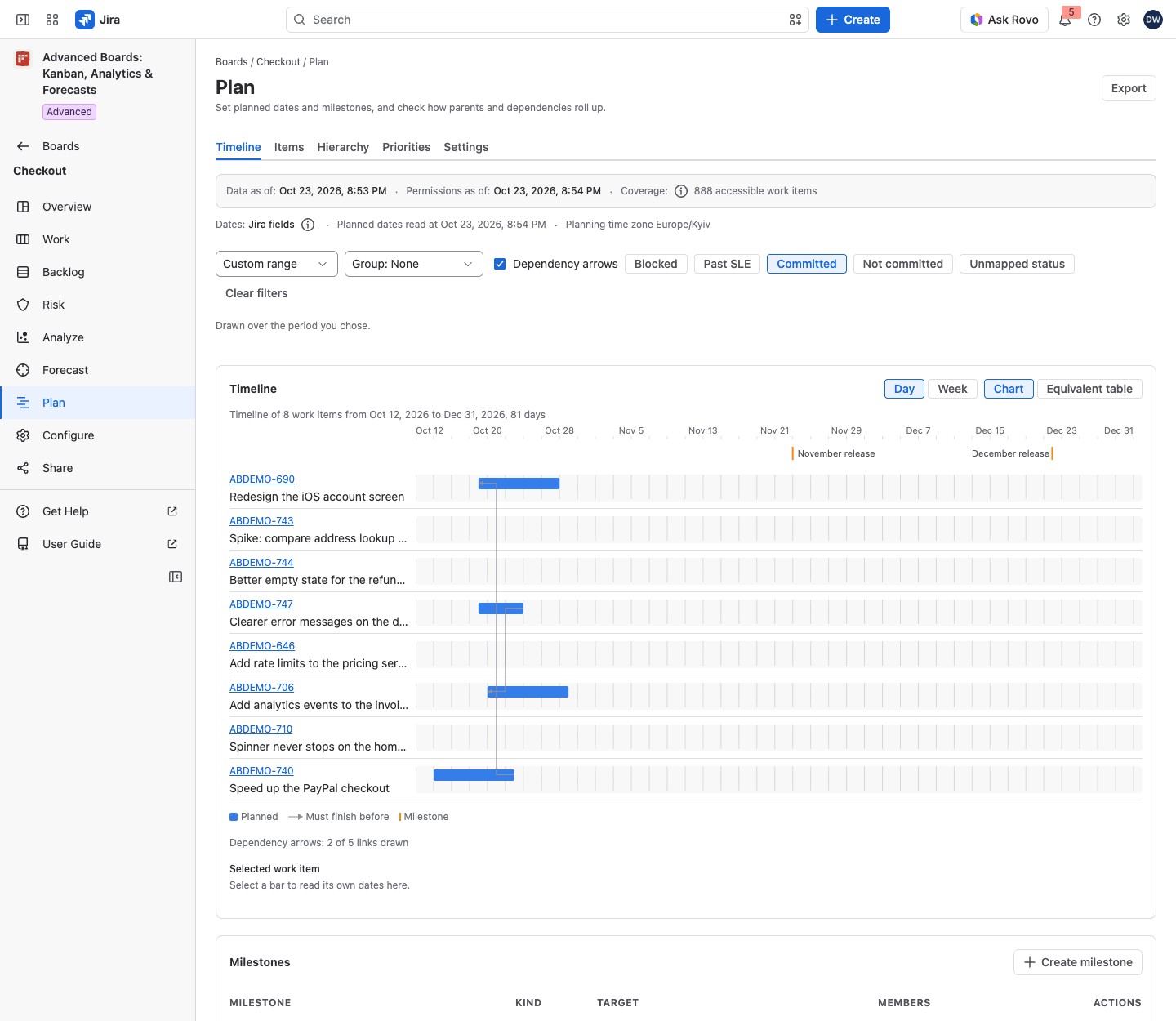
The timeline draws each work item’s planned dates beside its actual dates. The legend names each mark:
- Planned: a blue bar from the planned start to the planned finish.
- Actual: a green bar from the commitment to the delivery. For a delivered work item, it starts at the commitment of the cycle its last delivery closed, so a reopened work item that was delivered again starts at its later commitment. Work not delivered yet has no actual end.
- Milestone: a yellow mark on the target date.
- Must finish before: a gray arrow from a blocker to the work item that waits for it.
- Reference link: another kind of link, drawn as a gray line, up to 50.
Dependency arrows turns the arrows off; then the view does not read the links at all. A line under the chart says how many arrows are drawn, such as “Dependency arrows: 4 links drawn”, or why none is: no link orders the plan, the arrows are hidden, or the links were not read whole.
Select a bar to read its own dates under Selected work item. A bar marked “Not imported yet” belongs to the board but is not in its latest import, so it has no actual dates until the next import.
Chart and Equivalent table show the same work items. The table gives each one’s Planned start, Planned end, Actual start, Actual end and State. The actual dates, the bars’ labels and their tooltips read in the board’s planning time zone, like the axis.
Choose Day or Week and a period (“Fit shown work”, “Next 1 month” to “Next 12 months”, or “Custom range…”). With app-owned dates, a period shows only work items planned in it, and a line counts those it leaves out. A bar that runs past the period is cut at its edge; the table states its own dates. Group by takes “Container”, “Parent”, “Fix version” or “Sprint”. For the last two, first select Count members on its milestone.
The chips Blocked, Past SLE, Committed, Not committed and Unmapped status narrow Timeline, Items and Priorities as they narrow Work. Clear filters turns them off. Hierarchy ignores them.
Select Export to save Spreadsheet (XLSX), CSV (zip with data and metadata) or Timeline as image (PNG). A file holds every work item you can read, up to 1,000 work items and 2,000 rows. A fix version or sprint grouping is not written to a file. The image downloads at once; the other files are kept in Reports and exports.
Add and manage milestones #
Select Create milestone in the Milestones card. Enter a Name, your own label of up to 200 characters, and choose a Kind: “Date”, “Release”, “Sprint end” or “External”. For a release or a sprint end, pick the Jira object step by step: for a release the Space, then its Fix version; for a sprint end the Space, its Jira board, then the Sprint. Only the spaces this board’s own work names are offered, and Change goes back a step. Choose a Target: “The Jira object’s own date”, “On a date” or “On a date and time”. A row says where its target comes from: “From Jira”, “Set here” or “As recorded” and a date.
The card lists each milestone with Milestone, Kind, Target, and Members where a milestone follows a release or a sprint. With none it reads “No milestone on this board yet”. Count members shows how many members of a release or sprint are delivered and how many are at risk: not yet delivered, with a planned end after the target. Edit milestone and Delete milestone sit in a row’s menu. Deleting removes the marker only, never work items, and cannot be undone.
Check dependencies #
Select Check dependencies under the timeline. Links lists the links your plan settings say mean “waits for”. Conflicts lists a blocker planned to finish after its dependent starts, linked work items without planned dates, or a circle of dependencies. The app never proposes a date and never reschedules a linked work item.
Add link writes a Jira issue link as you: choose a Work item, a Linked work item, a Link type and a Direction. Remove opens “Remove this link?”, and Remove link deletes it. Removing cannot be undone.
Each of these writes ends on an outcome, and so does Save in Jira. A confirmed one reads “Dates saved in Jira”, “Link created” or “Link removed”. “The outcome is unknown” means Jira did not confirm it, and nothing is sent a second time: select Check what happened (or Check in Jira for dates). “This needs a look in Jira” means a reread did not find the change: open the work item in Jira.
If something looks off #
- “No planned dates on this board yet”: select Open the Items tab and set dates.
- “A date field this board plans with cannot be found in Jira, so no planned date is read from it until Jira lists the field again or a board owner names another one in the board’s plan settings.”: a Board owner selects Choose another field and names another one in Settings. Until then, Conflicts compares no link’s dates and a milestone judges no member at risk.
- “This board has not finished its first import”: select Open the board overview and wait for the import.
- “You can read this board’s plan but not change it.”: ask a Board owner for the Member role.
- “Not every link of these work items was read.”: select Read again.


