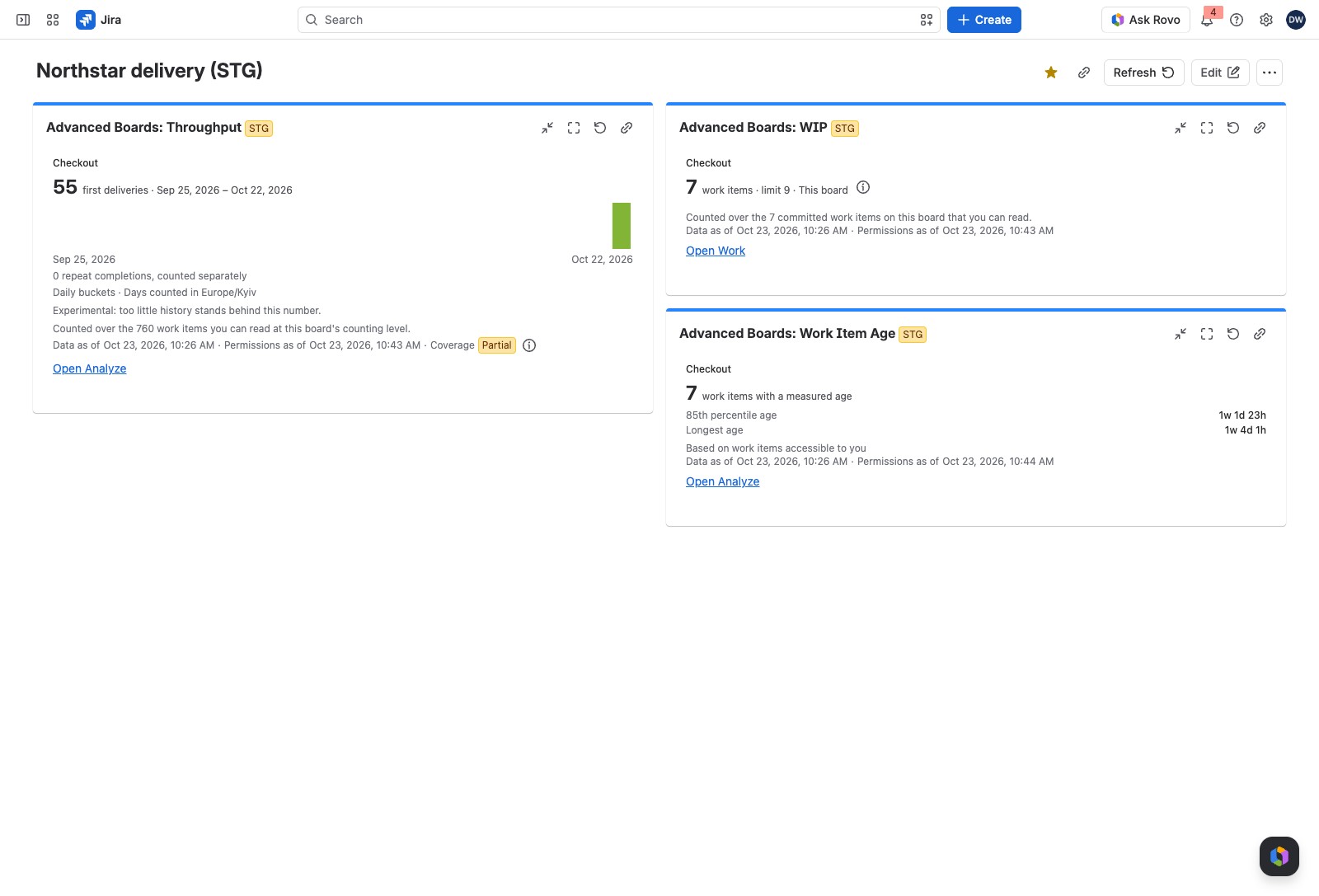
The Work Item Age gadget shows how long the work in progress on a board has been under way. It gives three figures over the work items each viewer can read, so aging work shows before it is late.
Add it to a dashboard #
- Open the Jira dashboard and select Edit.
- Select Add gadget and search for “Advanced Boards”. The four gadgets of the app are listed.
- Add Advanced Boards: Work Item Age.
- In the gadget’s form, choose the Board.
- Select Save.
Until a board is chosen, the gadget reads “Not configured yet. Open this gadget’s configuration and choose a board.”
What you can set #
| Option | What it does |
|---|---|
| Board | The board whose work in progress the gadget measures; the list holds the boards you can open, and Load more boards reads the next page |
| Save | Stays held until a board is chosen: “Choose a board to save.” |
| Cancel | Closes the form and keeps what was stored |
The dashboard stores only which board you chose, never a board name. The form shows the same messages as the WIP gadget when no board is available or the stored setting cannot be read (Advanced Boards: WIP).
What viewers see #
| Figure | What it says |
|---|---|
| work items with a measured age | How many work items in progress have an age the app can measure |
| 85th percentile age | 85% of those ages are this long or shorter |
| Longest age | The oldest work item in progress |
Ages read in Jira’s time notation, such as 3d 7h. Other lines appear only when they apply:
- Commitment outside retained history: a work item committed before the board’s kept history has no age. A line counts these, such as “2 with a commitment outside retained history”.
- Rework: work delivered before and now in progress again is counted on its own line, such as “2 rework cycles among them”. A further line says “Rework SLE not set; comparison not performed.” when no rework SLE is agreed.
- No age at all: “No age is measured on this board right now.” replaces the three figures.
The population line reads “Based on work items accessible to you”. The footer states “Data as of” and “Permissions as of”, and marks the coverage when it is “Partial”. Two people can see different figures, because each sees only the work items they can read in Jira. The marks and refresh lines are the same on every gadget (Advanced Boards: WIP, “What every gadget’s tile can show”).
How it relates to the board #
An age starts when a work item crosses the board’s commitment point, set under Configure → “Flow & time” (Flow, boundaries and blockers). The same group holds the SLE, the service level expectation Analyze compares each age with (Calendar, service levels and classes of service). To see each work item against the SLE, select Open Analyze (Flow metrics in Analyze). A gadget has no export.
If something looks off #
- “SLE not set; comparison not performed.”: the ages are measured, but no SLE is agreed, so a Board owner sets one on the board.
- “No age is measured on this board right now.”: no work item you can read is in progress with a commitment inside the board’s kept history, so check the board’s Work section.
- “Several classes of service are agreed and nothing stored says which one an item is in.”: the SLE depends on the class, so a Board owner checks the class of service mapping on the board.
- “The license is inactive”: the gadget needs an active license, so ask a Jira administrator.
- “You can’t see this board”: you hold no role on the board, so ask a Board owner for access.
- “This gadget’s configuration could not be read. Choose a board again.”: edit the gadget, choose the board and save.
- “This gadget could not read its place on the dashboard. Remove it and add it again.”: remove the gadget and add it again.
Next: Advanced Boards: Forecast shows the date or the count of a saved forecast run.


