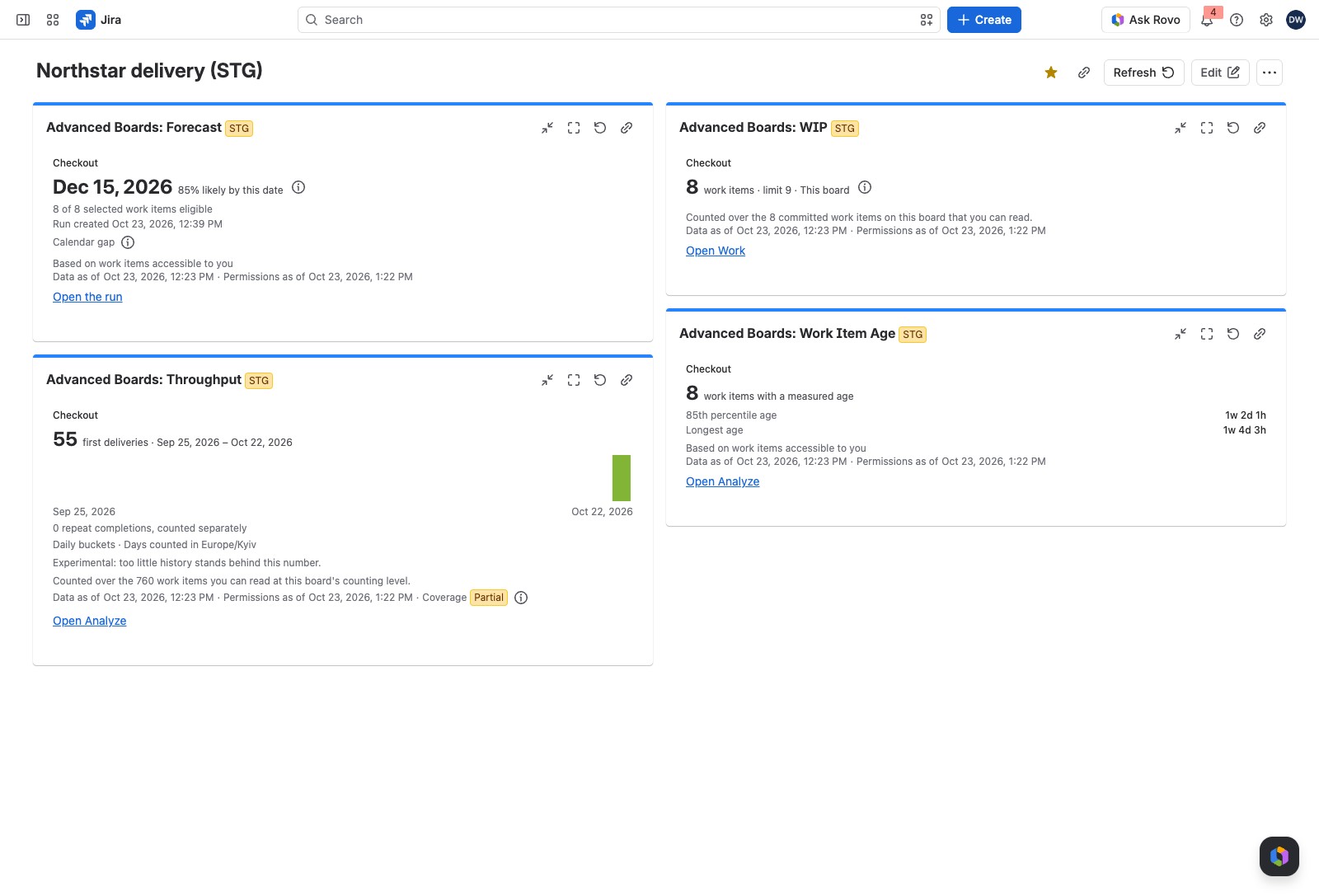
The Forecast gadget shows one saved forecast run on a Jira dashboard. Viewers read its answer, a date or a count of first deliveries, with the likelihood it was drawn at and the moment the run was made.
Add it to a dashboard #
- Open the Jira dashboard and select Edit.
- Select Add gadget and search for “Advanced Boards”.
- Add Advanced Boards: Forecast.
- In the gadget’s form, choose the Board, then the Forecast run.
- Select Save.
Until a run is chosen, the gadget reads “Not configured yet. Open this gadget’s configuration and choose a board.”
What you can set #
| Option | What it does |
|---|---|
| Board | The board whose saved runs are listed; Load more boards reads the next page |
| Forecast run | Appears after you choose a board. Each entry reads as its question, the time it was made and its state (“Ready” or “Drawing”) |
Save stays held until both are chosen. The (i) says “Only a run that is ready or still drawing can be shown in a gadget.” The gadget shows the run you chose, never the newest. To show a later run, edit the gadget. The dashboard stores only which board and run you chose.
The form can also say:
- “A run this gadget can no longer show”: “The run saved here failed or expired, so choose another run.” Save asks for another: “Choose another run to save.”
- “This board has no saved run a gadget can show.”: run a forecast on the board first.
- “The run saved in this gadget is not among this board’s runs, so choose its board or another run.”: choose the board again, then another run.
What viewers see #
A “when” run shows a date and its likelihood, such as “85% likely by this date”. A “how many” run shows a count and a sentence such as “At least 12 first deliveries by Nov 30, 2026, in at least 85% of simulated outcomes”. A date past the run’s horizon shows “Beyond the horizon”.
Under the figure, “Run created” names when the run was made. A line counts the work items the run could forecast, such as “18 of 20 selected work items eligible”. A run over the whole board reads “accessible work items on the board” instead. A run over a number you typed adds “A number you supplied, not validated”, and one that named no scope adds “No scope was named”.
The (i) “How this forecast was made” states the model’s limits. On a “how many” run it also says what the count is: the first deliveries at the board’s counting level, so it can be larger than the run’s scope.
The tile can also read “No date can be produced from this history.” When nothing is left to deliver, it reads “The remaining scope is zero” with the run’s start time. “Part of the requested window is outside retained history.” means the run sampled less history than asked.
A yellow lozenge appears when the history is thin: “Experimental” or “Insufficient data”. The run’s data warnings sit under it, most with an (i).
A forecast is a range of outcomes, not a promise. Once the date has passed, the tile says what the forecast gave it, such as “This date has passed. As of Oct 1, 2026, the forecast gave it 85%.”
A “how many” run reads, for example, “The horizon of Oct 15, 2026 has passed. As of Oct 1, 2026, the forecast gave at least 12 first deliveries in at least 85% of simulated outcomes.” The link then reads Open Forecast to run it again. Otherwise it reads Open the run.
How it relates to the board #
The run belongs to the board’s Forecast section (Run a forecast), where it is made and kept. A saved run’s detailed results are kept for up to 30 days; after that, the gadget asks for another run. A gadget has no export.
If something looks off #
- “This saved run has expired. Open this gadget’s configuration from the dashboard’s gadget menu and choose another run.”: edit the gadget and choose a newer run.
- “This run is still drawing its trials.”: the run is still working, so refresh the gadget in a moment.
- “This run failed, so it states no number.”: run the forecast again on the board, then choose the new run.
- “This run produced no date: the usable history holds no delivery to sample from.”: the board needs delivered work in its history window before a forecast can answer.
- “The license is inactive”: this gadget needs an active license, so ask a Jira administrator.
- “Not shown with your current access”: what you can read now differs from what the run counted, so read the run again with your current access.
- “You can’t see this board”: you hold no role on the board, so ask a Board owner for access.
Next: Advanced Boards: WIP lists the parts every gadget’s tile shares, and the other gadgets.


