A schedule runs a forecast for you on a cadence and after big changes. Each run is kept, so you can see how the forecast moved.
Open the Schedules tab #
Open a board, select Forecast, then choose Schedules. Anyone with a role on the board can read it. A Board owner creates and changes schedules (see “Who can change a schedule” below).
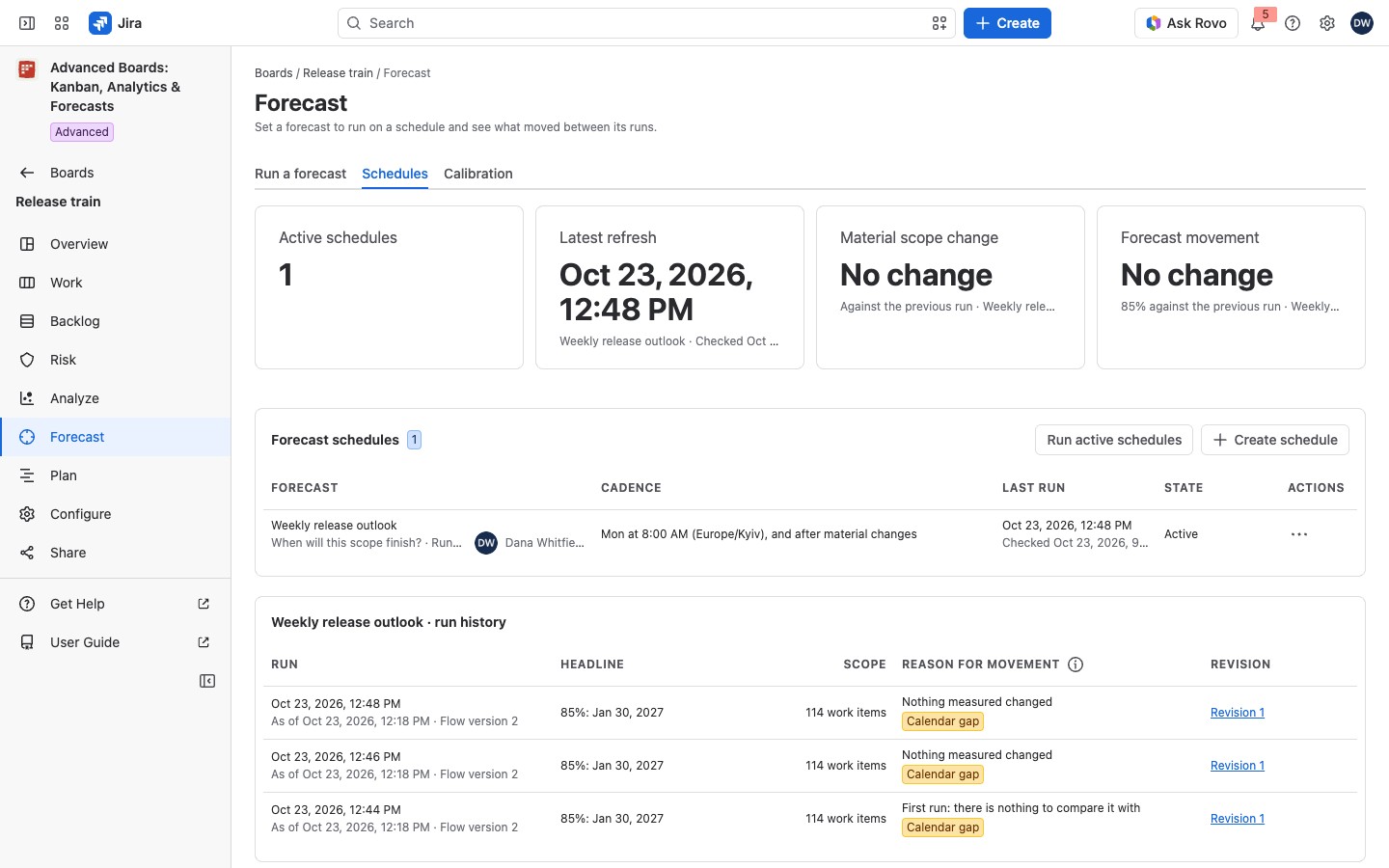
The tiles #
Each tile shows only once it has a figure.
| Tile | What it shows | When it appears |
|---|---|---|
| Active schedules | How many schedules run; “Over the schedules loaded so far” while the list is still loading | Once the list holds a schedule |
| Latest refresh | The time of the last run, with the schedule’s name and its outcome | Once a schedule has run |
| Material scope change | The net work items added or removed against the run before, such as “+3 work items”; “None yet” before two runs | When you open a schedule’s run history |
| Forecast movement | How far the forecast moved at the schedule’s probability level: for “When will this scope finish?”, the days, such as “+2 days” later or “−1 day” earlier; for “How much can finish by a date?”, the work items, such as “+3 work items” or “−4 work items”; the caption names the level, as in “85% against the previous run”, and the schedule; “None yet” before two runs | When you open a schedule’s run history |
The Forecast schedules table #
The Forecast schedules table has five columns:
- Forecast: the schedule’s name, and whom it Runs as.
- Cadence: when it runs (below).
- Last run: the time and, under it, the outcome.
- State: Active is plain text; Paused is a lozenge, and the (i) beside it gives the reason and what lifts it.
- Actions: the row menu (Schedule runs, pauses and history).
For example, Weekly release outlook on Release train asks “When will this scope finish?” over the board’s eligible work items. Its cadence reads “Mon at 8:00 AM, and after material changes”, and it runs as Dana Whitfield. Each Monday it adds a run to its history, so Dana sees how the finish date moved from week to week, and what changed between the runs.
Who can change a schedule #
A reader below Board owner sees “You can read this board’s schedules but not create one. A board owner can.” They open a schedule read-only, and it says “You can read this schedule. Changing it is a board owner’s to do.”
Create or change a schedule #
- Select Create schedule. To change one, select its name.
- Enter a Name.
- Choose the Question, Scope, Model, History window, in days and Trials. The Scope is Selected work items (then select Choose work items), A number you supply, or Every eligible work item on the board. For “How much can finish by a date?”, also enter the Horizon, in days.
- Choose a Cadence and enter a Time. For Once a week, also choose the Day of the week.
- Select Save and run as me. Save leaves the person unchanged.
A new schedule opens with the Question “When will this scope finish?”, Scope set to the board’s eligible work items and Model on “Sample days independently”. Horizon, in days is 30, History window, in days 84 and Trials 10,000. Cadence is “Every weekday” at 08:00, and Run after a material change is on: 5 work items added or removed, a change of 3 first deliveries, and at least 60 minutes between runs. Runs kept is 30.
Model is “Sample days independently” (the default) or “Sample weeks as blocks when deliveries batch”. The first draws each day of history on its own, so it carries no dependency, capacity change or seasonality. The second keeps a weekly rhythm together when the deliveries batch, and falls back to single days when they do not. The other forecast fields work as in a single run (Run a forecast). Horizon, in days is 1 to 730 where it shows, History window, in days 7 to 365 and Trials 1,000 to 1,000,000. Under Scope, the three kinds behave differently over time:
- A list of selected work items (Choose work items) never takes new ones.
- The board’s eligible work items are read again at each run, so the set may change.
- A number you supply (Work items remaining at the board’s counting level) is never checked against the board.
Each run states the scope it actually covered. With Choose work items, the list under it reads “3 selected”, for example, or “No work item is selected yet.” If the selection names work items you cannot read, it reads “Not available with your current access”. That selection is not shown or counted, and Save keeps it exactly as it is. A save is refused when none of the selected work items is at a level the board counts. A supplied number is a whole number from 0 up to a limit, and the field’s message names that limit if you go past it.
The Cadence column reads the cadence with its time, such as “Every day at 8:00 AM”, “Every weekday at 8:00 AM” or “Mon at 8:00 AM”. When the flow’s time zone differs from yours, the zone follows the time in parentheses. A schedule with no fixed cadence reads “After material changes only”. One that also runs after material changes adds “, and after material changes”. One with neither reads “Never (no cadence and no material-change trigger)”.
When a material-change check finds too little, no run starts. The last run then reads “Checked …: nothing material changed since the run of …”, with both times.
| Field | What it sets |
|---|---|
| Cadence | “No fixed cadence”, “Every day”, “Every weekday” or “Once a week”; “Every weekday” by default |
| Time | The wall clock in the flow’s own time zone, as HH:mm, from 00:00 to 23:59; 08:00 by default |
| Run after a material change | Starts a run early when the board moves enough; on by default |
| Work items added or removed | A whole number from 1 to 2,000: work items added and removed since the last kept run count together, so a swap counts as 2; 5 by default |
| Change in first deliveries in the window | A whole number from 1 to 100,000: the net change in first deliveries, so one that joins and one that leaves cancel; 3 by default |
| Least time between runs, in minutes | 15 to 10,080; 60 by default |
| Runs kept | 1 to 120; 30 by default |
A board holds at most 10 schedules. A schedule runs at most 24 times a day. If nothing can start one, the editor warns “This schedule would never run”. Delete, in the editor, asks “Delete this schedule?”. Select Delete schedule to remove it. Its kept runs stay readable for their retention period. This cannot be undone.
Who a schedule runs as #
A schedule runs as one person who accepted it. Its runs see what that person can see. Open the schedule and select Run as me to take it over. You need a role on the board that was given to you directly. Stop running as me, in the editor too, pauses the schedule until somebody accepts. A paused schedule never resumes on its own.
Run as me is held when the schedule’s selection names work items you can’t read: “This schedule’s selection names work items you cannot read, so it cannot run as you.” If the check fails only when you select it, the refusal adds “or that are no longer on the board”. Ask a person who can read them all to accept it.
Stop running as me asks “Stop running this schedule as you?” The schedule pauses until somebody accepts running it. Its kept runs stay readable, and nothing about your Jira work items changes. Select Stop running it as me to confirm, or Keep running it.
Run, pause and read the history #
Starting a run now, pausing and resuming, the last run’s outcome, the run history and every reason a schedule pauses are in Schedule runs, pauses and history.
On the Standard edition #
Existing schedules stay readable, and their row menu keeps only Run history. A Board owner can still delete one from its dialog. Every paused schedule reads “Paused: this installation does not run the Advanced edition.” The tab carries the yellow lozenge Retained result: produced under the Advanced edition and says “New schedules pause on this edition. What is here stays readable, and a run exports while its detailed run is stored.” With no schedule, it shows “This is part of the Advanced edition”.
If something looks off #
- “This schedule would never run”: choose a cadence, or let it run after material changes.
- “This schedule moved while you were editing it”: someone saved it while you edited. Your entries stay until you save again or choose Discard mine and use the stored schedule.
- “The schedule is saved. It was not accepted, so it does not run yet.”: select Run as me in the editor.
- “Paused: nobody has accepted running it yet.”: somebody with a direct role on the board selects Run as me. The other reasons are in Schedule runs, pauses and history.


