Portfolios combine several boards and read their work as one, so you see several teams’ work in progress and deliveries on one page. Shared work counts once, and boards that measure differently keep their own numbers.
Create a portfolio #
You need the right to create a board and the Board owner role on every board you add. A site holds up to 50.
- Select Portfolios, then Create portfolio.
- Enter the Portfolio name, for example Northstar rollout.
- Under Member boards, search the boards you own and select Add. A portfolio holds up to 25 boards.
- Select Create portfolio.
The first board you add is the reference board; the others are compared against it.
Switch between portfolios #
Portfolios opens the portfolio changed most recently. The Portfolio picker switches to another. The header says when the portfolio last changed, as “Updated” and a time. Each portfolio has these tabs:
- Overview: the member boards and their combined work in progress and deliveries, read first (below).
- Value streams: the stages work moves through, one board a stage, and where work waits between them (Value streams).
- Roadmap: when a scenario run expects each scope to finish, beside the planned dates. Packs: the stakeholder packs that gather the roadmap, flows and saved forecasts for the portfolio’s readers (Portfolio roadmap and stakeholder packs).
- Settings: shown to a manager only. It holds the name, the member boards, the reference board and deleting (Manage a portfolio).
A link to a portfolio you can’t open leads to “That portfolio is not in your list”. Select Open the most recently changed portfolio to go to your newest one.
Read the Overview #
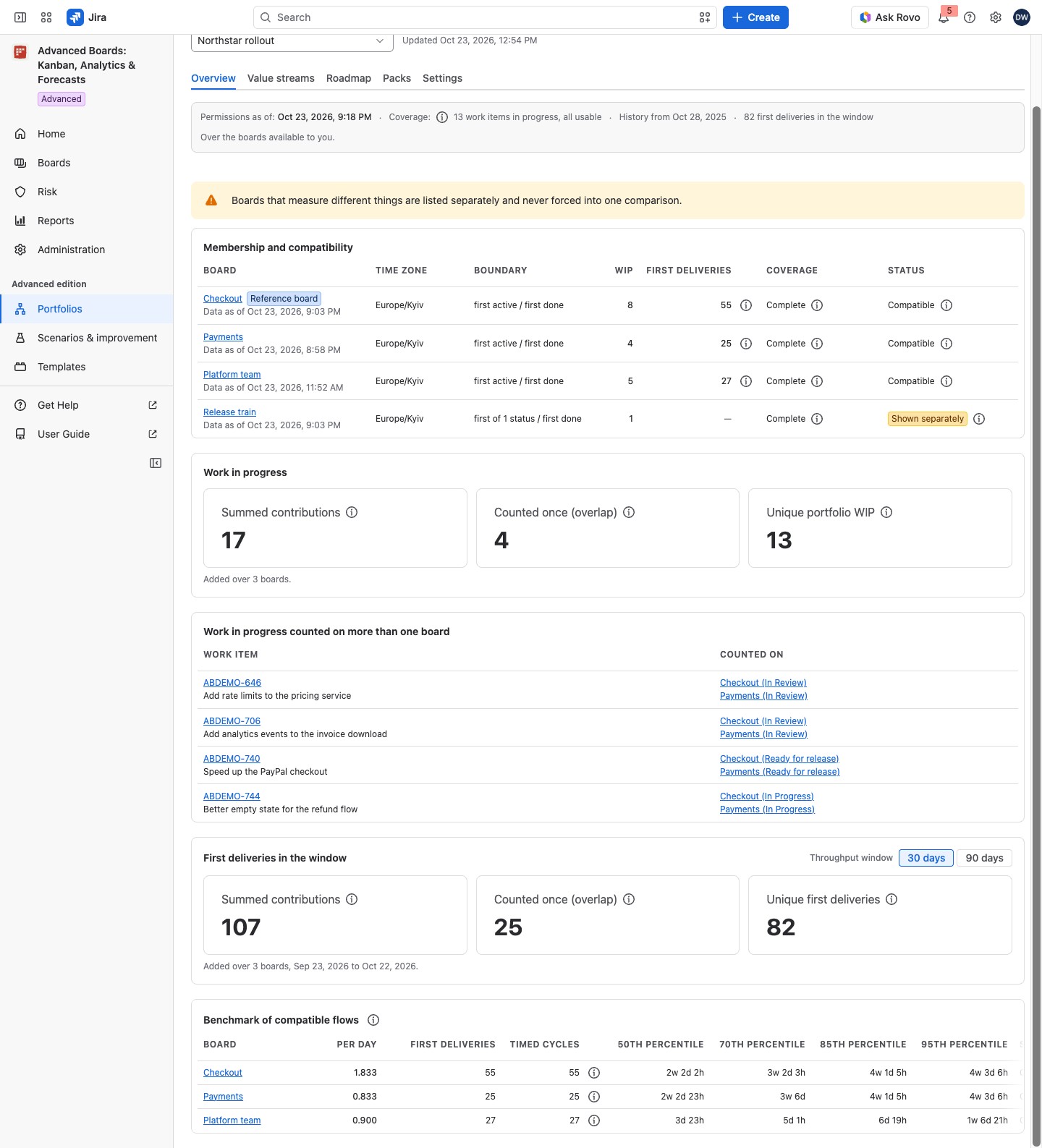
The card Membership and compatibility lists each member board. The strip above gives Permissions as of and the coverage, with the window’s first deliveries beside it, such as “24 first deliveries in the window”. It ends “Over the boards available to you.” There is no single Data as of: each board states its own in its row. The coverage (i) names the cohort, “Current cohort of each board”, and the reference board’s flow and calendar versions. The reference board is marked in the table by its Reference board lozenge.
| Column | What it shows |
|---|---|
| Board | The board’s name, its own Data as of, and a blue Reference board lozenge on the reference board |
| Time zone | The time zone the board’s flow measures in |
| Boundary | Where the board starts and stops measuring, as a pair such as “first active / first done”, or “first of 2 statuses” |
| WIP | The board’s own work in progress |
| First deliveries | The board’s first deliveries in the window; its (i) gives the sample, such as “30 observed days · 24 first deliveries” |
| Coverage | “Complete” in plain text, or a “Partial history” or “Unknown” lozenge; its (i) counts the work items the coverage rests on |
| Status | Whether the board adds up with the reference board; shown only once there is a compatibility report |
Status reads “Compatible” in plain text, or a yellow “Partly compatible” or “Shown separately” lozenge. Its (i) names the reason, for example “Time zones differ”.
When at least one board measures something different, a warning above the table reads “Boards that measure different things are listed separately and never forced into one comparison.”
A board that measures something different is “Shown separately”: it keeps its own numbers, and it is left out of the benchmark. “Partly compatible” means its work in progress adds up, but its first deliveries stand alone. A yellow Partial history lozenge under Coverage means some work items began before retained history.
The notes in the (i) of Status mean:
| Note | What it means |
|---|---|
| Same flow definition | The board measures with the reference board’s flow definition, so its numbers add up |
| Boundary rules differ | It starts or finishes measuring at another point, so its numbers stand alone |
| Status classes conflict | A status both boards map is classed differently |
| Counting levels differ | It counts another level of work |
| Time zones differ | Its first deliveries stand alone; work in progress still adds up |
| Different calendar | It has its own calendar; no number on this screen uses business time, so nothing is affected |
| Source leaves out completed work | Its first deliveries are not counted; work in progress still adds up |
| Nothing published yet | It has no numbers yet |
| Too much work for one read | Its own numbers are not stated |
| Earlier history unknown | Part of its earlier history is unknown, and its numbers carry that label |
| Sample below the threshold | Its sample is below 30 complete days or 20 first deliveries; the count is exact |
Three cards follow, in this order: Work in progress, Work in progress counted on more than one board and First deliveries in the window. The first and the third each hold three figures: Summed contributions, Counted once (overlap) and a unique figure (Unique portfolio WIP on the first, Unique first deliveries on the third).
| Figure | What it counts |
|---|---|
| Summed contributions | Each board’s count added together; a shared work item is added twice |
| Counted once (overlap) | Contributions that are the same work item on several boards |
| Unique portfolio WIP | Work in progress, each work item counted once |
| Unique first deliveries | First deliveries in the window, counted once |
A line under each of these two cards names how many boards were added, such as “Added over 4 boards.”
The card Work in progress counted on more than one board names each shared work item and its boards under Counted on. Each board shows with its column, such as “Checkout (In Review)”. While the card lists fewer than it holds, it reads “Showing 10 of 24”, for example. With no shared work it reads “No work item of this portfolio is counted on more than one board.”
The head of First deliveries in the window holds the Throughput window switch, “30 days” or “90 days”, and its line also gives the window’s dates. Only boards whose first deliveries add up are counted there. A yellow Experimental lozenge marks a sample below 30 complete observed days or 20 first deliveries. The counts themselves are exact.
For example, Northstar rollout holds Checkout, Payments, Platform team and Release train. The Payments squad’s work items stand on both Checkout and Payments. Summed contributions adds each of them twice, Unique portfolio WIP counts each once, and the difference is Counted once (overlap).
The card Benchmark of compatible flows compares the boards whose flows are compatible with the reference board. A board that is “Shown separately” is not in it. Each row gives Per day first deliveries, First deliveries, Timed cycles and the cycle-time 50th percentile, 70th percentile, 85th percentile and 95th percentile, in elapsed time. A board’s sample is as many whole days as the window holds, ending the day before its Data as of.
- Timed cycles: its (i) says how many first deliveries had a measurable cycle time, such as “18 of 20 first deliveries with a measurable cycle time”, and why the others were left out.
- Status: “Compared” in plain text, or a yellow Small sample lozenge when the board has fewer than 30 complete observed days or fewer than 20 first deliveries. A small sample keeps its own numbers and is compared with none. Its (i), such as “Why Payments is not compared”, says so.
The (i) About the benchmark says which boards it holds, how each sample is taken and that the percentiles are read by nearest rank, over the work items available to you.
When no board has a comparable flow and a complete day, the card reads “No board of this portfolio has both a throughput-comparable flow and a sample with a complete day, so there is nothing to benchmark.”
Who sees a portfolio #
Anyone with a role on at least one member board can open it. Each person sees only what they can open. A Board owner of every member board, or a site administrator, manages the portfolio. The app calls this person the portfolio’s owner. Only a manager sees Settings and makes scenarios and packs in it. Renaming, member boards, the reference board and deleting are in Manage a portfolio. Next: Portfolio roadmap and stakeholder packs.
Export the benchmark #
While the Overview tab is open, select Export in the page header to save the benchmark. The file is kept in Reports (Reports and exports).
On the Standard edition #
There is no Portfolios entry. A link opens your portfolios, marked with the yellow lozenge Retained result: produced under the Advanced edition: “The portfolios you have and their value streams stay readable and can be deleted. New portfolios and other changes need the Advanced edition.” The page lists them in a table: Portfolio (select the name to open it), Value streams, Boards you can see (only the boards you can read), Updated and Actions. A manager’s row menu holds Delete portfolio; other people see no menu. A link in Reports opens that portfolio, where the Overview and Value streams tabs show “This is part of the Advanced edition”. In Settings, a manager can still delete the portfolio, and a value stream’s row menu holds Delete value stream. With no portfolio, the page shows About the Advanced edition.
If something looks off #
- “No reference board you can open is chosen, so the boards are not compared.”: a manager chooses a reference board in Settings.
- “This portfolio spans more work than one read can authorize.”: a manager can remove a board or split the portfolio.
- “No compatibility report yet: the reference board has not published a flow.”: wait for that board’s first import, or a manager sets another reference board.
- “A portfolio is made of boards you own, and you own none yet: …”: create a board, or ask a board’s owner for the Board owner role.
- “A deleted board was taken out of this portfolio.”: a manager saves the portfolio in Settings to clear the notice (Manage a portfolio).
- “No board of this portfolio is throughput-comparable, so no first deliveries are summed.”: read each board’s Status (i) to see what separates its first deliveries from the reference board’s.
- “This list shows the first … portfolios you can see. There are more: open one by its own link.”: open the portfolio by its own link.


