The portfolio roadmap shows when a scenario run expects each scope to finish, beside the planned dates. A stakeholder pack gathers the roadmap, flows and saved forecasts into one page for the portfolio’s readers.
Show the roadmap #
The roadmap draws on scenario runs. Until one has run, it offers Open Scenarios & improvement (Scenarios & improvement).
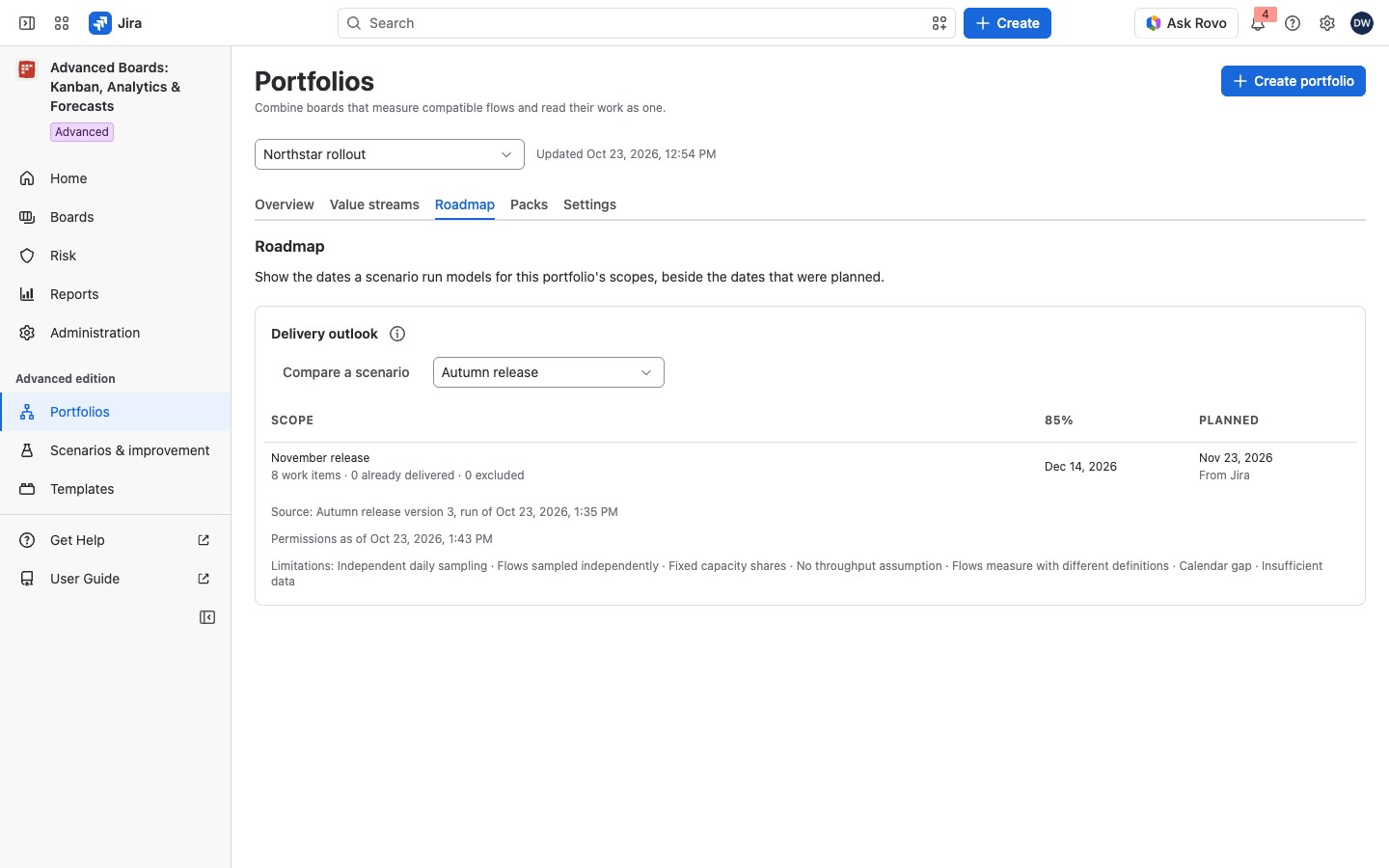
- Open the portfolio, for example Northstar rollout, and select the Roadmap tab.
- Select Show the roadmap.
- If several scenarios have run, choose one in Scenario, for example Autumn release.
The Delivery outlook card lists each Scope with its 85% date and its Planned date. An 85% date means 85 of every 100 trials finished by then. An 85% cell reads “Beyond the horizon” when the trials did not finish inside the simulated time, or “No date at this level” when the run states none. Under each scope, a line counts its work items, those already delivered and those excluded. A scope whose board waits on unfinished work outside the scenario reads “Withheld: work on this board waits on unfinished work outside this scenario” in place of its date (Scenario results and the apply plan).
Under Planned, a line names where the date comes from: “From the milestone”, “From the plan overlay”, “From Jira”, or “As recorded” on a date. A Planned cell with no date carries an (i) that says why, such as “No date is shown: you cannot read the Jira version or sprint this milestone refers to, or it no longer exists.”
Under the table, the card names its source run, Permissions as of and its Limitations. Compare a scenario opens Scenarios & improvement.
Read the Packs tab #
The Packs tab lists the portfolio’s stakeholder packs with Created and Updated. A pack’s name opens it. The (i) About stakeholder packs says what a pack must hold. With no pack, the tab reads “No stakeholder packs yet”, and a reader who is not a manager reads that a manager of the portfolio creates one. A portfolio holds up to 20 packs. A manager also sees Create stakeholder pack and a row menu with Edit stakeholder pack and Delete stakeholder pack.
Create or edit a stakeholder pack #
A pack presents the flows and at least one more part: a comparison, a roadmap or saved forecasts.
- Select Create stakeholder pack.
- Enter the Pack name, for example Northstar rollout review.
- Fill the fields you want (see the table).
- Select Create stakeholder pack. To change a pack later, select Save stakeholder pack.
- In “Publish “Northstar rollout review” to everyone who can read this portfolio?”, select Publish.
The dialog’s Where it is used says whether the save publishes the pack or changes it for everyone who opens it. If the pack draws on a board or work items you cannot read, the editor does not show what it presents, and saving replaces it for everyone. Ask a person who can read all of it to make the change.
| Field | What it sets |
|---|---|
| Pack name | Shown to everyone who can read the portfolio; up to 200 characters |
| Throughput window | “30 days” or “90 days” of first deliveries for the flows |
| Baseline scenario, Baseline run | Optional comparison: a baseline and one of its runs |
| Scenario, Scenario run, Scope | The scenario to compare, its run, and a scope both runs share |
| Roadmap scenario, Roadmap run | Optional: the roadmap as one saved run draws it |
| Board, Saved run | A saved forecast run of a member board; Add saved forecast adds it, up to 5 |
| Offer export to people who open it | Lets readers export the pack |
Clear the comparison and Clear the roadmap take those parts out. Only finished runs that are still kept are offered. Create stakeholder pack is held, with its reason as its tooltip, until the name, the throughput window and the export choice are set, such as “Enter a name.”
For example, the pack Northstar rollout review uses a 30-day throughput window, the Autumn release roadmap and one saved forecast of Checkout. A reader opens it and sees the portfolio’s flows, when each release scope is likely to finish, and Checkout’s forecast as it was computed. After the save, the Published pack card (or Updated pack after an edit) shows the Pack, Who can open it and the Link, and offers Open pack, Copy link and Close. If the link cannot be built, the card reads “The link could not be built here. Open the pack and copy its address from the browser.”
Delete a stakeholder pack #
Choose Delete stakeholder pack in the row menu. “Delete Northstar rollout review?” confirms it. Everyone loses the pack, and its link stops working. Select Delete stakeholder pack to confirm. This cannot be undone.
What a reader sees in a pack #
A pack opens on its own page. Its sections:
- Flows: the portfolio’s Overview over the pack’s throughput window, counted for you when you open it. On Standard, it shows “This is part of the Advanced edition”.
- Scenario comparison: one row a side, “Baseline: Autumn release” and “Scenario: …”, for the scope both runs share. Each row gives its 85% when date and its Assumptions.
- Roadmap: the chosen run’s Delivery outlook table, with each scope’s 85% date and planned date, as on the Roadmap tab.
- Saved forecasts: one card a saved run, such as “Saved forecast run of Checkout”, shown as it was computed. If a run is missing, a line says “Some forecast runs in this pack are no longer kept.” or “Some forecast runs in this pack use a board you can’t open.”
The (i) About this pack says how its figures are computed.
Everyone who can read the portfolio can open the pack, and nobody else. Publishing gives nobody new access. Where the author offered it, readers on Advanced can select Export, unless a part is left out for them.
A part on a board you can’t open is left out, with its own line. A pack that can’t be read shows “This pack is not showing anything” and Back to packs; a manager gets Edit stakeholder pack instead.
If something looks off #
- “No scenario of this portfolio has been run yet.”: run one, then show the roadmap again.
- “This roadmap is not shown, because it includes a board you cannot open.”: ask a board owner for a role.
- “A forecast run this part used is no longer kept, so this part is not shown.”: a manager selects Edit stakeholder pack and chooses a newer run.
- “This part uses a board you can’t open, so it is not shown.”: ask that board’s owner for a role.
- “Choose a scenario comparison, a roadmap or a saved forecast: a pack presents the flows and at least one of them.”: add a part before you save.
- “This portfolio holds the most stakeholder packs it can (20).”: delete a pack you no longer need.
- “No date is shown: you cannot read the Jira version or sprint this milestone refers to, or it no longer exists.”: ask for access to that version or sprint in Jira.
- “This stakeholder pack changed after the list was read, so it was not deleted.”: select Reload, then delete it again.
- “Something this pack names is out of reach”: choose its runs and scenarios again, then save.


