A scenario run answers when each scope may finish, and how surely. The apply plan then shows what would change in Jira, so you decide before anything is written.
Find a run #
Open Scenarios & improvement, then select a scenario’s name. Run history, the roadmap and the run details are on that page.
Run history lists runs kept for 30 days, with Run, Scenario version, State, Trials, Kept until and Actions. The state is “Running”, “Ready”, “Failed” or “Expired”: Ready is plain text, Running is blue, and Failed and Expired are yellow. The newest run is marked Latest, and the run now on screen Shown below. Show this run displays its result and starts no new run. The row menu exports that run as XLSX or CSV. With no run, the card reads “No run is recorded for this scenario yet.”
Read the probabilistic roadmap #
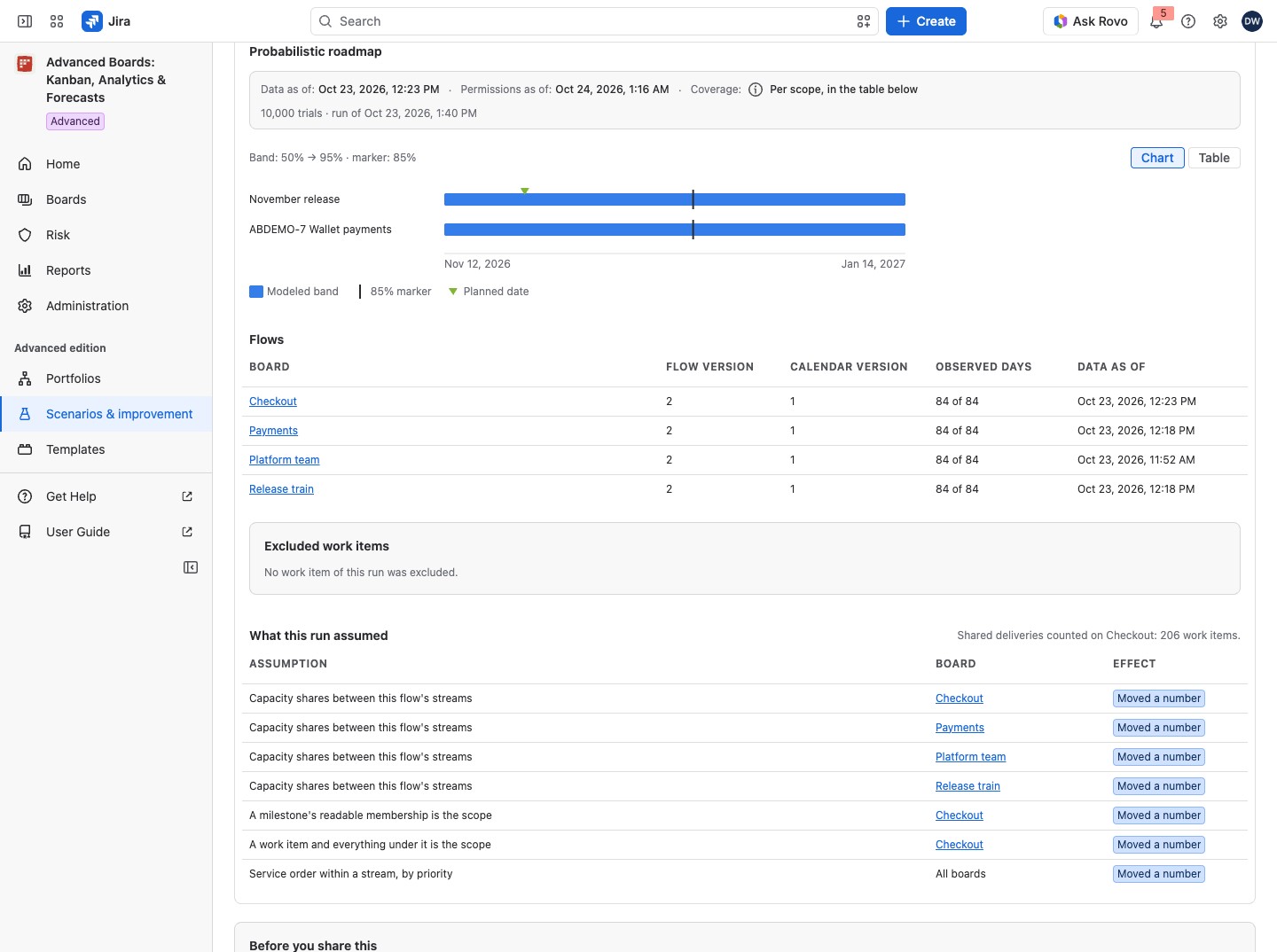
Choose Chart or Table. The chart draws a modeled band for each scope with an 85% marker, your planned date and your target. The legend shows each mark beside its name, and lists only the marks the chart draws. The band runs from the 50% date to the 95% date. The table gives the dates at 50%, 70%, 85% and 95%, then Planned, Target and Attainment.
A date at 85% means 85 of every 100 trials finished by then. A date cell that reads “Beyond the horizon” means that percentile was not reached inside the simulated period. Under each scope, a line counts its work items, those already delivered and those excluded. Another line counts the trials that had not finished at the horizon; they are counted apart.
For example, in Autumn release with Wallet payments, the scope Wallet payments may reach 85% on a date after its Planned date. That tells you the plan is optimistic: fewer than 85 of every 100 trials finish by the planned date.
- Planned: the date from the milestone, the plan overlay or Jira, or as recorded on a date, with its source named. If you cannot read the Jira version or sprint a milestone follows, or it is gone, the cell shows no date and its (i) says so.
- Attainment: the chance of meeting your target, and how many trials achieved it. With no target date, it reads “No target date, so no attainment is stated”.
- A scope that is “Already delivered” or has “Nothing left to forecast” shows no band.
- A scope that reads “Withheld: work on this board waits on unfinished work outside this scenario” shows no band either. With Read Jira’s own blocking links at run time on, work on its board waits by a Jira link on unfinished work the run does not simulate, so the run cannot tell when it finishes. When this holds for every scope, the roadmap reads “No band: the work of this run waits on unfinished work outside the scenario, so its dates are withheld.”
In place of a result, the roadmap can read:
- Not run: “This scenario has not been run yet.”: run the scenario.
- Running: “The model is running. This screen follows it and shows the result when it lands.”: wait.
- Hidden board: “This roadmap is not shown, because it includes a board you cannot open.”
- No scope: “This run names no scope, so it states no band.”
- No band: “No band: this scope reached no simulated completion date.”
The strip above, “What these numbers are”, gives Data as of, Permissions as of and the coverage, in the form “… work items in scope · … already delivered · … excluded”. When scopes share work items it reads “Per scope, in the table below”. A line under the strip gives the number of trials and when the run was made, such as “10,000 trials · run of …”. Counts cover only the work items you can access. A run with a board you can’t open, or that waits on outside work you can’t read, shows no roadmap.
Before you share this lists the limits that hold for this run. Each one is a yellow lozenge, and most are followed by a sentence that says what to check. Read them before you pass the dates on:
| Limit | What it means |
|---|---|
| Independent daily sampling | Each simulated day is drawn on its own, so the band is as wide as that makes it |
| Flows sampled independently | A shock that would hit several flows at once is not modeled |
| Fixed capacity shares | Your shares hold every day; unused capacity is lost, never lent |
| No throughput assumption | The model samples the history as it was observed |
| WIP change recorded only | The WIP change moved no number |
| Shared work assigned to one stream | Shared work is simulated once and finishes on the same day in every scope |
| Flows measure with different definitions | What counts as delivered is not the same on every board |
| Configuration changed since this was calculated | A board’s settings changed after its data was imported; run again after its next update |
| Data refresh failed | A board’s refresh failed; run again after its next update |
| Calculated before a correction | A board’s data predates a correction; run again once it is recalculated |
| Throughput drift | A flow’s last four weeks delivered at a rate far from its earlier weeks |
| Calendar gap | A flow’s window holds two weeks or more with no first delivery |
| Insufficient data | A flow has no first delivery to sample, so nothing on it finishes |
| Experimental | A flow’s input is below the agreed threshold; the label goes into every export |
| Partial history | Part of a flow’s window is outside retained history |
| Batched delivery | A flow delivers mostly on one weekday, which daily sampling smooths out |
| Link type gone | A link type that ordered a board’s plan no longer exists in Jira |
| Waits on work outside the scenario | Work waits by a Jira link on unfinished work the run does not simulate; run again once it is done |
| Another limitation | A limit this version of the app has no name for |
See what the run left out and assumed #
Excluded work items lists the work items a scope names but no simulation covered. The list stays closed until you open it, because it reads each work item live: select Show the excluded work items. A long list reads “Showing … of …”, and Show more excluded work items reads the next page. Its columns are Work item, Board and Why.
What this run assumed lists every assumption with its Board (“All boards” where it holds across the portfolio) and an Effect. “Moved a number”, a blue lozenge, means it changed the result. “Recorded only”, a gray lozenge, means it did not, like “A WIP change, recorded and not modeled”. An assumption about a board that is not one of the run’s flows names no board: it reads “A flow board you cannot see”. The assumptions read as the run made them, such as “Capacity shares between this flow’s streams”, “A milestone’s readable membership is the scope”, “Dependencies you assumed, beyond Jira’s own links” or “Service order within a stream, by priority”.
Under the assumptions, each move has its own lines, such as “Moved 4 work items from” one version or sprint “to” another. A line also says how many were in both, already in the target, or not in the source for this run. Each board that counted shared deliveries has a line such as “Shared deliveries counted on Checkout: 3 work items.”
How this run was computed gives Model (for example “Joint daily allocation, each day drawn independently”), Trials, First simulated day with its time zone, Calendar, Unused capacity, Shared work (the rule that chose each shared work item’s stream) and Kept until.
The Flows table, “Each flow board’s own versions and history”, lists every flow board the run sampled. Its columns are Board, Flow version, Calendar version, Observed days and Data as of. Observed days gives the days of history the run could use out of the days it asked for, such as “84 of 90”, or “No history read” when the board gave none. These are the days each flow’s deliveries were drawn from, so read a low count beside the dates.
Preview the apply plan #
On Scenarios & improvement, the Apply-plan preview card shows what a scenario changes against the version it is compared with. A baseline is compared against nothing. A row can set a milestone target date, a planned end date, a Jira end-date field, an assumed dependency link, a WIP limit, a fix version or a sprint. A line above the table names both versions and when permissions were checked.
- Choose the Scenario to preview.
- Select Check what would change.
Each row has a Board, a Change from the current value to the proposed one (“Not set” when it is empty now, “Stays” when it already holds the value), an Outcome and Details. The outcomes are:
| Outcome | Meaning |
|---|---|
| Would apply | Green: the change can be sent now |
| Needs separate confirmation | Yellow: not sent with the plan. Details says what it needs: the Member or Board owner role, every owner’s confirmation of a shared WIP policy, a link type, or its own Write to Jira… |
| No change | Gray: the value already stands |
| Not applicable | Gray: the row says why |
A Not applicable row you can act on reads one of these:
- “A site rule or the template governing this board locks this kind of change, …”: the change waits until a Jira administrator lifts the rule (Governance and reasons for a change).
- “This board’s rules ask for a reason before this kind of change, and a scenario records none.”: make the change on the board, where you can give a reason.
- “This work item is not on this board now, so nothing here writes its date. Add it to the board first.”: bring the work item into the board’s source, then check again.
- “The end date field this board plans with cannot be found in Jira, so nothing is written to it.”: a Board owner names another end date field in the board’s plan settings.
- “The target sprint is closed.”: choose an open sprint for that move in the scenario.
- “The target version belongs to another space.”: choose a target version of the work item’s own space for that move.
- “This board has not finished its first import, so membership cannot be checked.”: wait for the import, then check again.
- “This work item holds two sets of planned dates from an earlier version. Clear them on the board’s Plan, then preview again.”: clear the dates on the board’s Plan (Timeline, milestones and dependencies), then check again.
- “The proposed end is before this work item’s start in Jira, so it is not written. Apply plan does not change a start in Jira.”: move the start in Jira first if the date should be written.
- “The target version or sprint is no longer available to you.”, “The sprint this move takes work items from is no longer available to you.” or “This move’s milestones are no longer two versions or two sprints.”: change that move in the scenario so it joins two versions or two sprints you can read.
- “The milestone or policy this change names no longer exists on the board.”: edit the scenario so it names a milestone or policy the board still holds.
Other rows read one of these. They stay for you to do in Jira, or are not applied from a scenario:
- “Apply plan does not change the date of a release or sprint-end milestone.”: change that date on the version or sprint in Jira.
- “Changing a work item’s parent is not applied from a scenario.”: change the parent in Jira.
- “Removing a link is not applied from a scenario.”: remove the link in Jira.
- “A dependency between two scopes has no Jira link to write.”: link the work items in Jira yourself if you want the order there.
- “Jira needs a link type for this dependency, which the scenario does not record.”: add the link in Jira with the type you want.
- “Taking back a move is not applied from a scenario.”: if the move was applied earlier, move the work items back in Jira yourself.
Changes with no Jira counterpart lists assumptions Jira holds nowhere, such as capacity shares and service order. They stay recorded. A plan with no change reads “This scenario’s assumptions change nothing that Jira or board settings hold.” A plan holds up to 50 items; past that, it reads “The comparison reached its ceiling of 50 items, so this is not the whole change set. Narrow the scenario and check again.”
Apply the plan #
Select Apply plan…. The dialog asks, for example, “Apply 3 items to Jira?”, counting only the changes it may send, and states how many are written to Jira as you and how many are saved in the app’s board settings. Select Apply plan to send them. Closing the dialog sends nothing further.
The dialog lists the items in a table with Item, Outcome, Details and Actions, and a line such as “Applying 2 of 5” follows the run. Each item ends in one of these outcomes:
- Applied (green): the change was sent and confirmed.
- Sending (blue): the item is on its way.
- Refused (red): the item was refused, and Details says why.
- Outcome unknown (red): Jira did not confirm the change, so it may or may not have happened. The app never sends it again by itself. The row then reads “Apply plan does not send this item again until a check shows what happened.”, or, where no check can tell, “Apply plan sends this item again only as the same request, so it takes effect once at most.”
- No change (gray): the value already stands, so nothing was sent.
- Not sent (gray): the run did not send this item, for example because the sequence stopped before it.
Select Check this item’s outcome on an unknown item. The result reads, for example, “The change was saved”, “Jira refused the change”, “Jira holds the requested value” or “This needs a look in Jira”. When every item waits for an earlier outcome, Apply plan is held with “Every item this plan would apply waits for the outcome of its earlier send.”, and the card’s Apply plan… stays open to show them. While the dialog checks the plan again, a row’s check waits with “The fresh check of this plan is still running.” If Jira refuses more requests, the run pauses and sends nothing more.
Write to Jira… on a row writes one proposed date as you. The dialog Write the date to Jira shows the Work item, Board, Jira field, Current value and Proposed. Select Write to Jira. Open Edit fields takes a row to the Work screen’s Edit fields dialog, for a change made there.
On the Standard edition #
Stored runs stay readable. The page shows the yellow lozenge Retained result: produced under the Advanced edition and says “This screen is reading a stored result. Nothing is recomputed on this edition.” Export saves a run while it is stored, without starting a new one. The Apply-plan preview card reads “Checking an apply plan is part of the Advanced edition.” and offers no check. The portfolio’s owner can still delete a scenario.
If something looks off #
- “This run did not finish.”: run the scenario again; nothing was written.
- “This run is paused.”: the run does not go on by itself. The person who started it selects Resume the job on the run’s job line, on the scenario’s page; where a new run is the remedy, the line offers Run it again. Only that person, or a Jira administrator under Administration → Imports and jobs, can resume it.
- “The retention period has passed; this run’s numbers are no longer shown.”: run the scenario again.
- “What would change moved since you opened this dialog, so nothing was sent. The items below are the fresh plan. Review them and confirm again.”: review and confirm again.
- “You can’t check this plan”: only someone who can open every part can check it.
- “The sequence stopped here. The items above were sent; the items below were not.”: read the refused item’s details, fix the cause, then check the plan again.
- “The fresh check of this plan did not answer, so nothing was sent. Try the confirmation again when the reason above is settled.”: confirm again once the reason above it is settled.
- “This item names an operation this version does not apply. It was not sent, and nothing about it changed.”: nothing was sent for it; make that change in Jira yourself.
- “Jira does not let you edit this field on this work item, so the date cannot be written from here.”: ask a person who may edit the field in Jira, or select Read the field again once your rights change.
- “This work item declares more fields than one read carries, and this change’s field was not among them. …”: select Open Edit fields and write the date from the Work screen’s Edit fields dialog.
- “The plan changed after the preview, so nothing was written. Review the fresh values below and confirm again.”: review the fresh values, then select Write to Jira again.
- “The work item or the plan changed after the preview, so nothing was written.”: select Check again, then write the fresh value.
- “Jira already holds this date, so nothing was written.”: nothing more is needed.


