A rollout writes a published template to boards you own. A dry run first shows what would be written. You can roll a board back.
Run a dry run #
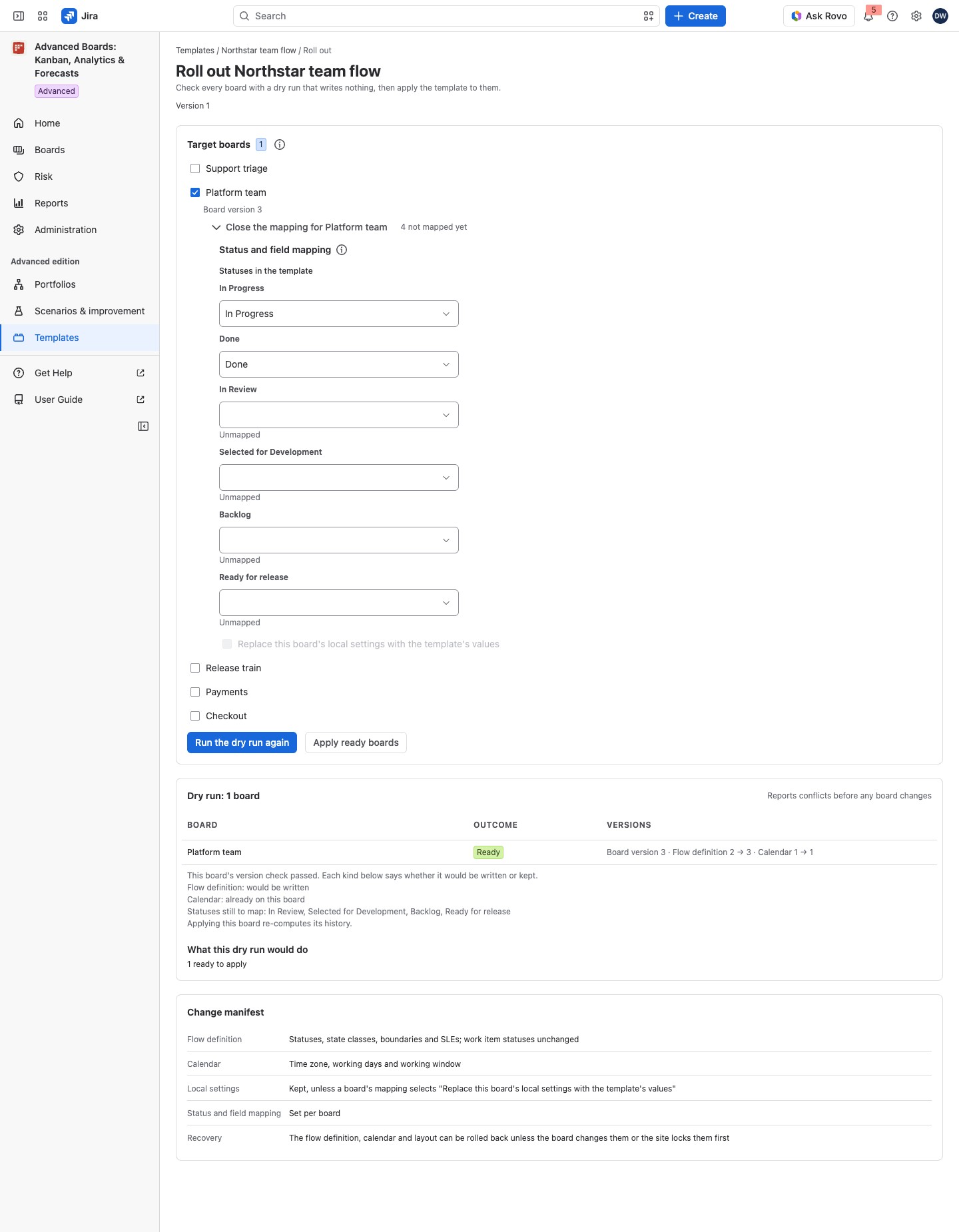
Select Roll out on a published template. The page lists the boards you own. One rollout applies to at most 25 boards.
- Under Target boards, check the boards.
- Select Mapping for a board and set This board’s status for each status in the template. The app proposes matches: “Proposed: the same Jira status” or “Proposed: matched by name”. Under Fields in the template, type the Jira field id of this board’s counterpart in This board’s field id for each field (up to 64 letters, digits or underscores). The app proposes statuses only, never fields. A mapping carries at most 200 status pairs and 50 field pairs; past that, the page says so. The mapping counts what is not mapped yet and what is proposed but not confirmed yet.
- Where a board has settings of its own, turn on Replace this board’s local settings with the template’s values if you want them replaced (off by default).
- Select Start dry run. It writes nothing.
Under each board you check, the app reads the board’s current version. The line reads “Checking the selected boards…” while it reads, then “Board version” and its number, such as “Board version 4”. The dry run checks the board against that version, so a board changed since reads as a conflict.
Start dry run is held while its tooltip gives a reason:
- “Pick at least one board.”
- “There is no published version to check yet.”
- “The published version has not been read yet, so its statuses and fields cannot be mapped.”
- “A dry run needs the version of every picked board. Wait for the versions to be read, or clear a board whose version could not be read.”
- “A dry run is checking the selected boards. Wait for its answer.”
Apply ready boards is held the same way:
- “Run a dry run first: it decides which boards are ready.”
- “Nothing in this dry run would be written. Change the mappings or pick other boards.”
- “The boards or mappings changed after this dry run. Run it again before applying.”
What this dry run would do counts the boards by outcome. Each board’s row gives its Outcome and a line per kind, such as would be written or kept as it is (this board holds its own). The Versions column gives the versions the board would move between.
| Outcome | Color | Meaning |
|---|---|---|
| Ready | Green | The board’s version check passed; it will be written |
| No change needed | Gray | “This board already holds every setting this template carries. Nothing would be written.” |
| Not applied: local settings kept | Yellow | The board holds settings of its own for every selected kind, and the replace switch is off |
| Not applied: nothing fits this board | Yellow | Every policy and view the template carries is skipped here, each for its reason |
| Not applied: mapping missing | Yellow | Statuses or fields the template uses are not mapped to this board yet |
| Not applied: shared flow definition | Yellow | The board shares its flow definition with boards outside this rollout |
| Not applied: governed by another template | Yellow | Another template governs the board, and only an administrator may switch it |
| Not applied: independent approval needed | Yellow | The board requires independent approval, and the version’s own author approved it |
| Conflict | Red | The board’s settings changed after the dry run |
Only “Ready” boards are written.
A row also names:
- Statuses still to map and Columns that would hold no status.
- Other boards that share this board’s flow definition. Then the flow definition is not written, because writing it would change them too.
- An existing policy or view of the same name, which the rollout binds instead of adding a second one.
- “Applying this board re-computes its history.”: its figures are recalculated after the apply.
A policy that would limit nothing, a policy or view tied to a swimlane, and a view whose quick filter Jira refused are named and skipped. A stakeholder view is never written.
Apply the ready boards #
The Change manifest lists what the template applies: statuses and boundaries (no work item’s status changes), time zone and working days, columns, each policy’s limits, and the shared views. It also says how a board is recovered.
- Select Apply ready boards.
- In “Apply this template to 2 boards?”, read which boards will be written and which stay untouched. The flow definition, calendar and layout this rollout writes can be restored later, unless the board changes them or the site locks them first; the WIP policies and saved views stay as the rollout leaves them.
- Add a Reason if you want one, stored with the rollout.
- Select Apply to 2 boards.
Each board’s version is checked again as it is written. If a board changed after the dry run, it is a “Conflict” and nothing is written to it. If you change a mapping or the boards, run the dry run again.
Follow and roll back #
After you apply, the rollout’s own page follows each board, and lets you retry a board or roll it back. It is explained in Follow and roll back a rollout.
Governed boards #
Once applied, the template governs the board. A kind it locks can’t be changed there by a Board owner, only by this template’s rollout or an administrator’s (see the levels in Templates). Configure then shows a Governance entry, where each kind reads its level with “Site rule” or “Template rule” (Governance and reasons for a change).
A board another template governs is “Not applied: governed by another template”, unless an administrator rolls out. The dry run then says the board moves from that template, and that template’s locks stop holding there.
If something looks off #
- “Only a published version is rolled out. Publish this template first.”: publish a version.
- “This board’s settings changed after you last read them. Run the dry run again to see the new plan.”: select Run the dry run again.
- “A rollout applies to at most 25 boards. Clear one before picking another.”: clear one board.


