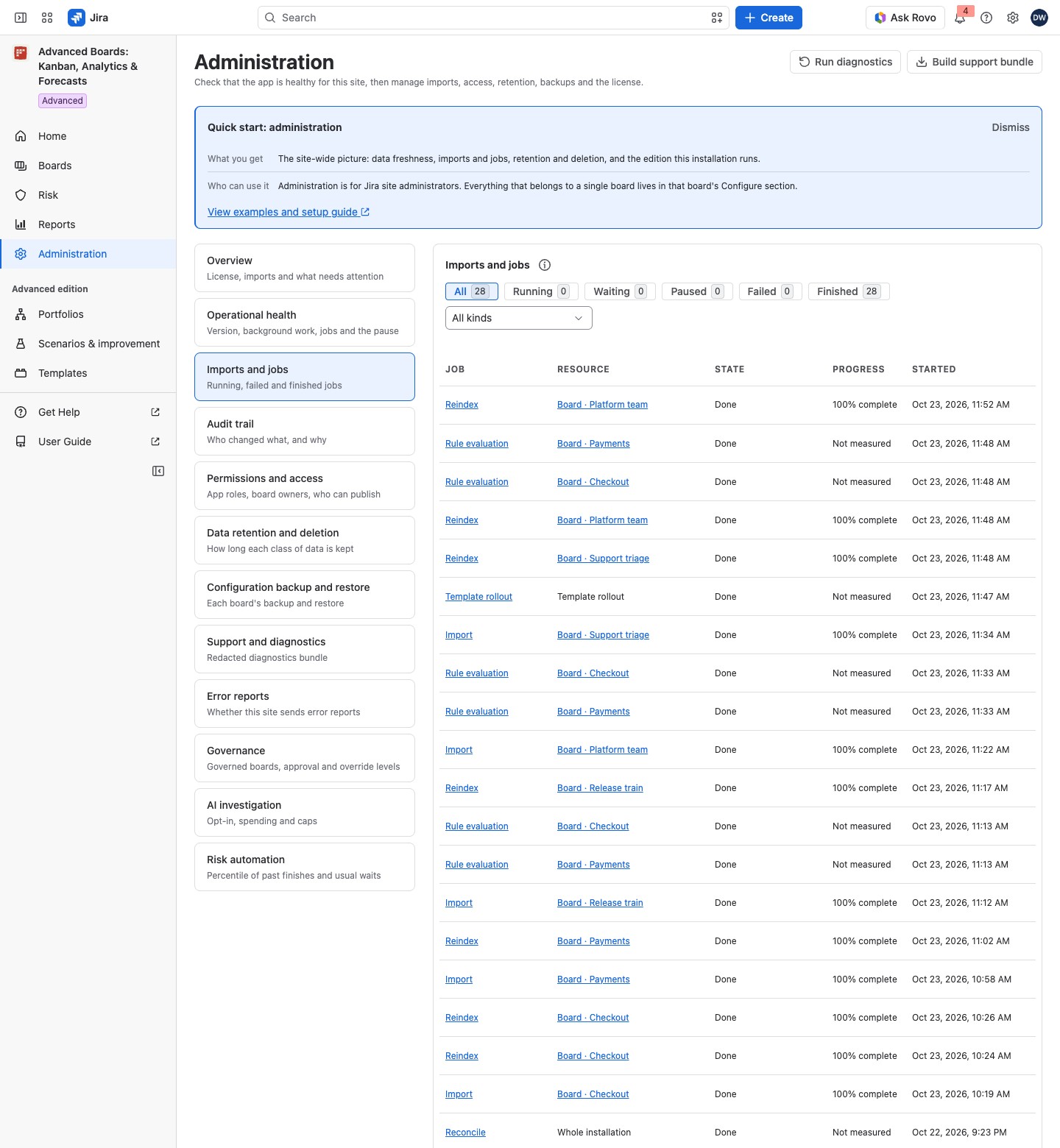
Imports and jobs lists the work the app runs in the background: imports, refreshes, forecasts, exports, rollouts and deletions. You see where each job stands, open its record, and cancel or resume it.
Open Imports and jobs #
Open Administration, then select Imports and jobs in the section list. The Overview’s jobs card leads here too, through All jobs and history (Administration overview and license).
Read the jobs table #
| Column | What it says |
|---|---|
| Job | The kind, such as “Import”, “Reindex”, “Forecast” or “Template rollout”, with its current stage under it while it runs, such as “Reading the history” |
| Resource | What it runs for, such as “Board · Checkout” as a link, a forecast schedule, a forecast run, a backtest, a scenario, an export, a template rollout, or “Whole installation”; “Deleted” for a board removed since |
| State | “Queued”, “Running”, “Waiting to retry”, “Paused: authorization”, “Paused: license”, “Paused: budget”, “Stopping”, “Waiting”, “Done”, “Failed”, “Canceled” or “Replaced” |
| Progress | How far the job has come, such as “35% complete”, or a short reason for a failure or a wait; “Not measured” for a job with no figure; “Not shown” when only the person who started the job sees it. The column appears only while at least one listed job has something to say |
| Started | When the job started |
| Actions | Shown only while a row offers a command (see below) |
Narrow the list with the chips All, Running, Waiting, Paused, Failed and Finished, and with Kind. Each chip shows the site’s total for its group of states. Waiting holds Queued, Waiting to retry and Waiting; Paused holds the three paused states; Finished holds Done, Canceled and Replaced. Kind changes the counts, and the chip you select does not. A filter that matches nothing reads “No job matches this filter”; with no job kept at all, the list reads “No recent jobs”. The table opens with a first page; select Load more for the next (“Reading the next page” shows while it loads). Finished jobs are kept for up to two days. The run that built a board’s current data stays while that data is current.
Done and Replaced show as plain text. Every other state is a gray lozenge. What the states mean:
- Queued: the job waits for its turn. Running: it is working now.
- Waiting to retry: a step met a passing problem, and the app runs it again by itself.
- Paused: authorization, Paused: license or Paused: budget: something outside the job holds it; there is no pause control. The (i) “What lifts the pause” beside the state says what ends it, for example “Resumes itself once the license reads as active again.” or “Waits for the person who started it to resume it.”
- Waiting: Atlassian has not yet confirmed the site’s license. Most jobs go back to the queue once it does. Work a person started waits for that person’s Resume if the license then does not include it.
- Stopping: someone asked to cancel it. It stops at its next checkpoint, or finishes as Done if it has already updated the board.
- Done, Failed or Canceled: the job has ended.
- Replaced: not a failure. Another run took the job’s place.
- State not recognized: this version of the app has no name for the job’s state.
Open one job #
Select a job to open its own page, with its stage, progress and, for a failure, What happened. There you cancel it, resume it or import again.
A row whose job can be resumed, canceled or imported again also has an Actions menu with Resume the job, Cancel the job or Import again. Cancel the job opens the same dialog “Cancel this job?” as the job’s page. It says that canceling is requested, not instant: the job stops at its next checkpoint, and no Jira request already sent is undone. Select Cancel the job to confirm, or Keep it running. A held item keeps its label, and its tooltip says why: Import again while the board cannot start a new import, Resume the job while the site’s license does not include the work.
The page and every failure reason with what to do are explained in A job’s page and why it failed.
Forecast schedules (Advanced edition) #
Under the jobs, Forecast schedules lists every scheduled forecast on the site.
| Column | What it says |
|---|---|
| Board | The board the schedule forecasts, as a link |
| Schedule | The schedule’s name, as it was saved on its board |
| State | “Active” as plain text, or a gray lozenge such as “Paused”; the (i) beside a pause says why |
| Last run | When it last ran, or “Has not run yet” |
| Runs as | The person whose access the scheduled run reads Jira with, with their picture; or “Nobody has accepted running this schedule yet.” or “A person your access does not show” |
The list only reports. Its (i), About this list, says: “A schedule is paused, resumed and edited on its own board; this list reports, it does not act.” Each board’s Forecast section holds the schedule (Forecast schedules). With none, it reads “No scheduled forecasts”. While the list is not whole, it reads “Showing the schedules loaded so far.” beside Show more, which reads the next page. A site on Standard still lists the schedules it kept, and the (i) of each paused one reads “Paused: this installation does not run the Advanced edition.”
If something looks off #
- “The board’s source still holds more work items than one import may read, so nothing started.”: narrow the board’s source under Configure → Source & scope (Source and scope).
- “Paused: authorization”: a forecast schedule lost the access it runs with, so resume the schedule in the board’s Forecast section once access is back.
- “This board’s runs kept being interrupted, so the app waits”: the app starts a new run by itself at the time named.
- “Job held”: Jira’s rate limit holds the job’s reads. It continues by itself after the time named.
- “The job moved”: the job changed state after the page read it, so select Reload.
- “The job was not resumed”: the line under it names the check that failed, so act on that reason first.
- “This board changed since the page was read, so nothing started. It has been read again.”: select Import again once more.
- “The app’s storage on this site is still at the level at which this run stops, so nothing started.”: choose a shorter history window, delete saved results you no longer need, or delete a board, then select Import again.
- “Older copies of board history are still being removed to make room, so nothing started.”: nothing needs to be deleted, since the room comes back on its own, so select Import again later.
- “A new run of this board started”: not a fault. The row reads again and follows the new run.
- “No recent jobs”: nothing is running, and no finished job is kept. This is normal on a quiet site.
Who can open it #
Only a Jira administrator can open Administration.


