Permissions and access sets who may create a board on this site. It also lists every board, so you can read the grants that decide what each person may do with a board in the app.
Open the section #
Open Administration, then select Permissions and access in the section list (Administration overview and license).
An app grant reaches only the app’s own configuration. It cannot grant access to Jira: what a person may read in Jira is decided by Jira. No board, role or group here widens anyone’s Jira access.
Decide who can create a board #
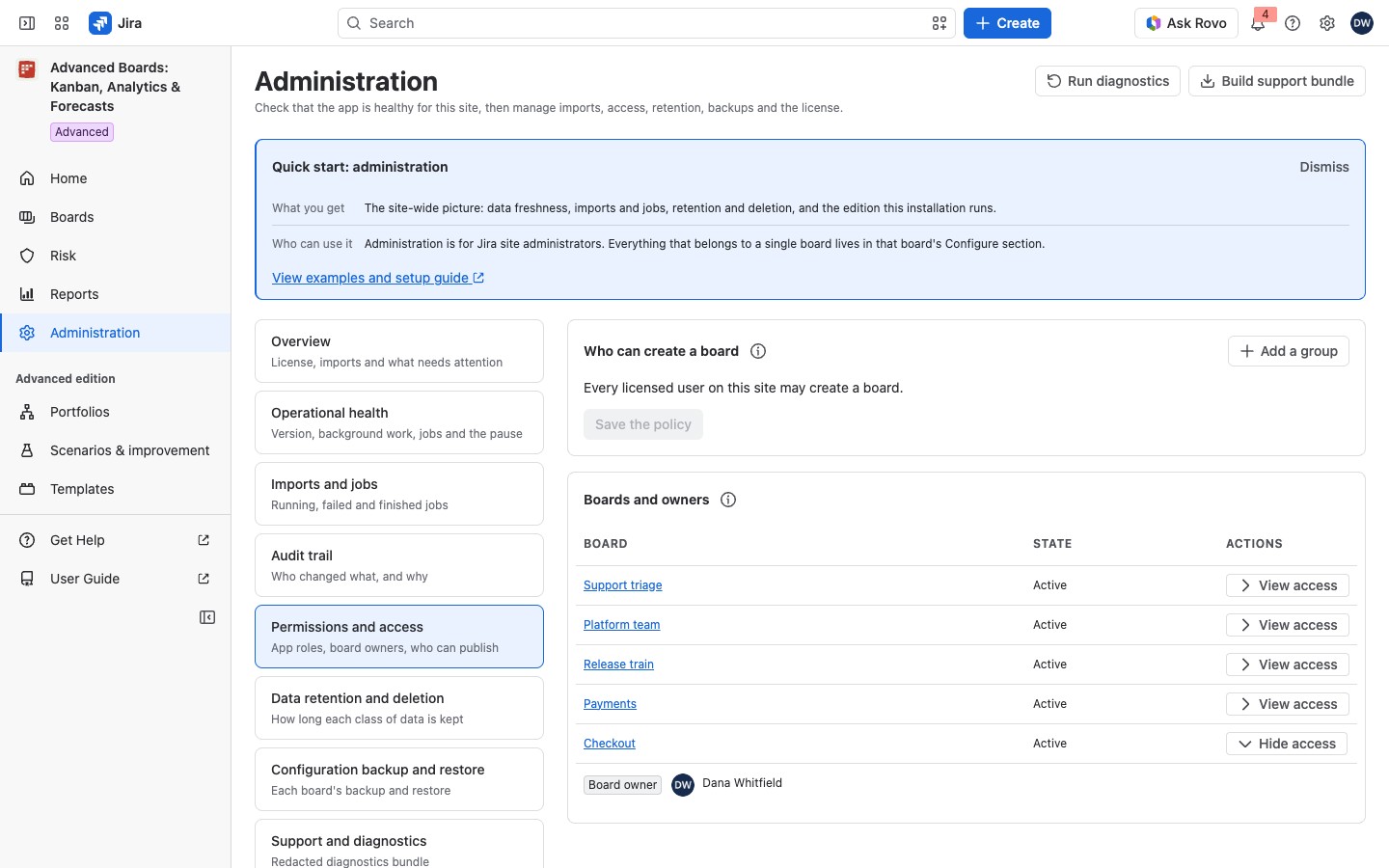
The card Who can create a board shows the policy in force:
- “Every licensed user on this site may create a board.” This is the default.
- “Only members of these groups may create a board.” This holds once you name a group.
To restrict it:
- Select Add a group. The dialog “Add a group” opens with the field Search Jira groups.
- Choose a group from the list, or type to narrow it. The group is added and the dialog closes.
- Repeat for each group, up to 50.
- Select Save the policy. The flag says “The access policy is saved.”
Save the policy stays held until something changed, and says why: “Nothing to save: this policy is exactly the one stored.” To lift the restriction, remove each group with its Remove control, then save. A group deleted in Jira reads “Unknown group · No longer in Jira”. A Jira administrator may always create a board.
Boards and owners #
Boards and owners lists every board on the site with its State (the same states as in the Boards directory, The Boards directory), which the Boards directory does not: that one shows only the boards you hold a role on. Select a board’s name to open it.
Select View access on a row to read its grants. Each shows a role lozenge (Viewer, Member or Board owner) and a person or group chip. Select Hide access to fold the row. These grants decide what a person may do with the board in the app. They grant nothing in Jira.
A grant to someone Jira does not show you reads “Unknown person” or “Unknown group”. The line under it says the person or group could not be named: Jira does not show them to you, or the account or group is gone. The grant still holds. If you cannot browse users or groups in Jira, the line says no person, or no group, could be named.
A board’s own owners change its access list on the board, under Configure → Access (Board access and roles). What each role sees: What each person sees.
Who approves templates and site rules #
In the Advanced edition, template approvers and the site’s governance levels are set under Administration → Governance (Governance).
If something looks off #
- “The access policy could not be read, so board creation is refused for everyone but Jira administrators until the policy is saved again.”: save the policy again. Existing boards are unaffected.
- “The stored policy could not be read in full. Reload the page to save.”: reload the page.
- “The access policy may not have been saved.”: reload the page and check the policy in force.
- “No boards on this site yet”: nobody has created a board. Create the first one.
Who can open it #
Only a Jira administrator can open Administration and change who may create a board.


