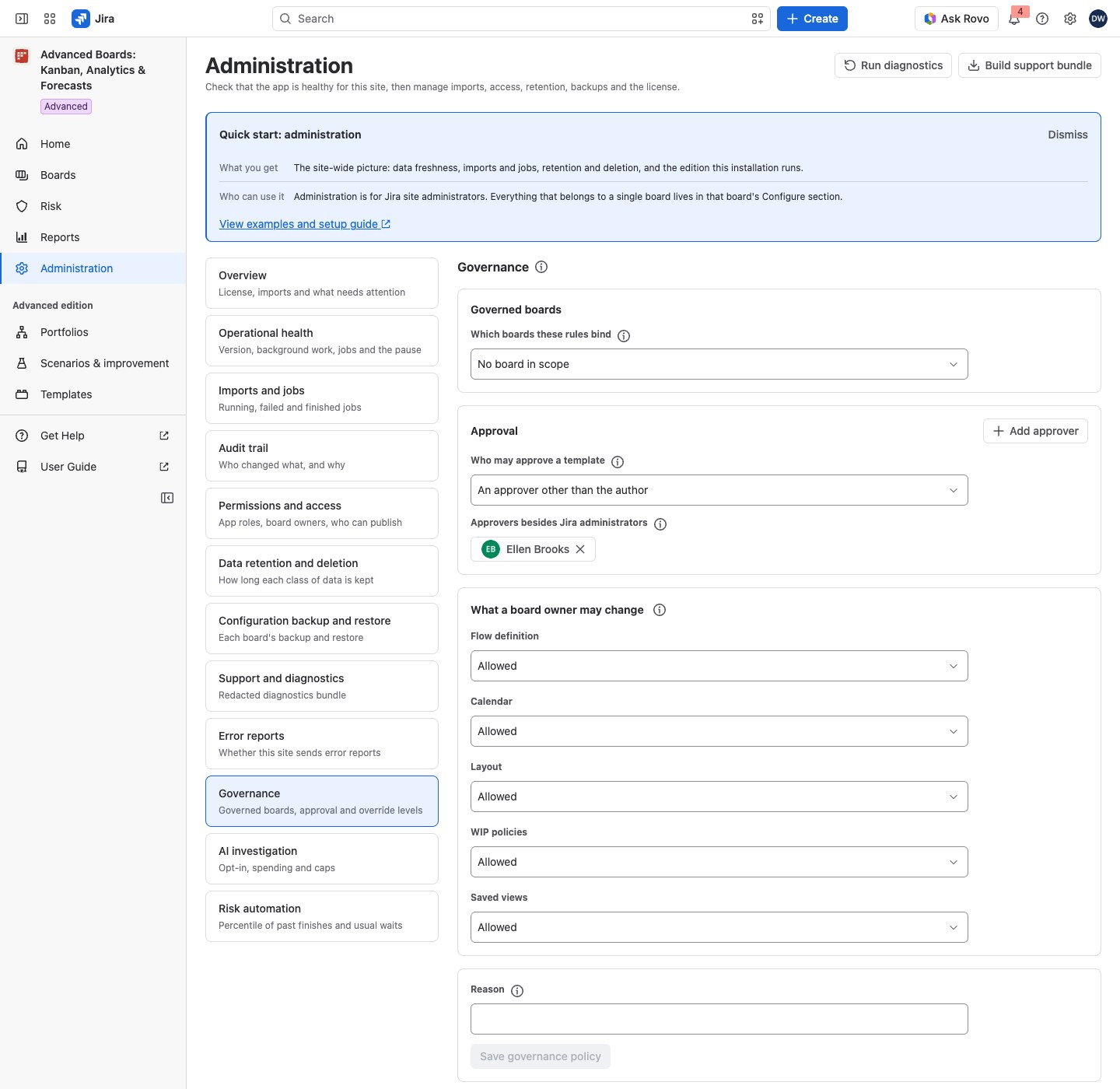
Governance holds the site’s rules for boards that templates govern, so teams keep one agreed way of working. You choose which boards the rules bind, who may approve a template, and what a Board owner may still change on such a board.
Open Governance #
Open Administration, then select Governance in the section list (Administration overview and license). Until a policy is saved, the page reads “No governance policy has been saved yet. The values below are the defaults in force.” The defaults are No board in scope, An approver other than the author, and Allowed for every kind.
The (i) About these rules beside the title says what the section holds. About boards in scope, About approvers and About what a board owner may change explain their own parts.
A template may strengthen any of these rules and weaken none. For example, if the site sets Calendar to Allowed with a reason, a template may set it to Locked, but not back to Allowed.
Choose the governed boards #
Under Governed boards, set Which boards these rules bind:
- No board in scope;
- Every board on this site;
- Only the boards listed below: select Add a board at the top of the Governed boards card.
A board outside the scope still receives a template’s settings in a rollout. The rules do not bind it. The list names at most 500 boards; beyond that, choose every board instead.
Add a board opens a dialog that lists up to 100 of the site’s boards, the newest first. Choosing one adds it to Boards in scope and closes the dialog. To govern an older board on a site with more boards, choose Every board on this site.
A board deleted since the policy was saved shows as A board that no longer exists. It binds nothing and stays in the scope until you remove it: select its chip (the tooltip reads “Remove” and the name) or press Backspace or Delete on it. When a board is deleted, a notice reads “A deleted board was taken out of the governed boards.” and no save is needed.
Decide who approves a template #
Under Approval, set Who may approve a template:
- An approver other than the author: no approver may approve a version they wrote, and no template can change that.
- Any approver, the author included: an approver may approve a version they wrote, unless that version requires an approver other than its author.
A Jira administrator always approves. At the top of the Approval card, select Add approver. The dialog opens on the toggle Kind: choose Person or Group, then find them under Find an approver. The box reads “Search by name” and lists what Jira shows you; type a name to narrow it. With no match it reads “Jira shows you nobody by that name.” Choosing one adds them and closes the dialog. They then show under Approvers besides Jira administrators. The list holds up to 50 approvers. With none added, only Jira administrators approve templates. To take an approver away, select their name under Approvers besides Jira administrators; its tooltip reads “Remove” and the name. Nothing counts until you save.
Set what a Board owner may change #
What a board owner may change sets one level for each kind: Flow definition, Calendar, Layout, WIP policies and Saved views.
| Level | What it means |
|---|---|
| Allowed | A Board owner changes it freely |
| Allowed with a reason | A Board owner changes it and records why; the reason goes to the audit trail |
| Locked | Nobody changes it on the board. Only a rollout writes it, and once a template governs the board, only that template’s rollout or an administrator’s |
A locked kind holds on every path, rollouts and rollbacks included. Changing a level is never part of a rollout.
Save the policy #
Nothing you change on the page counts until you save it. Optionally enter a Reason, then select Save governance policy. Saving changes what every Board owner on the site may edit, and the reason is kept in the audit trail. On the Advanced edition, a governed board’s Configure then shows a Governance entry, once at least one kind is not Allowed. The entry lists the rules that bind the board, each marked “Site rule” or “Template rule” (Governance and reasons for a change).
On Standard, the page reads “Your installation runs the Standard edition. The site rules still apply to the boards they govern. You can lift them here: lower a level or take boards out of the scope. Stricter rules, more boards and changes to the approval need the Advanced edition.” Where the license is inactive or not yet confirmed, the line opens with “This installation has no active license, so no edition is unlocked.” or “Waiting for Atlassian to confirm this site’s license.” instead. There is no Approval card, and Add a board appears only while the stored scope is every board. Save governance policy is held while your change makes anything stricter: “On your edition, a save can only lift a rule: lower a level or take boards out of the scope.”
For example, Dana sets Every board on this site, adds Ellen Brooks under Approvers besides Jira administrators, and sets Flow definition to Locked. On every board, a Board owner can no longer change the flow definition. Only a rollout of a template that Ellen or a Jira administrator approved writes it.
If something looks off #
- “The governance policy could not be read” in diagnostics: the rules apply at their most restrictive, so save the policy again.
- “Pick at least one board, or change the scope.”: add a board, or choose Every board on this site.
- “The governance policy may not have been saved.”: reload the page and check the values.
- Unknown person or Unknown group among the approvers: Jira does not show them to you, or the account or group is gone. They still approve until you remove them.
- “You can see no board to add.”: no board exists on this site yet. Create one first (Create your first board).
- “Nothing to save: this policy is exactly the one stored.”: change a value first. Before a first save, the reason reads “Nothing to save: these are the defaults in force. Change a value to save a policy.” The flag after a save says “The governance policy was saved.”
Who can open it #
Only a Jira administrator can open Administration and save the governance policy.


