AI investigation settings decide whether people on this site may ask the AI questions about their boards. You turn the feature on, set its spending caps, and follow what it has spent, so the cost never passes what you agreed.
With AI investigation on, a person who reads a board selects Investigate with AI in Analyze and asks a question about the board in words. The answer comes from the same data as Analyze and lists the facts it found, each with its evidence. Each question has a cost in US dollars. The vendor allocates the site an allowance, and you set the caps below it.
Open the section #
Open Administration, then select AI investigation in the section list. Its hint reads “Opt-in, spending and caps”.
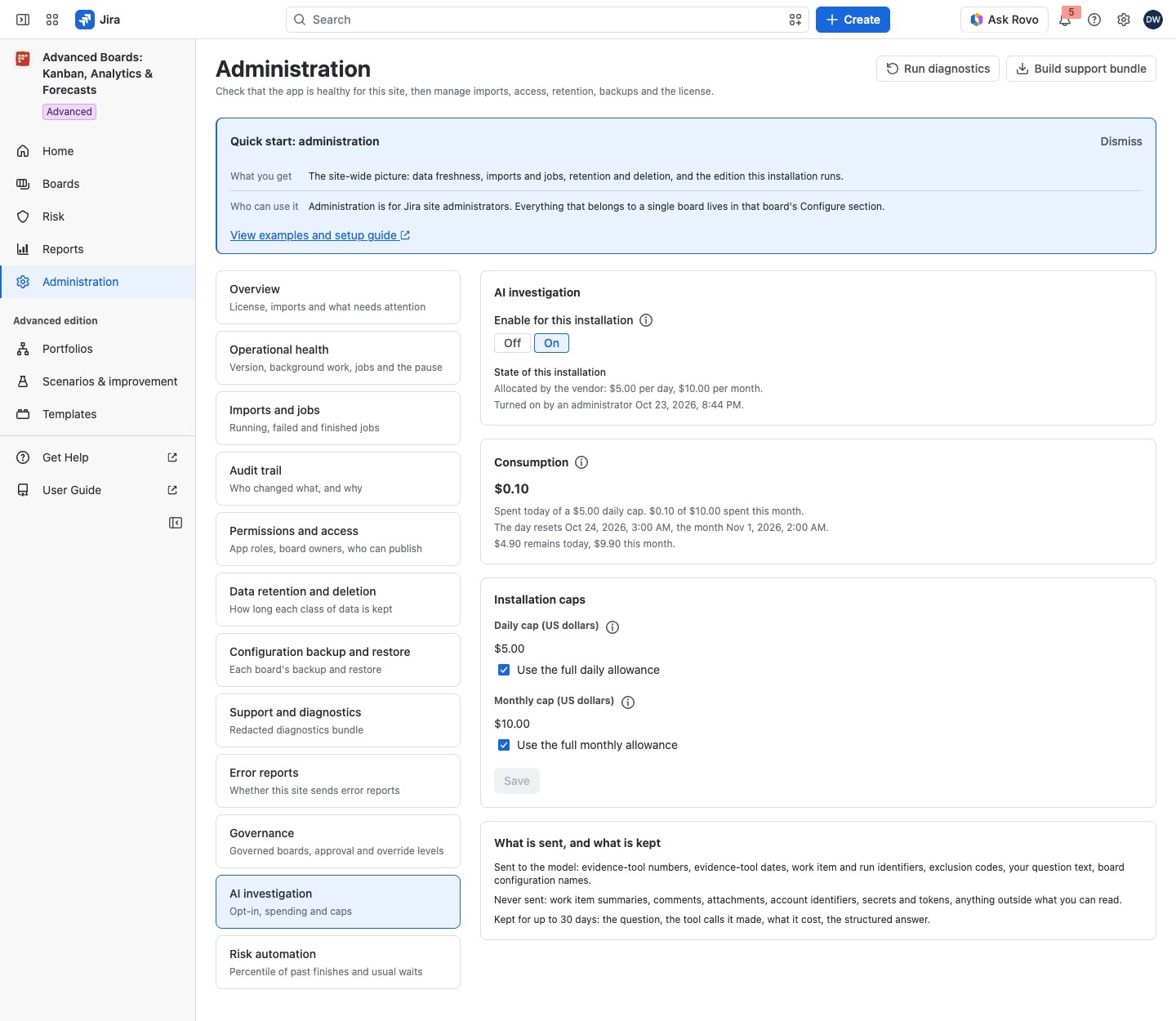
Until the vendor allocates an AI allowance, the page shows the notice “AI is not set up on this installation yet” with Get Help, and the card What is sent, and what is kept. If the feature is still on there, Enable for this installation stays, with Save under it, so you can turn it off. Once an allowance is allocated, the card title AI investigation carries an Off lozenge while the feature is off, and none while it is on. Under it stand Enable for this installation, then the Consumption tile, the Installation caps card and What is sent, and what is kept. Save sits at the foot of Installation caps and saves the switch and the caps together.
State of this installation says whether the vendor has allocated an AI allowance here and how much it is: “included in Advanced”, or a smaller amount “while this installation evaluates Advanced”. It also says whether and when an administrator turned the feature on. Before anyone turns it on, the second line reads “Turned on by an administrator: no. No question runs until one turns it on.” Where the day’s allowance equals the month’s, it names only the monthly amount.
Turn AI investigation on #
AI investigation is off by default. The switch appears once the vendor has allocated an allowance (see “AI is not set up on this installation yet” below).
- Under Enable for this installation, choose On, then select Save at the foot of Installation caps.
- In “Turn on AI investigation”, read what every question sends to the AI model, and nothing else.
- Tick I have read what is sent and turn AI investigation on for this installation., then select Turn on.
What is sent, and what is kept shows the same lists on the page. Sent to the model: evidence-tool numbers and dates, work item and run identifiers, exclusion codes, your question text and board configuration names. Never sent: work item summaries, comments, attachments, account identifiers, secrets and tokens, and anything outside what you can read. Questions, their tool calls, their cost and their answers are kept for up to 30 days.
To turn it off, choose Off, select Save, and confirm “Turn off AI investigation for everyone?”. A running investigation ends as “Turned off midway” and keeps what it had gathered. Kept threads stay readable until they are removed, up to 30 days after they started.
Set the caps #
Under Installation caps, set the Daily cap (US dollars) and the Monthly cap (US dollars). By default each uses the full allowance: Use the full daily allowance and Use the full monthly allowance. Clear the checkbox of one to type a lower amount. A cap can never go above the vendor’s allowance, which each field names. Select Save.
Consumption opens with a large figure: what was spent today. Under it, one line reads “Spent today of a” daily cap, then what was spent this month of the monthly cap. The next lines say when the day and the month reset, and what remains today and this month. While calls are in flight, a line says how much “is reserved for calls in flight” and is not yet spent. Its (i) About consumption reads “A reservation counts against both the day and the month.” Where the vendor allows no separate daily limit, the tile shows the month alone: its large figure is the month’s spend.
For example, Dana keeps Use the full monthly allowance, clears the checkbox Use the full daily allowance and types a smaller daily amount. Each day, questions can then spend up to that amount, and the month up to the full monthly allowance. When less than one call’s cost is left today, the page reads “Not enough for another call today; the day resets” with the time of the reset.
If something looks off #
- “AI is not set up on this installation yet”: no allowance is allocated, so select Get Help and ask the vendor to allocate one.
- “The daily cap is below” an amount “the most one call can cost, so no question can run until it is raised.”, or the same for the monthly cap: raise that cap above the amount it names.
- “A call cost more than expected”: no question runs until the time named; changing a cap does not lift it.
- “Not enough for another call today”: wait for the day’s reset, or raise the daily cap.
- “Not enough for another call this month”: wait for the month’s reset, or raise the monthly cap.
- “Enter an amount in dollars, above zero and no higher than the vendor allowance.”: type an amount above zero within the allowance the field names.
- “Enter the daily cap in US dollars.” or “Enter the monthly cap in US dollars.”: type an amount, or tick the box to use the full allowance.
- “Correct the cap above to enable this.” on Save: Save waits until each cap is valid, so correct the cap first.
- “Nothing to save: these settings are exactly the ones stored.”: change a value first.
- “This site’s AI spend could not be read”: questions are refused until the app reads it again, so reload the page later. “The consumption meters could not be read” only hides the figures.
- “No separate daily limit”: the vendor allows the same amount a day as a month, so only the monthly cap counts.
- “The AI settings may not have been saved.”: reload the page and check the settings.
Who can open it #
Only a Jira administrator can open Administration, turn AI investigation on or off and set the caps.


