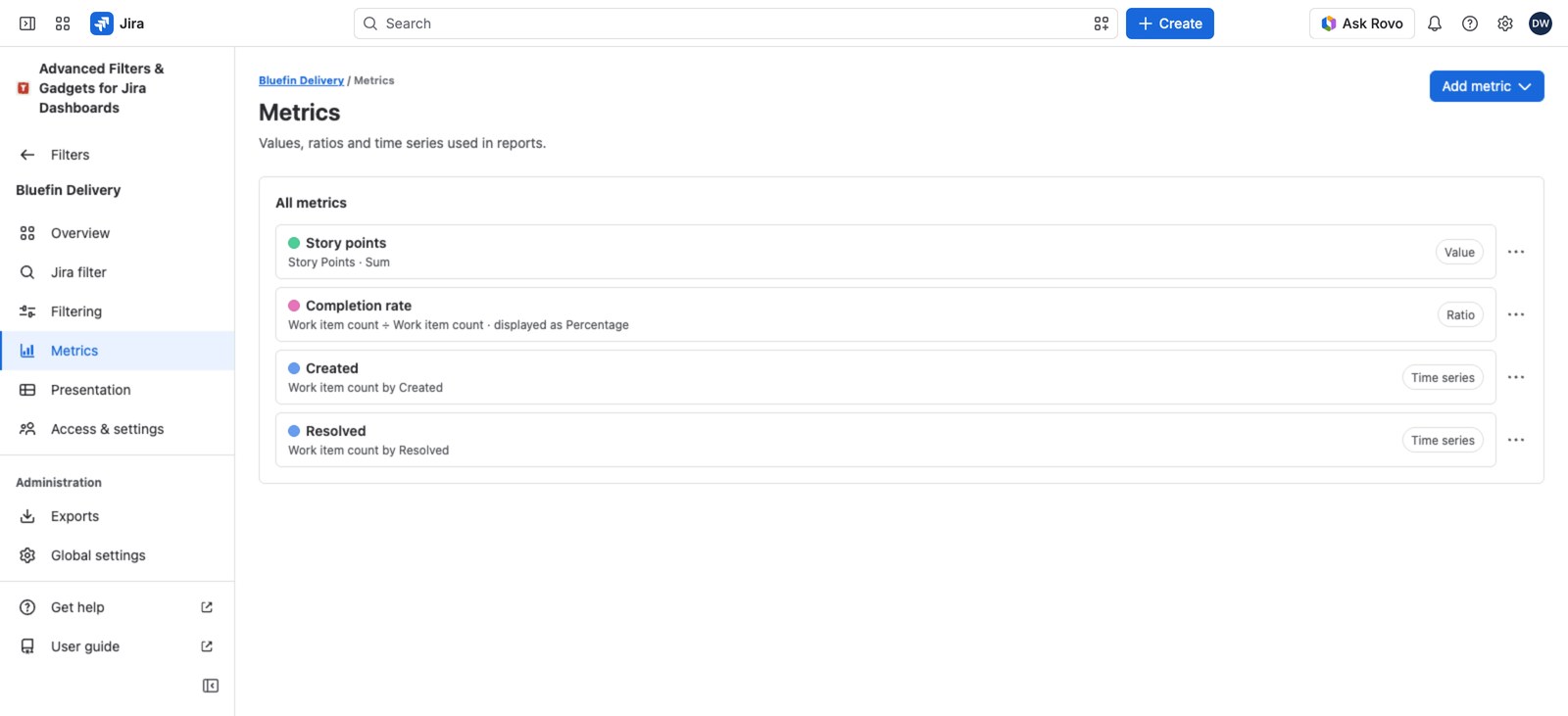
Metrics are the numbers your dashboard actually shows. Define one in the Metrics section of your advanced filter and every gadget can use it: counters, gauges, statistics tables and charts all pick from the same list.
Three kinds of measurement #
- Value: a single number (open bugs, story points, average age).
- Ratio: one number against another (% resolved, bugs per story).
- Time series: one line on a chart (work items created per week).
Values: a number worth naming #
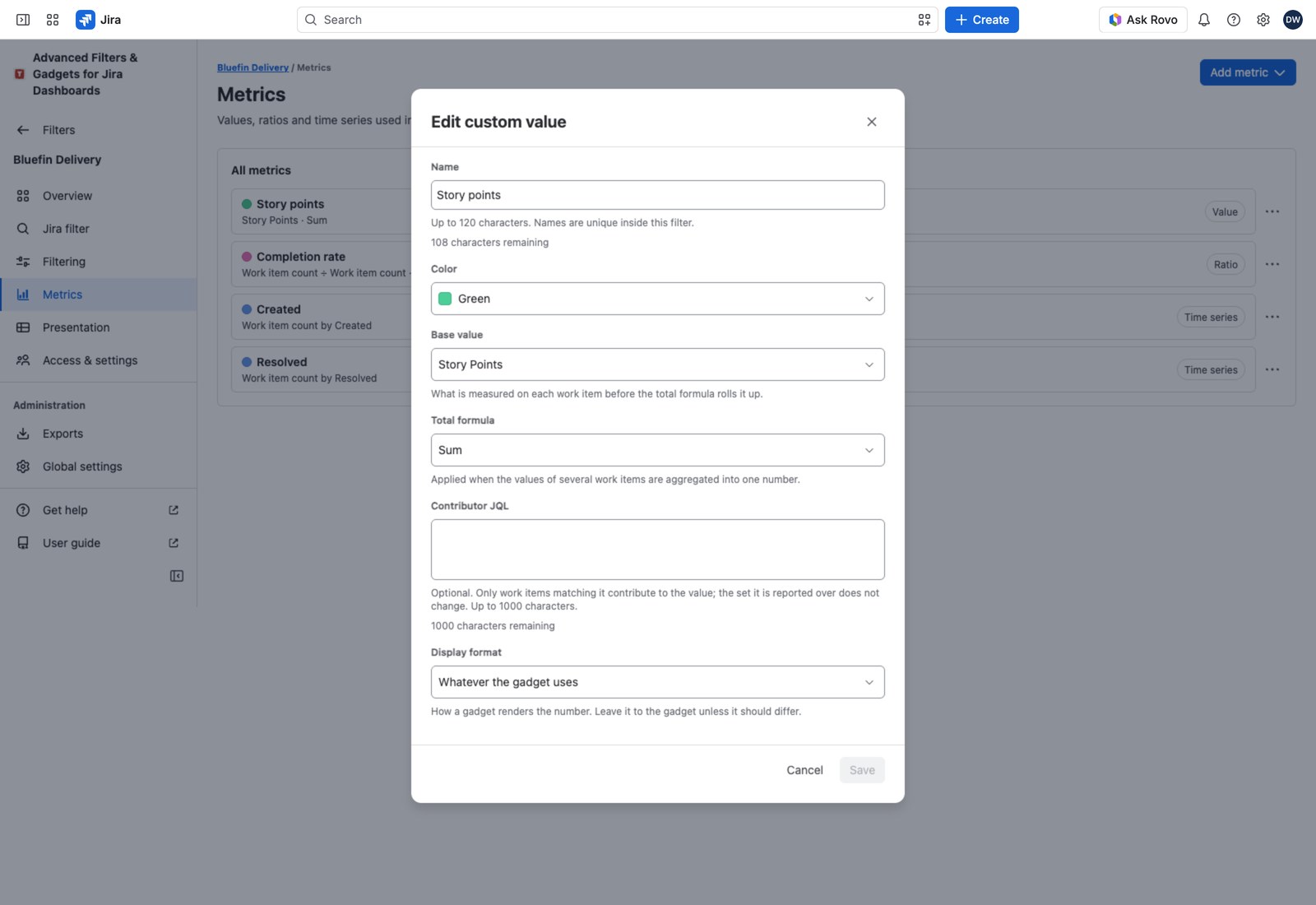
Four decisions, most with a sensible default:
- Base value: what you’re measuring on each work item, which can be a work item count, any numeric or time-tracking field, or something calculated (Time spent + remaining, Work item age, or the Duration between two dates).
- Total formula: how several work items roll into one number (Sum, Average, Minimum or Maximum).
- Contributor JQL: optional, and it narrows which work items contribute to the number without changing the set the number is reported over.
- Display format: a plain number with grouping and an optional suffix, or a duration in seconds, minutes, hours or days.
Contributor JQL is the decision worth understanding. It’s how you build “story points completed” as a share of the whole sprint rather than of the completed work items, and values using it are marked · filtered in the list.
The format, Decimal places included, is how the number reads on tiles, gauge labels, statistics cells, chart values and the PDF; CSV and Excel files keep the full value, Excel showing your decimals through the cell’s number format.
Ratios: one number against another #
Pick a numerator and a denominator (each a value with optional JQL of its own), or use a fixed number as the denominator. Show the result as a percentage or a decimal, with up to six Decimal places, and it reads that way on tiles, statistics cells, Flexi Charts labels, the PDF and Excel’s display.
Gauges always draw a ratio as a percentage, whichever format you saved, rounded to a whole number or one decimal. That’s why a counter can read 38% beside a gauge reading 37.5%. The arc stops at 100%, the figure doesn’t, and the gauge’s export carries the actual numerator, denominator and progress.
Time series: the same number over time #
Two decisions: which date puts a work item in a bucket (Series: Created, Resolved, Still open at the end of the period, any date field, or an SLA field), and what you’re measuring inside each bucket (Base value, with optional JQL).
Add a Value type and a Unit for the axis label. The period and the date range belong to the gadget, not the series, so the same series can appear weekly on one dashboard and monthly on another.
Where each one can be used #
Values and ratios work anywhere a gadget measures something.
Time series are used two ways. The Advanced Filter Time Series Chart draws up to ten of them as lines, areas or bars. Both statistics gadgets and Flexi Charts can also break results down by one, alongside a field, a smart rule or a date.
Deleting a metric #
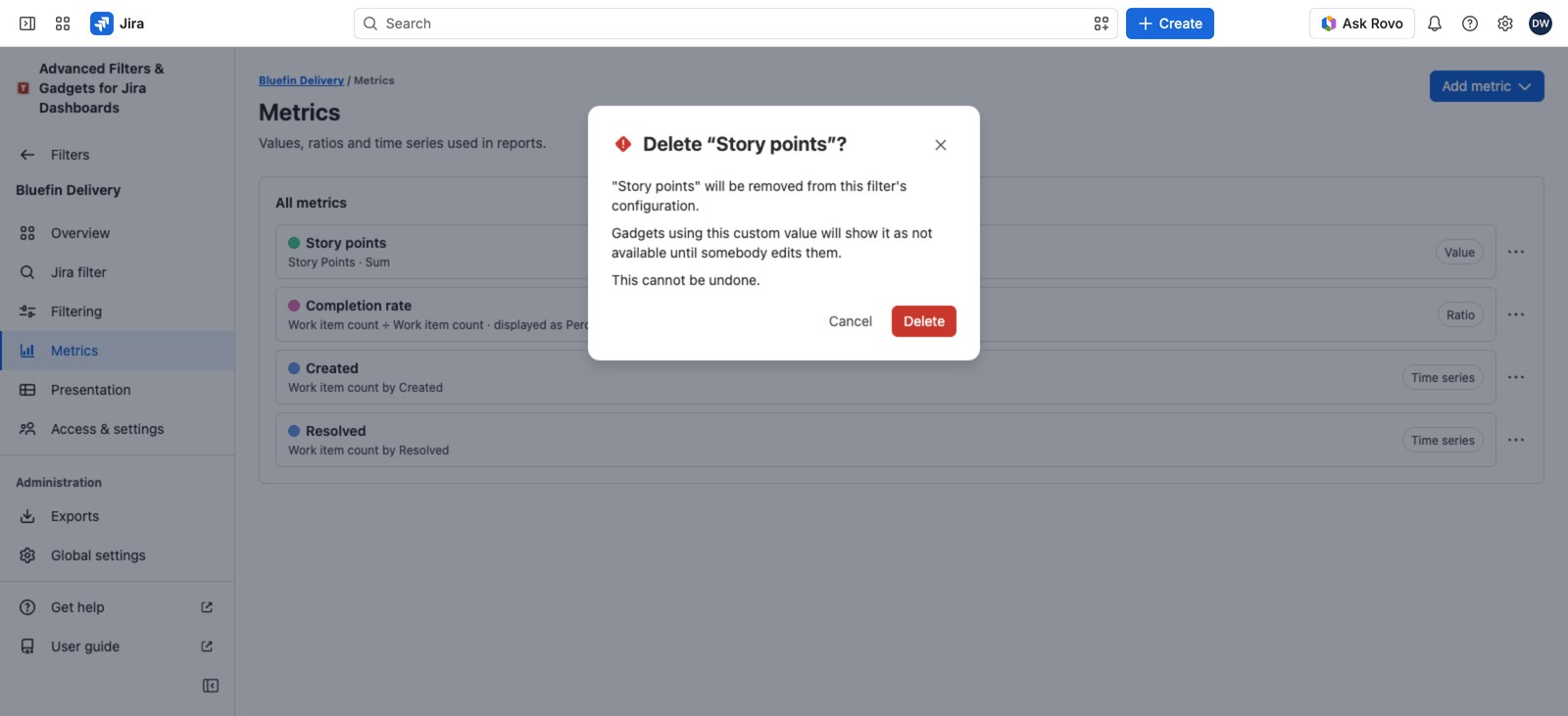
The app checks what’s still using it first.
If only a gadget is using it, you’ll be told which and offered Delete anyway. The gadget stays where it is and shows the missing metric as not available until someone edits it, so nothing disappears from a dashboard without a trace.
Next #
See Views and queues for presenting results as tables, and Advanced Filter Statistics for a gadget that reads several metrics at once. Editing metrics needs the same rights as any other change to the filter.


