The Activity Stream answers “What’s been happening?” before you open a single work item. It gives you a day-by-day feed of field changes, status transitions, comments, worklogs, attachments and issue links across your filter’s work items, newest first.
It’s the gadget that makes a dashboard useful for a stand-up rather than just a status report.
Add it to a dashboard #
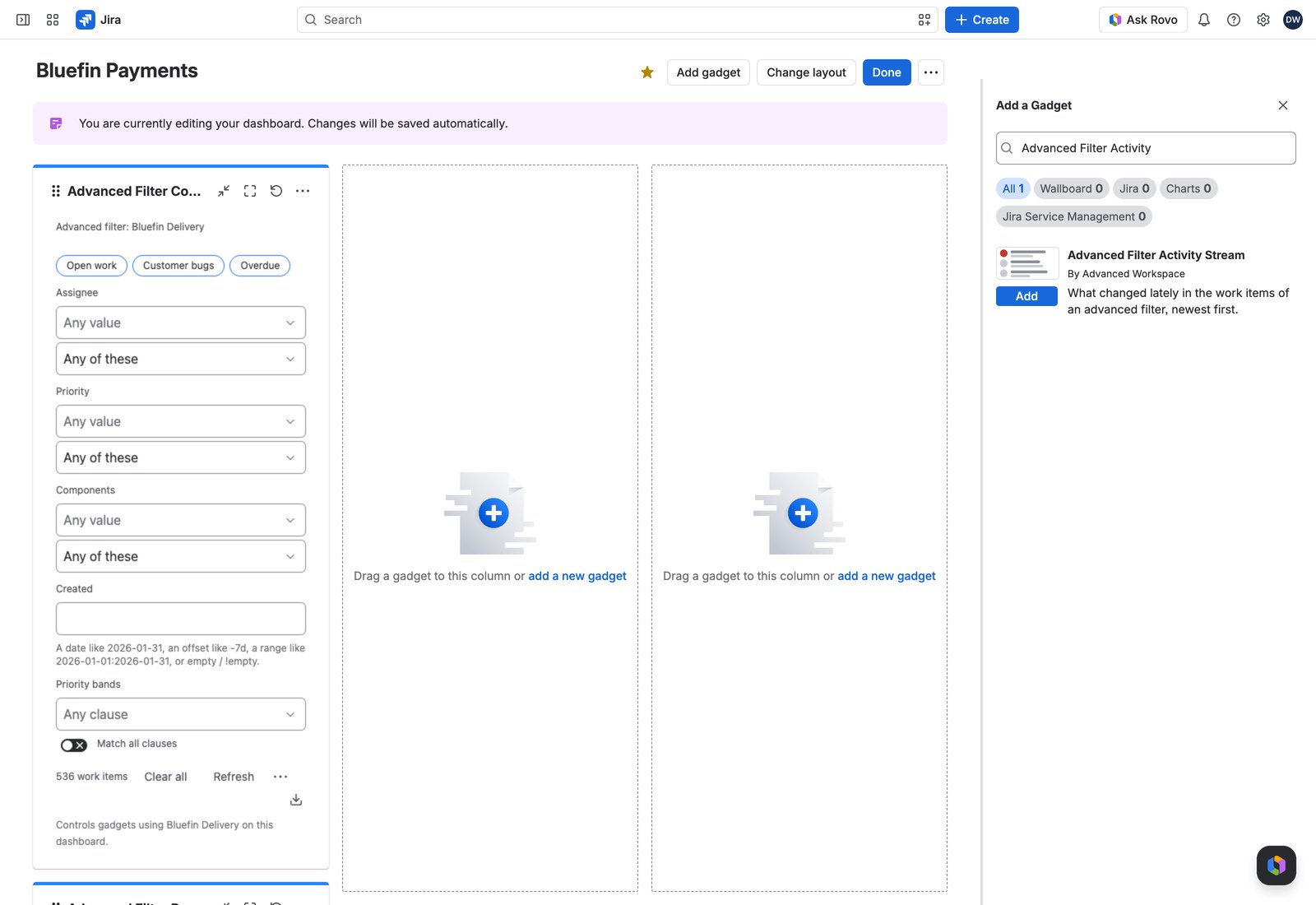
- Open the dashboard, select Edit, then Add gadget, and search for Advanced Filter Activity Stream.
- Choose an Advanced filter.
- Open Advanced settings to narrow what appears.
- Select Save.
Configuring it #
| Setting | What it does |
|---|---|
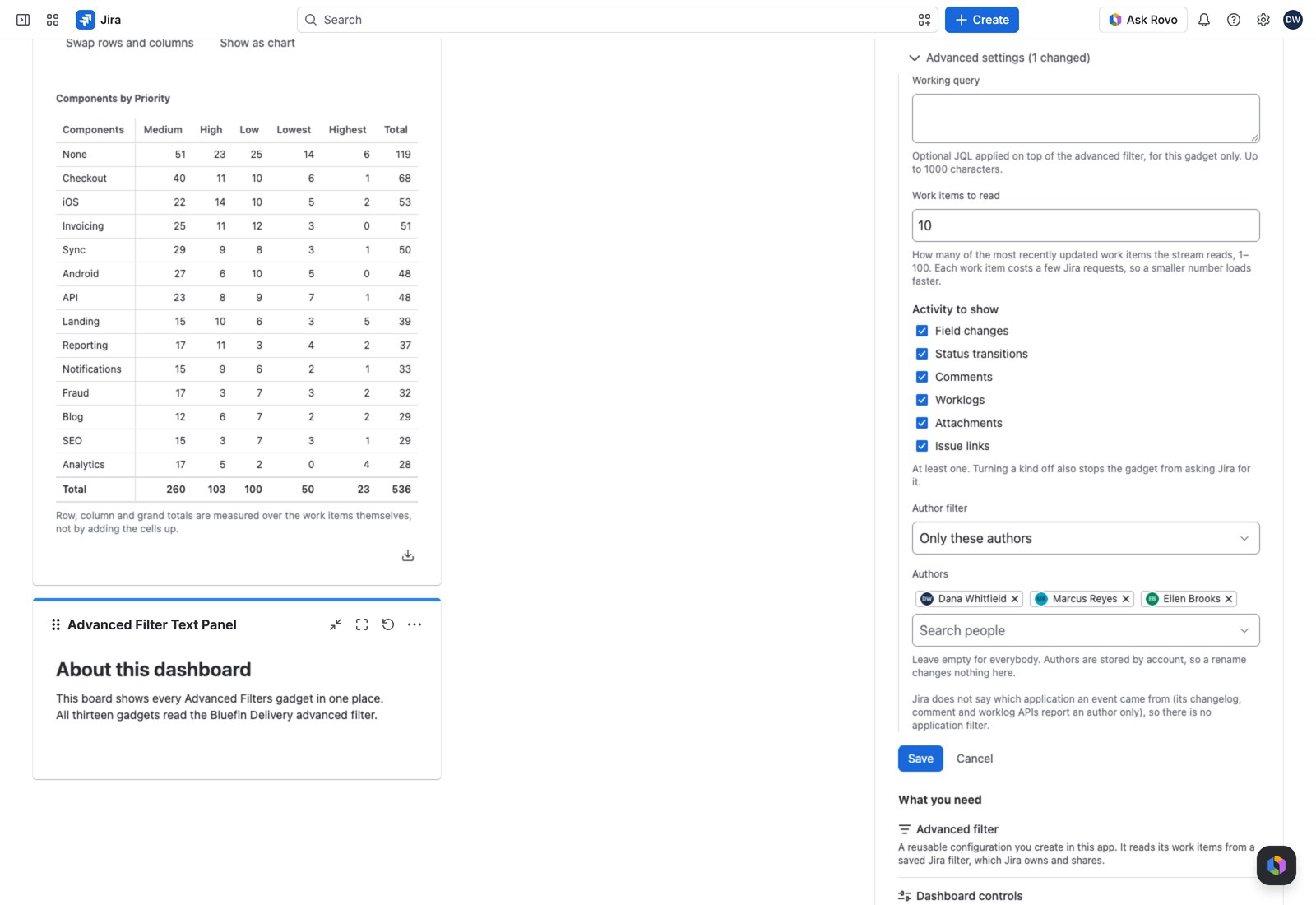
| Work items to read | How many recently updated work items to scan, 1–100. Smaller loads faster: start around 20 and raise it if you’re missing things |
| Activity to show | Any of field changes, status transitions, comments, worklogs, attachments and issue links. Turning a kind off also speeds the gadget up, since it stops asking Jira for it |
| Author filter | Only these authors, or Everybody except these authors. Handy for hiding automation noise |
| Authors | Up to 20 people. Leave empty for everybody. Stored by account, so renames don’t break it |
| Working query | Optional JQL narrowing this gadget only |
Reading the stream #
Events sit under day headings (Today, Yesterday, then full dates) in the filter’s reporting timezone. Each one names who did it, what they did, the work item’s key as a button straight into Jira, and the time.
Field changes, attachments and links show what changed from and to. Comments show their text, trimmed if long.
Show more reveals another 25 events already loaded: no waiting. And opening a work item and closing it again doesn’t send you back to the top, which matters when you’re working through a morning’s changes.
With the Controller #
An Advanced Filter Controller on the same filter changes which work items the stream watches, the moment it’s applied.
Exporting #
CSV, Excel or PDF, with one row per event, not per work item: Event time, Issue key, Activity, Author, Field, From, To, Comment and Time logged. Useful for an audit trail or a weekly digest.
If something looks off #
- “No activity to show”: the work items read have no activity of the kinds you chose, so widen the kinds, the authors, or the working query.
- “Everything was filtered out”: there is activity, but your author and kind settings hide all of it.
- “1 value could not be read, so it matches no work items.”: the value is never applied in part, so the stream watches no work items until you select Remove what cannot be applied in the Controller’s warning, or in this one when no Controller shares the filter.


