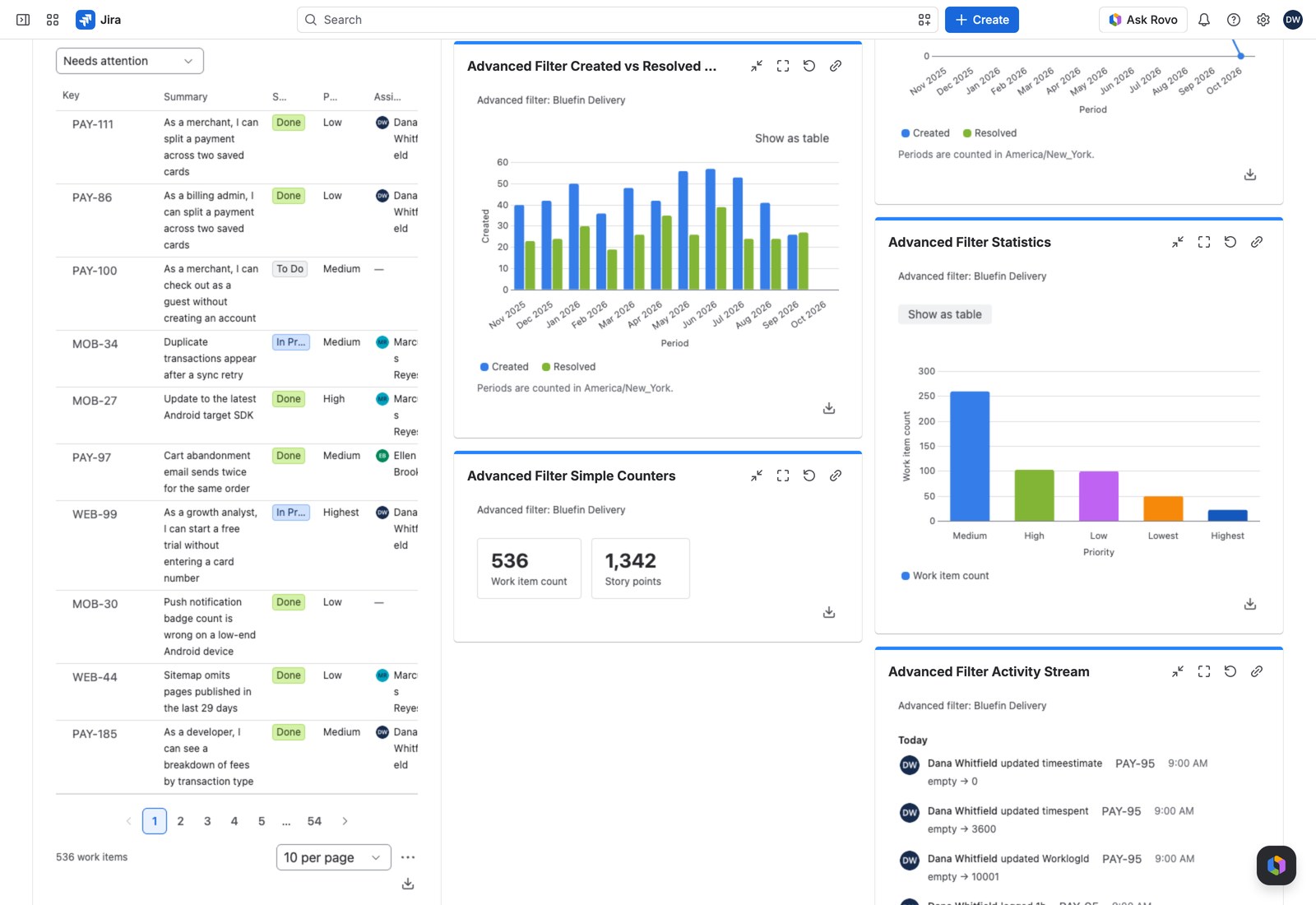
Statistics answers the question every status meeting starts with: “break this down for me.” One breakdown down the rows, up to ten metric columns across, totals underneath, and a one-click switch to a bar chart.
Work items by component, with counts and story points and average age side by side.
Add it to a dashboard #
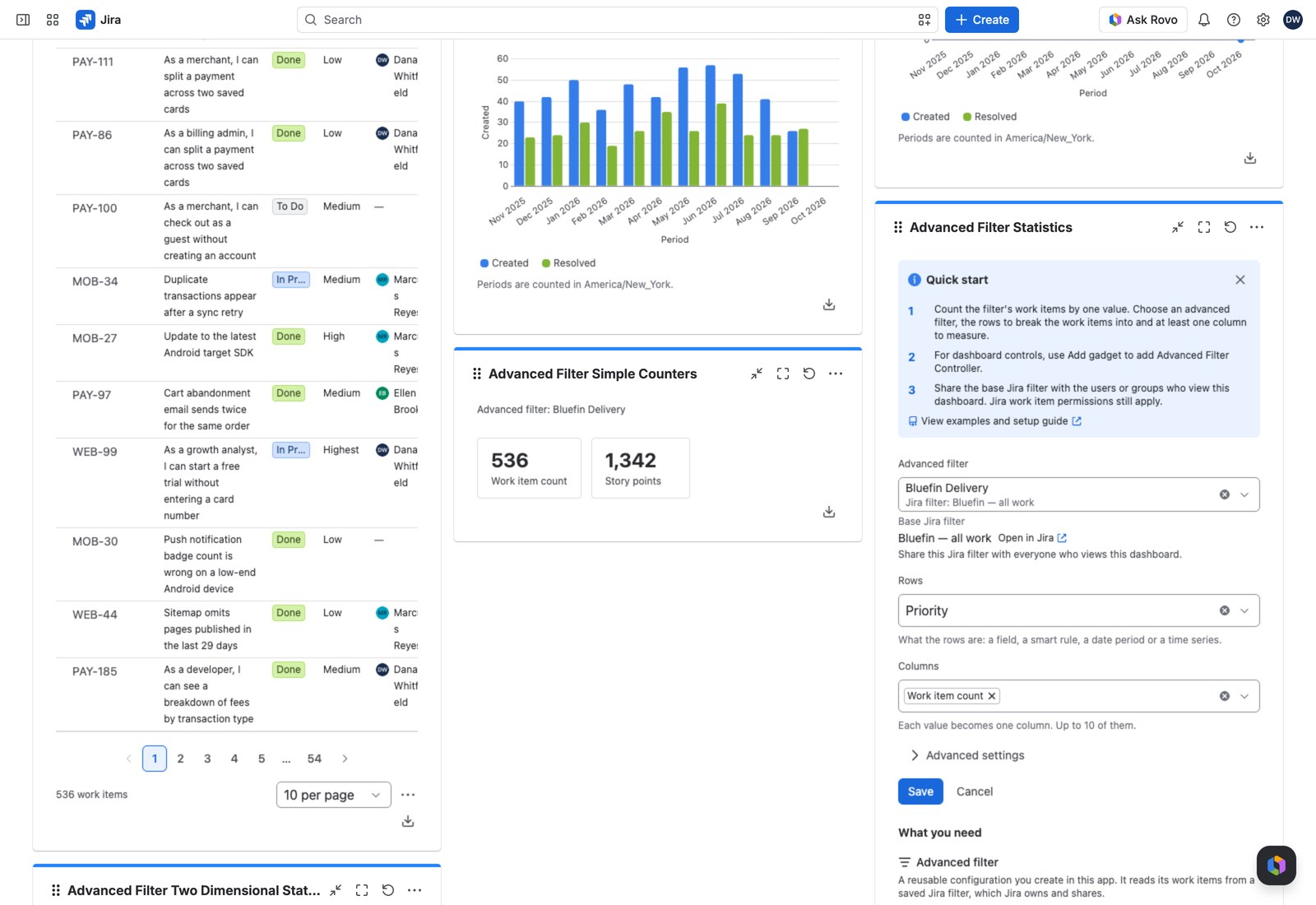
- Open the dashboard, select Edit, then Add gadget, and search for Advanced Filter Statistics.
- Pick the Advanced filter.
- Choose what the Rows are: a Jira field, a smart rule, a date period, or a time series.
- Choose your Columns: each value becomes a column, up to ten.
- Select Save.
Worth knowing under Advanced settings #
| Setting | What it does |
|---|---|
| Order rows by | The breakdown’s own order, the row name, or the first column (ascending or descending). Ordering by the first column descending is the usual “biggest first” table. |
| Rows shown | Up to 100, 20 by default. Extra rows aren’t drawn; the totals still cover everything |
| Work items with no value | Show them as a None row, hide the row, or leave those work items out altogether |
| Add a share column | Each row’s share of the column total. Offered for counts and sums, where a share means something |
| Opens as | Table or Bar chart. Viewers can switch either way |
| Working query | Optional JQL narrowing this gadget only |
Reading the table #
The first column stays put while the rest scrolls, so a long row never loses its label. Every cell with work items behind it is clickable, opening them in Jira’s own search. Each figure follows its value’s own Decimal places and suffix, or a custom ratio’s own display and precision (in the cell, on the bar and in the PDF alike).
Viewers can flip to a bar chart with one button. With several columns, a Charted column picker decides which the bars draw. Their choice isn’t saved.
With the Controller #
An Advanced Filter Controller on the same filter changes what every row and column measures. The caption under the title names the filter read.
Exporting #
CSV, Excel or PDF: every column and the totals row, whichever presentation is on screen, and the whole breakdown up to the export limit, not only the Rows shown. CSV and Excel keep the full value, Excel’s number format showing it to the value’s own decimals.
If something looks off #
- “Nothing to chart”: no work item contributed to this breakdown.
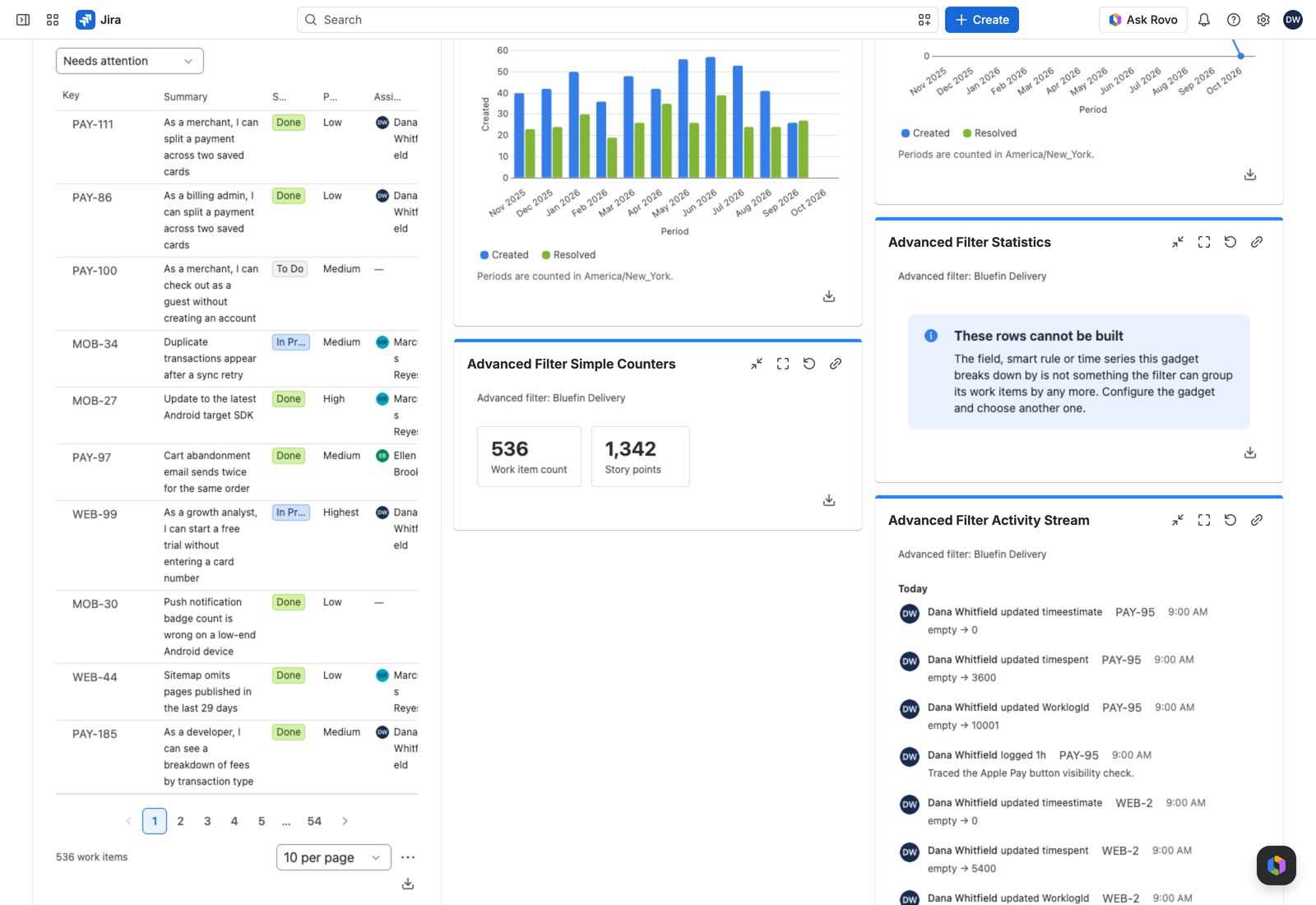
- “These rows cannot be built”: the field, smart rule or time series is no longer available on the filter, so edit the gadget and pick another.
- “This filter has nothing to break down by yet” in the form: add a smart rule or a time series to the filter first.
- “1 value could not be read, so it matches no work items.”: a value from a link or a preset can’t be read, so the breakdown covers no work items, rather than the wrong ones, until you select Remove what cannot be applied on the Controller, or here when no Controller uses this filter.