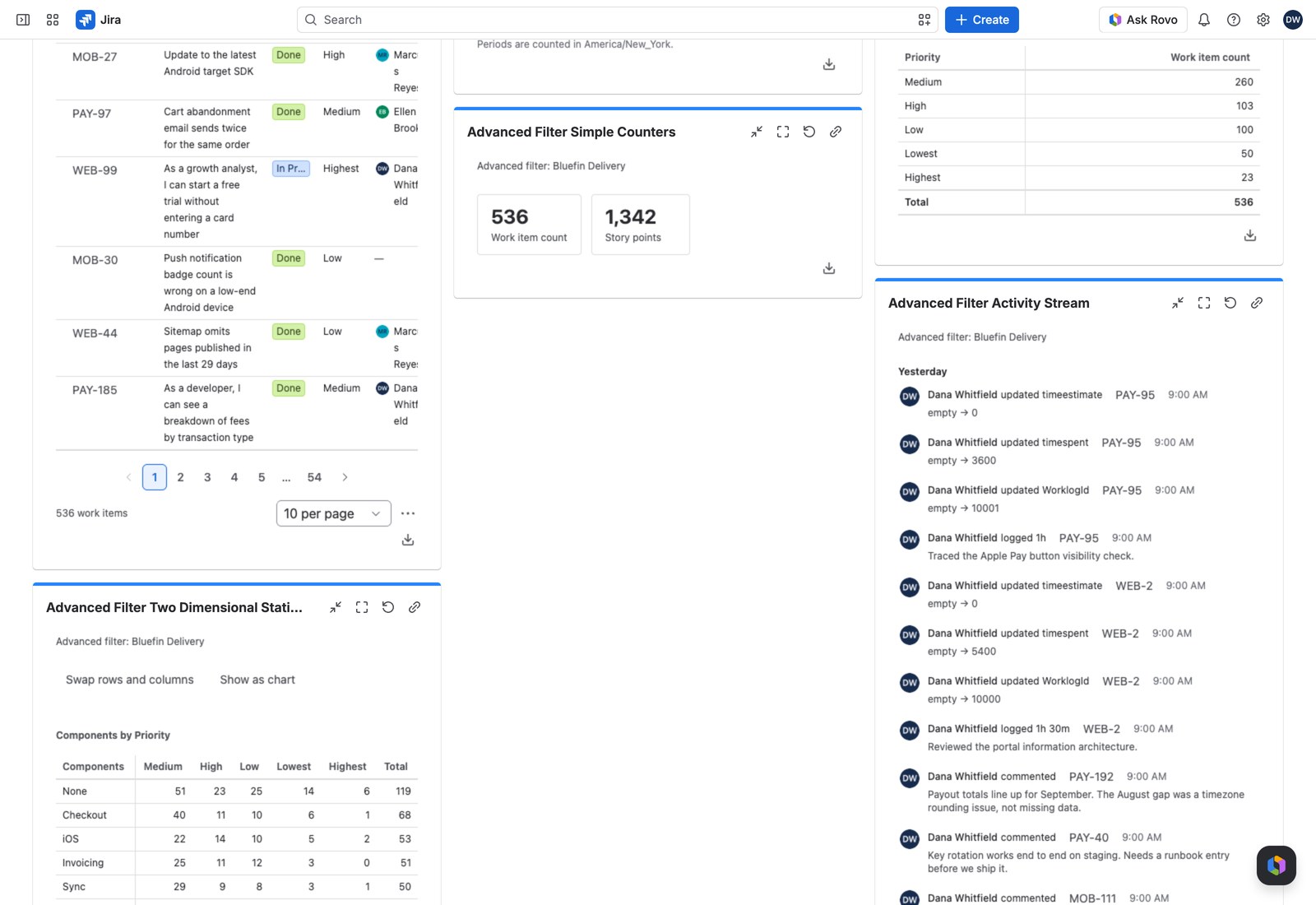
Some questions have a one-number answer. How many open bugs? How many story points this sprint? How old is the average work item? Simple Counters puts them on the dashboard as large tiles: just the figure everyone came to see.
Add it to a dashboard #
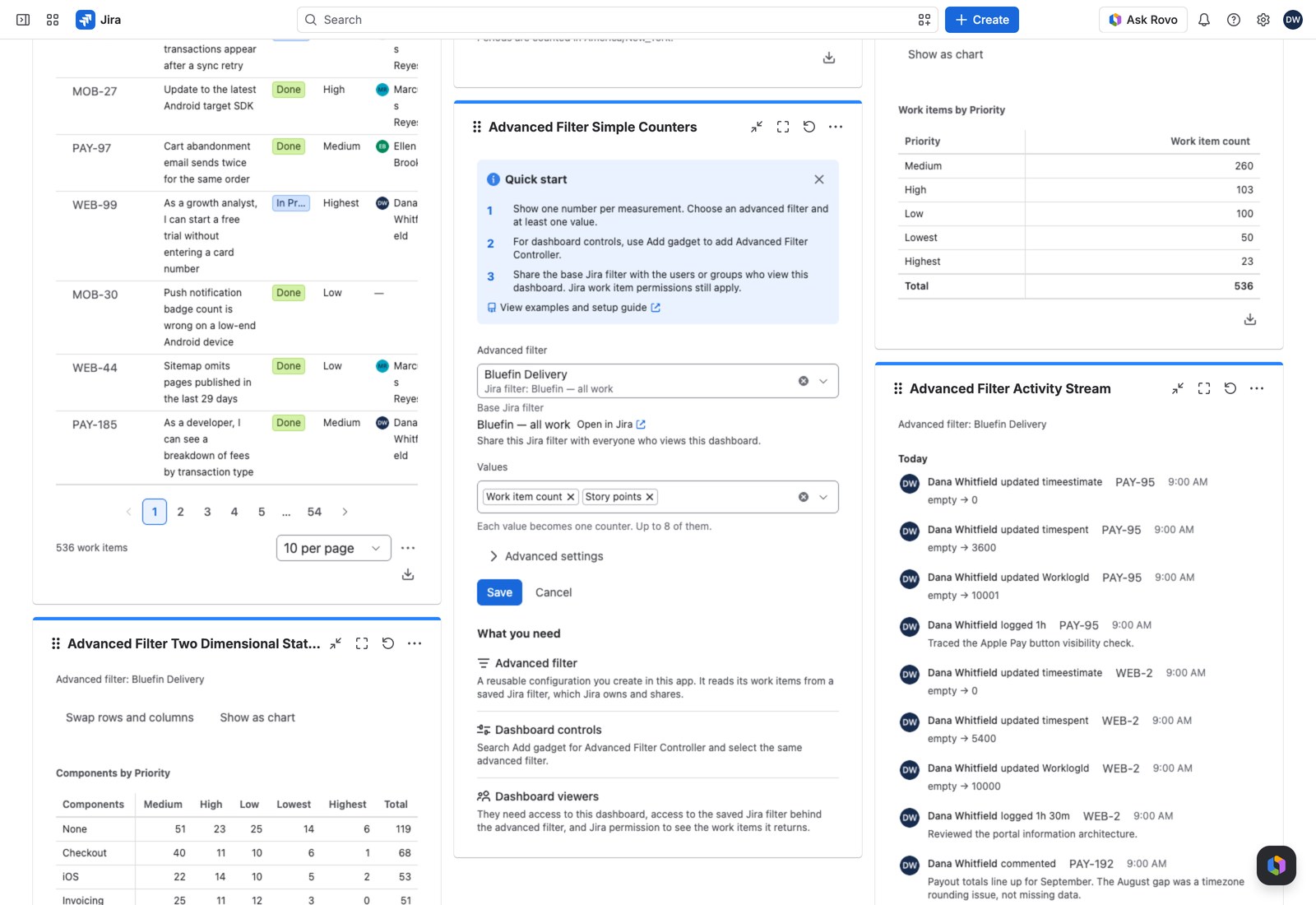
- Open the dashboard, select Edit, then Add gadget, and search for Advanced Filter Simple Counters.
- Pick the Advanced filter the numbers should come from.
- Under Values, choose up to eight. Each one becomes a tile, in the order you pick them.
- Select Save.
A value can be a plain work item count, a roll-up of any Jira field, or a custom value or ratio you’ve defined on the advanced filter. See Custom values, ratios and time series.
What your viewers see #
One big number per tile, with its name underneath. Each number is written the way its value is defined (the Decimal places, grouping, suffix or time unit chosen for it) and a custom ratio at its own display and precision, as a percentage or a plain number. A value with no format of its own looks after itself: counts get thousands separators, averages read to two decimals, and durations come out as hours and minutes.
Everything is reachable by keyboard and reads cleanly to a screen reader. A tile announces itself as, for example, “Work item count: 4,900”.
Pair it with the Controller #
Add an Advanced Filter Controller to the same dashboard and the counters follow along. Toggle a quick filter or Apply a change, and every tile recalculates together, so the numbers on the page always describe the same slice of work. While new figures are on the way the tiles keep the previous ones, dimmed, rather than flashing empty.
Export the numbers #
The Export menu gives you CSV, Excel and PDF, one row per tile. That’s handy for pasting a week’s headline figures into a status report. The PDF shows each figure as its tile does. CSV and Excel keep the full value, and Excel’s number format shows it to the value’s own decimals, so a formula over the column still works on the real number.
If something looks off #
- “Configure this gadget”: the gadget hasn’t been set up yet, so edit it and choose an advanced filter.
- A tile says a value “is not supported by this version of the app”: the value was removed from the advanced filter or needs a newer app version, and the tile stays put deliberately so whoever edits the dashboard can see which one to fix.
- “1 value could not be read, so it matches no work items.”: the tiles measure no work items rather than the wrong ones until you select Remove what cannot be applied on the Controller, or here when no Controller uses this filter.


