The Controller is the toolbar for your dashboard. One set of filters at the top, and every gadget below it moves together. No opening each gadget’s settings, no building a separate dashboard for each team.
Add it to a dashboard #
- Open the dashboard, select Edit, then Add gadget, and search for Advanced Filter Controller.
- Choose the Advanced filter it should control.
- Set Controls: show everything, or pick and order them yourself.
- Turn on Enable JQL filtering if viewers should add their own JQL.
- Select Save.
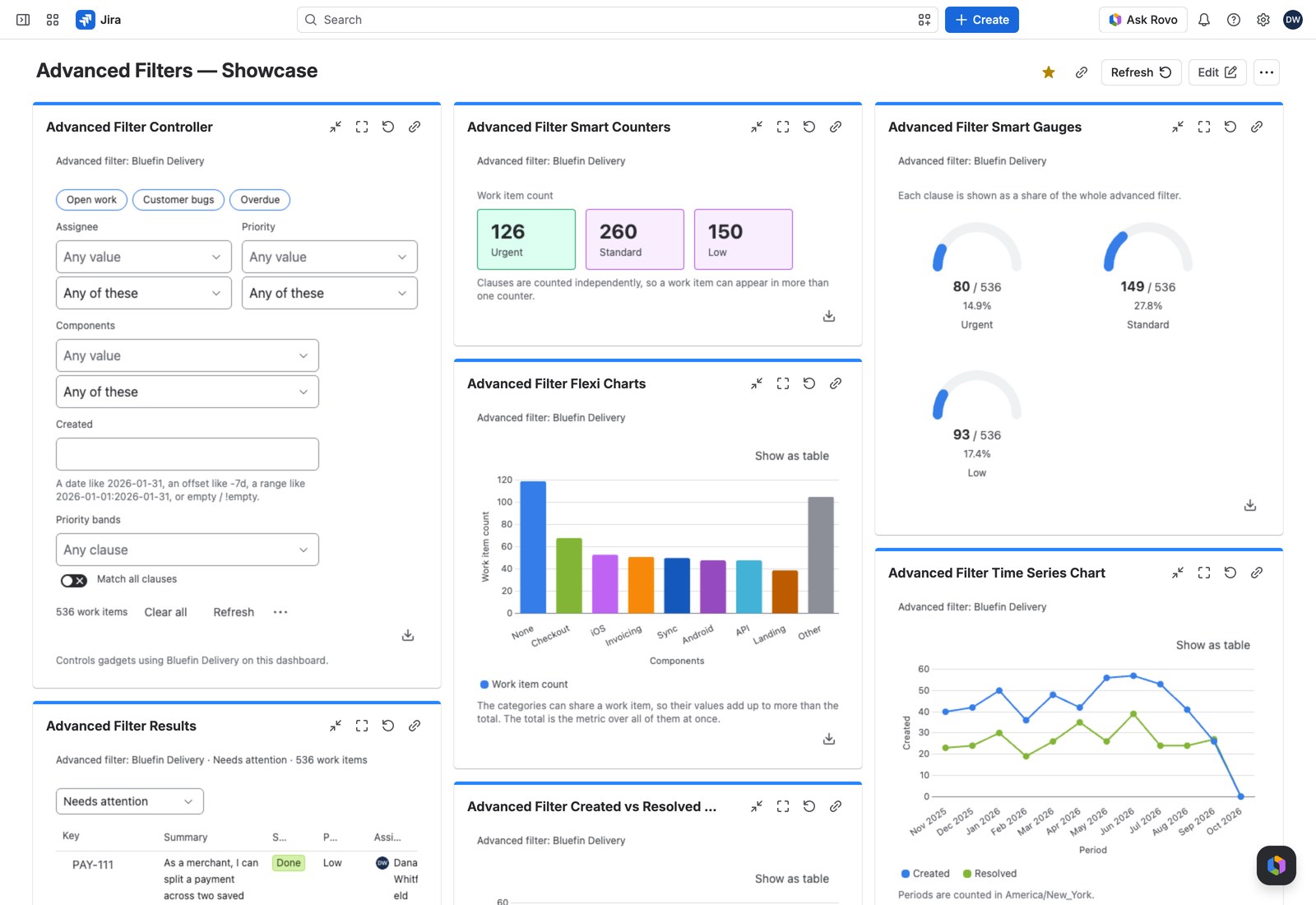
What your viewers get #
Quick filter pills apply the moment they’re selected. Field controls, smart rules and JQL wait for Apply. Each changed control shows a badge, and Cancel backs out.
The action row carries the live work item count, Clear all and Refresh, plus:
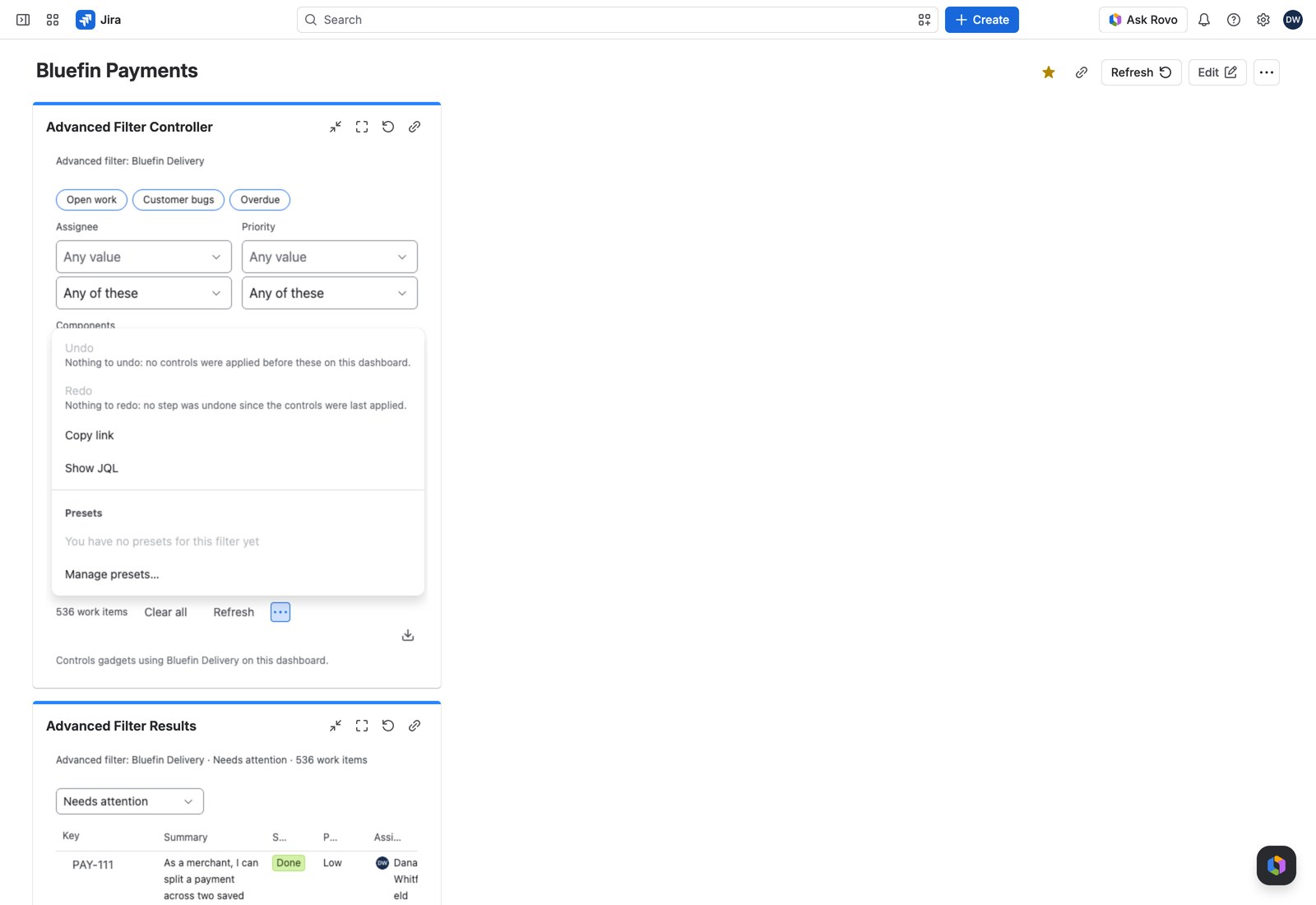
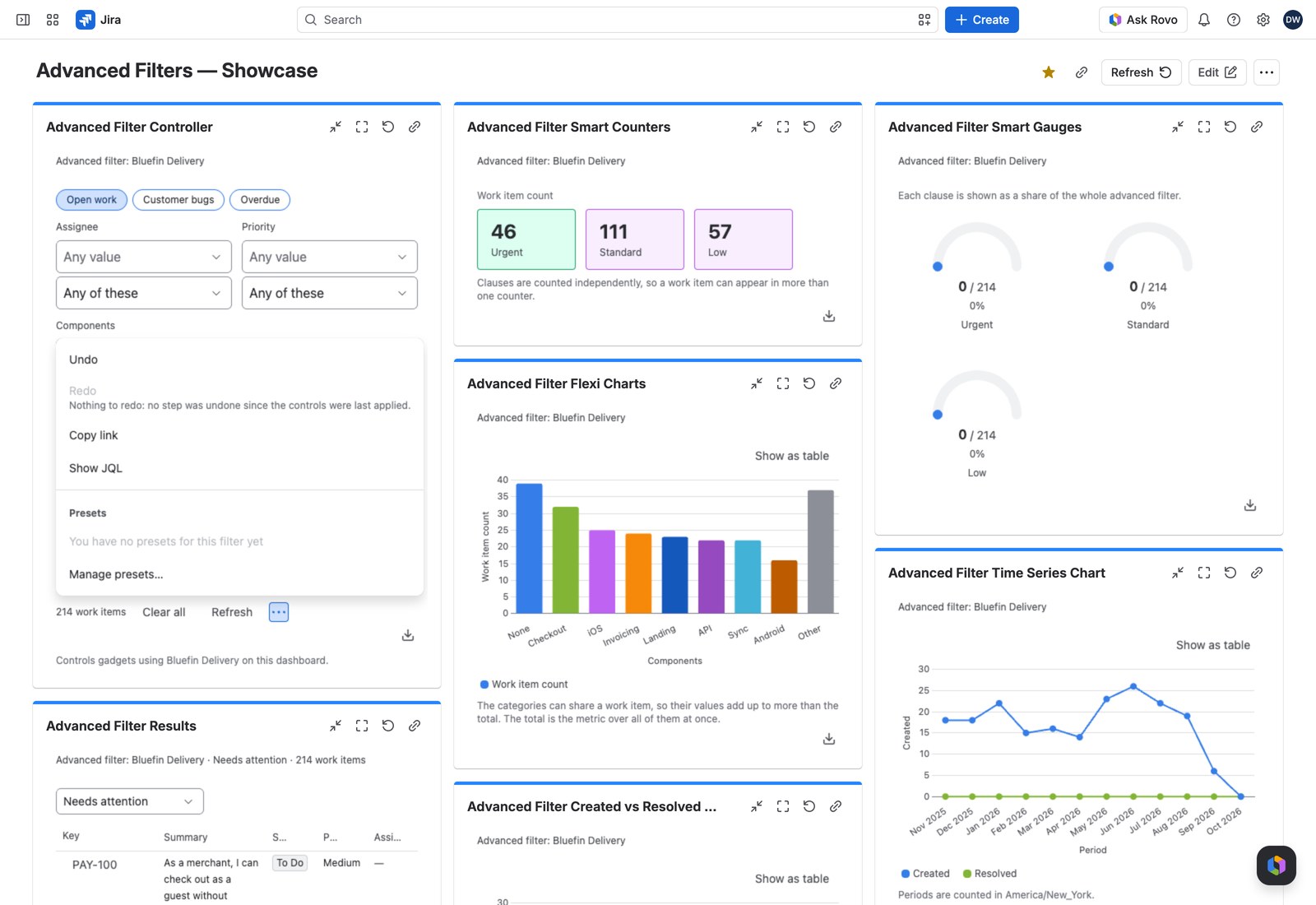
- Presets: a saved combination of controls, yours alone, applied in one click and built with Manage presets… from whatever’s applied right now.
- Undo and Redo: step through the dashboard’s history for everyone looking at it.
- Copy link: a link to the dashboard with the current filtering baked in, which grants no access anyone didn’t already have.
- Additional JQL: applies to every gadget on the dashboard using this filter.
In a narrow column, all but the count, Clear all and Refresh fold into More actions.
How a control combines its values #
A multi-value control has a How … matches box: Any of these, All of these where allowed, and None of these. No value is always one more alternative. With security and performance chosen:
| Choice | What it matches |
|---|---|
| Any of these, with No value | At least one label, or an empty field |
| All of these, with No value | Both labels, or an empty field. One alone doesn’t |
| None of these | Neither label; an empty field matches |
| None of these, with No value | Neither label, and the field not empty |
A sentence under the box spells out the less obvious ones.
A value the app can’t read #
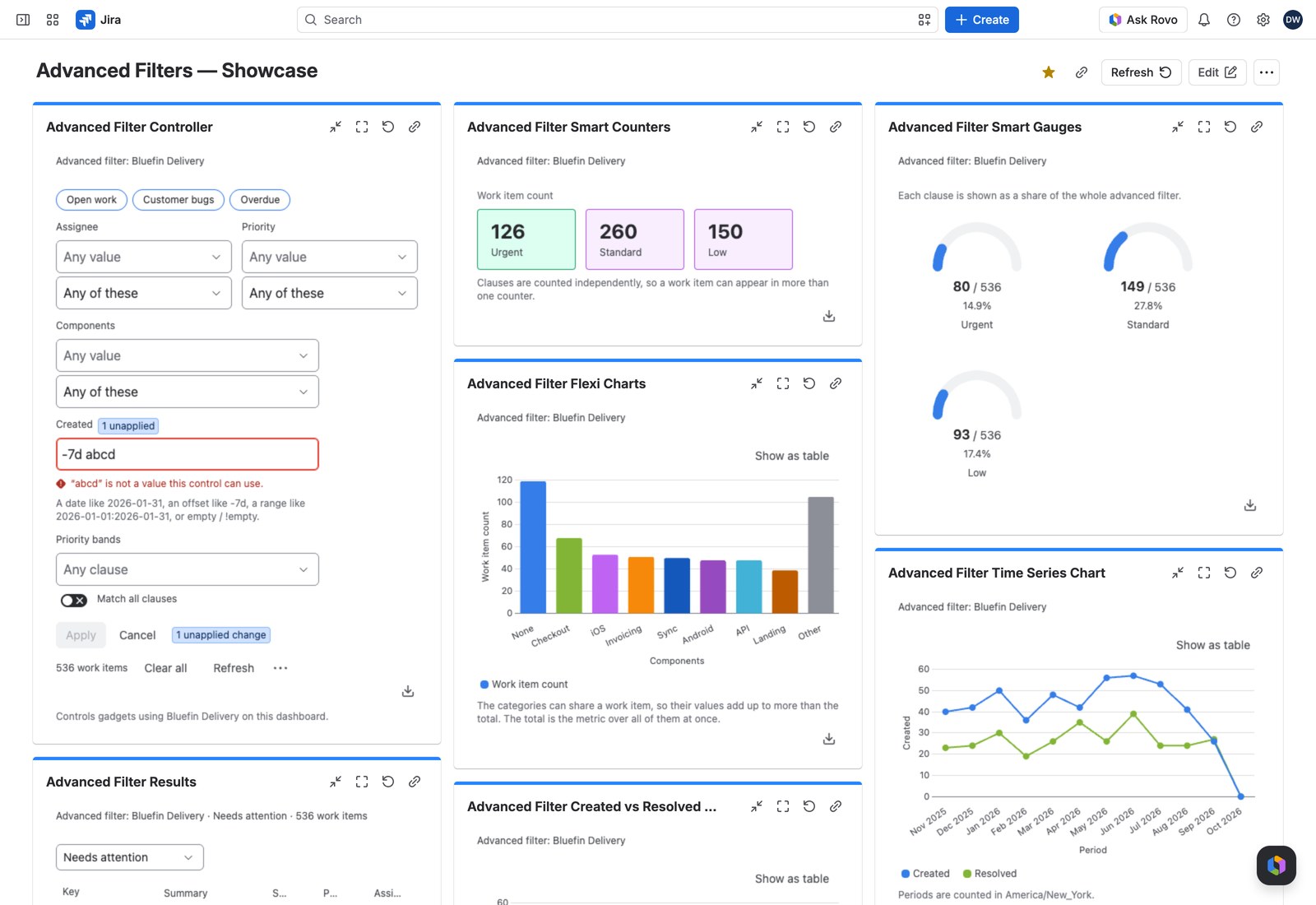
Number and date controls take a small grammar: 1:5, >5, empty, !empty. Type something outside it and the field names the term, Apply stays disabled naming the control, and the gadgets keep what was applied before.
Until then, that state can’t become a preset or a link; both say why.
What follows the Controller #
Every Advanced Filters gadget on the same dashboard using the same advanced filter: Results, counters, gauges, charts.
- Two Controllers on the same filter stay in sync.
- A Controller on a different advanced filter runs independently: two filtered areas on one page.
- Ordinary Jira gadgets are untouched.
Exporting the whole page #
This gadget’s Export menu is the one that exports the dashboard workbook: every reporting gadget on the page using this filter, in a single Excel file or PDF.
If something looks off #
- “This advanced filter has no controls yet”: nobody’s added quick filters, field controls or smart rules to it, and its administrators can do so in Apps → Advanced Filters.


