Advanced Filters & Gadgets turns the Jira filters you already have into dashboards people can actually use. Build the reporting once, and every dashboard using it stays in step. Change your mind later, and you change it in one place.
What you can do with it #
- Let viewers slice a dashboard themselves: add quick filters and field controls so one dashboard answers the question for every team, instead of building a dashboard per team.
- Put the headline numbers up front: work item counts, story point roll-ups, averages and ratios, as large tiles or gauges.
- Chart the trend: created vs. resolved, time series, and flexible breakdowns by any field.
- Give people a working queue: saved views and queues that show the right columns to the right audience.
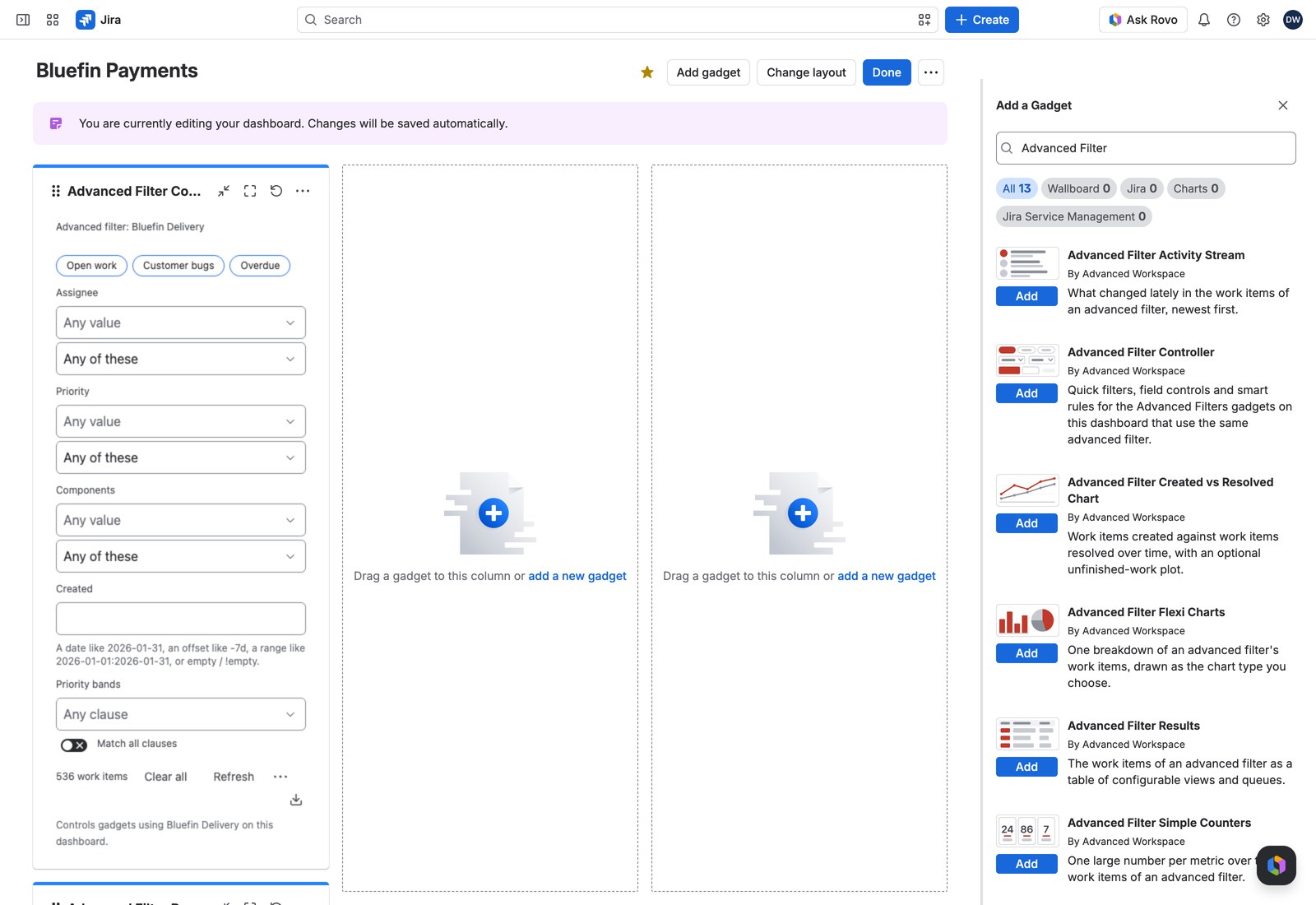
- Drive every gadget at once: one Controller gadget filters the whole dashboard, not just the panel next to it.
Where you’ll find it in Jira #
| Where | What it’s for |
|---|---|
| Apps → Advanced Filters | The filter library: create and configure your advanced filters |
| Dashboard → Add gadget → “Advanced Filter …” | The 13 gadgets that show and filter your data |
| Settings → Apps → Advanced Filters | Global settings: who can do what, bulk operations, exports and backups (admins) |
For administrators: a two-minute setup #
There’s no configuration to work through. Once the app is installed, open it once and you’re essentially done.
- Open the app. The first visit finishes the setup by itself. If you see “Setting up Advanced Filters”, give it a moment and the page appears on its own.
- Check that your trial or subscription is active.
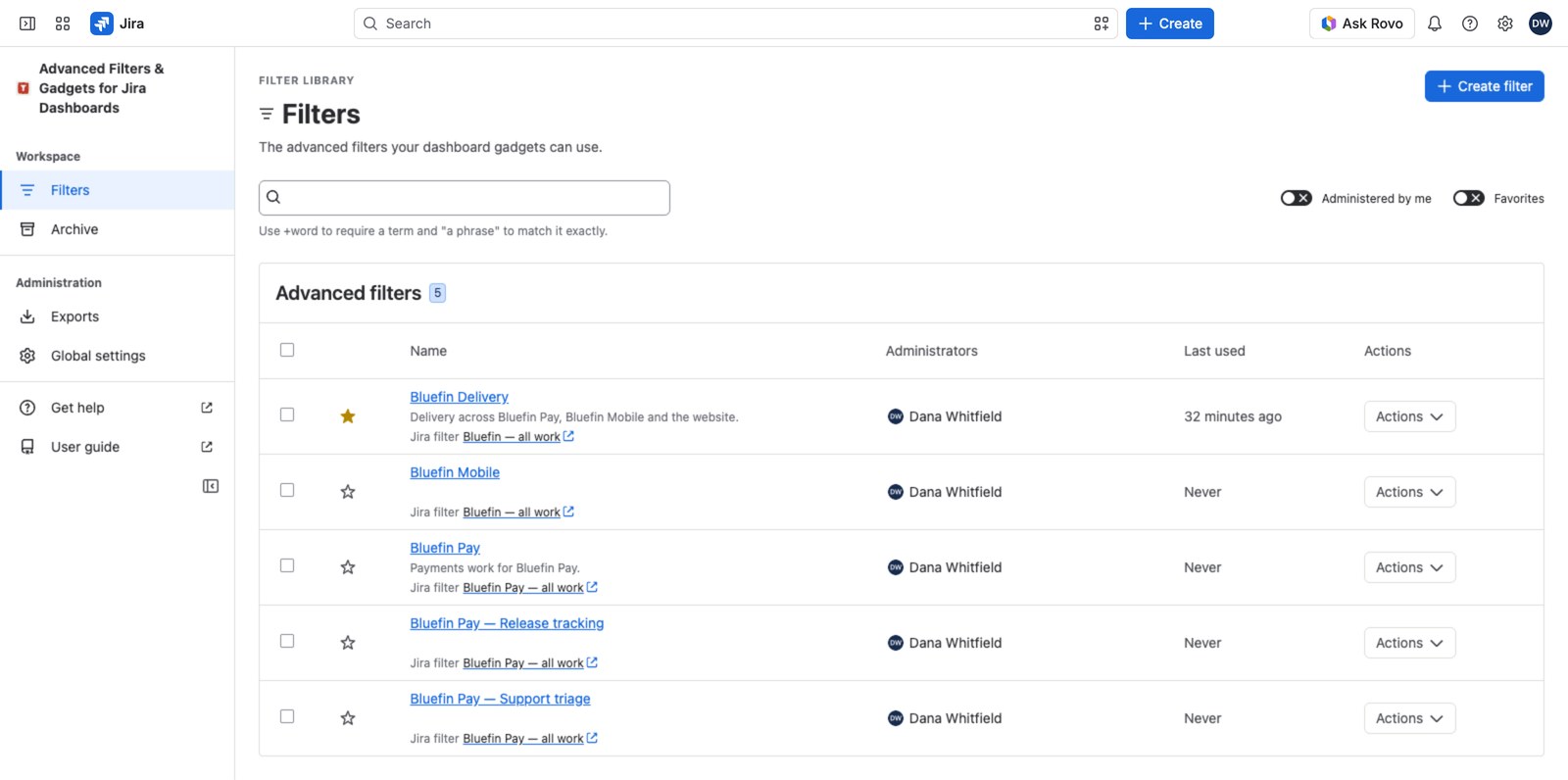
- Decide who can do what in Global settings → Access policies. Out of the box, anyone logged in can create advanced filters; bulk operations, usage exports and backups stay with Jira admins until you hand them to a group.
For everyone else: start here #
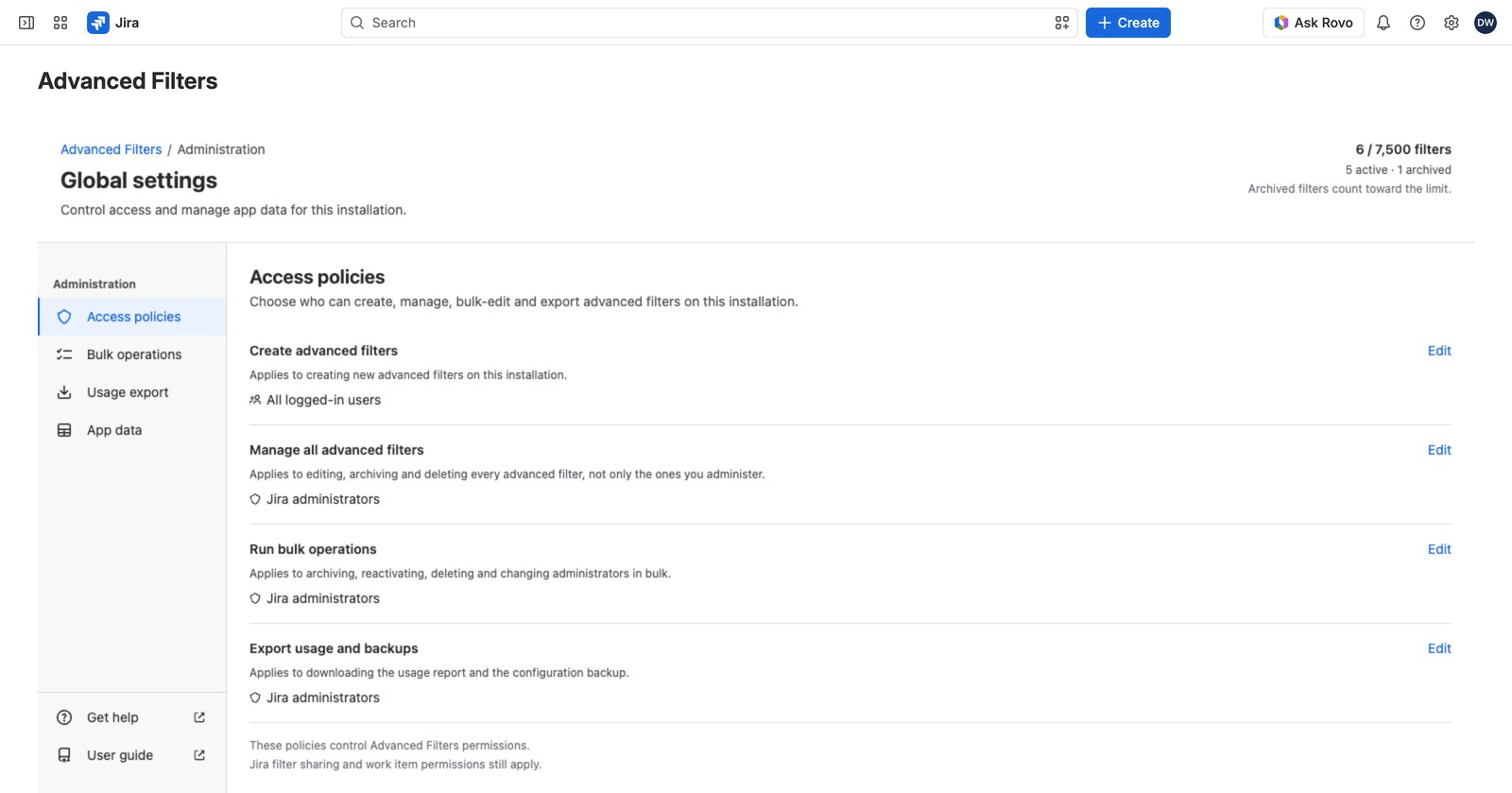
Open Apps → Advanced Filters. You’ll see every advanced filter you manage, plus the ones built on Jira filters you’re allowed to use. Star the ones you use often. Select Create filter to build your own from a Jira filter you already have.
You don’t have to create anything to get value on day one. If a colleague has already built an advanced filter and shared its Jira filter with you, go straight to a dashboard and add a gadget for it. All thirteen are in Jira’s own Add gadget panel under “Advanced Filter …”.
Where to go next #
- Create your first advanced filter: build one from a Jira filter you already have.
- Build your first dashboard: put it on a dashboard and watch one Controller drive every gadget on the page.


