Here’s the payoff: a dashboard where your viewers filter the data themselves, and every panel on the page moves together. Two gadgets and about five minutes.
Step 1: Add a Results gadget #
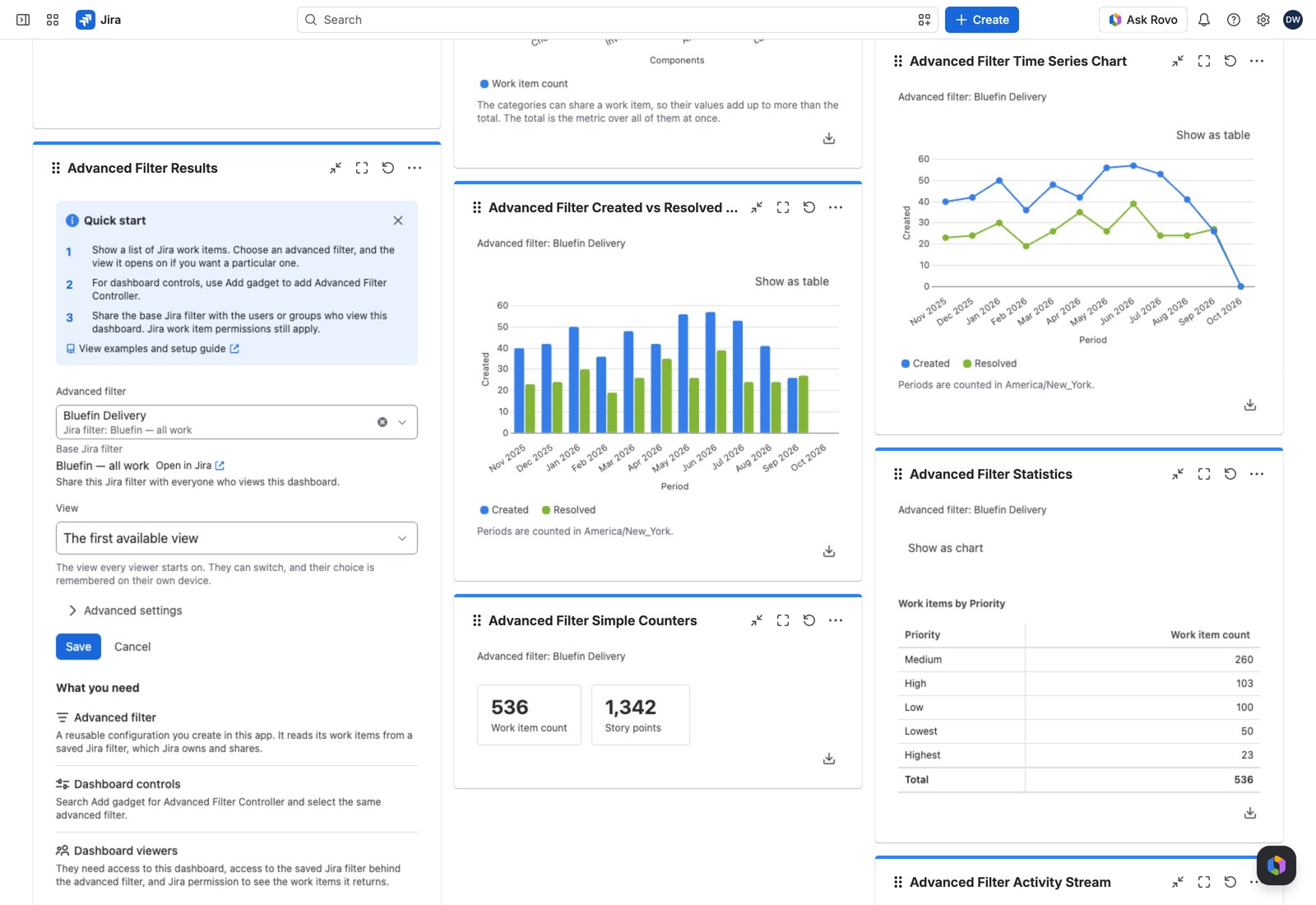
- Open a Jira dashboard, select Edit, then Add gadget.
- Search for Advanced Filter Results and add it.
- Select Configure. The form opens right inside the gadget (no separate dialog).
- Advanced filter: choose yours. (In the screenshots below it’s Bluefin Pay.)
- View: leave it on The first available view.
- Select Save.
You’ll see work items immediately. If your filter has no views set up yet, the gadget falls back to Key, Summary, Status and Assignee. There’s nothing to configure before you can see data.
Step 2: Add a Controller on the same filter #
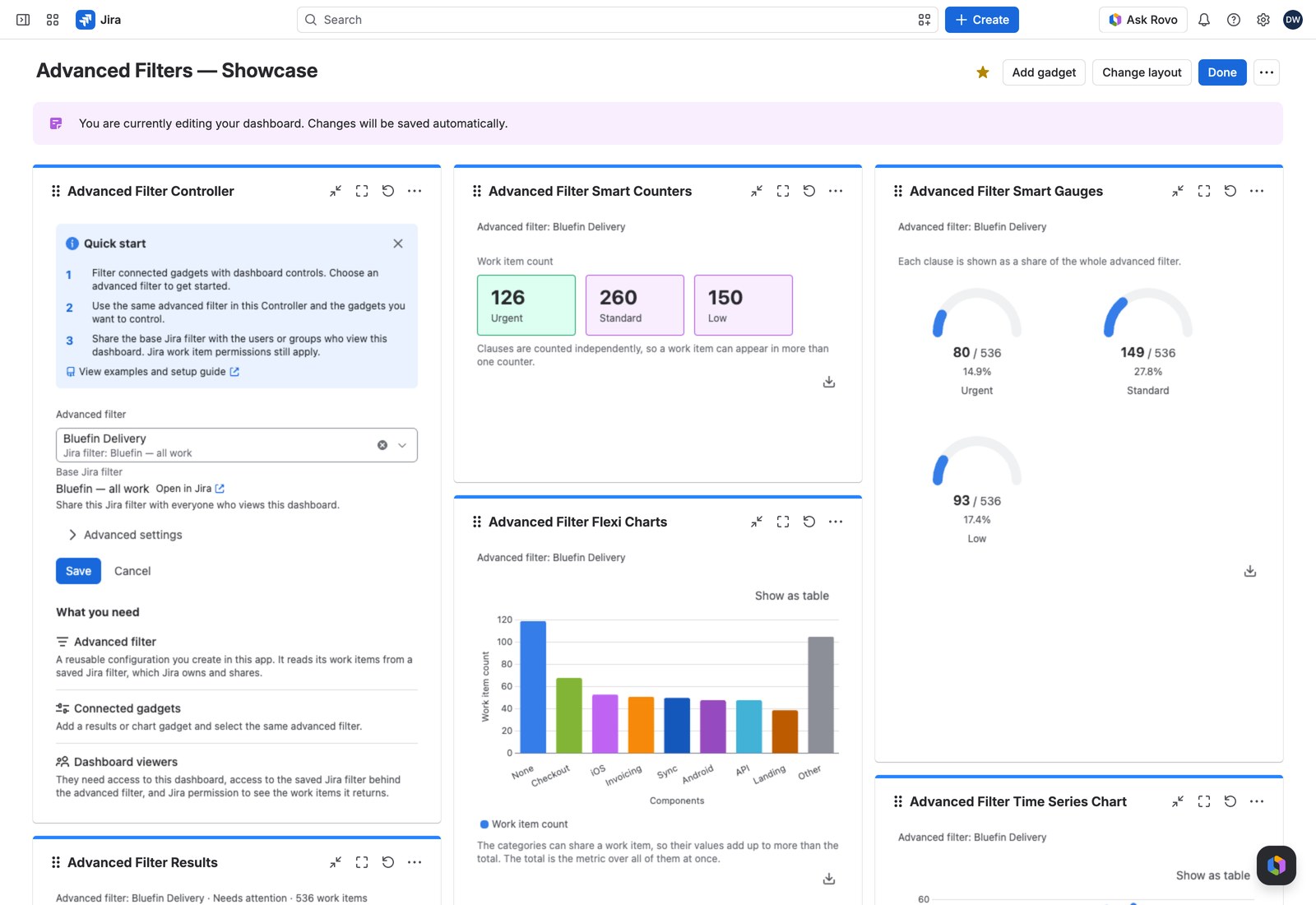
- Select Add gadget again and search for Advanced Filter Controller.
- Set Advanced filter to the same advanced filter you used for the Results gadget.
- Select Save.
The one idea worth knowing #
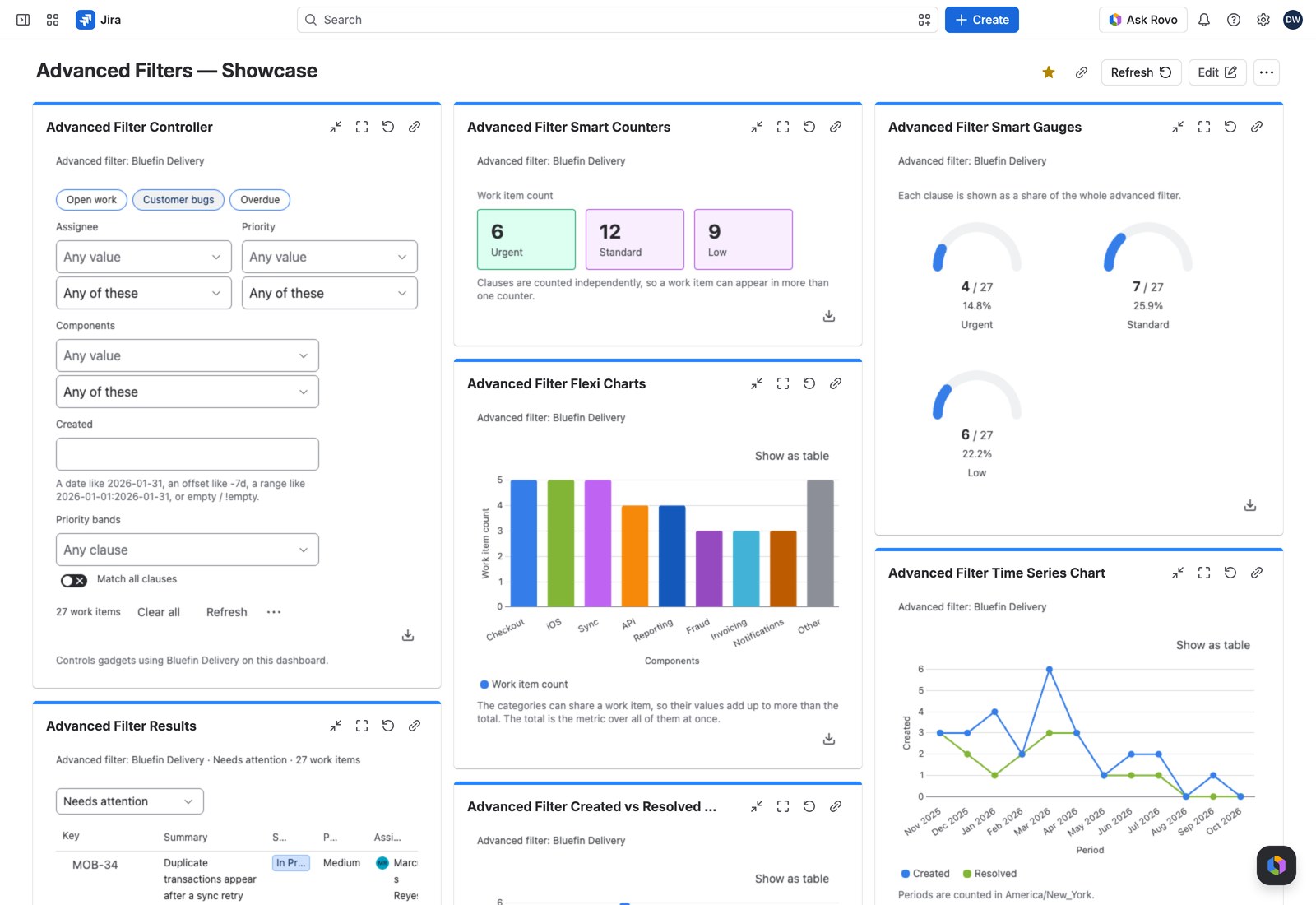
The Controller is the toolbar for that group. It shows a pill for each quick filter, a selector for each field control and smart rule, and a JQL box if you enabled Enable JQL filtering. Quick filter pills apply the moment you select them; everything else waits for Apply.
Either way, it doesn’t just change the Controller. Every gadget on that dashboard using the same advanced filter updates at the same time. Type a value a control can’t read, and Apply stays disabled, saying which control to correct. See Advanced Filter Controller.
Step 3: Keep adding #
Drop in a Statistics gadget, or a row of Simple Counters, and point them at the same advanced filter. The Controller drives them too, with no extra configuration. This is how one dashboard ends up serving five teams instead of five dashboards serving one each.
Gadgets on a different advanced filter form their own independent group, and ordinary Jira gadgets aren’t affected at all, so you can mix freely on one page.
Where to go next #
- Quick filters, field controls and smart rules: give your Controller something to control.
- Advanced Filter Controller: every control it can offer, in full.
- Advanced Filter Results: views, queues and the results table.


