Smart Gauges turns one smart rule into a row of progress gauges, one per clause. Depending on how you set it up, it answers one of two quite different questions:
- “What share of the whole does each clause account for?”
- “How far along is each clause, measured against itself?”
Add it to a dashboard #
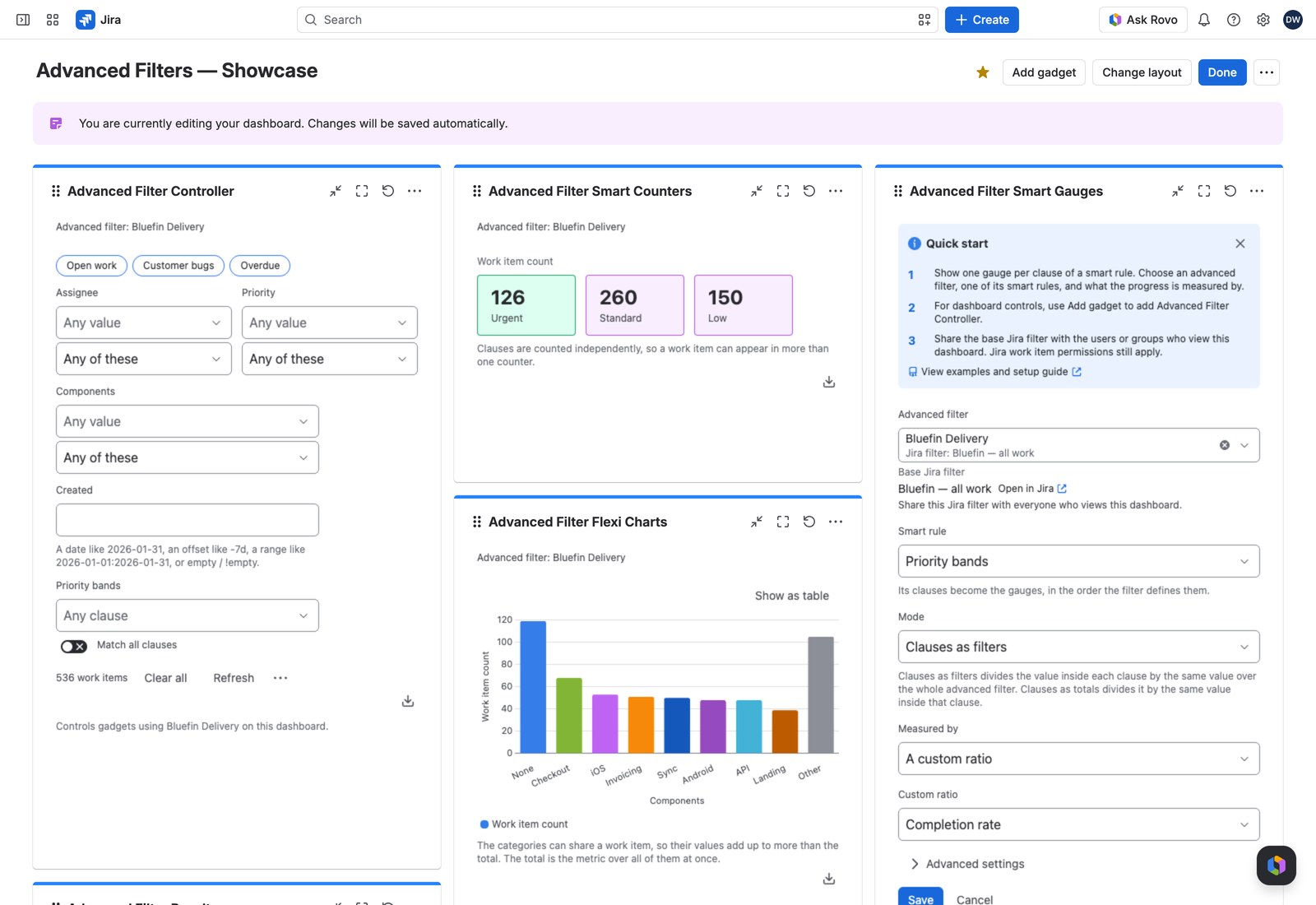
- Open the dashboard, select Edit, then Add gadget, and search for Advanced Filter Smart Gauges.
- Pick the Advanced filter, then the Smart rule whose clauses become the gauges.
- Choose the Mode and what each gauge measures.
- Select Save.
The mode is the important choice #
| Mode | Each gauge divides by | Use it to answer |
|---|---|---|
| Clauses as filters | The same value over the whole filter | “How much of our work is at risk?” |
| Clauses as totals | The same value inside that clause | “How far through is each workstream?” |
The mode is shown to viewers as a line above the gauges, because the same number means different things in the two modes.
The rest of the settings #
| Setting | What it does |
|---|---|
| Measured by | Whether each gauge’s progress is A value or A custom ratio |
| Value | The progress each gauge reports: a work item count, a field roll-up, time tracking, or a custom value |
| Custom ratio | One of the filter’s own defined ratios, used as the gauge’s progress |
| Add a None gauge | Covers work items matching no clause. On by default: leave it on to catch gaps |
| Layout | Arc, fraction and percentage, Fraction and percentage, or Percentage only |
| Warn below (%) / Good from (%) | Color thresholds, 0 to 1000 |
| Working query | Optional JQL narrowing this gadget only, on top of the advanced filter |
See Custom values, ratios and time series for where values and ratios come from.
What your viewers see #
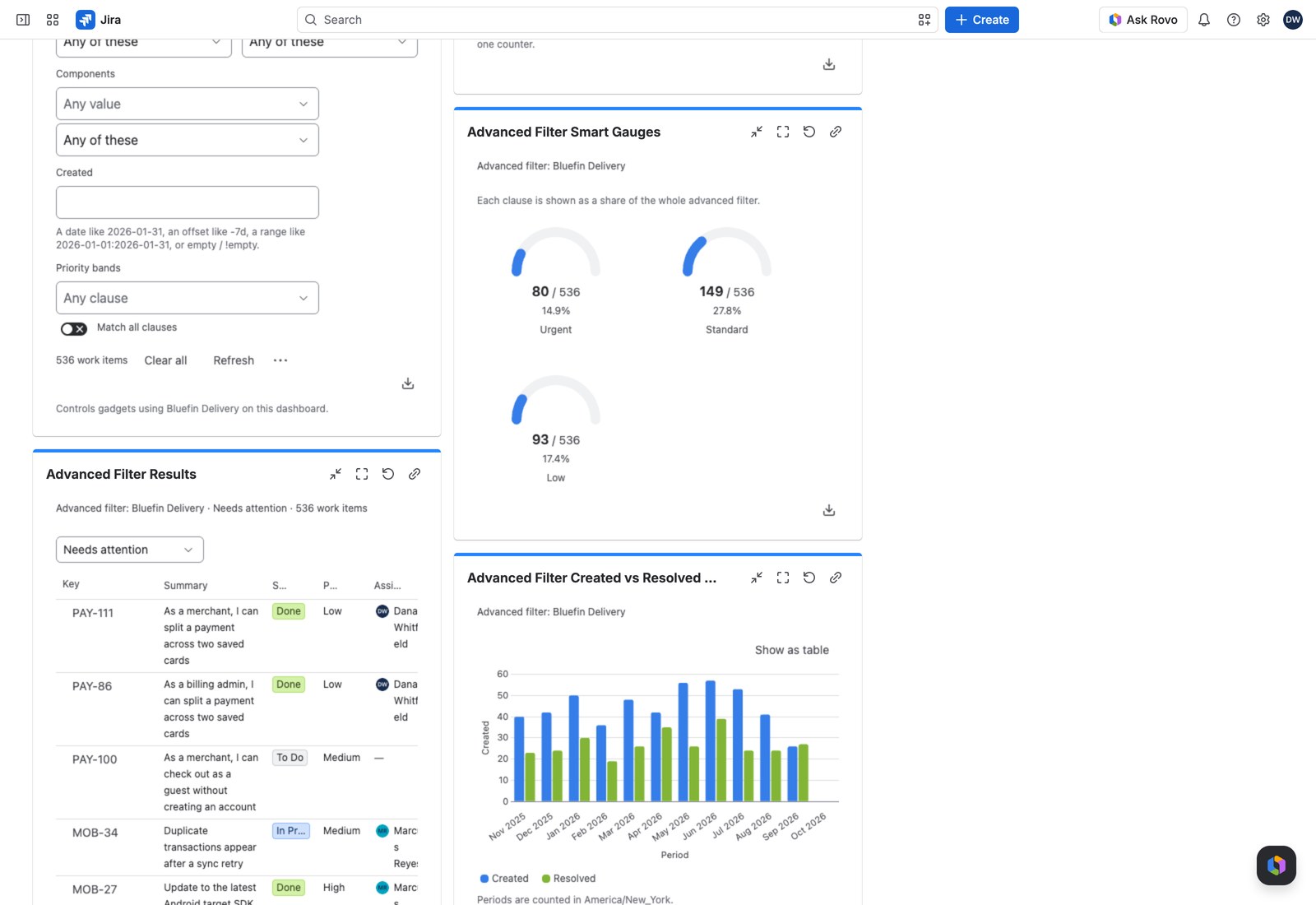
One gauge per clause, in your chosen layout, with the mode named above them. Both halves of every fraction are clickable and open their own work items in Jira’s own search.
Switch the mode and the gadget waits until both halves of every fraction have been recalculated. You’ll never catch it showing a new numerator over an old denominator. Each percentage follows the rules in Advanced Filter Simple Gauges: its rounding, a ratio past 100%, and one with nothing to divide by.
With the Controller #
An Advanced Filter Controller on the same filter narrows what every gauge measures. The caption under the gadget’s title always names the filter it’s reading, so there’s no guessing on a busy dashboard.
Exporting #
CSV, Excel or PDF, with one row per gauge: its Group and work item count, then separate Numerator, Denominator and Progress columns. The real numbers travel with the file, not just the on-screen percentage, so you can do your own math on it later.
If something looks off #
- “This smart rule has no clauses”: add a clause to the rule on the filter’s configuration page.
- “This smart rule is not available any more”: the rule was removed, so edit the gadget and pick another.
- “1 value could not be read, so it matches no work items.”: a value from a link or a preset can’t be read, so the gauges measure no work items, rather than the wrong ones, until you select Remove what cannot be applied on the Controller, or here when no Controller uses this filter.
A gadget never just goes blank: if an advanced filter was deleted, is no longer shared with you, or has too many work items to report on, it says so and tells you what to do.


