The Presentation section is where you decide what a table looks like and which slices of work are worth saving, so one Results gadget can serve several audiences.
Two building blocks #
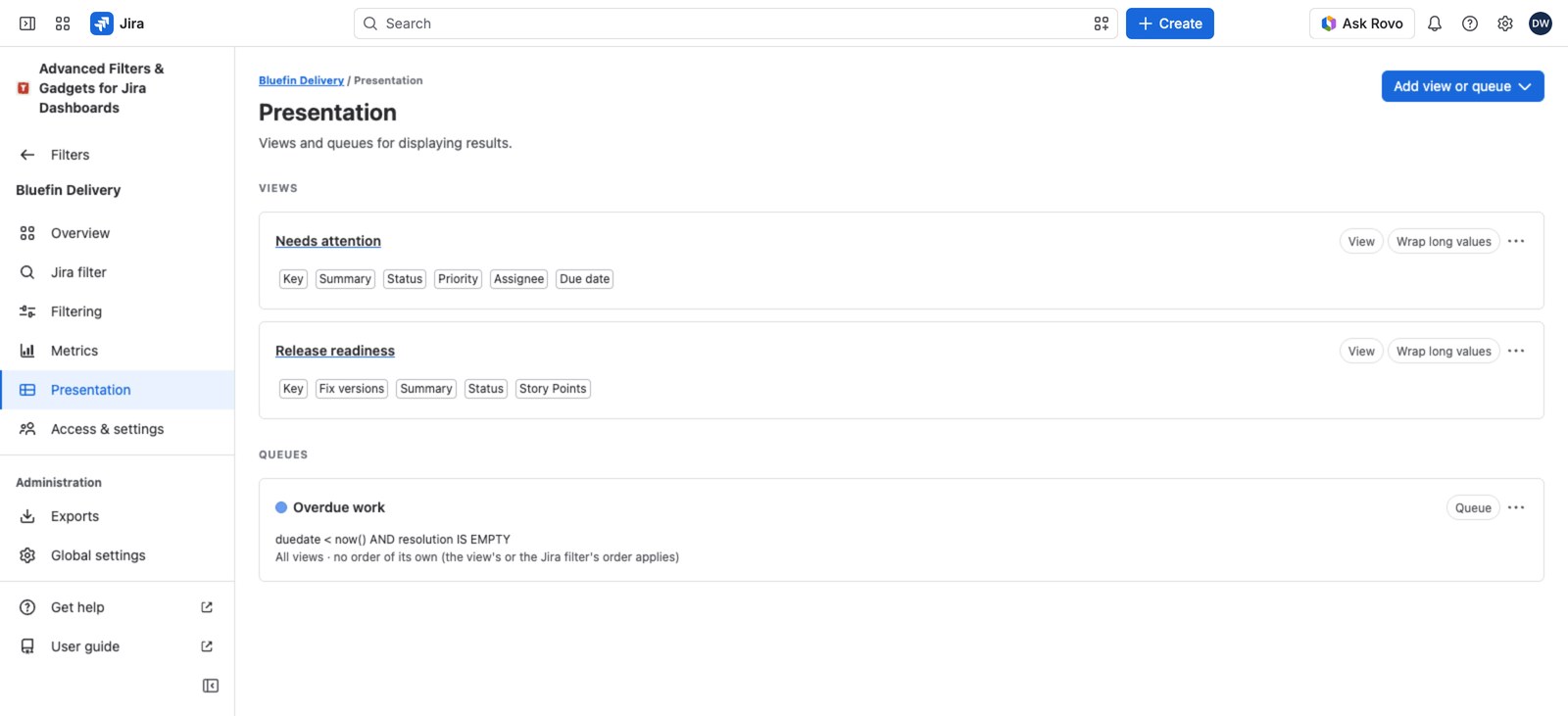
- A view is a set of columns: what appears, in what order, how wide.
- A queue is a saved slice of work with its own ordering: “My team’s escalations, most urgent first”.
Mix them: the same queue can be shown in a detailed view for the people doing the work and a summary view for everyone else.
Building a view #
Pick your columns (up to 70) from Jira fields, your own quick filters and smart rules shown as colored tags, special columns, or work item icons. Each can have its own heading and width.
The settings worth knowing:
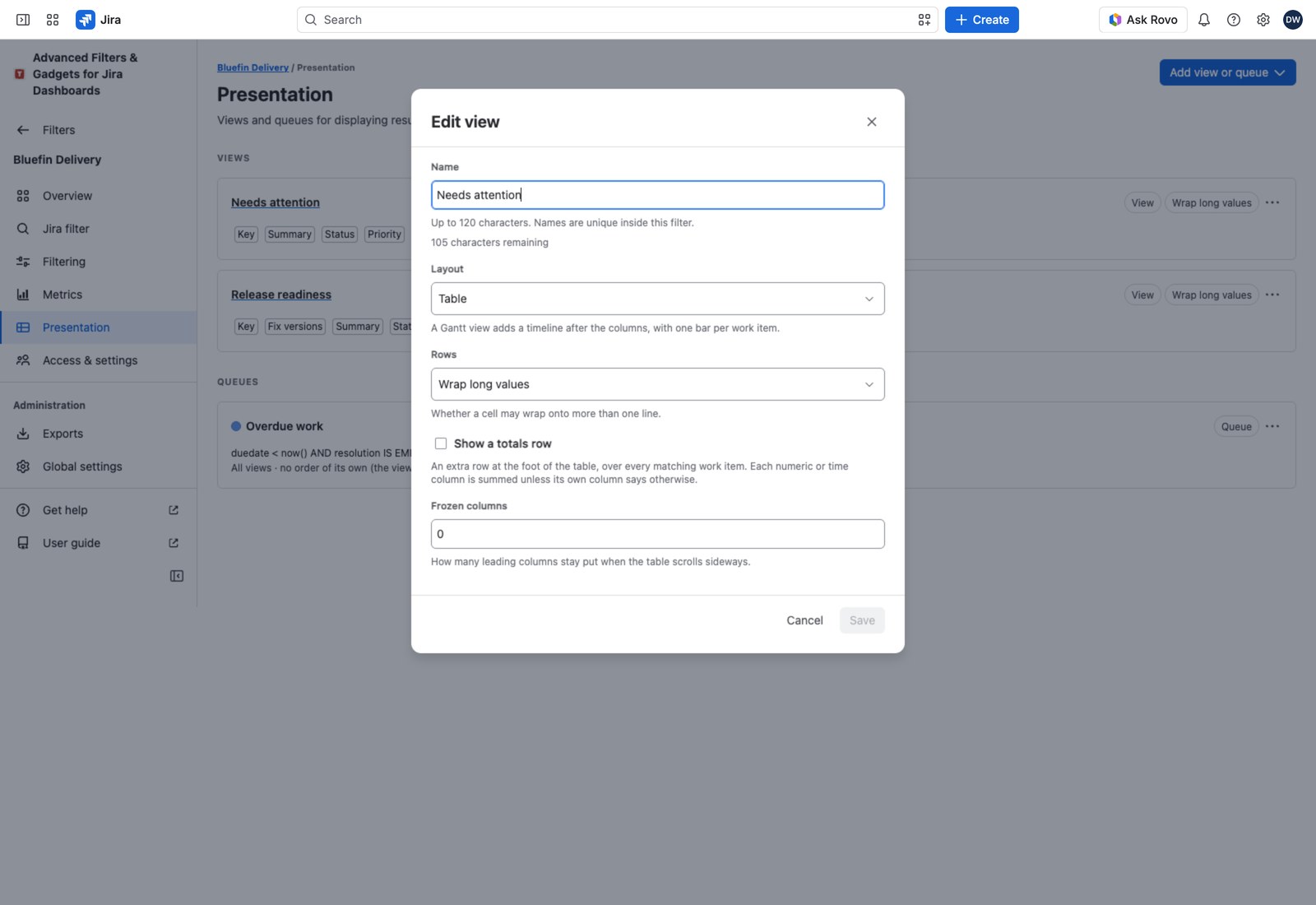
- Layout: Table, or Table and Gantt timeline, which draws one bar per work item on a timeline in place of the table.
- Rows: wrap long values, or keep one line per work item.
- Show a totals row: a line under the table, over the whole filtered selection rather than the page on screen.
- Frozen columns: keep the first few in place while the rest scroll. Invaluable on wide tables.
Each column picks its own arithmetic for that row (Sum unless you change it, or Average, Minimum or Maximum), and the row is written into the CSV, Excel and PDF exports as well. A selection that matched nothing gets no row at all. The Gantt layout shows no totals row on screen, having no table to put it under, but a table export of that view still carries it when its columns can be totaled.
Choose the Gantt layout and you also get Bars start at / Bars end at and a Bar color: by status, by priority, or by one of your own smart rules or quick filters. Coloring a timeline by a smart rule is a quick way to show delivery risk on a roadmap.
Building a queue #
A queue is a name, a color, and its own JQL narrowing the base filter further. Add a Default order, written as an ORDER BY tail without the keywords, like priority DESC, created ASC. Then pick which Views it can be shown in (leave it empty for all of them).
Two switches change how a queue behaves on a dashboard:
- Static: the queue ignores the Controller entirely. Use it for something that must always show the same thing, like an SLA breach list, no matter what else viewers are filtering.
- Fixed order: viewers can’t re-sort it by selecting a column. Use it when the order is the information, like a prioritized backlog.
Deleting a view or a queue #
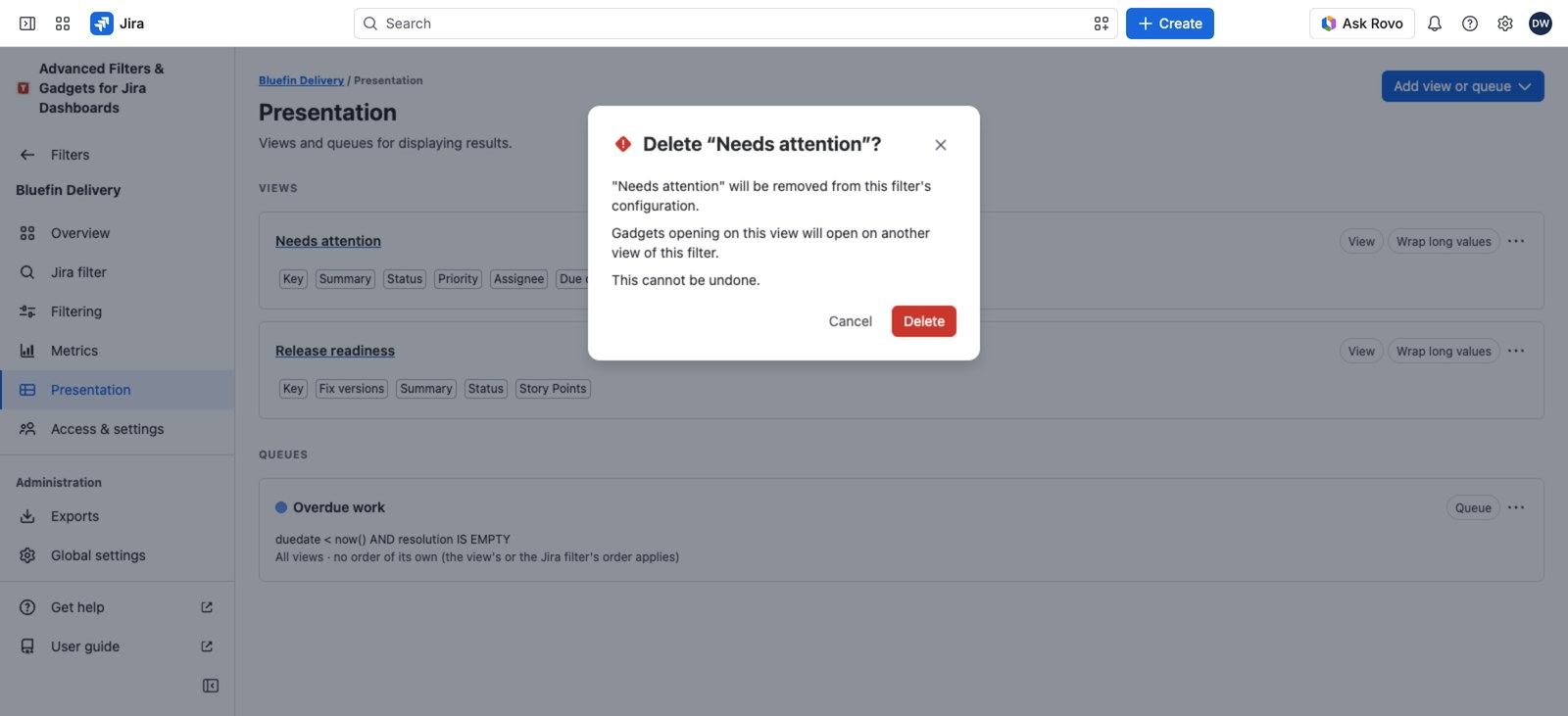
The app checks for gadgets first and tells you exactly what will happen, then offers Delete anyway:
| Deleting | If others remain | If it was the last one |
|---|---|---|
| A view | The gadget opens on another view | The gadget falls back to the default table |
| A queue | The gadget opens on another queue | The gadget shows This advanced filter has no queues until someone edits it |
Next #
See Advanced Filter Results for how viewers switch between views and queues on a dashboard. Editing here needs the same rights as any other change to the filter.


