Every advanced filter is built on one Jira filter: the saved search you picked when you created it. That Jira filter decides which work items come in; everything you configure on top decides how they’re presented.
What the section shows you #
The Jira filter section of your advanced filter is where you see that relationship, and the only place to change it. The Selected filter card is a useful thing to check before you start building:
- Who owns it: the person to ask if a colleague needs access.
- Who it’s shared with: expand Show all sharing rules for the full list. This is the best predictor of who’ll actually see data on your dashboard.
- The JQL it runs: shown here so you can see exactly what’s coming in. To change the query itself, edit the filter in Jira.
- Open in Jira: takes you to the saved filter.
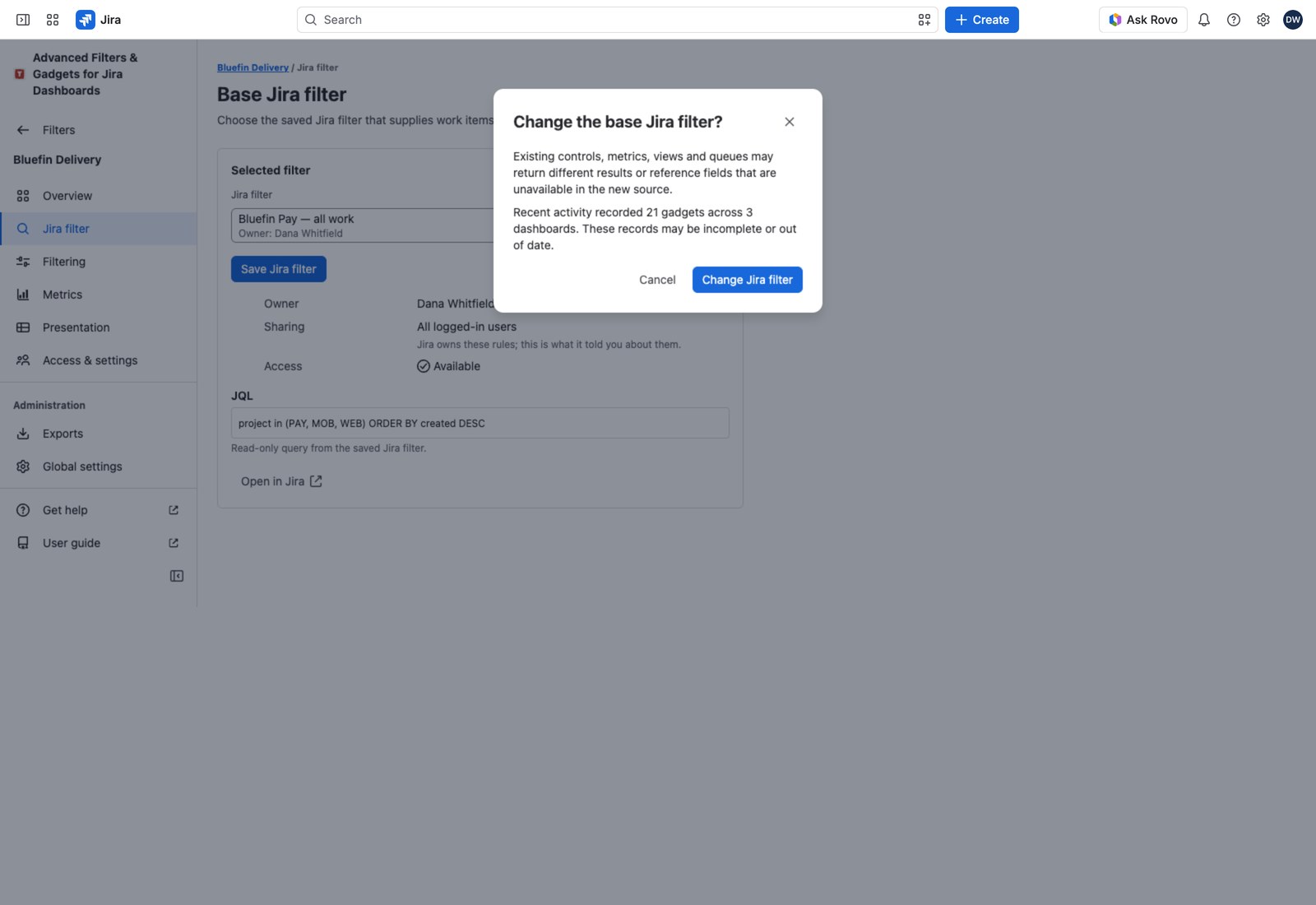
The Selected filter card lists the saved filter’s owner, its sharing rules (the first three, with Show all sharing rules when there are more), the JQL Jira holds for it in a read-only field, and Open in Jira, which opens the saved filter itself in a new tab.
Swapping the Jira filter underneath #
Picked the wrong filter, or your team’s moved to a new saved search? Choose another in the Jira filter field and select Save Jira filter.
When there’s no data #
Two different things can go wrong here, and the app words them differently on purpose.
| What you see | What it means | What to do |
|---|---|---|
| Source access needed or Filter details unavailable | Jira confirmed this saved filter isn’t shared with you | Ask the filter’s owner to share it (see Sharing the Jira filter your viewers need) |
| Source details unavailable with a Retry link | The request to Jira didn’t get through. Nothing is known about anyone’s access | Select Retry. No need to chase anybody |
On a dashboard, a gadget in the same situation tells the viewer directly: “The advanced filter is built on a Jira saved filter that is not shared with you.” The gadget can still be configured and saved. It’s only the work item data that’s missing.
Beside the picker the form shows the warning Base Jira filter is not shared with you with its View sharing instructions link; Save stays available, because the configuration is yours to save even while the data is not yours to see.
Who can change it #
Swapping the Jira filter needs the same rights as any other edit: you administer the advanced filter, you’re a Jira admin, or you hold Manage all advanced filters.


