“How close are we?” is a ratio, not a count. Simple Gauges draws up to ten progress gauges (an arc, a fraction, a percentage, or all three), so a sprint’s completion, a budget’s burn, or an SLA’s headroom reads instantly.
Add it to a dashboard #
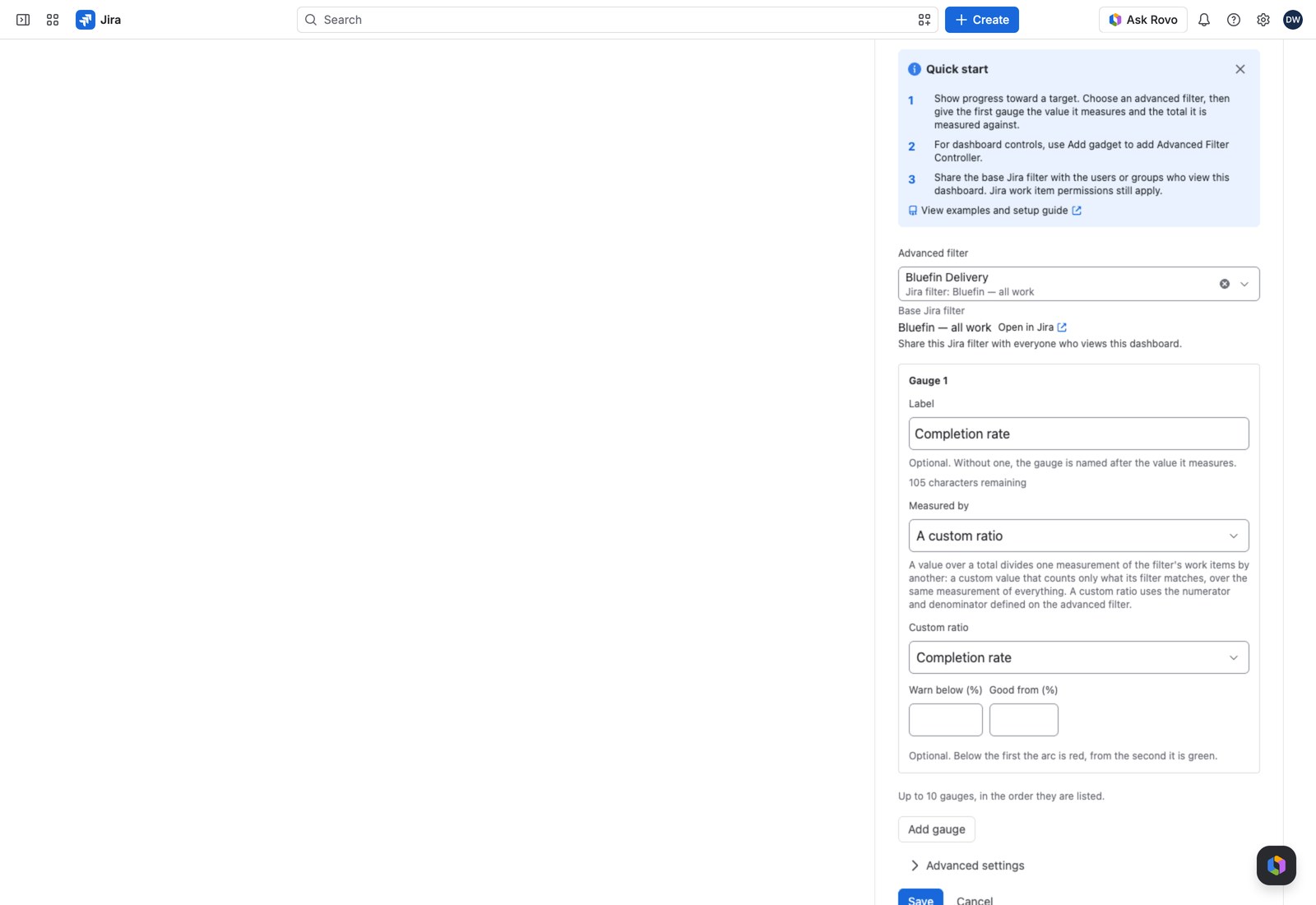
- Open the dashboard, select Edit, then Add gadget, and search for Advanced Filter Simple Gauges.
- Choose the Advanced filter.
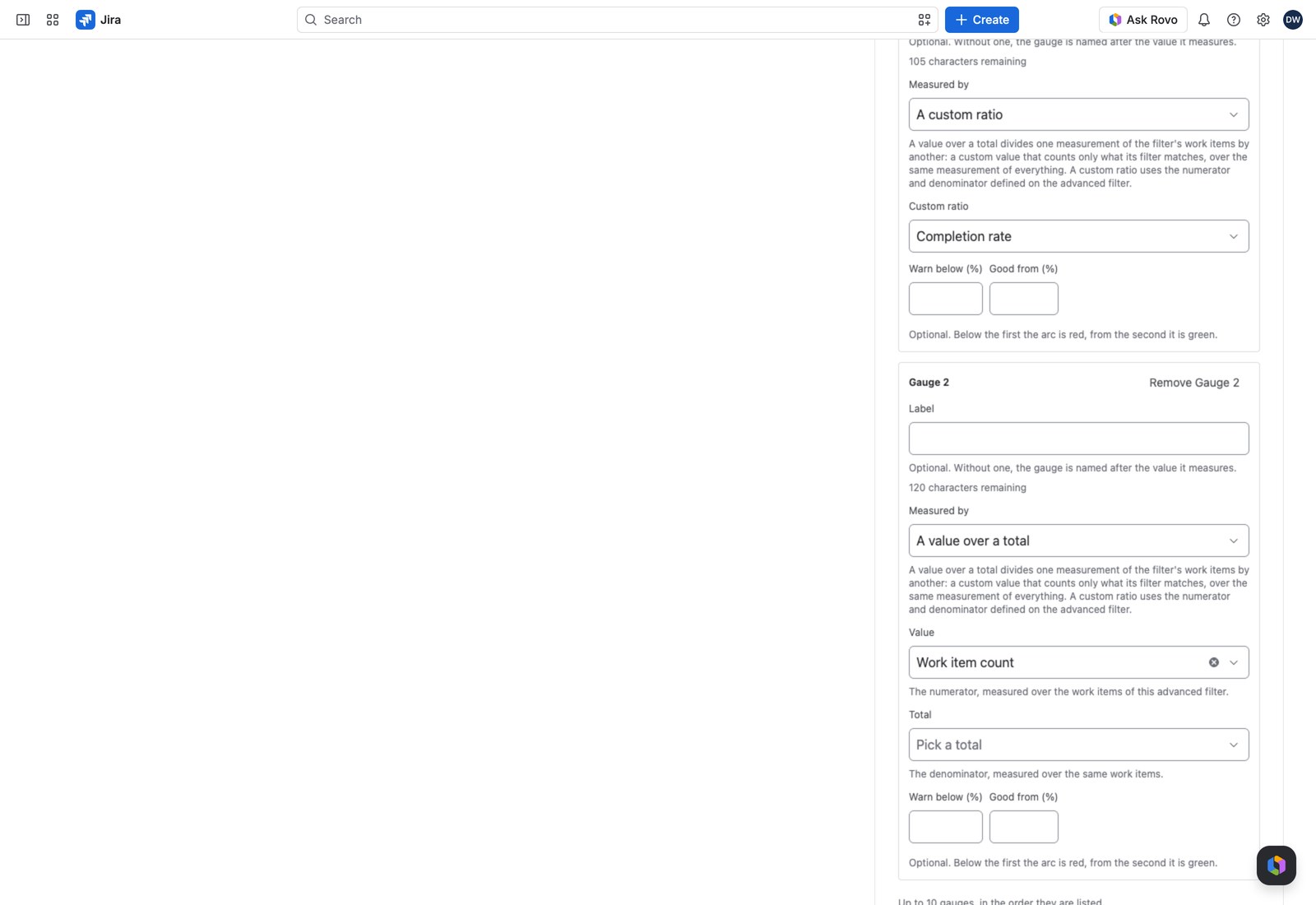
- For the first gauge, pick Measured by and fill in its value and total.
- Choose a Layout for the gadget, and add thresholds if you want color.
- Use Add gauge for more (up to ten).
- Select Save.
The three ways to measure #
Measured by is the decision that matters:
| Choose | When you want | Example |
|---|---|---|
| A value over a total | A share of the whole | Resolved story points out of all story points |
| A value over a fixed number | Progress against a target or budget you set | Hours logged against a 400-hour budget |
| A custom ratio | A ratio you’ve already defined and named on the filter | Your standard “completion rate” |
The other settings:
| Setting | What it does |
|---|---|
| Label | Optional, up to 120 characters. Without one the gauge is named after its value |
| Layout | Arc, fraction and percentage, Fraction and percentage, or Percentage only. Applies to every gauge in the gadget |
| Warn below (%) / Good from (%) | Optional color thresholds: red below the first, green from the second |
What your viewers see #
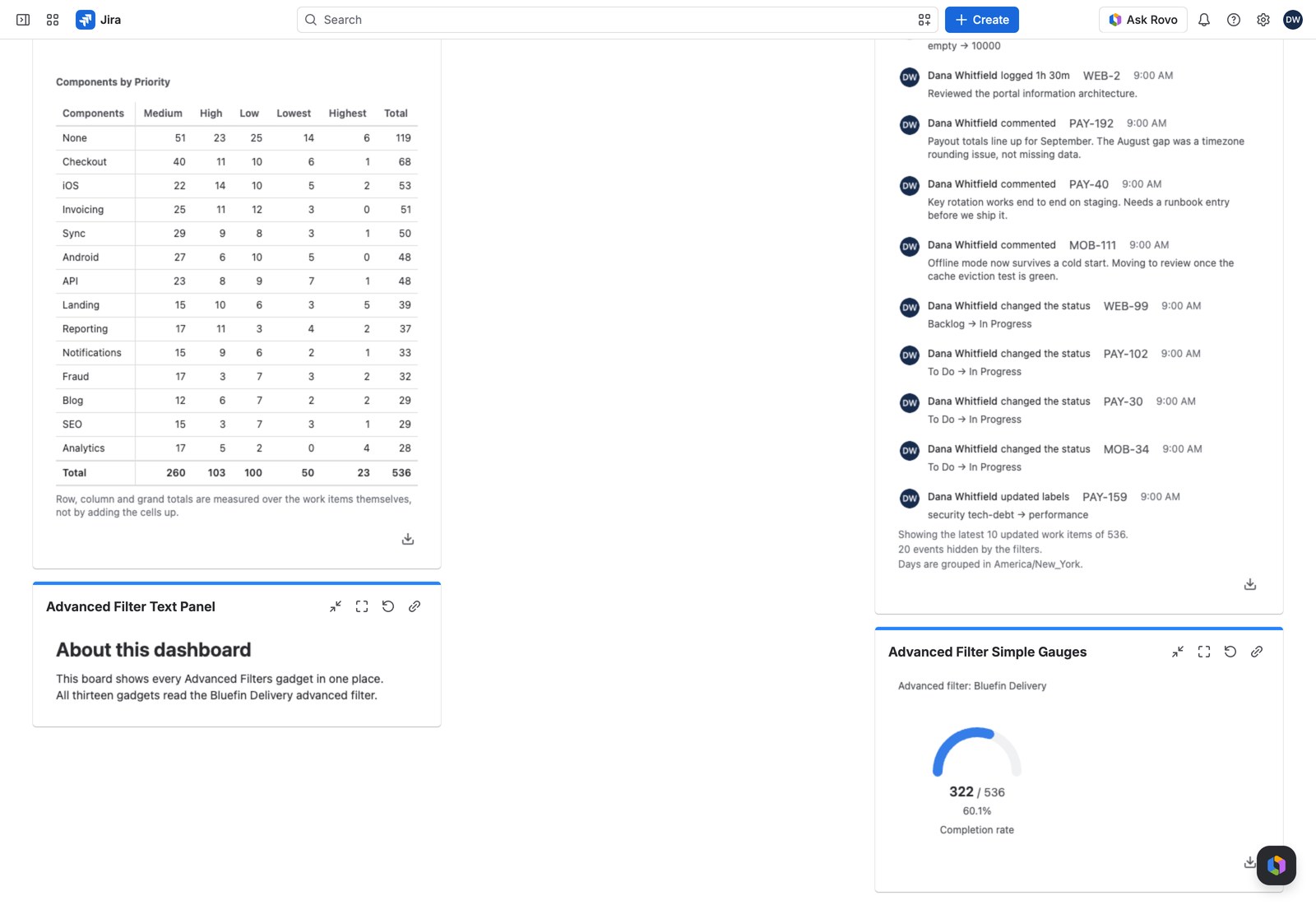
Each gauge in the layout you chose, labeled either by your own Label or by the value it measures.
Both halves of the fraction are clickable. Select the numerator to see the work items that make it up, or the denominator to see the full set. “6 of 8” has two sets of work items behind it, and neither tells you the other. (A fixed total has no work items behind it, so there’s nothing to open on that side.)
A gauge rounds its own way #
A gauge’s percentage is a whole number or one decimal, whatever precision the ratio behind it carries elsewhere. So the same ratio can read 38% on a counter tile and 37.5% on a gauge: the arc and its figure are one statement.
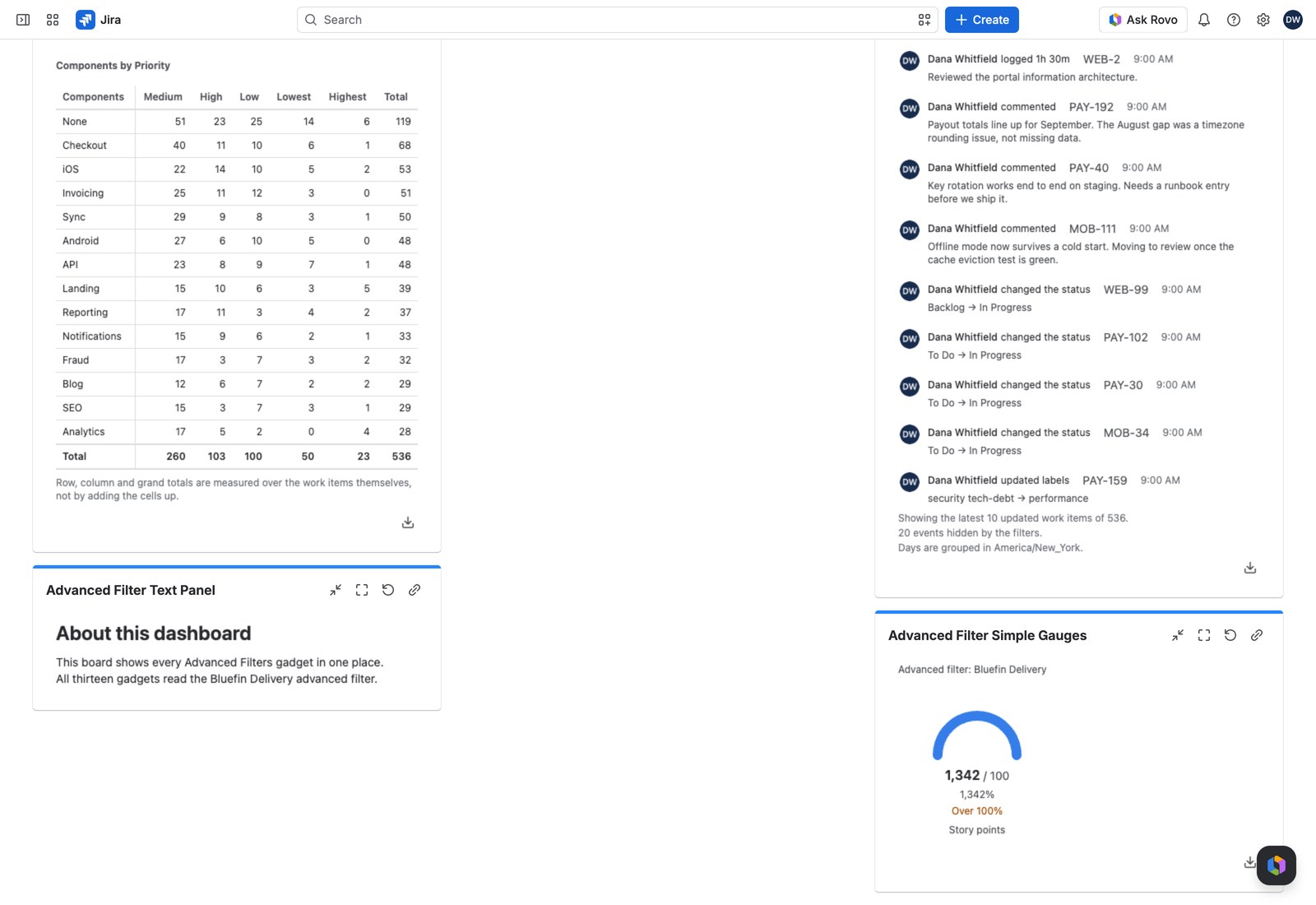
An arc stops at a full sweep, but the number doesn’t: a ratio past its total fills the arc, shows its real percentage and adds “Over 100%” under it. With nothing to divide by, the percentage reads N/A above “No denominator to measure against”. Never a 0% or a 100% nobody measured.
With the Controller #
Every gauge recalculates together when a viewer filters on the Advanced Filter Controller. Both halves of each fraction are recomputed over the same work items, so you never see a filtered numerator over an unfiltered total.
Exporting #
Export gives you CSV, Excel or PDF with one row per gauge. Rows are named by the gauge’s label, so two gauges over the same value stay distinguishable in the file. Another reason to label them. Each row carries the actual Numerator, Denominator and Progress, over 100% included.
If the form won’t save #
- “Enter a number other than zero”: a fixed total can’t be zero.
- “Enter a whole percentage between 0 and 1000”: a threshold is out of range.
- “The warning percentage cannot be above the good one”: swap your two thresholds.


