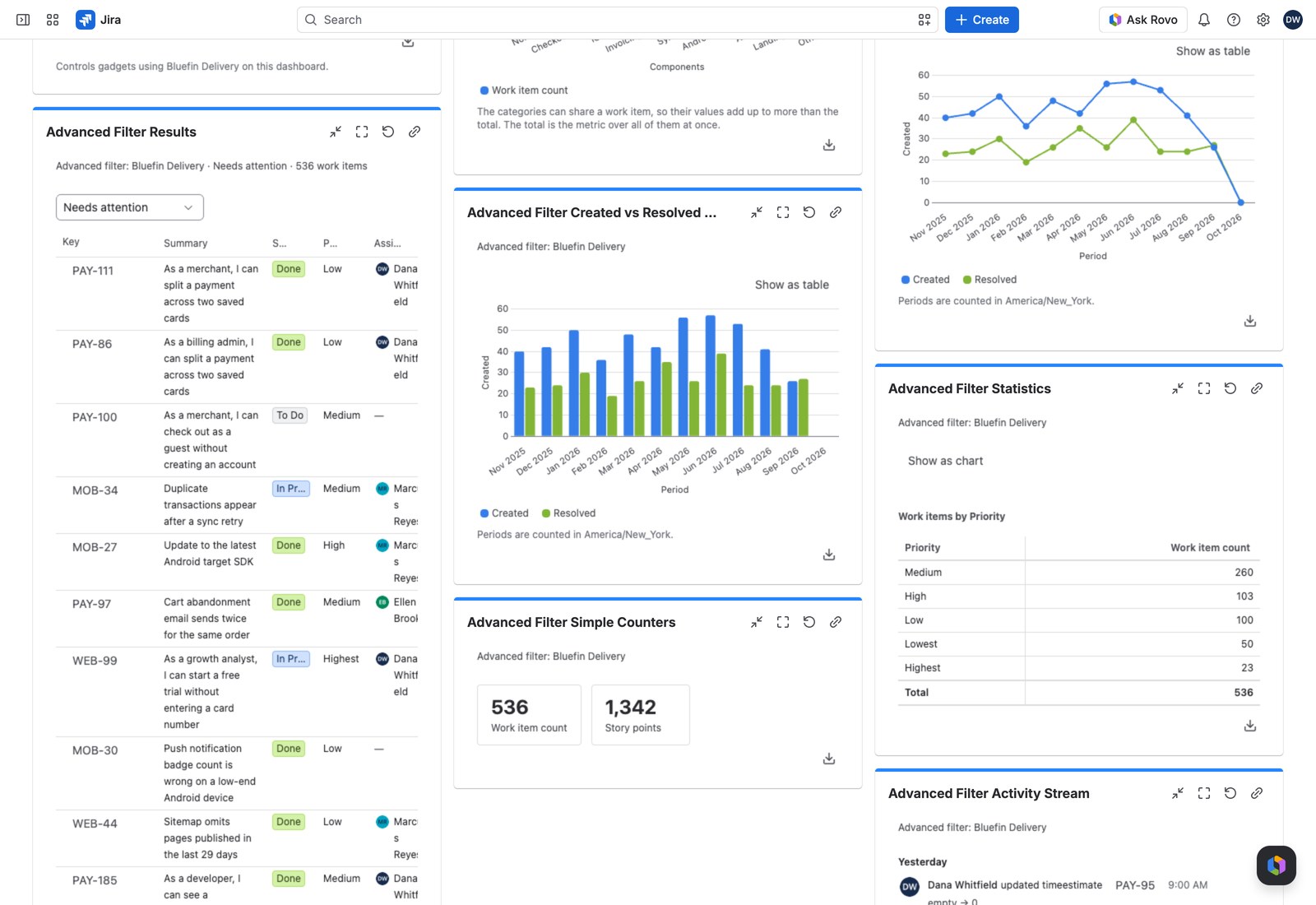
Counters and charts tell you how many. Results tells you which ones: the actual work items, as a table with the columns you chose, ready to work from.
Add it to a dashboard #
- Open the dashboard, select Edit, then Add gadget, and search for Advanced Filter Results.
- Choose the Advanced filter.
- Choose the View viewers start on, or leave it on The first available view.
- Adjust anything under Advanced settings if the defaults don’t fit.
- Select Save.
| Setting | What it does |
|---|---|
| Display | All work items shows the filter’s views; Queues opens on a named working set |
| Views | All of the filter’s views, or a chosen few |
| Rows per page | 1 to 50 |
For your own columns, widths and formats, add a view in the filter’s Presentation section. See Views and queues.
What your viewers can do #
- Open a work item: the Key column opens Jira’s own work item dialog over the dashboard, and closing it re-checks that work item, so anything edited out of the filter leaves the table.
- Sort: select a column header to cycle ascending, descending, unsorted.
- Switch view or queue: the switchers appear when there’s more than one to choose from, and a queue shows its color and work item count.
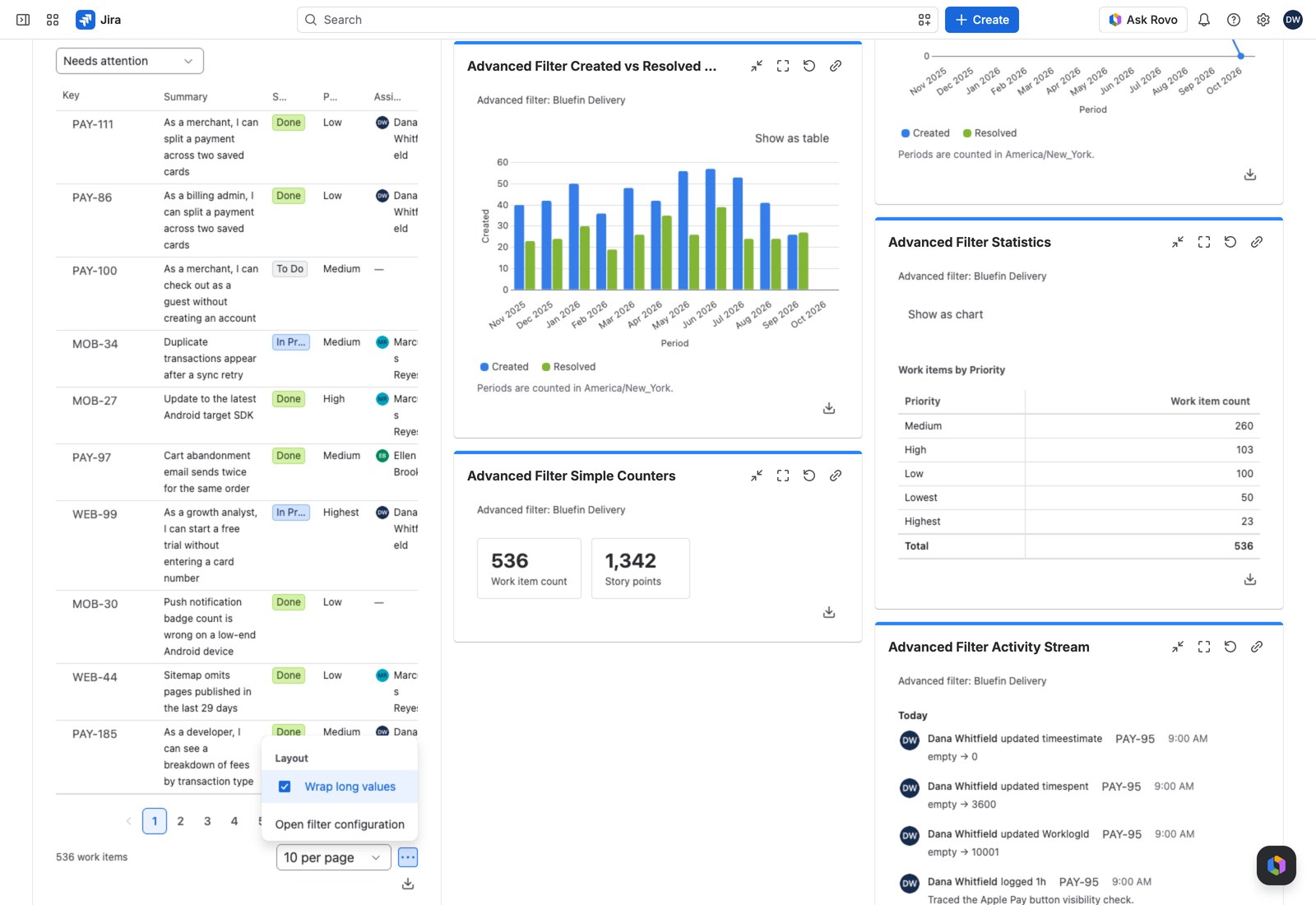
- Wrap long values: under More actions, along with Open filter configuration.
Sorting and paging happen in the browser, so they’re instant. Each viewer’s page, sort and view are remembered per queue, on their own device.
Totals over the whole set, not the page #
A view with Show a totals row on foots the table, and each figure covers every work item the filter matches: the same number whether the page shows three rows or fifty. Columns are summed unless one asks for Average, Minimum or Maximum, and each figure names its measure and count: “Sum · 7 work items”. A selection that matches nothing gets no totals row.
Gantt timelines #
If the view you’re showing has a Gantt configuration, Results draws a timeline instead of a table. Viewers zoom by Days, Weeks or Months and jump back with Today.
It handles incomplete data: a work item with only one date shows as a dashed one-day marker, work items with no dates are listed as Unscheduled, and anything running past the visible range is cut at the edge and listed as Beyond the range.
A timeline shows no totals row, but its export is a table and carries the totals the view asks for.
With the Controller #
Results follows whatever the Advanced Filter Controller applies. The table re-renders in place and returns to page one: page four of the old results isn’t page four of the new ones.
Exporting #
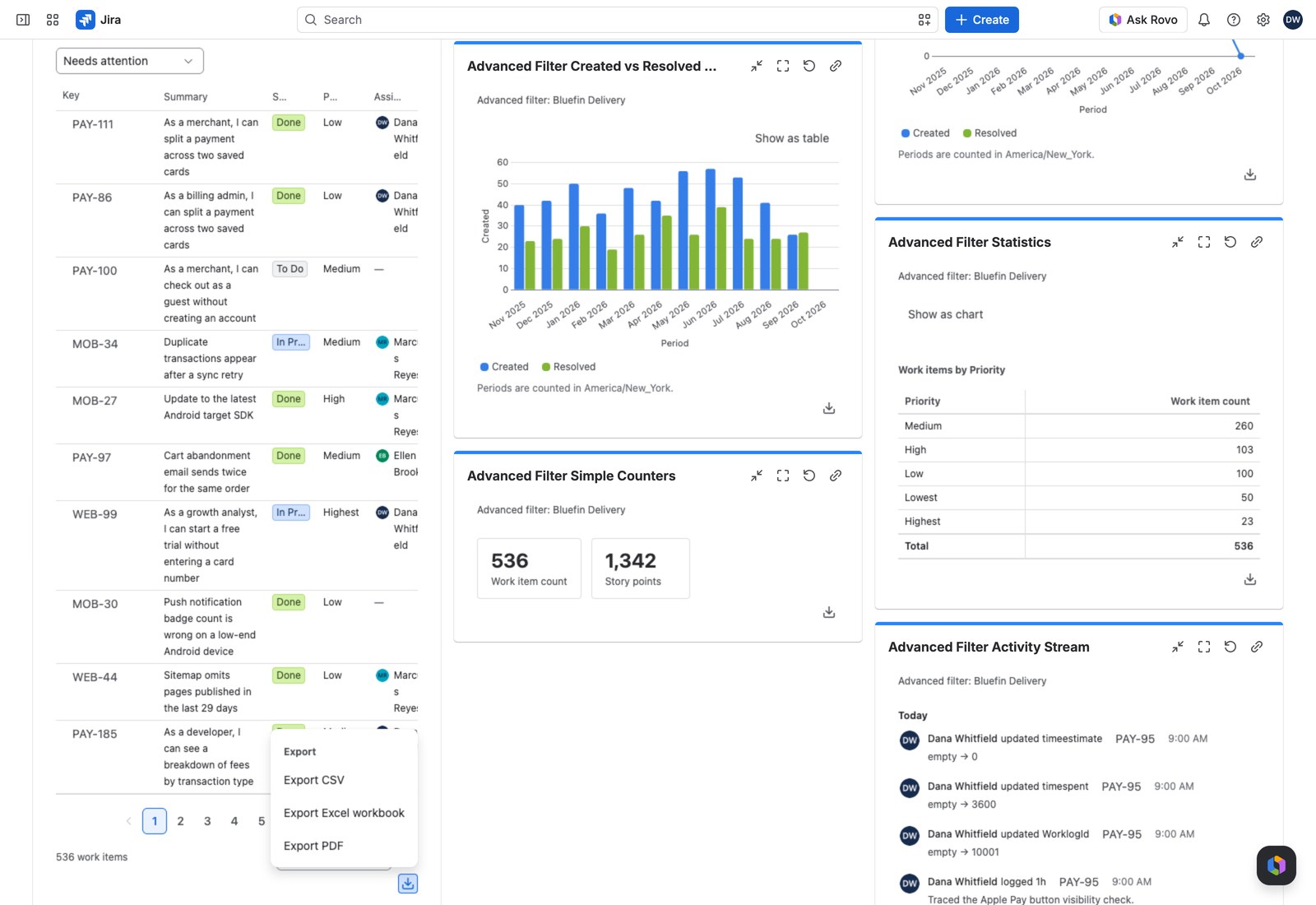
Export gives you CSV, Excel or PDF, and it exports the whole matching set, not just the page on screen. When the view has totals, all three carry them as the row “Total, every matching work item”.
If something looks off #
- “This advanced filter has no queues”: the gadget is set to open on a queue but the filter has none, so switch Display to all work items or add a queue to the filter.
- “No work items match”: the filters applied on the dashboard have narrowed it to nothing, so select Clear all on the Controller.
- “1 value could not be read, so it matches no work items.”: the table shows no rows rather than the wrong ones until you select Remove what cannot be applied on the Controller, or here when no Controller uses this filter.


