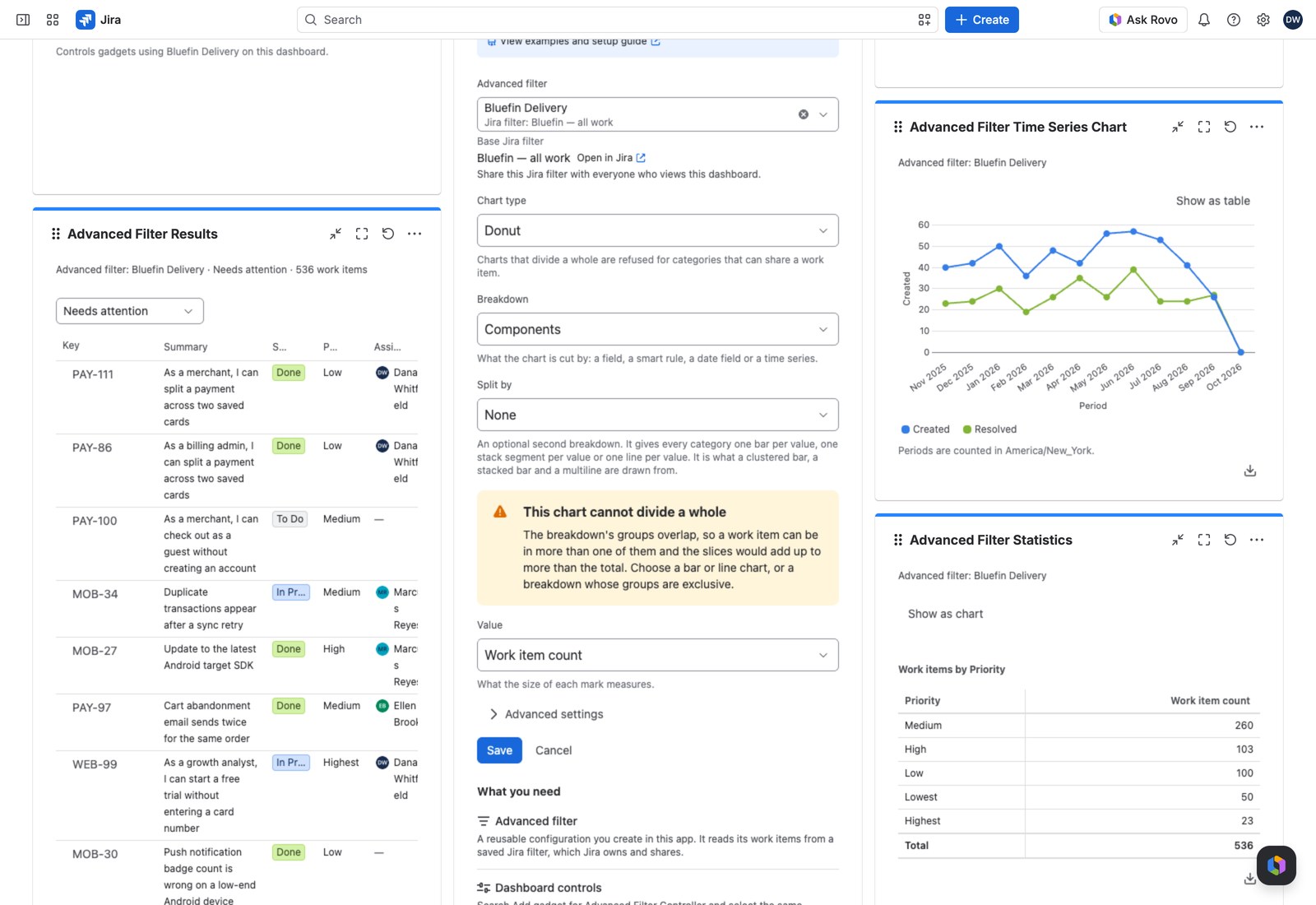
One breakdown, one value, twelve chart types, and a switch to change your mind. Flexi Charts is the gadget for when you know what you want to show but not yet how it looks best.
Add it to a dashboard #
- Open the dashboard, select Edit, then Add gadget, and search for Advanced Filter Flexi Charts.
- Pick the Advanced filter.
- Choose a Chart type, the Breakdown it’s cut by, and the Value it measures.
- Select Save.
The twelve chart types #
| Group | Types | Good for |
|---|---|---|
| Parts of a whole | Pie, Donut, Gauge per category, Sliced bar, Treemap, Percentage bar per category | Composition: “what’s our mix?” |
| Comparisons | Bar, Line, Word cloud | Magnitude and trend |
| Two dimensions | Clustered bar, Stacked bar, Multiline | A breakdown split by a second one |
The last three need a Split by: a second breakdown giving each category one bar, segment or line per value.
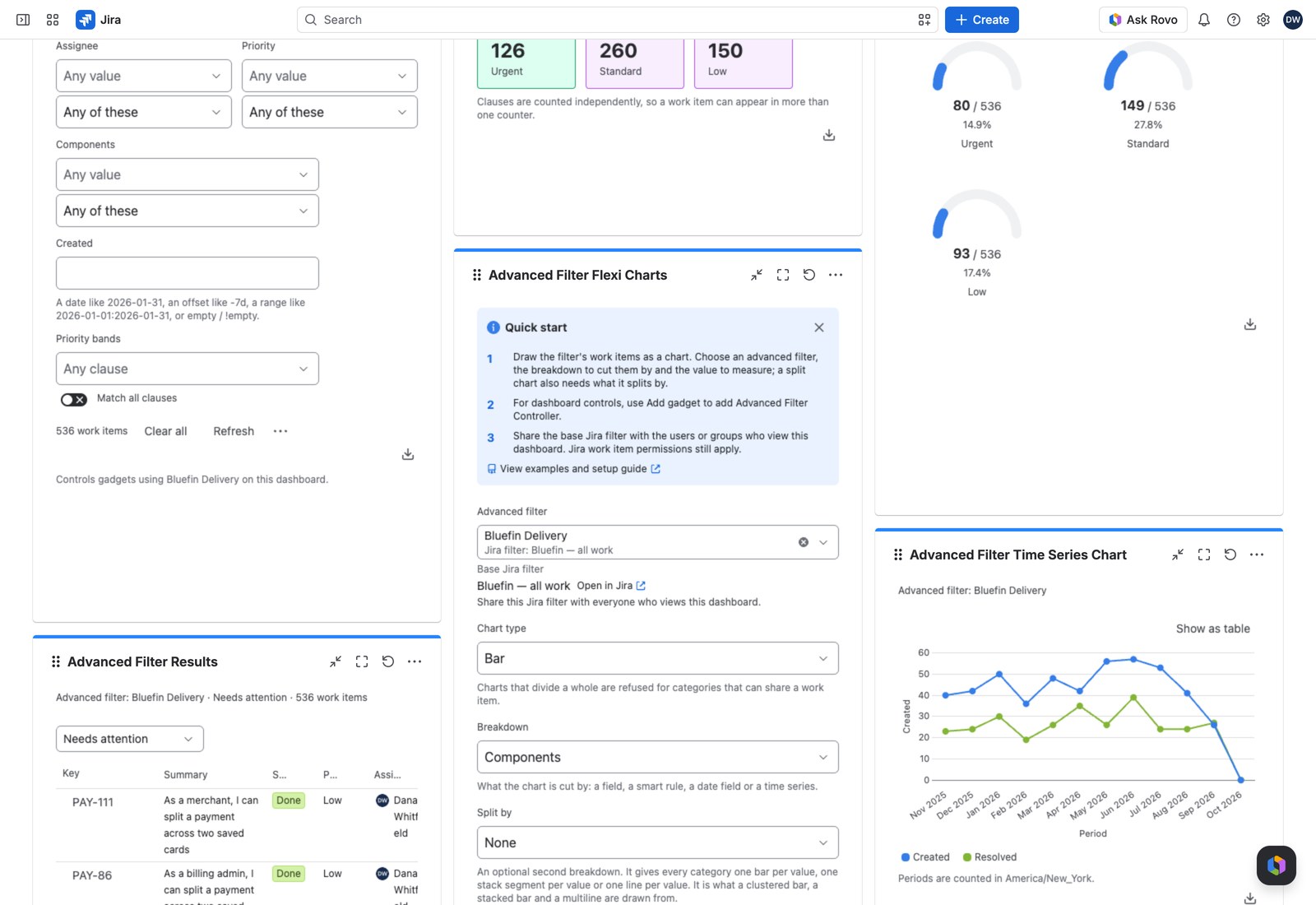
Worth knowing under Advanced settings #
| Setting | What it does |
|---|---|
| Order | The breakdown’s own order, by name, or by value, plus Reverse the order |
| Categories shown | 1 to 50, 8 by default. A limit never changes the total |
| Group the rest as Other | Rolls everything past the limit into one category. Available for work item counts without a split |
| Show work items with no value as None | Gives them a category of their own |
| Value axis label | Names the scale. Use it, so a count is never mistaken for a duration |
| Working query | Optional JQL narrowing this gadget only |
The chart won’t let you mislead people #
Likewise, a clustered bar, stacked bar or multiline saved without a Split by can’t be drawn; the form warns you and saves it as a plain bar chart.
Every chart is also a table #
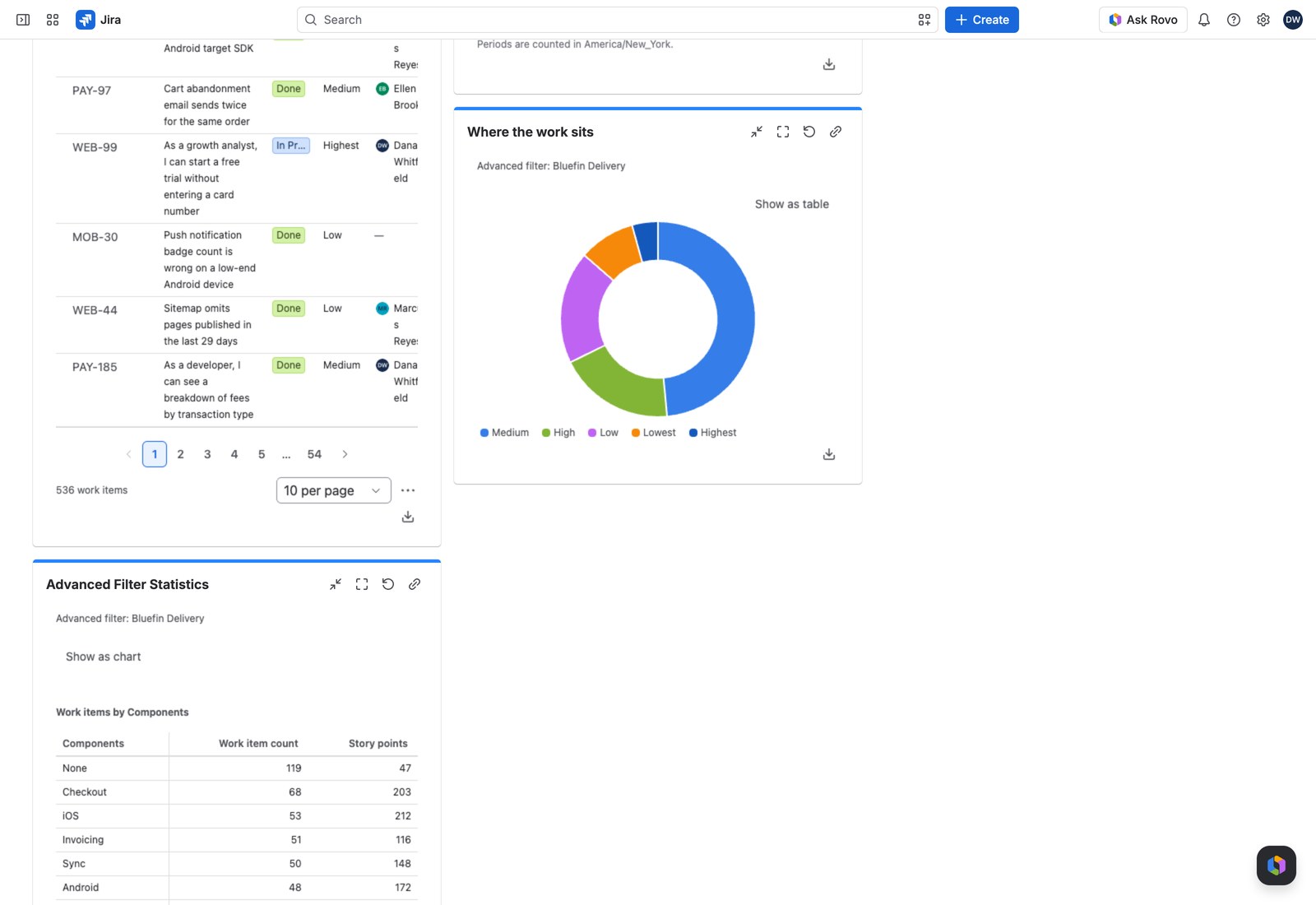
Show as table is one click away on every chart type: a category column, a value column, a share column where one applies, and a totals row. It sorts, and every cell with work items behind it opens them in Jira’s own search.
Readers who prefer numbers, and screen readers, get it with nothing configured twice.
With the Controller #
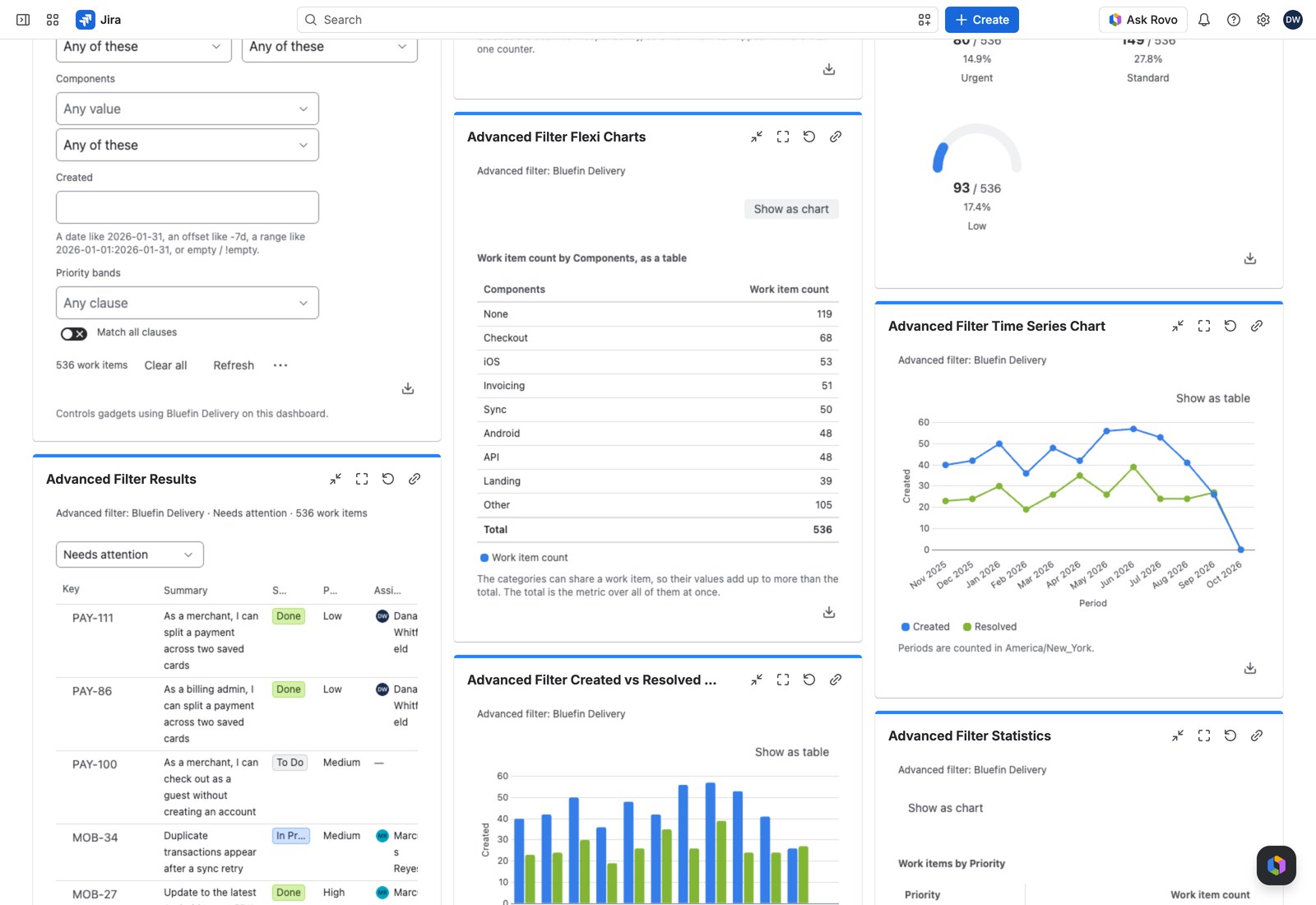
An Advanced Filter Controller on the same filter changes what every category measures.
Exporting #
CSV, Excel or PDF carry every category of the breakdown up to the export limit, including those past Categories shown or grouped as Other. The PDF adds the chart image as drawn. A chart with a Split by exports its matrix as drawn. Custom values and ratios read at their definition’s decimals on screen and in the PDF; CSV and Excel keep the full value.
If something looks off #
- “This chart cannot divide a whole”: the categories overlap, so switch to a bar or line chart.
- “This chart cannot show negative values”: a negative slice has no share of a whole, so switch to a bar or line chart.
- “This breakdown cannot be grouped”: the field, smart rule or time series is no longer on the filter.
- “Nothing to chart”: no work item contributed to this breakdown.
- “1 value could not be read, so it matches no work items.”: the chart draws nothing rather than part of it until you select Remove what cannot be applied in the Controller’s warning, or in this one when no Controller shares the filter.