An advanced filter is the piece you build once and reuse everywhere: on top of a Jira filter you already have, it adds controls your viewers can use, numbers worth putting on a dashboard, and views with the right columns.
Create it #
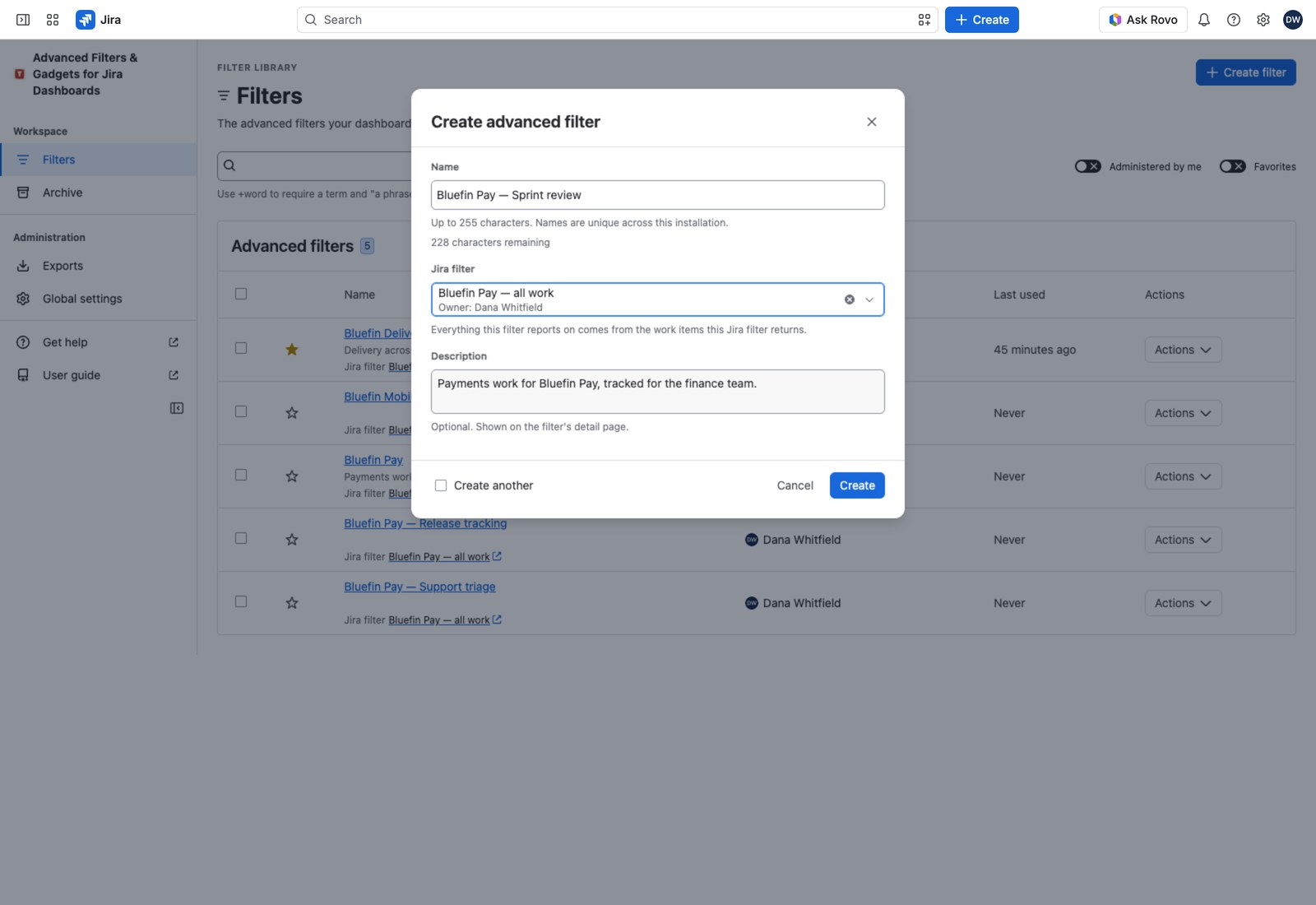
- Open Apps → Advanced Filters and select Create filter.
- Jira filter: search by name and choose the one that should supply the work items. The picker only offers filters you’re allowed to use.
- Name: required, and unique across your Jira site. Up to 255 characters.
- Description: optional, up to 4,000 characters. Worth writing, since it’s what colleagues see on the filter’s page.
- Select Create, or Create another if you’re setting up several in one sitting.
You’re automatically an administrator of anything you create, which is what lets you come back and edit it.
What you can add to it #
The Jira filter keeps doing its job: it decides which work items come in, and Jira decides who’s allowed to use it. Everything you add here sits on top.
Open your new filter and you’ll find six sections down the side. None of them need filling in to get started: a Results gadget works on the defaults. Add things as you find you want them.
| Section | What you’d use it for |
|---|---|
| Overview | A health check: what’s configured, whether it can load work items, and which dashboards are using it |
| Jira filter | Swap the Jira filter underneath, if you picked the wrong one |
| Filtering | The controls your dashboard viewers get to use |
| Metrics | The numbers your counters, gauges and charts will show |
| Presentation | Views and queues: which columns appear, and in what order |
| Access & settings | Co-administrators, date format and report time zone |
In a bit more detail:
- Filtering gives you quick filters (a one-click toggle, like “My team only”), field controls (a dropdown on any Jira field) and smart rules (one question with several named answers, handy for things Jira doesn’t model, like “Is this blocked?”).
- Metrics gives you values (a count, a field roll-up, a duration), ratios (two measurements as a percentage or a decimal) and time series (a line on a chart).
- Presentation gives you views (column sets) and queues (a named working set with its own ordering).
What the Overview tells you #
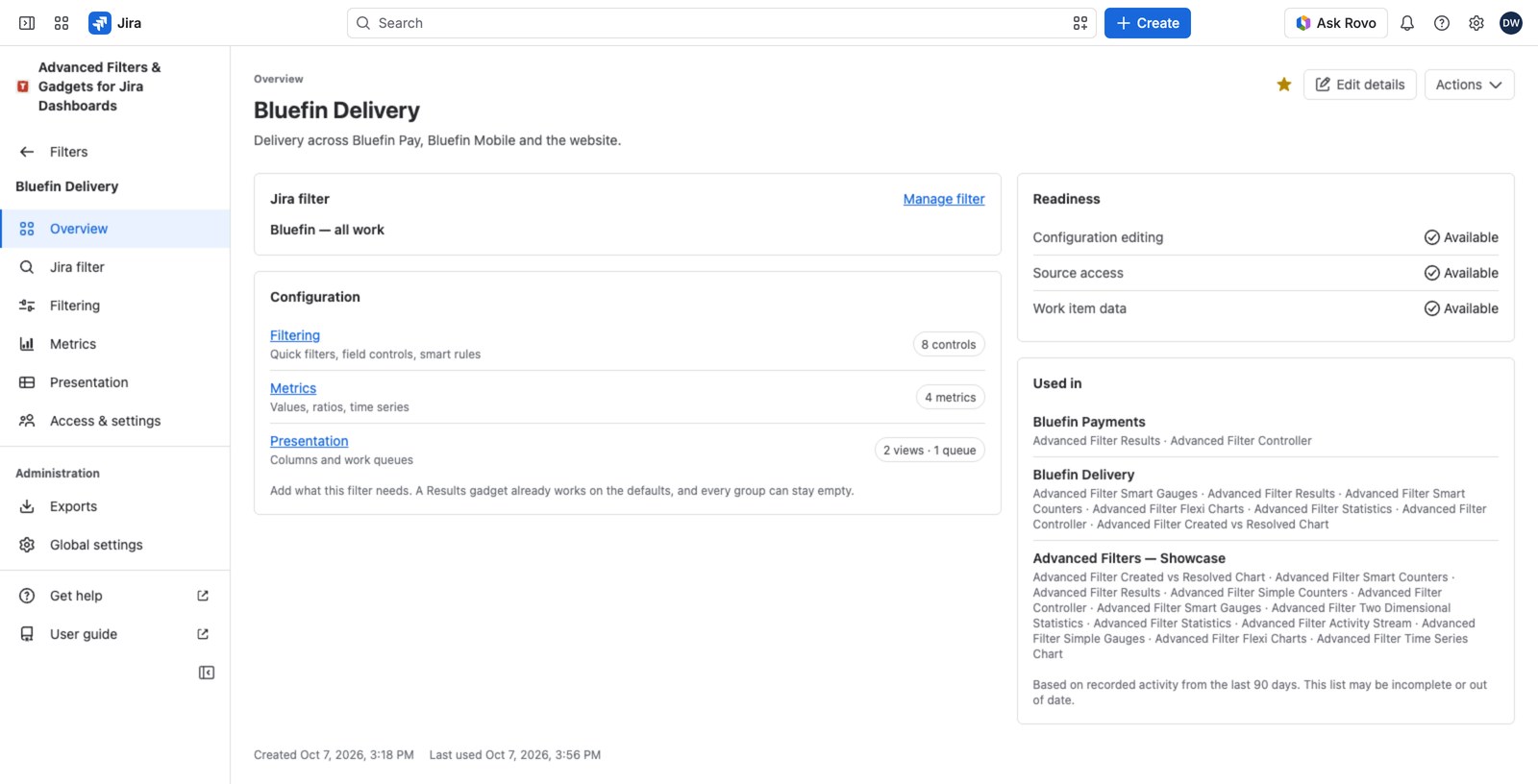
A filter opens on Overview, whose two right-hand panels are worth reading first.
Readiness answers “will this actually work?” with three checks:
| Check | What it confirms |
|---|---|
| Configuration editing | You’re allowed to change this filter’s setup |
| Source access | Jira is giving you the saved filter underneath |
| Work item data | Work item data can be served at all (Blocked by source if source access is refused) |
When a dashboard comes up empty, read this panel first. It names whichever is missing.
Used in shows anyone who manages the filter up to five dashboards the app recorded it on, with their gadgets (×2 where two share a type), then “and N more recorded dashboards”.
Nothing here is permanent #
You can come back and change any of it. Even the Jira filter underneath can be swapped later from the Jira filter section, without losing the rest of your setup.
Where to go next #
- Build your first dashboard: put this on a dashboard and see it working.
- Quick filters, field controls and smart rules: add the controls your viewers will use.
- Custom values, ratios and time series: define the numbers you want to track.


