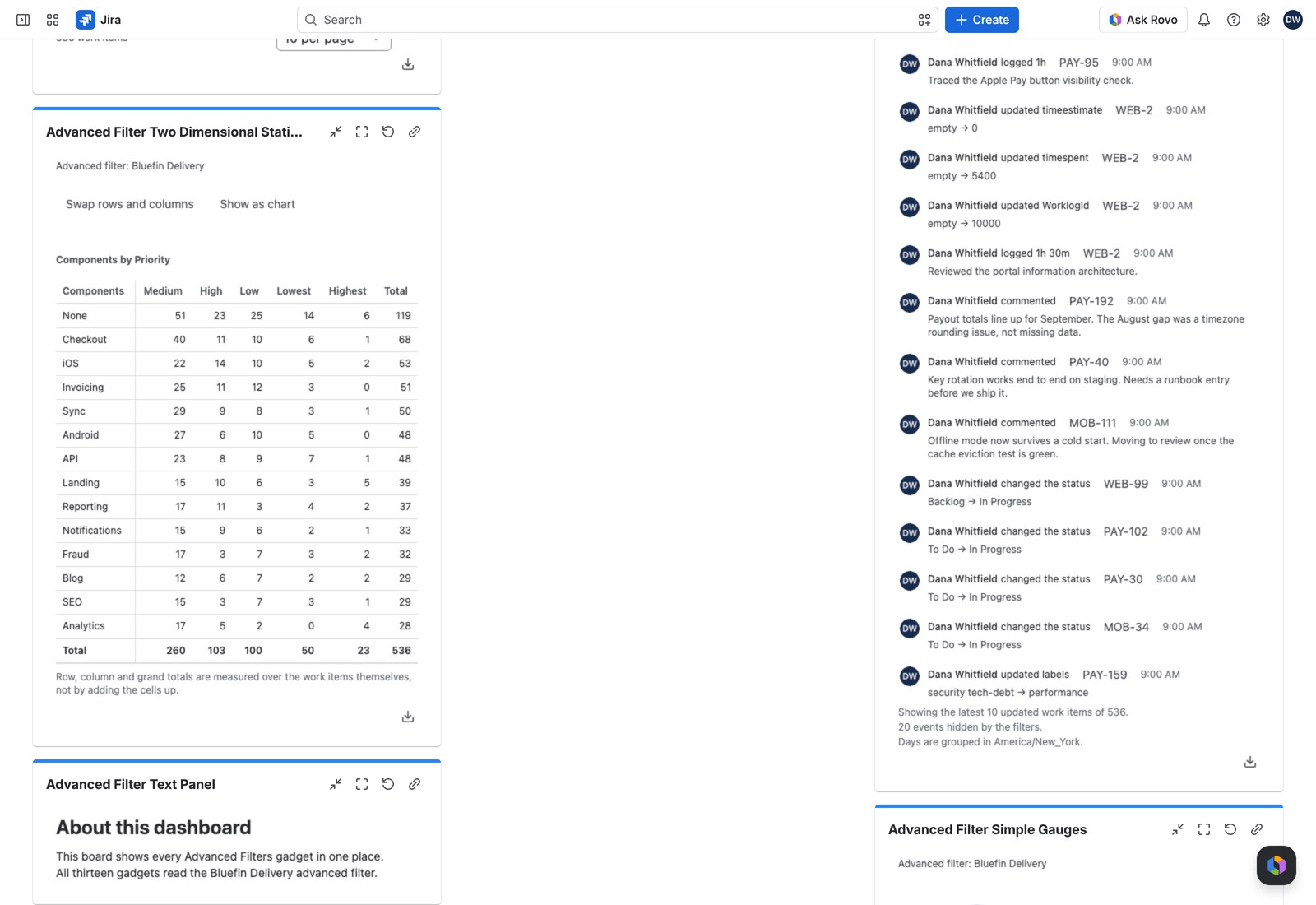
Two Dimensional Statistics crosses two breakdowns at once (work items by component across priority, say) as a matrix with row totals, column totals and a grand total.
This is the gadget for the questions a single breakdown can’t answer: not “how many bugs per team”, but “how many bugs per team, split by severity”.
Add it to a dashboard #
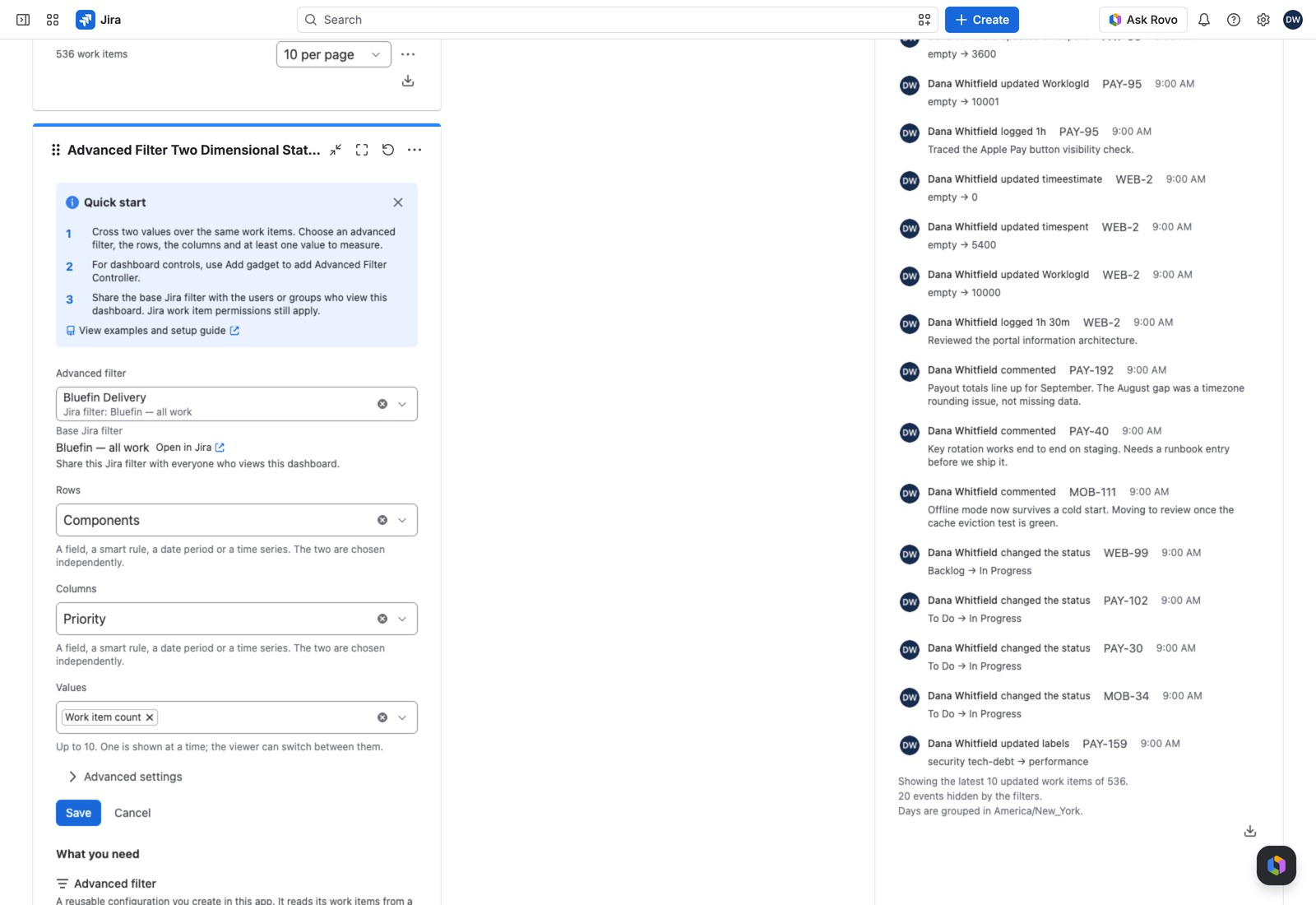
- Open the dashboard, select Edit, then Add gadget, and search for Advanced Filter Two Dimensional Statistics.
- Pick the Advanced filter.
- Choose the Rows and the Columns. Each can be a field, a smart rule, a date period or a time series, chosen independently.
- Choose your Values (up to ten). One shows at a time, and viewers switch between them.
- Select Save.
Worth knowing under Advanced settings #
| Setting | What it does |
|---|---|
| Order both axes by | The breakdown’s own order, the group name, or the group’s own total (ascending or descending). One ordering, applied to both axes |
| Rows shown | Up to 50, 15 by default |
| Columns shown | Up to 20, 8 by default |
| Show the None row and column | Work items with no value on that axis. On by default. Hiding them changes no total |
| Show totals | Row totals, column totals and the grand total. On by default |
| Offer shares of the column total | Adds a switch showing each cell as a share of its column |
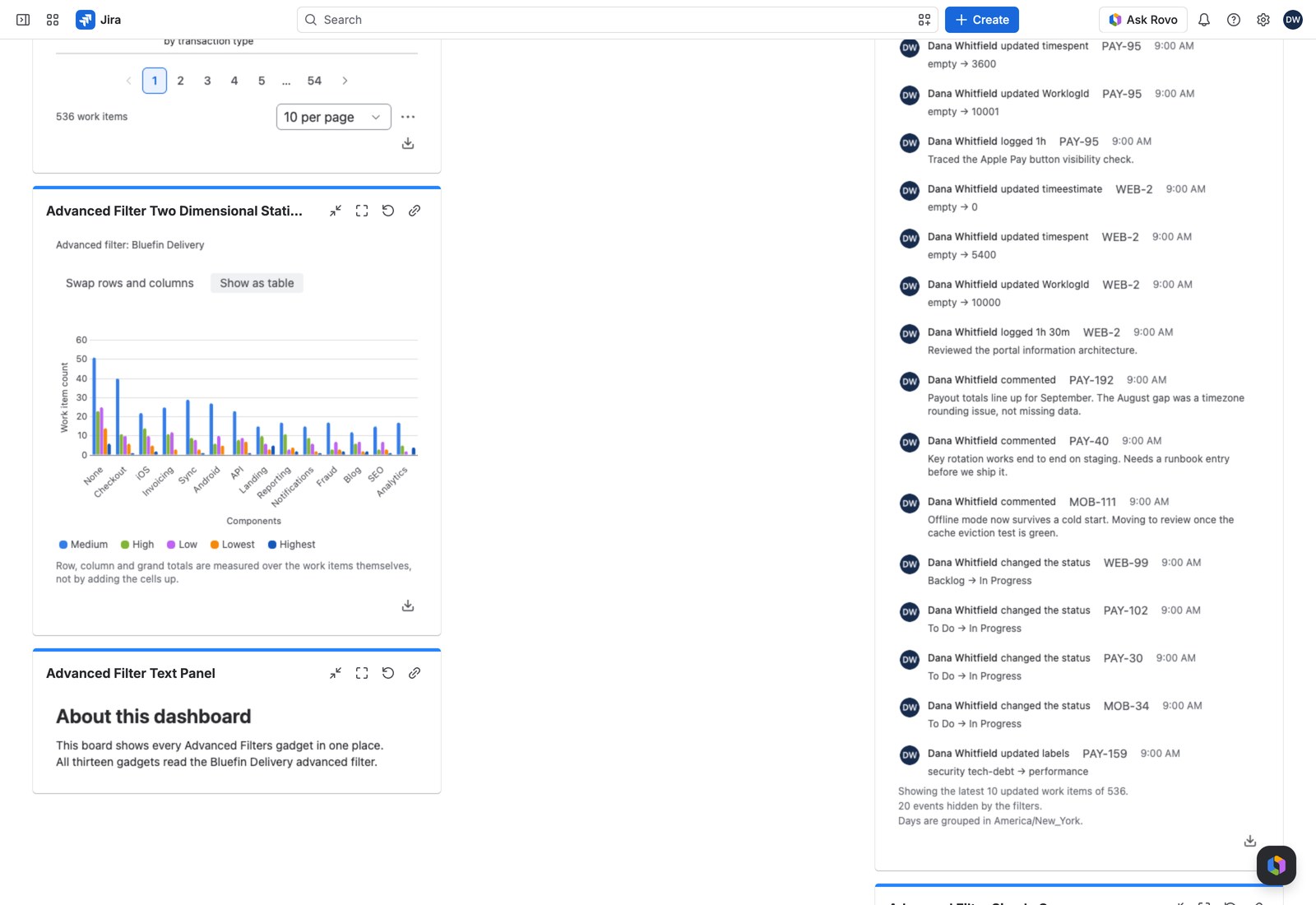
| Opens as | Table, Clustered bars or Stacked bars |
| Working query | Optional JQL narrowing this gadget only |
Groups past the display limits aren’t drawn. No total changes, so the numbers stay honest even on a small dashboard tile.
What your viewers can do #
Three things belong to the viewer and are never saved back to your configuration:
- Which value is on screen, if you configured several.
- Swap rows and columns: transposes the matrix, which is how a wide table fits a narrow dashboard column.
- Measurements or shares, if you offered the switch.
Every cell with work items behind it opens them in Jira’s own search (including the total column).
Totals you can trust #
The same care applies to stacked bars. If your column breakdown can put one work item in more than one column, the chart quietly falls back to clustered bars and explains why: stacking them would imply a whole that doesn’t exist.
With the Controller #
An Advanced Filter Controller on the same filter changes what every cell measures.
Exporting #
CSV, Excel or PDF of the matrix, with its row, column and grand totals. Each keeps whatever axis order and presentation is on screen. On screen and in the PDF, a custom value or ratio reads at its definition’s decimals; CSV and Excel keep the full value, Excel showing those decimals.
If something looks off #
- “Nothing to chart”: no work item contributed to this breakdown.
- “This matrix cannot be built”: one of the two breakdowns is no longer available on the filter, so edit the gadget and pick another.
- “1 value could not be read, so it matches no work items.”: the value is never applied in part, so the matrix counts nothing until you select Remove what cannot be applied in the Controller’s warning, or in this one when no Controller shares the filter.


